

We’ve all been there: you swipe away a notification too quickly and suddenly wonder what you just missed. The good news is that your iPhone keeps a history of recent alerts, and you can easily bring them back with a few simple gestures. Here’s how to see old notifications on iPhone, plus tips to make sure you never miss an important alert again.
Table of contents
Before You Start
- Make sure your iPhone is updated to the latest version of iOS.
- Check that Notifications are enabled for the apps you care about (Settings › Notifications).
- Know that iPhone doesn’t keep notifications forever, it stores them until you clear them or restart your phone.
How to See Old Notifications on iPhone
1. From the Lock Screen
- Wake your iPhone by pressing the Side button or tapping the screen.
- Swipe up from the middle of the Lock Screen.
- You’ll see older notifications grouped by app or chronologically.
2. From Notification Center
- Unlock your iPhone and swipe down from the top center of the screen.
- This opens Notification Center.
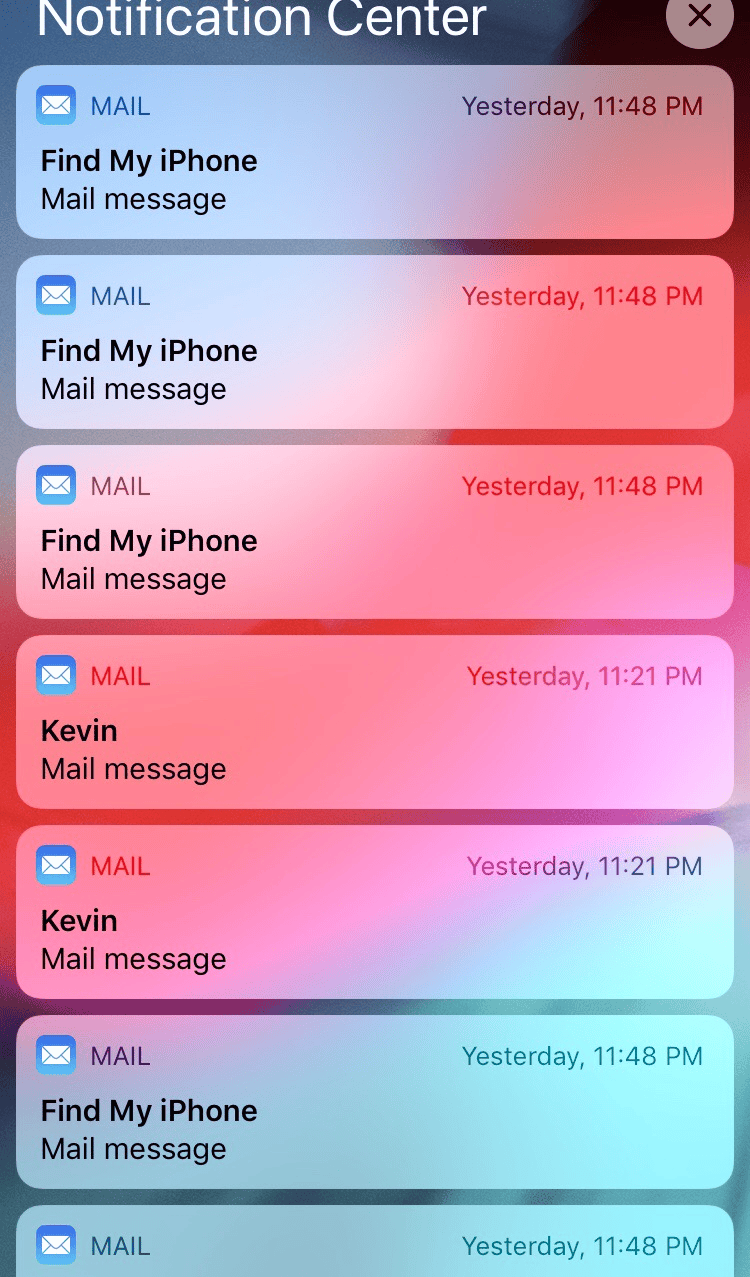
- Scroll to view older notifications that you haven’t cleared.

Refer to our separate guide if your notifications aren’t working properly.
3. Using Grouped Notifications
iOS groups notifications by app for easier review. Tap a notification group (e.g., Messages, Mail) to expand and see earlier alerts.
Don’t miss the best of The Mac Observer
Set us as a preferred source and our Apple reporting ranks higher in your Google Search results and Discover feed — one tap, no account changes.
4. If Notifications Disappear Too Quickly
- Go to Settings › Notifications.
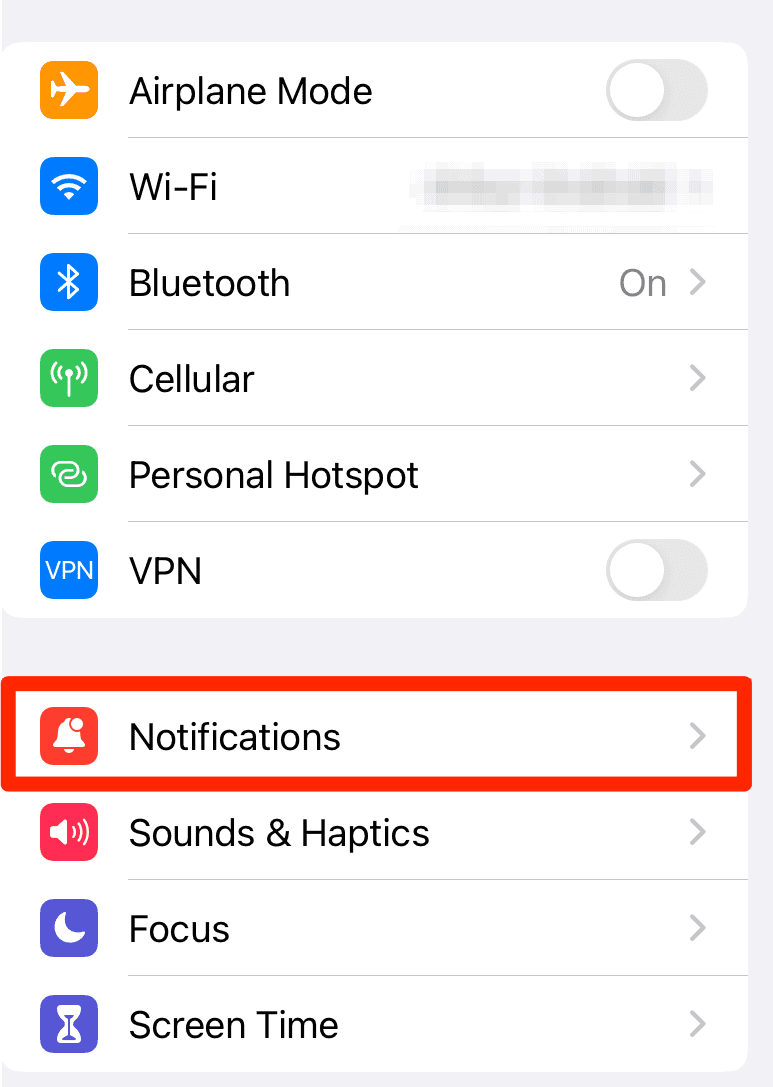
- Adjust settings for each app (like “Deliver Quietly” vs. “Prominent”).
- This ensures notifications stay visible longer.

Have you ever wondered what the symbols at the top of your iPhone screen mean? Check out our dedicated guide for a full breakdown.
Tips to Avoid Missing Notifications
- Enable Persistent Alerts: In Settings › Notifications, some apps allow alerts that stay on screen until dismissed.
- Turn On Badges: App icons with red badge counts help you know something is unread.
- Check Focus/Do Not Disturb: If Focus mode is on, notifications may be silenced. Adjust in Control Center.
- Review Notification Summary: iOS can deliver grouped summaries at set times—make sure it’s on if you prefer bundled alerts.
FAQs
No. Once cleared, they’re gone unless the app itself keeps a record (like Messages or Mail).
Until you clear them, restart your phone, or they’re automatically removed by iOS after a certain period.
You may have cleared them, turned off notifications for that app, or enabled Focus/Do Not Disturb.
Summary
- Swipe up from the Lock Screen to view older alerts.
- Swipe down from the top center to open Notification Center.
- Tap grouped notifications to expand them.
- Use Settings to keep notifications active longer.
Conclusion
Apple makes it simple to revisit notifications on iPhone through the Lock Screen and Notification Center. While you can’t retrieve cleared alerts, adjusting your settings can help ensure you never miss what matters most. Get familiar with these gestures, and you’ll always stay on top of your alerts.


How to view old notifications on your iPhone is really just an essay on how you CANNOT see old notifications once they go away. And this folks, is why I always use ad blockers so jokers like this with completely useless information don’t make a dime off of me.
How the F*** do I keep them, INSTEAD of clearing them.!!!???!!! If you (Apple) know there’s an issue or problem, why don’t you just fix it in the next series.! For how much you charge for the phone & service & add-ons, SURELY you can spare a f-ing dime from ur pocket to keep the shit upgraded!!!!
Y’all are the most greedy, money-grubbing whoremongers I’ve ever seen.