

Monitoring your blood oxygen levels is a valuable health metric, and with the Apple Watch, it’s both convenient and accessible. Whether you want to track your wellness or need insights into your respiratory health, the Blood Oxygen app on your Apple Watch can help.
So let’s find out how you can set up the Blood Oxygen app on your Apple Watch and keep track of the blood oxygen levels!
Table of contents
How to Check Blood Oxygen on Apple Watch
1. Set Up the Blood Oxygen App
Before you can measure your blood oxygen levels, make sure the app is properly set up:
Don’t miss the best of The Mac Observer
Set us as a preferred source and our Apple reporting ranks higher in your Google Search results and Discover feed — one tap, no account changes.
- On your iPhone:
- Open the Health app.
- Tap the Browse tab.
- Navigate to Respiratory > Blood Oxygen.
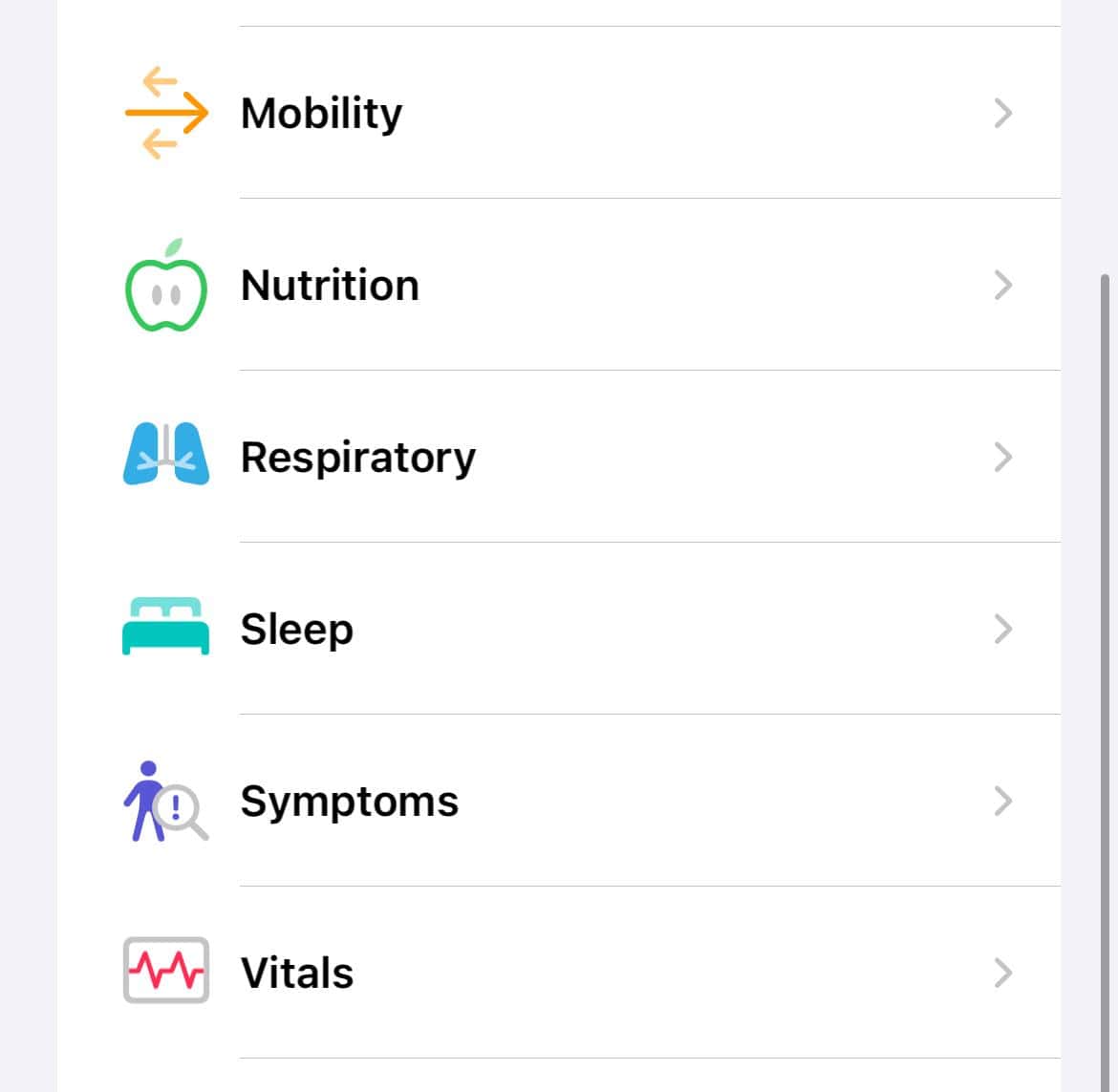
- Follow the on-screen instructions to enable the feature.
- On your Apple Watch:
- Open the Settings app.
- Tap Blood Oxygen.
- Ensure that Blood Oxygen Measurements is turned on.

2. Measure Your Blood Oxygen Level
Once the app is set up, you can take a measurement:
- Open the Blood Oxygen app on your Apple Watch.
- Rest your arm on a table or in your lap, keeping your wrist flat with the Apple Watch facing up.
- Tap Start, then remain still for 15 seconds.
- After the countdown, your blood oxygen level will be displayed.

For Apple Watch models purchased in the U.S. after January 18, 2024, the data analysis is performed on your iPhone, and results can be viewed in the Health app.
3. View Your Blood Oxygen History
To review past measurements:
- Open the Health app on your iPhone.
- Tap the Browse tab.
- Navigate to Respiratory > Blood Oxygen.
- You can view your historical data and filter by conditions such as sleep or high elevation.

4. Enable Background Measurements (Optional)
Your Apple Watch can automatically measure your blood oxygen levels throughout the day when background measurements are enabled:
- Open the Settings app on your Apple Watch.
- Tap Blood Oxygen.
- Turn on Background Measurements.
Background measurements may not occur during Sleep Focus or Theater Mode.
You might also want to learn about setting Heart Rate alarms on your Apple Watch.
Tips for Accurate Measurements
- Ensure the back of your Apple Watch is in contact with your wrist. The band should be snug but comfortable.
- Movement can affect the accuracy of the reading. Keep your arm steady during measurements.
- Rest your arm on a flat surface with your wrist facing up.
- Tattoos, especially dark ones, can interfere with the sensor’s ability to get an accurate reading.
- Cold temperatures can reduce blood flow to your skin, affecting measurements.
Frequently Asked Questions
The Blood Oxygen app is available on Apple Watch Series 6 and later, including all models of Apple Watch Ultra.
No, the Blood Oxygen app is designed for users aged 18 and above.
No, the app is designed for general fitness and wellness purposes and is not intended for medical use.
Ensure your Apple Watch is updated to the latest version of watchOS and that the app is enabled in the Health app on your iPhone.
Summary
- Set up the Blood Oxygen app through the Health app on your iPhone.
- Measure your blood oxygen level by following the on-screen instructions on your Apple Watch.
- Review your historical data in the Health app on your iPhone.
- Enable background measurements for automatic tracking throughout the day.
- Follow tips for accurate measurements, such as wearing the watch properly and staying still during readings.
Conclusion
The Blood Oxygen app on your Apple Watch is a useful tool for monitoring your respiratory health. By following these steps, you can easily check your blood oxygen levels and gain insights into your overall wellness.
Consult a healthcare professional if you have concerns about your readings.
Before you leave, learn how to find the Heart Rate Variability (HRV) on your Apple Watch!


Discussion