

If you are wondering how to end a workout on your Apple Watch, this guide will show you exactly how to stop your session and save your data.
Completing a workout is just the first step. Ending it properly ensures your Apple Watch tracks your exercise accurately, whether you are running, cycling, or doing yoga. Follow these steps to finish your workout quickly and see your progress clearly!
Table of contents
How to End a Workout on Apple Watch
1. Using the Workout App
- Press the Digital Crown to open the app grid and tap on the Workout app.
- On the workout screen, swipe right to bring up the options.
- Select End to stop the workout session.
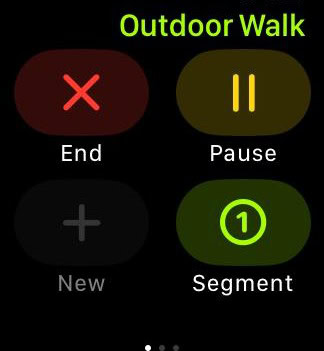
- A summary of your workout will appear. Tap Done to save and exit.

2. Using the Action Button (Apple Watch Ultra)
For Apple Watch Ultra users, the Action Button can be configured to end workouts.
Don’t miss the best of The Mac Observer
Set us as a preferred source and our Apple reporting ranks higher in your Google Search results and Discover feed — one tap, no account changes.
- Go to Settings, then Action Button, and set it to End Workout.
- During a workout, press the Action Button to end the session.
3. Automatic Workout Detection
Apple Watch can automatically detect when you have stopped exercising.
- If the watch senses inactivity, it will prompt you with a message asking if you want to end the workout.
- Tap End Workout to confirm.
Also, learn how to delete a workout on your Apple Watch.
Tips for Managing Workouts on Apple Watch
- Enable End Workout Confirmation in Settings under Workout to prevent accidental ends.
- Use Auto-Pause to automatically pause workouts when you stop moving.
- Customize workout reminders for Start, Resume, and End notifications to suit your preferences.
- Monitor your heart rate post-workout by tapping the heart icon in the summary.
Frequently Asked Questions
Yes, if you have configured the Action Button to end workouts, you can press it during a session to stop the workout.
After ending a cardio workout, swipe right to the Rate Your Effort screen, adjust the slider, and tap Done to save.
Yes, during a workout, swipe right, tap New, select the next activity, and repeat. When finished, swipe right, tap End, and then End Workout.
Open the Fitness app on your iPhone, tap Sessions, and select a workout to view detailed metrics.
Summary
- Open the Workout app on your Apple Watch, swipe right, and tap End to stop the workout.
- For Apple Watch Ultra, use the Action Button configured to end workouts.
- Rate your effort post-workout to provide feedback on your session.
- Combine multiple workouts into a single session for accurate tracking.
- View detailed workout history in the Fitness app on your iPhone.
- Adjust workout reminders to suit your preferences in settings.
Conclusion
Ending a workout on your Apple Watch is easy and can be done in several ways. By following these steps and using the available features, you can ensure accurate tracking and make the most of your fitness sessions.
Regularly reviewing your workout summaries provides valuable insights into your progress and helps you stay on track with your fitness goals.
Before you leave, find out how to manually add a workout on your Apple Watch!


Discussion