

Connecting an Apple Watch to an iPhone requires updated software, Bluetooth, network access, and a close physical connection between devices. You can pair with the iPhone camera animation, pair manually using a code, set up a watch for a family member without their own iPhone, or transfer your watch when you upgrade phones. Follow the steps below to avoid interruptions and preserve Health and Activity data when needed.
Table of contents
Methods
Apple supports multiple pairing methods. Each method below includes a clear description and numbered steps you can follow exactly.
1. Automatic Camera Pairing (Set Up for Myself)
Use the iPhone camera viewfinder to scan the animation on the Apple Watch. This is the fastest way to pair a personal watch and restore settings or a backup.
Don’t miss the best of The Mac Observer
Set us as a preferred source and our Apple reporting ranks higher in your Google Search results and Discover feed — one tap, no account changes.
- Update your iPhone to the latest iOS, enable Bluetooth, and connect to Wi‑Fi or cellular. Charge both devices to at least 50%.
- Put on the Apple Watch, press and hold the side button until the Apple logo appears, and keep the watch near your iPhone.
- When the message to use your iPhone appears, tap Continue. Or open the Watch app and choose All Watches > Add Watch > Set Up for Myself.
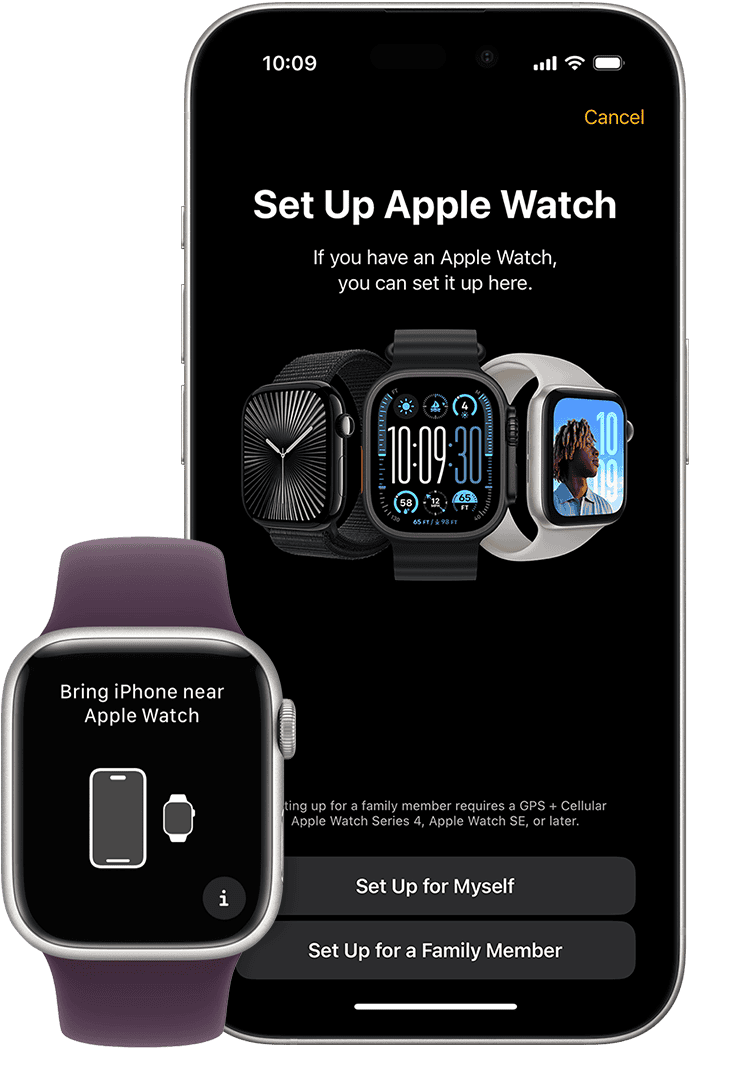
- Position the iPhone so the watch animation is centered in the camera viewfinder. Wait until pairing completes.
- Choose to set up as new or restore from a backup. Sign in with your Apple ID, create a passcode, and configure health and display settings.
- If the watch supports cellular, follow the on-screen prompts to add a mobile plan now or do it later in the Watch app.

If pairing fails on the latest software, see what to do when iPhone 16 can’t pair with Apple Watch.
2. Manual Pairing Without Camera
Use this method when the camera cannot scan the animation or when you prefer to pair by entering a code.
- Open the Watch app on your iPhone and tap All Watches > Add Watch > Start Pairing.

- Tap Pair Apple Watch Manually to bypass the camera step.
- On the watch, tap the small
iicon to reveal the device name. Select that name on your iPhone. - Enter the six digit code shown on the watch into your iPhone to confirm pairing.

- Complete setup by signing in with Apple ID, creating a passcode, and choosing whether to restore from a backup.
- Add cellular service later in the Watch app if your model and carrier support it.


Sometimes the process just takes longer, here’s why connecting Apple Watch may take a moment.
3. Family Setup (Set Up for a Family Member)
Family Setup lets you manage a cellular Apple Watch for a child or dependent from the organizer’s iPhone. The watch functions independently while the organizer controls settings and safety features.
- Confirm eligibility: watch should be Series 4/SE or later with cellular, and the organizer must run the current iOS.
- On the organizer iPhone, open the Watch app and choose All Watches > Add Watch > Set Up for a Family Member.
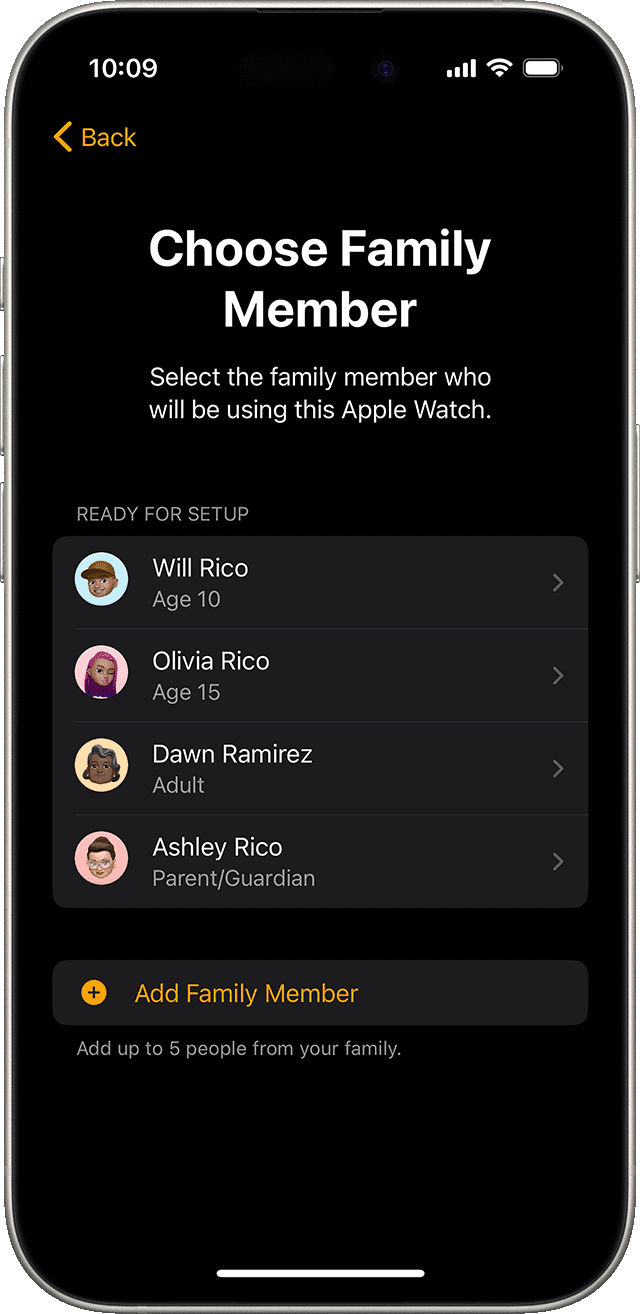
- Pair using the camera animation or choose manual pairing if needed.
- Accept terms, set a passcode, select the family member from Family Sharing or create a new Apple ID for them.
- Configure features such as location sharing, Schooltime, and health options.
- Activate a cellular plan in the Watch app under Mobile if the carrier supports family plans for watches.

If needed, you can sign out of Apple ID on Apple Watch to reset or reassign it.
4. Transfer Apple Watch to a New iPhone
When you replace your iPhone, restore the new phone from a backup that includes Apple Watch data, or unpair then re-pair the watch to move Health and Activity data.
- Update both iPhones to the latest iOS. Keep both devices on Wi‑Fi and charge them to at least 50%.
- Back up the old iPhone to iCloud with Health enabled or make an encrypted computer backup to include Health and Activity data.
- Restore the new iPhone from that backup during setup.
- If prompted to use your Apple Watch, keep it unlocked and on your wrist, then tap Continue on the new iPhone.
- If the prompt does not appear, open the Watch app on the new iPhone, unpair the watch from the old iPhone if needed, then pair and restore from backup.
- Follow on-screen prompts to finish the setup and confirm Health and Activity data transferred correctly.
To stay online without your iPhone, learn how to connect Apple Watch to Wi-Fi.
5. Set Up or Add Cellular on Apple Watch
Activate cellular service during pairing or later in the Watch app. Activation depends on watch model, region, and carrier support.
- Confirm your watch model supports cellular and that your carrier offers a watch plan.
- On the iPhone, open the Watch app > All Watches > select the watch > Mobile.
- Follow the carrier flow to authenticate and add your watch to a mobile plan.
- Verify that mobile service appears active on the watch and in the Watch app. Test by briefly disabling iPhone Bluetooth and Wi‑Fi.
In some cases, you’ll need to unpair Apple Watch from your old phone before completing the transfer.
Tips
- Keep the watch and iPhone close during setup to avoid interruptions.
- Charge both devices to at least 50% before you start pairing or transferring.
- Install the latest iOS and watchOS to reduce compatibility issues.
- Use iCloud Health sync or an encrypted computer backup to preserve Health and Activity data.
- If the animation will not scan, use Pair Apple Watch Manually and the six digit code method.
- You can add cellular service later from the Watch app if you skip it during initial pairing.
- Keep Bluetooth and Wi‑Fi on while syncing and after setup for reliable updates and data transfer.
FAQs
You need an iPhone XS or later with the latest iOS, Bluetooth enabled, Wi‑Fi or cellular connection, and a compatible Apple Watch charged to at least 50%.
Yes. Use Pair Apple Watch Manually in the Watch app, select the watch, and enter the six‑digit code shown on the watch.
Use Set Up for a Family Member in the Watch app on your iPhone. The watch must be Series 4/SE or later with cellular for independent use.
Update both devices, back up the old iPhone, restore the new iPhone from that backup, and complete the process in the Watch app.
Open the Watch app > Mobile and follow your carrier’s activation steps.
Summary
- Use the camera animation pairing for the fastest setup of a personal Apple Watch.
- Manual pairing with the six digit code works when the camera method fails.
- Family Setup manages a cellular watch for a child or dependent from the organizer’s iPhone.
- Transfer a watch to a new iPhone by restoring the new phone from a backup that includes Apple Watch data, or unpair and re-pair when needed.
- Activate cellular in the Watch app during or after pairing, based on carrier support.
Conclusion
Pairing an Apple Watch with an iPhone is reliable when you follow the official steps, keep devices charged, and maintain Bluetooth and network connectivity. Use manual pairing and Family Setup for edge cases. Preserve Health and Activity data by using iCloud Health sync or encrypted backups when you migrate to a new phone.


Discussion