

Apple Watch does not provide a standalone Sign Out button for Apple ID. Your watch signs out only when you unpair it from its paired iPhone or when the paired iPhone signs out of iCloud. These actions also remove Activation Lock when you supply the Apple ID password during unpairing. Follow the correct steps before you sell, gift, service, or re-pair the watch to avoid setup blocks or account linkage.
Table of contents
Methods
1. Unpair on the iPhone (Recommended)
Unpairing is the safest method. It signs the watch out of Apple ID, creates a backup, erases the device, and disables Activation Lock when you enter the Apple Account password. Apple recommends unpairing before transfer or repair.
- Keep the iPhone and Apple Watch close together.
- Open the Watch app on the iPhone.
- Go to My Watch > All Watches, then tap the info button next to the watch to unpair.
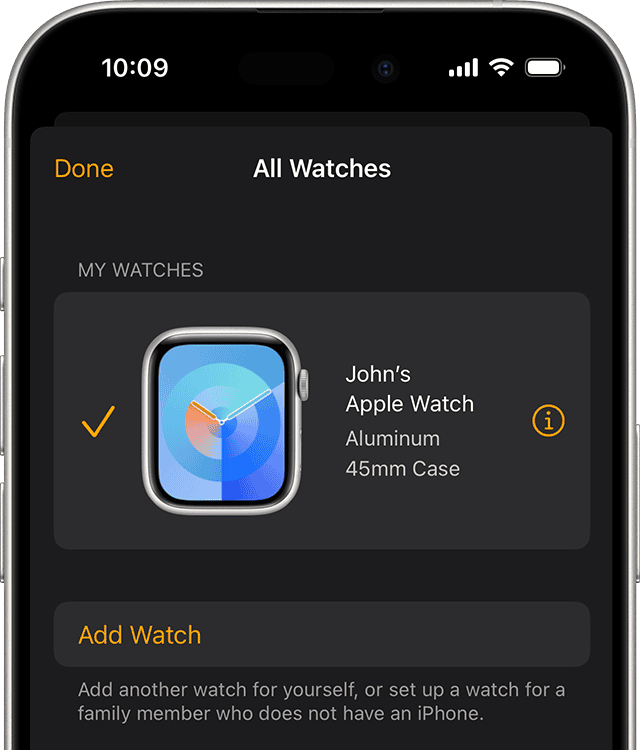
- Tap Unpair Apple Watch and confirm the action.
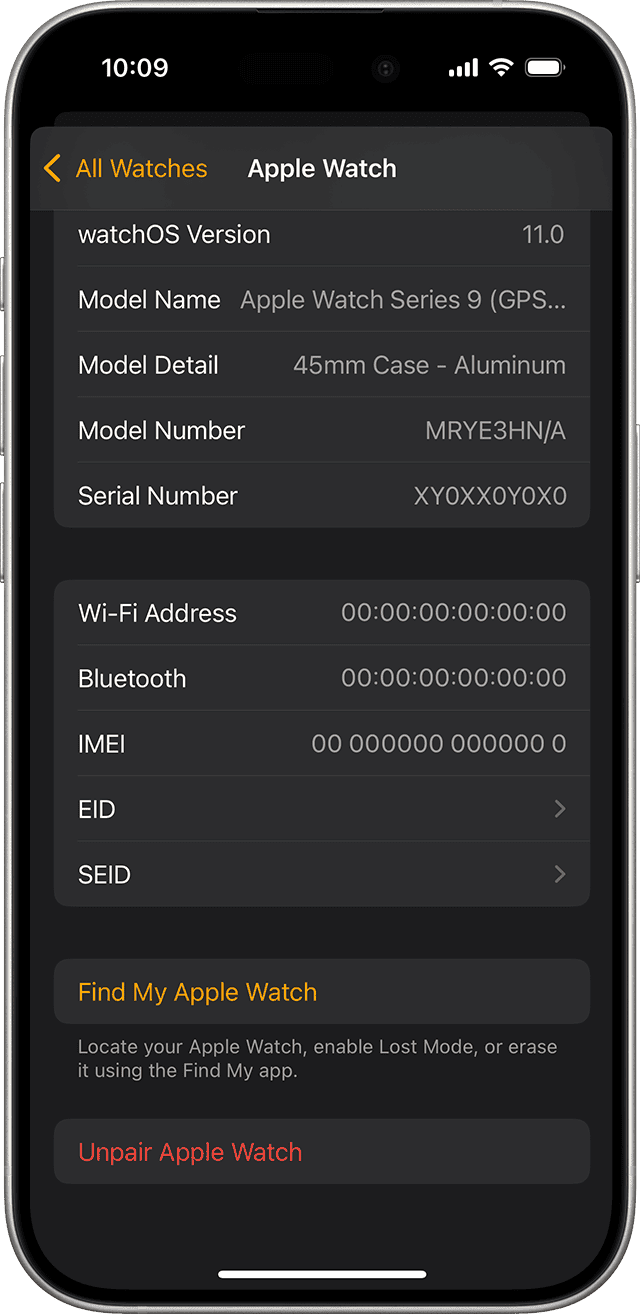
- For GPS + Cellular models, choose to keep or remove the cellular plan. Removing may require contacting your carrier to cancel the subscription.
- Enter the Apple Account password when prompted to disable Activation Lock. The iPhone creates a backup, erases the watch, and completes the unpair process.
- When finished, the watch shows Start Pairing.


If you’re switching devices, here’s how to unpair Apple Watch from an old phone.
Don’t miss the best of The Mac Observer
Set us as a preferred source and our Apple reporting ranks higher in your Google Search results and Discover feed — one tap, no account changes.
2. Sign Out of iCloud on the Paired iPhone
Signing out of iCloud on the paired iPhone signs out the Apple Watch as well. Use this when you want to remove the Apple ID across all devices linked to the same account.
- On the iPhone, open Settings and tap your name at the top.
- Scroll down and tap Sign Out.
- Enter your Apple ID password and turn off Find My if prompted.
- Choose which data to keep on the iPhone.
- Confirm by tapping Sign Out. The Apple Watch disconnects automatically.
In some cases, you may find you can’t sign out of Apple ID, here’s what to do.
3. Remove the Watch from the Apple Account (Device List)
Removing the watch from your Apple ID device list disassociates it from the account. This is useful for cleanup, but it does not replace unpairing when you prepare the watch for a new owner.
- On the iPhone, go to Settings > [Your Name] and locate the device list.
- Tap the Apple Watch entry to open details.
- Tap Remove from Account and follow the prompts.
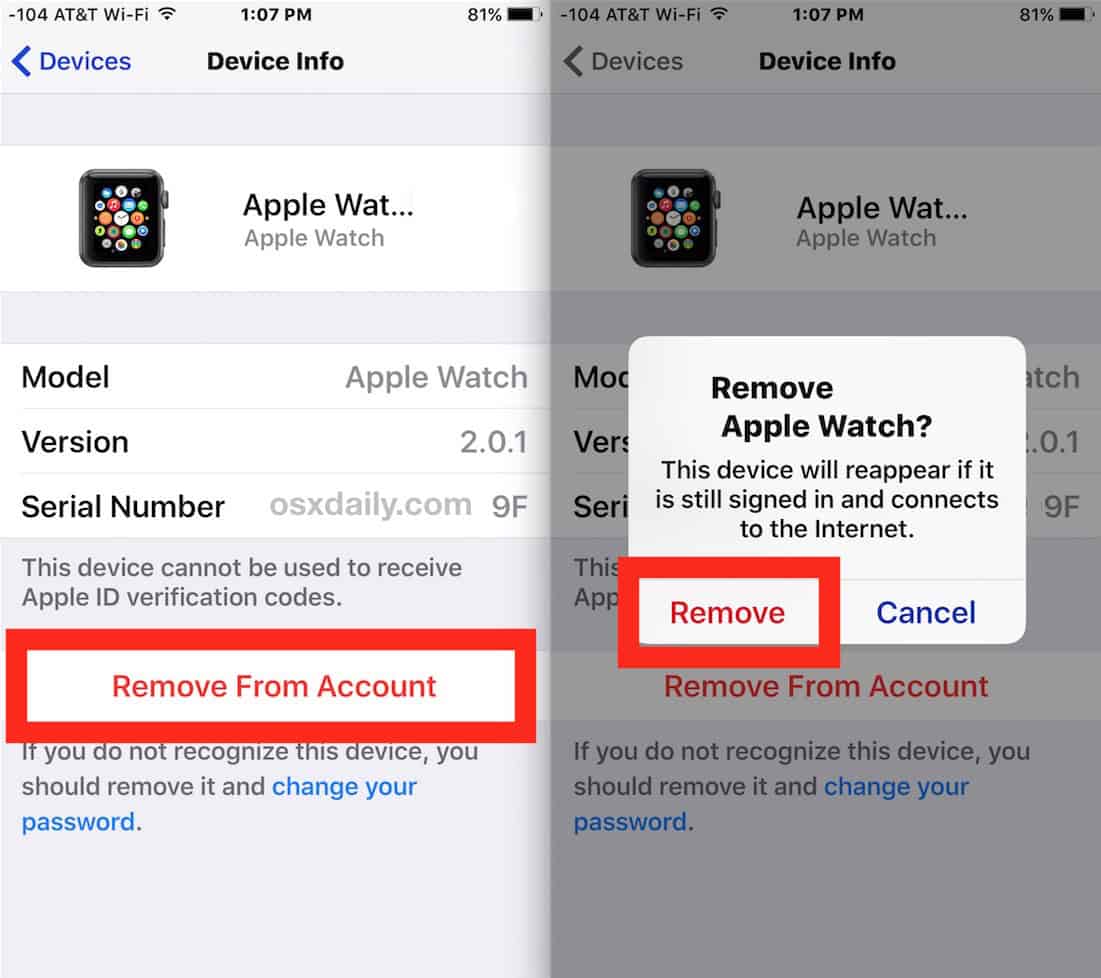
- If the watch remains paired, unpair it to erase data and fully disable Activation Lock.

Need a step-by-step walkthrough? Here’s how to sign into your Apple account properly.
4. Erase Directly on the Apple Watch
Erasing on the watch clears content and settings but does not remove the Apple ID association or Activation Lock. Use this to reset the device while keeping it paired to the same Apple ID.
- On the watch, open Settings > General > Reset.
- Tap Erase All Content and Settings and enter your passcode.
- For cellular models, choose to keep or remove the cellular plan depending on future use.
- After the erase, set up the watch again or restore from backup. Activation Lock remains unless you unpair or remove the watch via iCloud.
If you’re setting it up again, follow this guide to sign in to iCloud on Apple Watch.
5. Remove Activation Lock via iCloud (Remote)
If you cannot access the paired iPhone or the watch was erased without unpairing, remove Activation Lock remotely via iCloud so the watch can be used by a new user.
- Sign in at iCloud.com/find using the Apple ID tied to the watch.
- Select the Apple Watch from the device list.
- If the watch is offline, choose Remove from Account or the equivalent option.
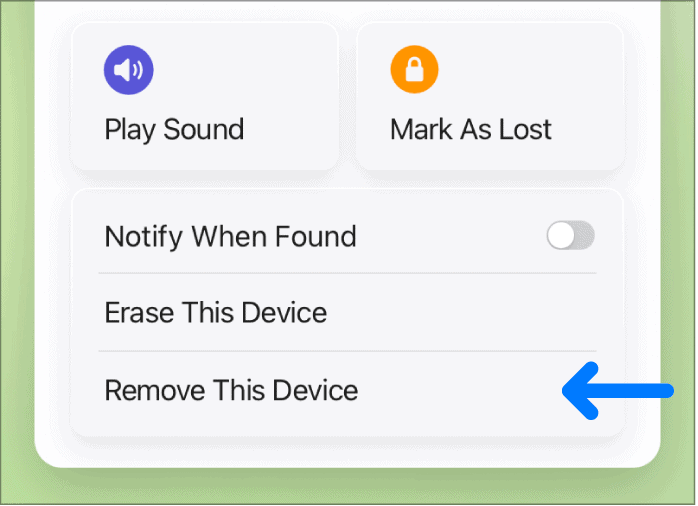
- Confirm removal. The watch is then free to pair with a different Apple ID.

You might also need to remove Activation Lock from Apple Watch before transferring ownership.
6. Unpair a Family Setup Apple Watch
For watches configured through Family Setup, the managing iPhone must handle unpairing and removal. The flow mirrors the standard unpair process but runs from the managing device.
- On the managing iPhone, open the Watch app and go to All Watches.
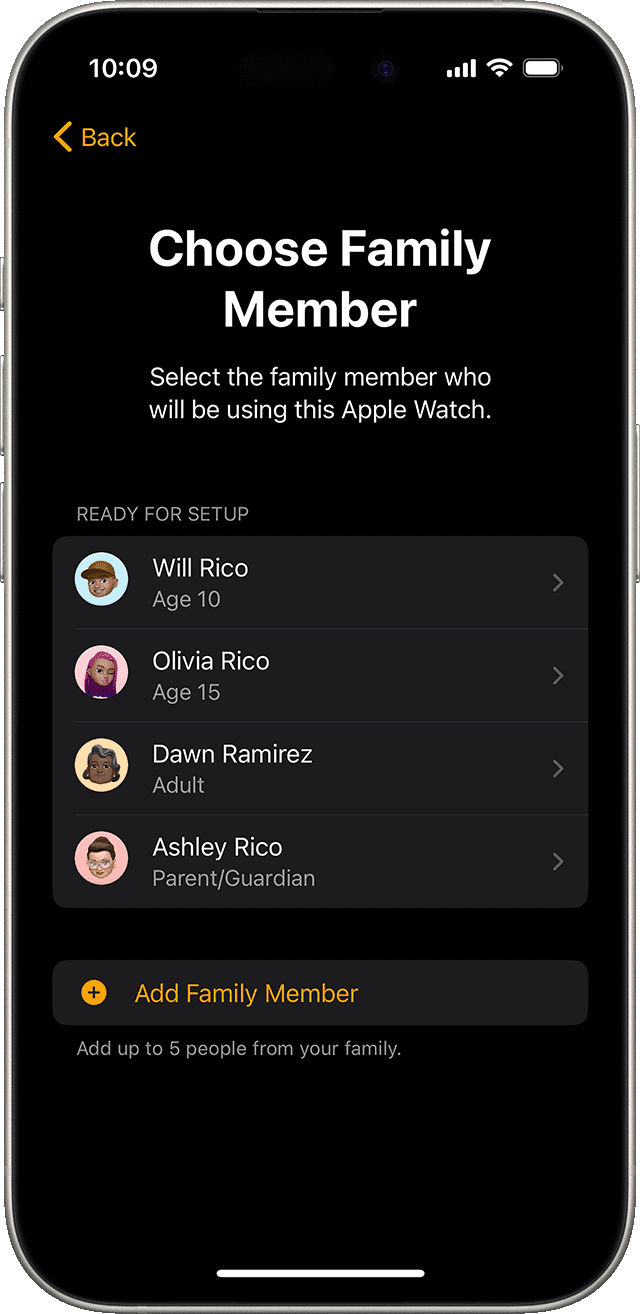
- Select the family member’s watch.
- Tap Unpair Apple Watch and follow the prompts.
- Enter the Apple ID password to disable Activation Lock.
- If you stop managing the watch, also remove it from the Apple Account and the carrier as needed.

In tricky cases without credentials, here’s how to sign out of Apple ID without a password.
Tips
- Always unpair before you sell, gift, or send the watch for service to ensure Activation Lock is off and the device is erased.
- Keep the iPhone and watch close during unpairing so the backup and Activation Lock removal complete without interruption.
- Decide what to do with a cellular plan before unpairing. Contact your carrier if you need to cancel or transfer service.
- If the paired iPhone is unavailable, remove Activation Lock via iCloud.com/find to avoid setup blocks for the next user.
- Removing the device from your Apple ID device list helps cleanup, but it does not substitute for a full unpair when transferring ownership.
FAQs
No. The watch signs out only when you unpair it from the iPhone or when the paired iPhone signs out of iCloud.
Entering the Apple ID password during unpairing disables Activation Lock, erases the watch, and removes it from the account.
Yes, but Activation Lock remains. You must unpair or remove the device via iCloud to fully disconnect the Apple ID.
Sign in to iCloud.com/find, select the watch, and remove it from your account to clear Activation Lock remotely.
Yes. Signing out of iCloud on the paired iPhone also signs the Apple Watch out.
Unpair them using the managing iPhone and confirm Activation Lock is disabled before transferring or servicing the watch.
Summary
- There is no direct sign-out option on the Apple Watch itself.
- Unpairing from the iPhone is the recommended method. It erases the watch, creates a backup, and disables Activation Lock.
- Signing out of iCloud on the paired iPhone also signs the watch out.
- Use iCloud.com/find to remove Activation Lock remotely if you cannot access the iPhone.
- Erasing the watch directly clears data but does not fully remove Apple ID or Activation Lock unless followed by unpair or remote removal.
- For Family Setup, unpair from the managing iPhone and remove the watch from the account before transfer.
Conclusion
To sign out of Apple ID on your Apple Watch, unpair it from the paired iPhone. Unpairing erases the device, removes Activation Lock when you enter the Apple ID password, and prepares the watch for a new owner. If you cannot access the iPhone, remove the watch from your account on iCloud.com. Always follow the unpair-first approach before selling, gifting, or servicing the watch to avoid account lock issues.


Discussion