

Final Cut Camera 2.0 brings professional-grade filmmaking features to iPhone, turning Apple’s flagship devices into tools for serious video production. The update introduces support for ProRes RAW recording, genlock synchronization, open gate capture, expanded color controls, and Live Multicam integration. These additions make iOS 26 and the iPhone 17 Pro lineup the first smartphones capable of workflows that rival traditional cinema cameras.
Final Cut Camera 2.0 is free to download from the App Store, but some advanced features require iPhone 17 Pro or Pro Max. The app is designed for filmmakers, journalists, and content creators who want precise control over every aspect of video recording.
Apple announced these updates alongside the iPhone 17 series, highlighting how the integration of Final Cut Camera 2.0 with Final Cut Pro for iPad builds a complete mobile production ecosystem.
Don’t miss the best of The Mac Observer
Set us as a preferred source and our Apple reporting ranks higher in your Google Search results and Discover feed — one tap, no account changes.
Table of contents
- Methods: How to Use Final Cut Camera 2.0
- 1. Setting Up Basic Recording Parameters
- 2. Manual Focus Control
- 3. Exposure and ISO Management
- 4. White Balance Adjustment
- 5. ProRes RAW Recording (iPhone 17 Pro/Pro Max only)
- 6. Open Gate Recording Setup
- 7. Genlock Synchronization
- 8. Live Multicam Recording
- 9. Center Stage Front Camera Control
- 10. Apple Log 2 Recording
- Tips
- FAQs
- Summary
- Conclusion
Methods: How to Use Final Cut Camera 2.0
1. Setting Up Basic Recording Parameters
Final Cut Camera 2.0 expands on the standard iPhone camera app with professional controls.
- Download and install Final Cut Camera 2.0 from the App Store (requires iPhone Xs or later, iOS 18.6+).
- Grant camera and microphone permissions.
- Open the app and access recording settings via the pill-shaped button at the top.
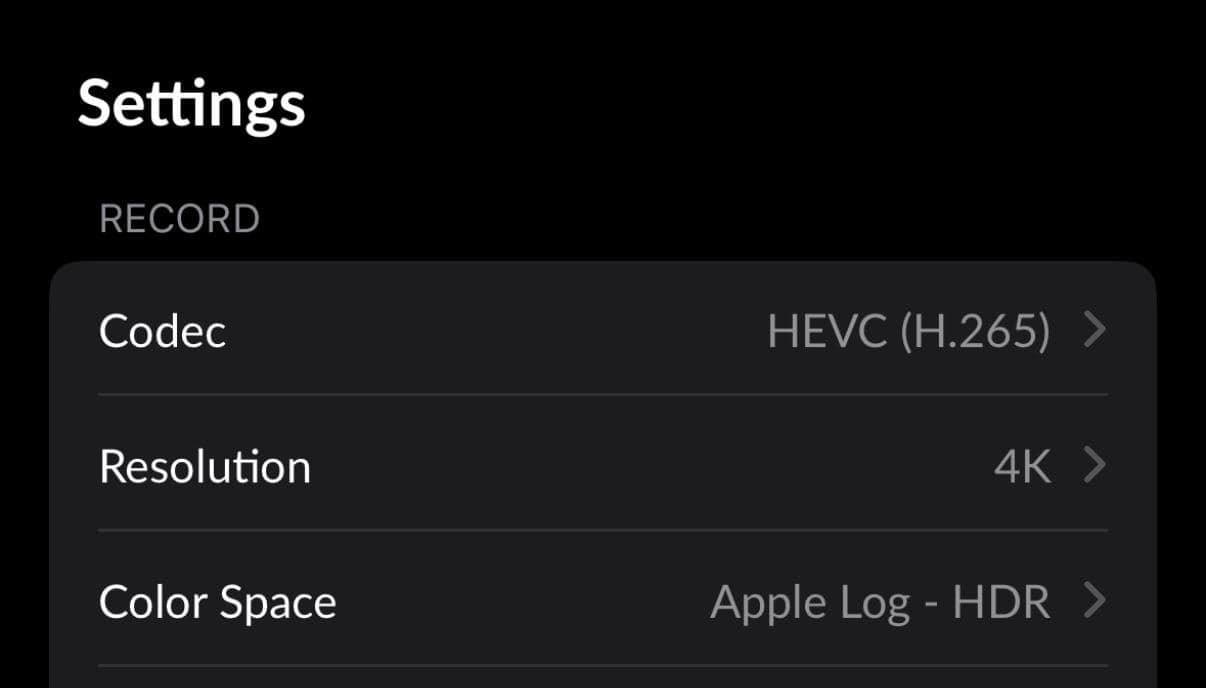
- Select codec (HEVC H.265 or ProRes), resolution (720p to 4K), frame rate (24–60fps), and color space.
- Note that ProRes RAW and genlock require iPhone 17 Pro/Pro Max on iOS 26.

To get the most out of these settings, check the iPhone 17 Pro launch details including features and release date.
2. Manual Focus Control
The app gives you cinematic focus capabilities.
- Swipe up or tap the arrow to open manual controls.
- Tap the focus icon to access the slider.
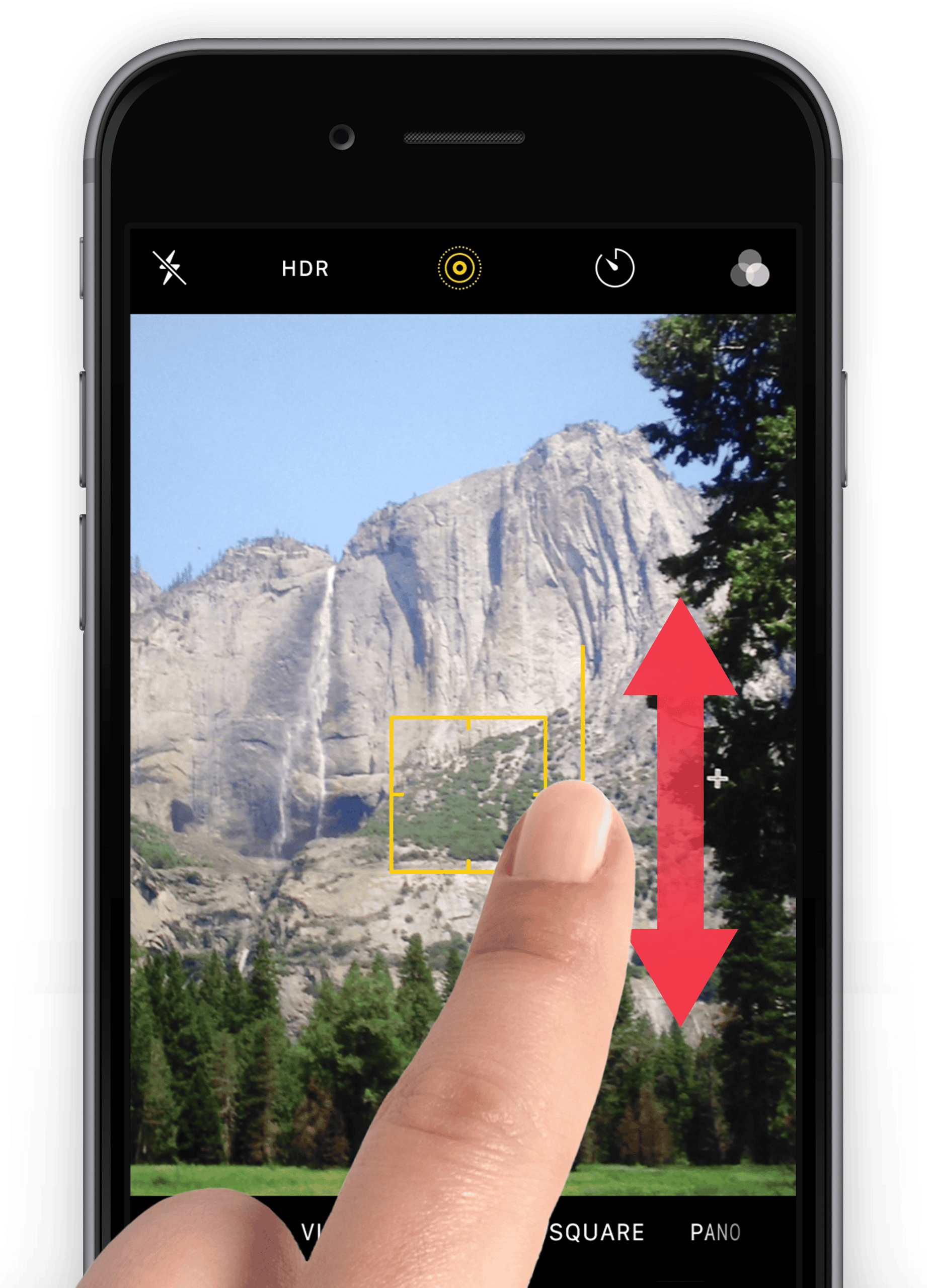
- Adjust focus manually and use green focus peaking indicators.
- Tap “AF” to return to autofocus when needed.

Camera upgrades matter here, see what’s new with the iPhone 17 camera and why it impacts video work.
3. Exposure and ISO Management
Proper exposure is crucial for professional results.
- Open exposure settings by tapping the +/- icon.
- Adjust exposure slider or switch to advanced controls.
- Set shutter speed using the 180-degree rule (for 24fps, use 1/50 second).
- Keep ISO low to reduce noise.
- Enable overexposure indicators to prevent blown highlights.
4. White Balance Adjustment
Consistent color accuracy improves post-production flexibility.
- Open manual controls and tap the light bulb icon.
- Adjust color temperature by sliding left or right.
- Select presets or set custom values.
- Use Auto mode when exact lighting adjustments are unnecessary.
5. ProRes RAW Recording (iPhone 17 Pro/Pro Max only)
The ProRes RAW is the most advanced feature of Final Cut Camera 2.0.
- Ensure you are using iPhone 17 Pro/Pro Max with iOS 26.
- In recording settings, select Apple ProRes as codec.
- Choose ProRes RAW from the options.
- Set resolution and frame rate.
- Monitor available storage before recording, as RAW files are large.
ProRes RAW ties directly to storage; note that the iPhone 17 Pro price went up, but base storage doubled.
6. Open Gate Recording Setup
This captures the full camera sensor for flexible editing.
- Open advanced ProRes settings.
- Enable open gate mode.
- Record using full sensor resolution beyond DCI 4K.
- Set preferred aspect ratio while retaining full capture.
Heavy recording sessions benefit from max capacity, learn how the iPhone 17 Pro Max became the first 2TB iPhone.
7. Genlock Synchronization

Genlock ensures multiple cameras record in perfect sync.
- Use iPhone 17 Pro or Pro Max running iOS 26.
- Access genlock in advanced recording options.
- Connect to a reference signal or assign a master clock.
- Enable sync across devices.
- Confirm frame-accurate synchronization.
8. Live Multicam Recording
You can link up to four iPhones for multicam shoots.
- Install Final Cut Camera 2.0 on iPhones and Final Cut Pro on iPad.
- Connect devices via Wi-Fi and sign in with the same Apple ID.
- Start a Live Multicam project on iPad.
- Pair up to four iPhones by tapping the multicam icon.
- Monitor and control each device’s settings remotely from iPad.
9. Center Stage Front Camera Control
The new square sensor allows unique framing flexibility.
- Switch to the front camera in the app.
- Use horizontal or vertical orientation without rotating the phone.
- Apply manual focus, white balance, and exposure.
- Take advantage of wider field of view and low-light performance.
10. Apple Log 2 Recording
Apple Log 2 expands color gamut for advanced color grading.
- Access color space settings in the app.
- Select Apple Log 2 (iPhone 17 Pro only).
- Record in ProRes or HEVC with Log 2 enabled.
- Apply LUT preview to monitor footage correctly.
- Import into Final Cut Pro for iPad or Mac for post-production grading.
Tips
- Monitor storage space, especially for ProRes RAW files.
- Connect external storage drives via USB-C for longer shoots.
- Keep devices cool during extended high-resolution recording.
- Use external microphones for professional audio.
- Back up footage immediately after recording.
- Match frame rates across all cameras in multicam setups.
- Enable focus peaking for precise manual focus.
- Keep overexposure indicators on to protect highlights.
- Use grid overlays for proper composition.
- Maintain strong Wi-Fi for stable multicam sessions.
FAQs
iPhone Xs or later with iOS 18.6 or later. ProRes RAW and genlock need iPhone 17 Pro/Pro Max on iOS 26.
Yes, it is free on the App Store.
Much larger than standard video. The app shows estimated recording time based on storage.
No. It’s only required for Live Multicam workflows.
Up to four devices.
Yes. It already supports equipment like the Blackmagic Design Camera ProDock.
No. It is for video only.
Up to two hours in one take.
No. It uses device-to-device Wi-Fi connections.
Summary
- Final Cut Camera 2.0 provides professional manual controls for video recording.
- ProRes RAW support on iPhone 17 Pro/Pro Max makes iPhones the first smartphones to capture RAW sensor data.
- Genlock delivers frame-accurate synchronization with professional equipment.
- Live Multicam enables up to four iPhones to record together, controlled from an iPad.
- Center Stage camera adds orientation flexibility and manual adjustments.
- Apple Log 2 expands color range for advanced grading.
- Open gate recording uses the full sensor for maximum flexibility.
- Free on the App Store, Final Cut Camera 2.0 positions the iPhone as a serious filmmaking tool.
Conclusion
Final Cut Camera 2.0 on iOS 26 marks a turning point in mobile video production. Apple has equipped iPhones with capabilities once limited to professional cinema cameras, including ProRes RAW, genlock synchronization, and advanced multicam workflows. Combined with the power of Final Cut Pro for iPad, the update transforms the iPhone 17 Pro lineup into a portable yet professional filmmaking system. For journalists, creators, and filmmakers, Final Cut Camera 2.0 brings full creative control to a device that fits in your pocket.


Discussion