
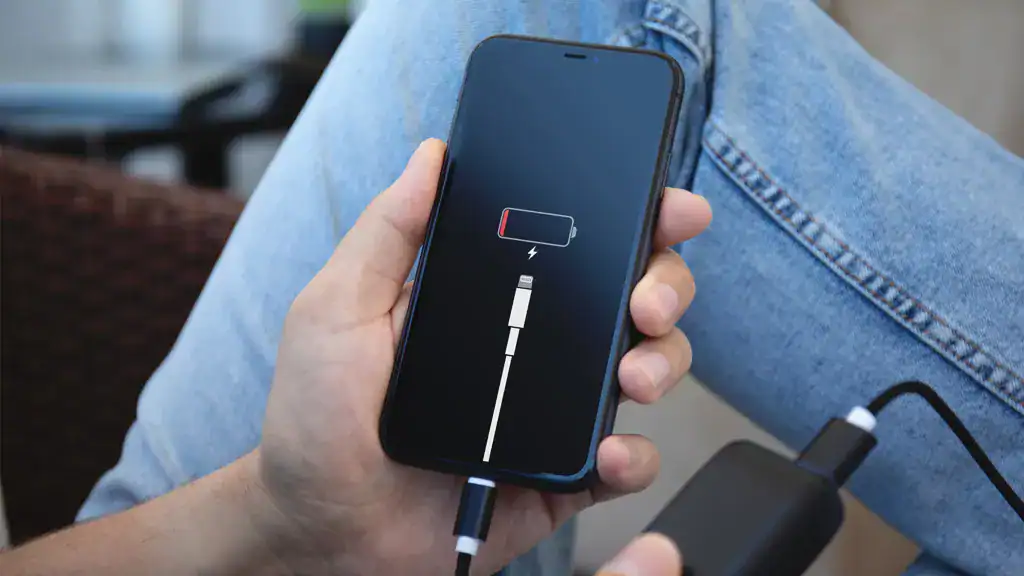
Many iPhone users have reported that after updating to iOS 18, their devices are charging more slowly than usual. If you’ve noticed your iPhone taking longer to reach 100%, it may be due to the latest software update. This issue can be frustrating, especially if you rely on quick top-ups during the day.
The good news is that in most cases, slow charging after an iOS update is temporary and can be fixed with a few simple adjustments. Here’s what we’ve found out to help.
Why Is My iPhone Charging Slowly After iOS 18?
After installing a major update like iOS 18, your iPhone runs several background processes. Spotlight re-indexing, photo analysis, and system optimizations may consume extra resources, making charging appear slower. Other possible causes include:
Don’t miss the best of The Mac Observer
Set us as a preferred source and our Apple reporting ranks higher in your Google Search results and Discover feed — one tap, no account changes.
- Background activity – iOS 18 may still be optimizing files in the background.
- New features enabled by default – options like Clean Energy Charging and Optimized Battery Charging can slow down charging.
- Software bugs – early versions of iOS often come with minor glitches that Apple fixes in subsequent updates.
- Accessory compatibility – some older cables or third-party adapters may not meet Apple’s latest charging standards.
Quick Fixes to Speed Up Charging
Here are the most effective steps you can try if your iPhone is charging slowly after iOS 18:
1. Check Your Charger and Cable
- Always use an Apple-certified cable (MFi).
- Pair your iPhone with a 20W or higher USB-C adapter for fast charging.
- Inspect the cable and charging port for dust or damage.
2. Turn Off Clean Energy Charging

- Go to Settings > Battery > Battery Health & Charging.
- Toggle off Clean Energy Charging.
This feature may restrict charging speed depending on your region’s power grid.
3. Disable Optimized Battery Charging (Temporarily)
- In the same settings, turn off Optimized Battery Charging.
This helps protect long-term battery health but slows charging if enabled.
4. Restart or Force Restart Your iPhone
- A fresh restart clears temporary glitches that may be affecting charging speed.
5. Update to the Latest iOS 18 Patch
- Apple typically releases small updates (18.0.1, 18.0.2, etc.) to fix bugs like this.
Extra Tips for Faster Charging
- Enable Low Power Mode to reduce background activity while charging.
- Turn on Airplane Mode if you don’t need connectivity during charging.
- Keep your iPhone cool—heat slows down charging speed. Avoid charging under direct sunlight or while gaming.
When to Contact Apple Support
If your iPhone still charges slowly after trying all the steps above, it may indicate a hardware issue such as a worn-out battery or faulty charging port. In that case, schedule a checkup with Apple Support or an authorized service provider.


Discussion