

In the ever-evolving world of smartphone technology, visual intelligence is a groundbreaking feature that transforms how we interact with our surroundings. Available on select iPhones running iOS 26, this innovative tool leverages advanced camera capabilities and artificial intelligence to analyze and interpret visual data in real time. Whether you’re identifying objects, scanning text, or exploring your environment, you can use visual intelligence to enhance your device’s functionality.
Table of contents
What is Visual Intelligence?
Visual intelligence is an AI-driven feature integrated into the iPhone’s camera system, starting with iOS 18.2, designed to process and understand visual information. It uses machine learning algorithms to recognize objects, scenes, text, and even specific details like product barcodes or landmarks.
This technology goes beyond simple photo capture, enabling users to interact with their environment in smarter, more intuitive ways. From identifying a plant species to translating foreign text on a menu, visual intelligence empowers users with instant insights.
Don’t miss the best of The Mac Observer
Set us as a preferred source and our Apple reporting ranks higher in your Google Search results and Discover feed — one tap, no account changes.

What You Need for Visual Intelligence
To use visual intelligence, you’ll need a compatible iPhone 15 or newer. You also need to update the iPhone to iOS 26 or later–keep in mind that once you do this, downgrading from iOS 26 is not possible. Not all devices support this feature, as it requires advanced hardware like high-resolution cameras and powerful neural engines. Currently, only iPhone 15 Pro or newer models meet these requirements. Additionally, a stable internet connection may be necessary for certain cloud-based processing tasks.
How Visual Intelligence Works
Visual intelligence operates through a combination of on-device AI and cloud computing. When activated, the iPhone’s camera scans the environment and processes visual data using the Neural Engine, a dedicated chip for machine learning tasks. The system identifies objects, text, or scenes by comparing them against vast datasets trained to recognize patterns.
For example, pointing your camera at a dog might display its breed, while scanning a book could pull up its title and author. The feature integrates seamlessly with apps like Camera, Photos, and Safari, making it versatile for everyday use.
How to Enable or Disable Visual Intelligence
Enabling visual intelligence is straightforward. Once your iPhone is updated to iOS 26, the feature is typically activated by default within the Camera app or through specific controls like the Camera Control button on supported models. You can disable it completely by disabling Apple Intelligence, since it’s a part of that feature.
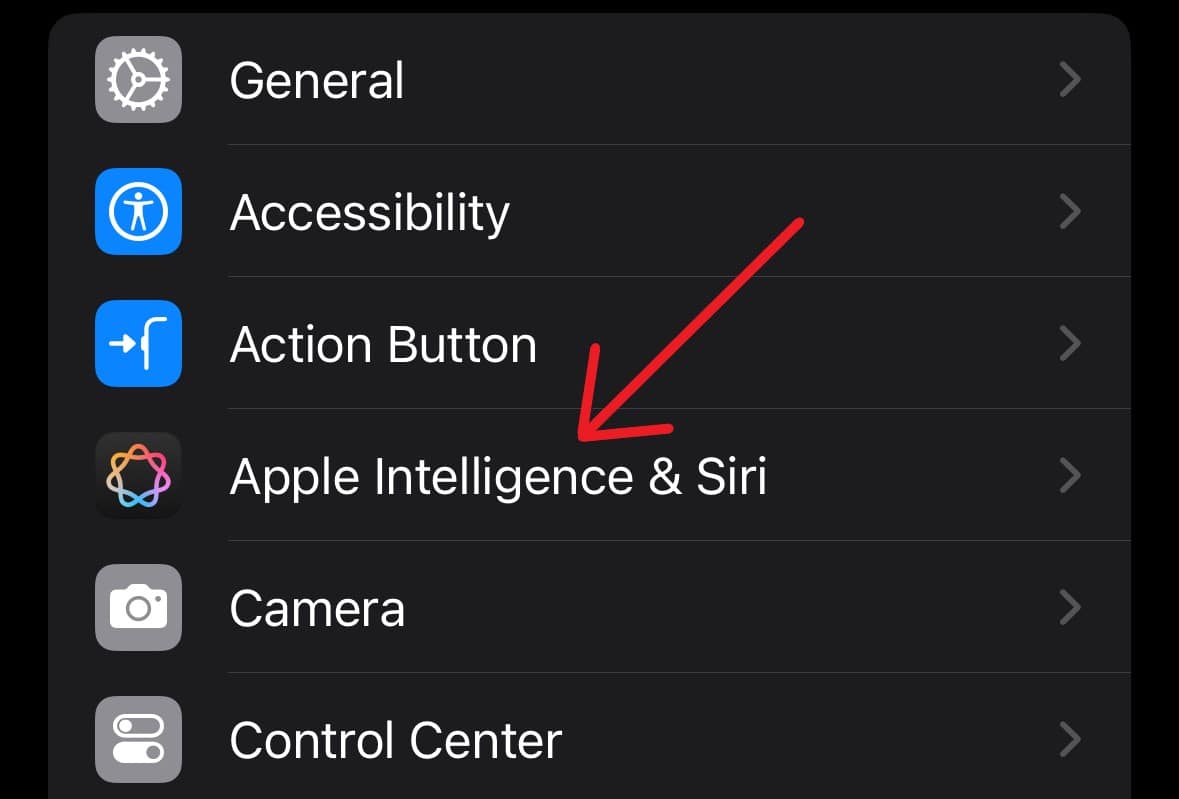
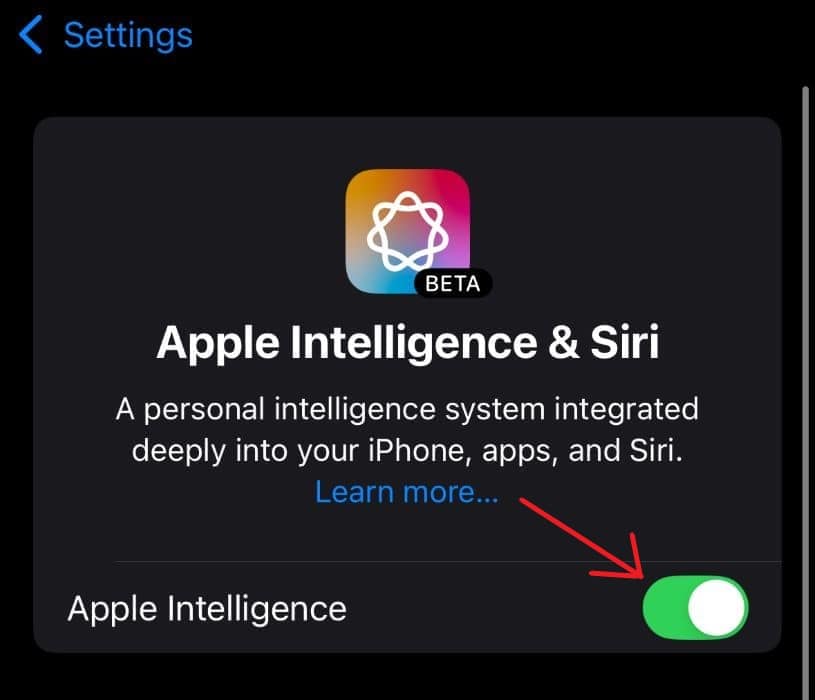
To disable Apple Intelligence, follow the steps below:
- Open Settings.
- Scroll down and tap Apple Intelligence & Siri.
- Toggle Apple Intelligence to Off.
- Finalize the change by tapping Turn Off.


You can also disable visual intelligence via Camera Control with a few simple steps.
FAQ
Only select models running iOS 26 or later, typically newer devices (iPhone 15 Pro and later) with advanced Neural Engines, support this feature.
Some features work offline, but cloud-based tasks like complex image recognition may need internet access.
Apple emphasizes on-device processing to protect user data, though some features may involve secure cloud communication.
Embracing the Future with Visual Intelligence
Visual intelligence is revolutionizing how we use our iPhones, turning cameras into powerful tools for understanding the world. By combining cutting-edge AI with intuitive controls, it offers endless possibilities, from practical tasks to creative exploration. As technology advances, features like visual intelligence will continue to redefine our interaction with devices and the world around us.


Discussion