

The iPhone camera continues to evolve, offering powerful tools that elevate everyday photography. Among the most impactful features is the introduction of Photographic Styles, which allow users to apply personalized, non-destructive edits right at the time of capture. The Rich Contrast style is a favorite for those seeking bold, dramatic images with enhanced depth and definition. This powerful setting pushes shadows deeper and brightens highlights, delivering photographs that immediately grab attention.
Table of contents
Mastering the Depth and Definition of iPhone Photography
1. Selecting the Rich Contrast Style
Accessing this unique style requires opening the Camera application and navigating to the specific menu for Photographic Styles. This setting controls the subtle interplay between shadows and highlights, giving photos a dramatic flair without post-processing. To see how this feature fits into the broader camera updates, check out this guide on the iPhone camera app changes in iOS 26.
- Open the Camera app on your iPhone.
- Swipe up from the shutter button.
- Tap the Photographic Styles icon, which looks like three stacked squares. You can tap the three stacked squares in the top-right corner of the screen.
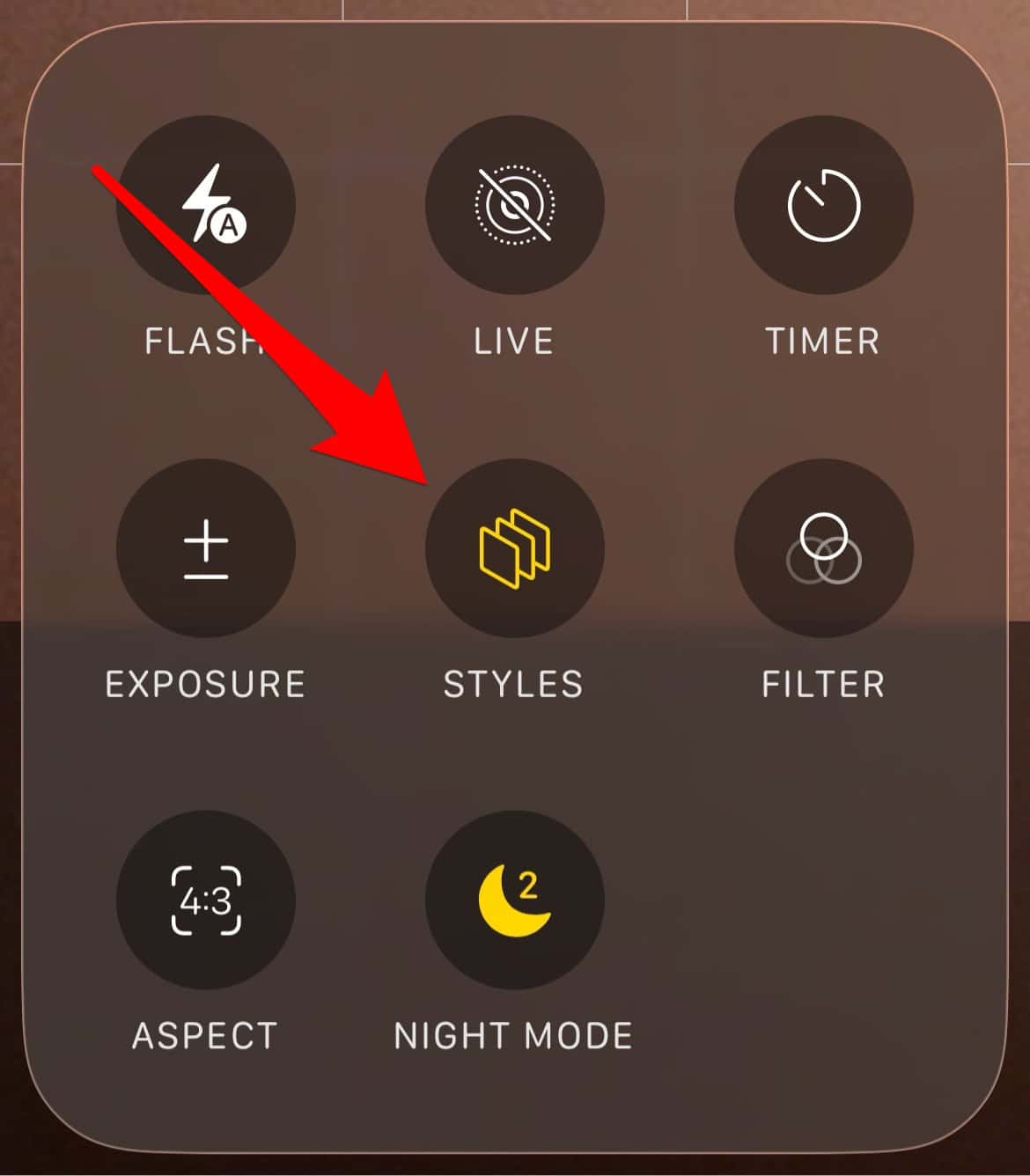
- Swipe through the available styles. Depending on your iPhone model and iOS version, you may see options like Standard, Rich Contrast, Vibrant, Warm, Cool, or newer additions such as Natural or Dramatic.
- Select the Rich Contrast option to activate it.
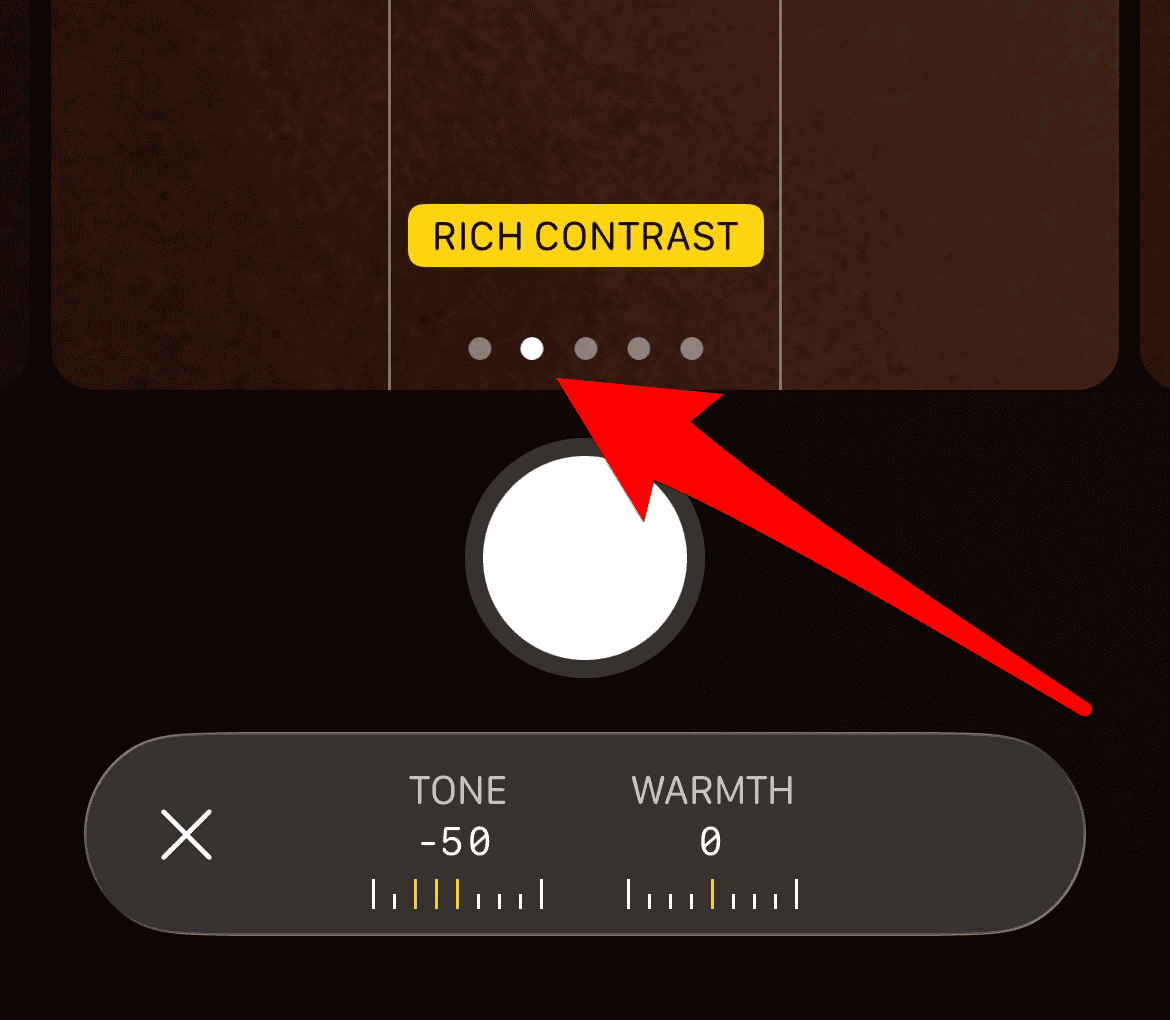


2. Fine-Tuning the Rich Contrast Look
While the preset Rich Contrast style provides a great starting point, the iPhone allows for further customization. You can adjust two key parameters within the style: Tone and Warmth. This ensures your photos capture the exact mood you desire, from moody scenes to punchy portraits, allowing for a truly unique final product.
Don’t miss the best of The Mac Observer
Set us as a preferred source and our Apple reporting ranks higher in your Google Search results and Discover feed — one tap, no account changes.
- With Rich Contrast selected, observe the two sliders for Tone and Warmth below the preview.
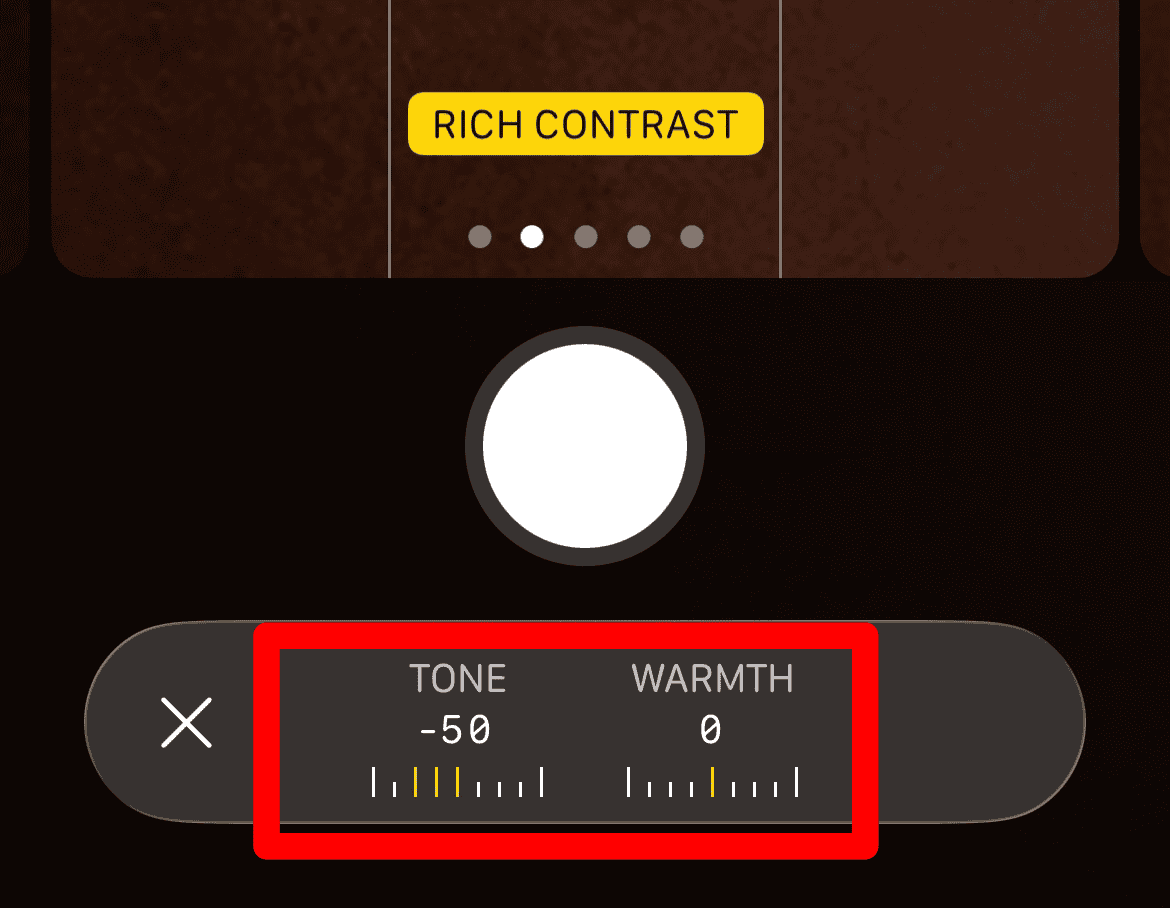
- Adjust the Tone slider to increase or decrease the overall contrast level within the style.
- Modify the Warmth slider to shift the color temperature, making the image slightly warmer (yellow) or cooler (blue).
- Tap the shutter button to capture your photograph with the customized Rich Contrast effect. For general optimization, you may want to review the best iPhone 17 camera settings.

3. Ideal Scenarios for High Contrast Photos

The Rich Contrast style truly shines in specific lighting conditions and subject types. Its strength lies in accentuating textures and defining subjects against their background. Knowing when to apply it can transform a good photograph into a stunning one, especially when the subject is well-lit and casts strong shadows.
- Silhouettes: Use it against a bright sunset or sunrise to make the subject’s outline intensely dark and dramatic.
- Architecture: The style enhances the straight lines and deep shadows of buildings, giving them a monumental feel.
- Nature Textures: It is perfect for capturing the rugged bark of a tree or the deep folds of a mountainous landscape.
- Dramatic Portraits: Apply it to portraits with harsh sidelight to create a moody, chiaroscuro effect.
While some sources mention a “bright photographic style” in iOS 26, this feature has not been officially confirmed by Apple. It may refer to experimental or beta features, so treat such mentions as speculative.
FAQ
Yes. If the photo was taken in High Efficiency format (HEIF/HEVC), you can open it in the Photos app, tap Edit, and then tap the Photographic Styles icon to choose a different style or revert to Standard. This flexibility may not apply to all formats or third-party apps.
Once a Photographic Style is selected, it remains active until you change it. You must switch back to the Standard style manually if you want a neutral look for your next shots.
Achieving Professional Depth with iPhone Contrast
The Rich Contrast Photographic Style is an intelligent, real-time image processing tool that brings enhanced depth and tonal separation to your photos straight out of the camera. While it doesn’t replace professional editing workflows like ProRAW, it offers a fast and effective way to capture visually impactful images without post-processing. To keep up with all the improvements, consider reading about the iPhone 17 camera.



Discussion