

The iOS 26 update brought new visual features. But many iPhone users saw a performance problem. This problem is a lag when swiping from the Today View. The Today View is the left-most widget page. Swiping to the Home Screen now causes stuttering. This brief slowdown makes the phone feel slow. The smooth refresh rate seems to drop suddenly. This issue even remained after iOS 26.2 update. So, if you immediate solutions for a fluid interface, you have come to the right place.
Table of contents
Understanding Performance Stutter on the iPhone Home Screen
This specific stutter happens for a clear reason. It relates to the system’s widgets management. Complex transition animations also cause issues. General lag often comes from background indexing. However, this specific drop points to an optimization flaw. The operating system struggles with graphical rendering. It also has trouble loading active widget content.
1. Minimize Widget Overload
Widget overload often causes the lag. The system loads content for many widgets. This causes a momentary stutter during the transition. The device must render widget contents dynamically. Too many active widgets create a resource bottleneck. Therefore, reducing the system load is the simplest solution.
Don’t miss the best of The Mac Observer
Set us as a preferred source and our Apple reporting ranks higher in your Google Search results and Discover feed — one tap, no account changes.
- Review and remove unnecessary widgets. Go to Today View by swiping right from the Home screen. Tap and hold an empty part of the screen until the widgets start to giggle. Tap the minus icon on any widgets you rarely use to remove them. Users report fewer widgets resolves the swipe lag. Try keeping only a single widget for a test.
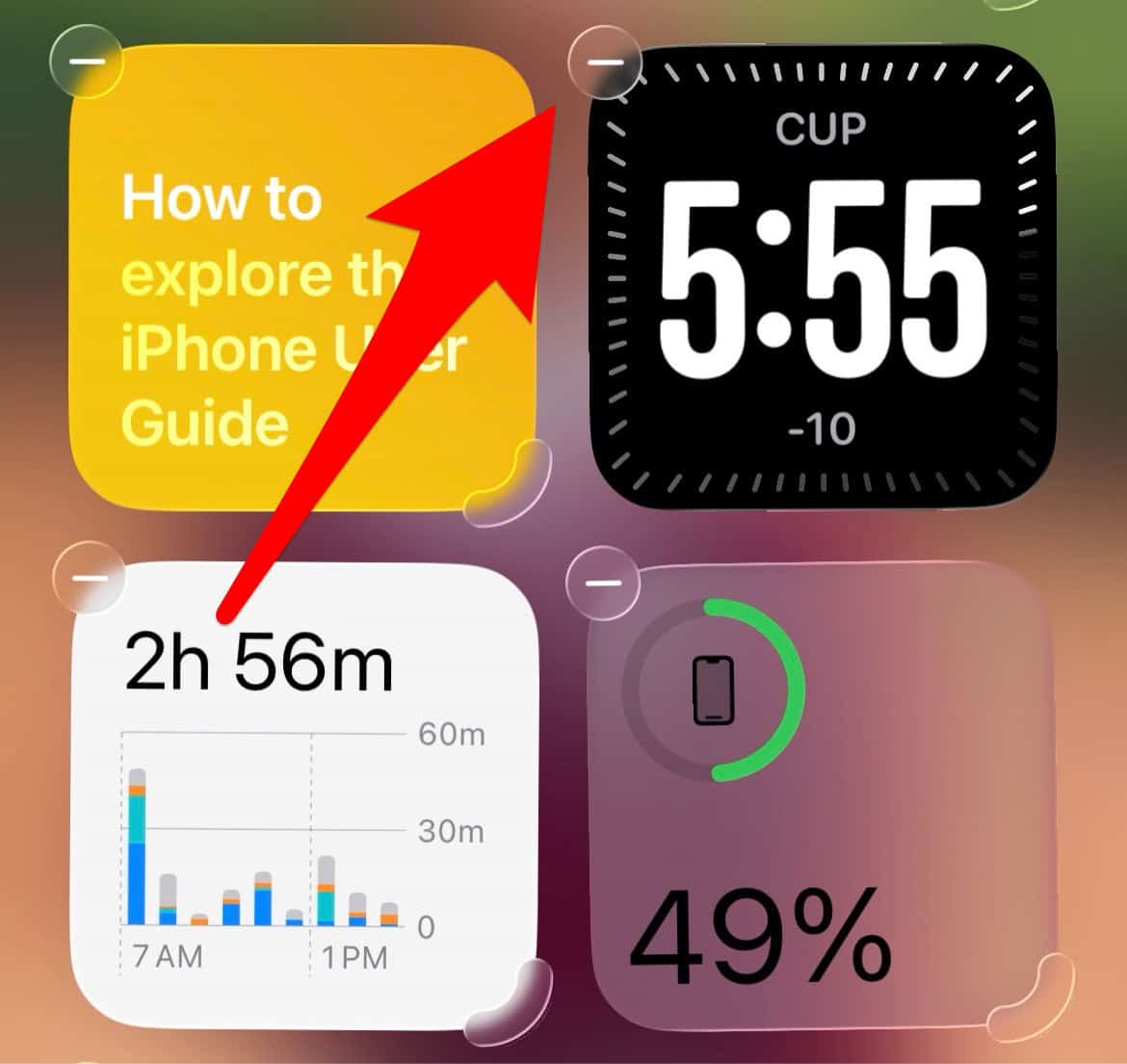
- Test performance by replacing large widgets with smaller ones. You may need to keep some widgets. Instead, replace big, complex widgets. Use simpler Apple stock widgets instead. These are less resource-intensive.

2. Identify and Isolate the Problematic Widget
If minimizing widgets doesn’t work, you can try a more systematic approach to find the single culprit:
- Remove All Widgets: Go to your Today View (the left-most screen) and remove all third-party widgets and even the standard Apple widgets.
- Test the Swipe: Swipe back to the Home Screen. If the lag is gone, the issue is definitely widget-related.
- Re-add One by One: Slowly re-add your widgets one by one, testing the swipe after each addition, until you identify the specific widget that introduces the lag.
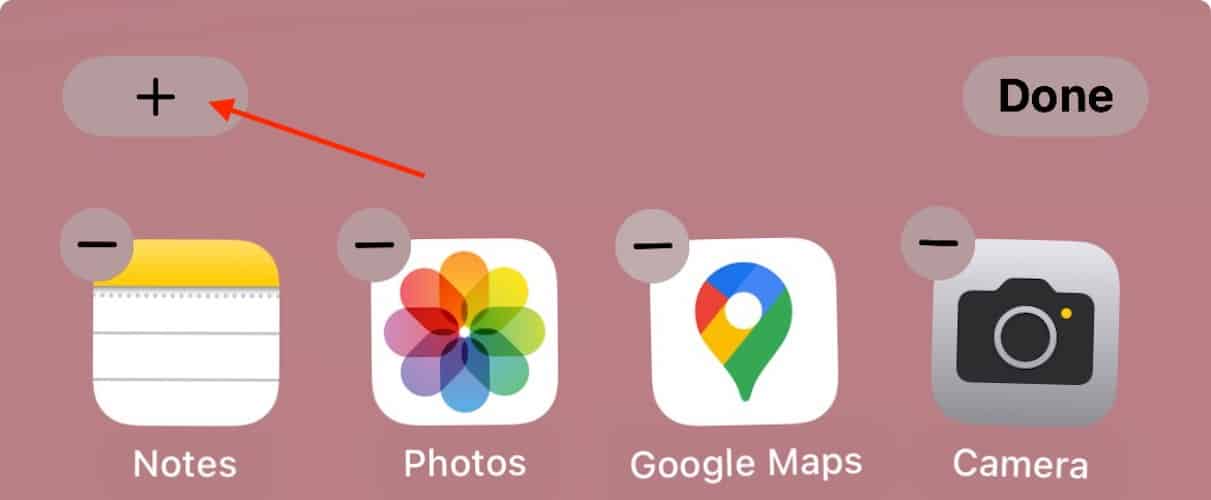
- Replace the Culprit: Once identified, remove that single buggy widget or replace it with a smaller, simpler version from the same app, if available.

3. Adjust Visual Effects
Apple’s new visual designs demand resources. Effects like “Liquid Glass” use high system power. Modifying accessibility settings can improve fluidity. In fact, these changes bypass demanding graphical features. They help resolve reasons for broader iOS performance issues.
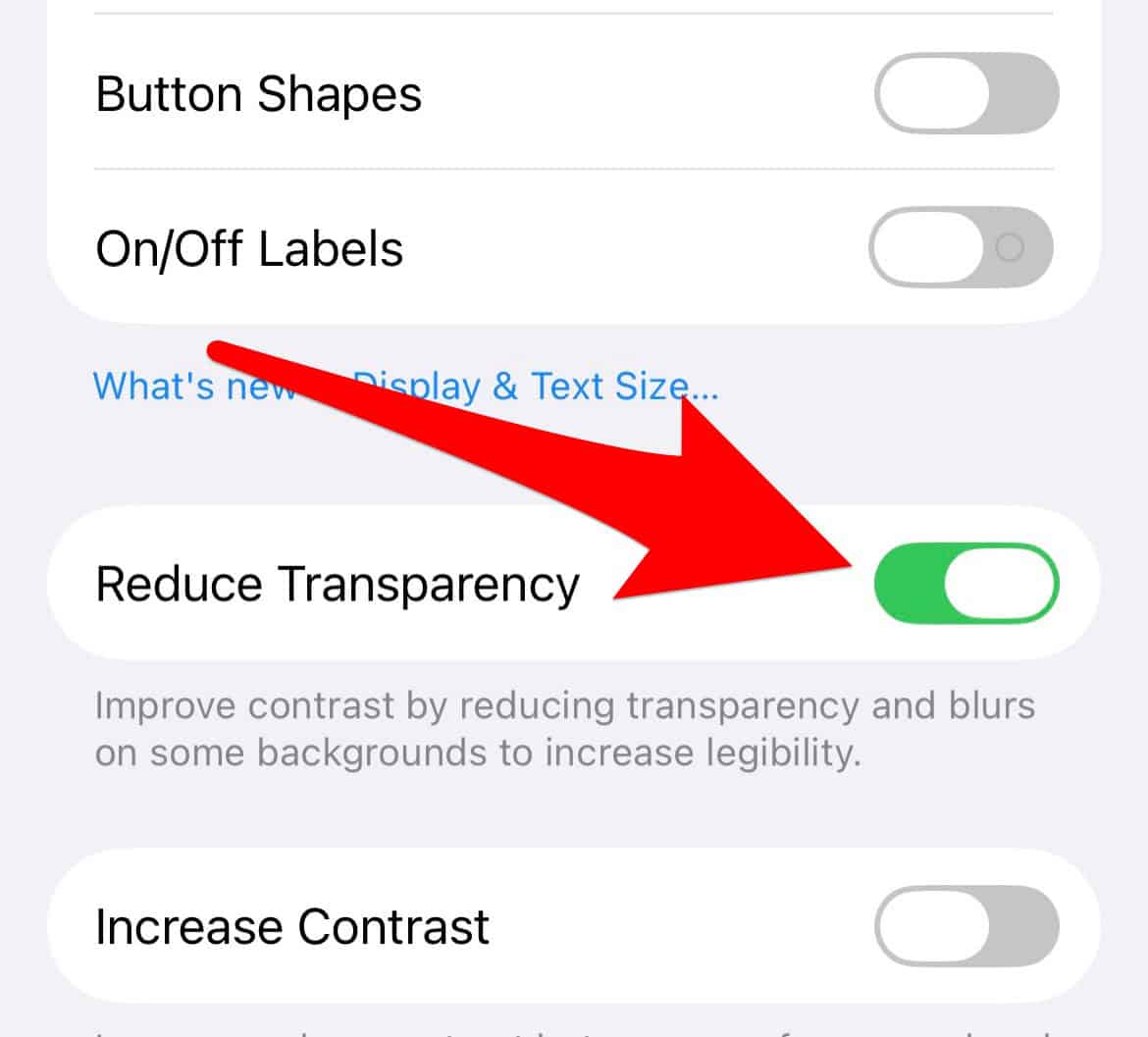
- Go to Settings > Accessibility > Display & Text Size. Find the Reduce Transparency setting here. Toggle this setting off and on. Leaving it on might fix graphical conflicts.
- Enable Reduce Motion. Go to Settings > Accessibility > Motion. Turn Reduce Motion on now. This replaces animations with cross-fades. Consequently, it uses fewer resources. This helps remove the widget swipe lag.

4. Check and Optimize App Data Settings
The stutter can happen because the system struggles to refresh complex or demanding data for widgets quickly.
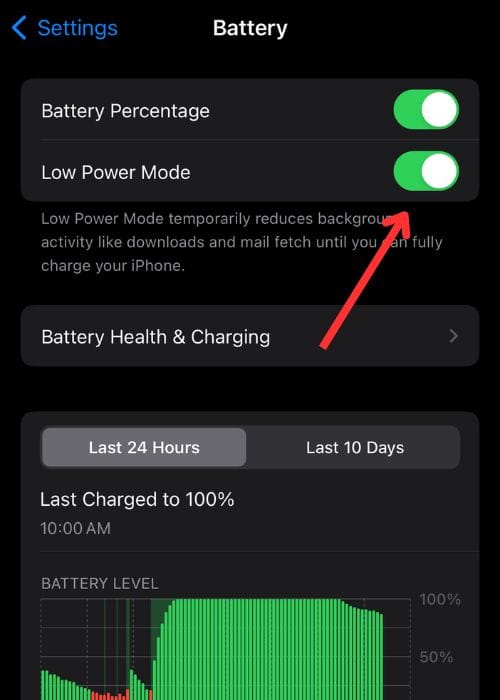
- Disable Low Power Mode: Low Power Mode actively limits background activity, sometimes delaying widget updates. When you swipe to the Today View, the system then struggles to load all the delayed data simultaneously, causing a stutter. Go to Settings > Battery and ensure Low Power Mode is Off.
- Disable Low Data Mode: If you use this feature, it can also restrict the network refresh rate for apps, which may interfere with widget functionality.
- For Wi-Fi: Go to Settings > Wi-Fi, tap the info (i) icon next to your network, and ensure Low Data Mode is Off.
- For Cellular: Go to Settings > Cellular > Cellular Data Options (or the specific line) and ensure Low Data Mode is Off.

5. System Reset and Optimization Checks
System maintenance can also fix conflicts. Background processes degrade overall performance. These issues can cause unexpected lag between screens. For example, check this guide for fixing iPhone freezing issues. These maintenance steps are very important.
- Perform a force restart on your iPhone. This clears temporary memory errors. It may also reset stuck background processes. Stuck processes consume device resources.
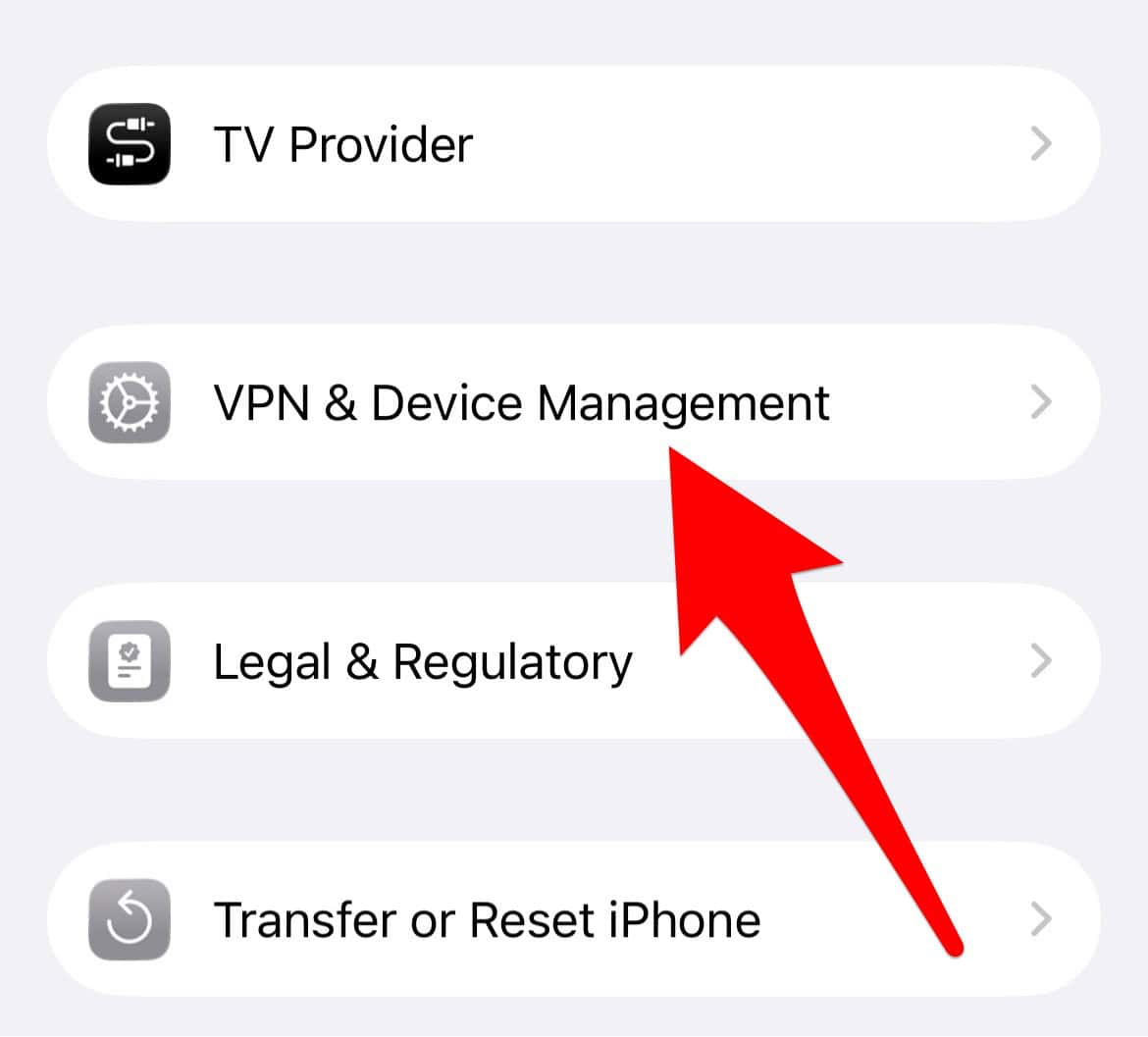
- Check for and delete any installed VPN profiles. Some VPN software causes interference. It may disrupt core system processes. This contributes to system-wide lag. Delete the profile completely in Settings. Go to General > VPN & Device Management.
- Confirm your device’s battery health. Check the Maximum Capacity percentage. It’s in Settings > Battery > Battery Health. The system throttles performance if it is below 80 percent. This prevents unexpected shutdowns.

Deeper System Reset Options
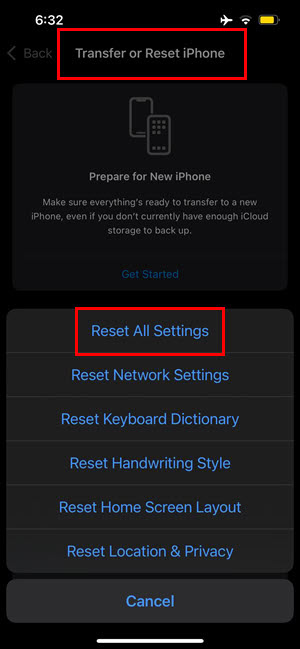
If the lag is persistent, a more thorough reset of your device’s preferences can clear out underlying conflicts. This can fix deep software conflicts without erasing your data (photos, apps, etc.). It resets all your system preferences, including Wi-Fi passwords, notification settings, and home screen layout.
- Go to Settings > General.
- Scroll down and tap Transfer or Reset iPhone.
- Tap Reset > Reset All Settings.

FAQ
Lag after a major update is very common. The system is completing background indexing. However, this specific iOS 26.x lag is a persistent bug. Earlier iOS versions had minor system fixes. But users should try optimization steps immediately. Waiting for an official fix may take time.
No, the issue is not hardware related. New flagship device owners report this stutter. Pro and Pro Max users see the same problem. This suggests a core bug within iOS 26.x. It is not simply a hardware limitation.
Restoring Smoothness to Your iPhone’s UI
The stutter is frustrating for users. It happens when transitioning from Today View. High-end devices usually have flawless performance. Nonetheless, users can mitigate the bug’s effects. Minimize widget usage for immediate relief. Adjust transparency and motion settings as well. Perform necessary system resets to clear errors. These steps provide quick, immediate relief. Apple will address system fluidity later. This is a common pattern for recent Apple software problems.


Discussion