

Deleting emails from an iPhone isn’t always as simple as hitting the trash icon. Some messages remain in the Trash or Archive folder, taking up storage space and cluttering your Mail app. To delete emails completely, you must remove them from both your inbox and the server. Here’s how to permanently delete emails from your iPhone and ensure they’re gone for good.
Table of contents
Ways to Delete Emails Completely from iPhone
There are a few ways to remove emails entirely from your iPhone, including clearing the Trash folder and adjusting your Mail settings. Below are the most effective methods.
1. Delete Emails from the Mail App
Follow these steps to manually delete messages from your inbox:
Don’t miss the best of The Mac Observer
Set us as a preferred source and our Apple reporting ranks higher in your Google Search results and Discover feed — one tap, no account changes.
- Open the Mail app on your iPhone.
- Go to your Inbox or any folder containing the emails you want to delete.
- Tap Edit at the top-right corner.
- Select the emails you want to delete.
- Tap the Trash icon.
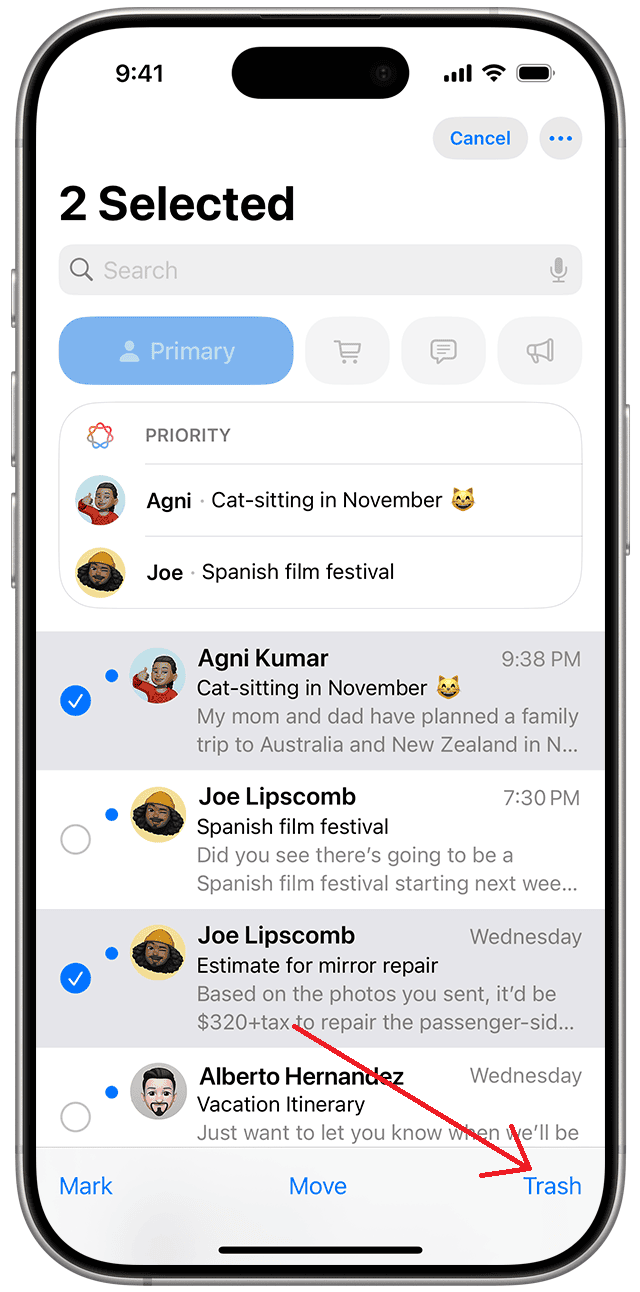

These emails move to the Trash folder but aren’t removed permanently yet.
2. Remove Emails from Trash Permanently
To erase deleted emails completely, empty the Trash folder.
- Open the Mail app again.
- Go to Mailboxes and tap Trash.
- Tap Edit at the top-right corner.
- Choose Delete All to remove every email from Trash permanently.


Alternatively, go to Settings > Mail > Accounts, select your email account, and make sure the Deleted Mailbox is set to permanently remove messages instead of archiving them.
3. Delete Emails from Mail Server Settings
If your email provider stores messages on the server, deleting them on your iPhone might not remove them completely.
- Go to Settings > Mail > Accounts.
- Select your email account.
- Tap Advanced under the account settings.
- Under Mailbox Behaviors, choose Deleted Mailbox.

- Ensure Store Deleted Messages On The Server is turned off.

This ensures deleted emails are not stored on the server and will be permanently erased.
If you’re using multiple accounts or iCloud Mail, you can also manage and delete addresses created with Hide My Email under Settings > Apple ID > iCloud > Hide My Email. Learn more on The Mac Observer’s Hide My Email guide.
Additional Tips
- Use Mail Settings to Manage Accounts: Adding or removing email accounts can help control where messages are stored.
- Check Archived Emails: Some accounts archive instead of deleting. Change the setting under Mail > Accounts > Advanced > Move Discarded Messages Into: Deleted Mailbox.
- Clear Mail Cache: Occasionally, cached mail data remains in the system. Check how to manage mail cache and deletion on iOS.
- Troubleshoot Missing Emails: If new messages stop appearing, learn what to do when your iPhone isn’t getting emails.
Conclusion
To delete emails completely from an iPhone, it’s important to clear them from both the Mail app and the server. Adjusting your Mail settings ensures deleted messages don’t linger in the Trash or Archive folder. Once done, your inbox stays clean, your storage remains free, and your email data stays under control.
FAQs
If emails reappear, your account is likely set to archive instead of delete. Check the Mail settings under “Advanced” and ensure deletion is selected.
Yes. In the Mail app, tap Edit, then Select All, and choose Delete to move all messages to Trash. Then, clear the Trash folder.
Once removed from Trash and the server, deleted emails cannot be recovered.
Yes, downloaded emails and attachments can be stored locally. Deleting them completely helps free up space.


How do I delete messages from my phone and NOT the server? I can delete the account from my phone, but when I reconnect it, I don’t want everything on the server back on my phone.