You just got your new iPhone 17, and it’s impressive in every way — fast, sharp, and responsive. But then you notice something odd: the battery doesn’t seem to last as long as you expected. You’re not gaming, streaming all day, or shooting 4K videos. You’re just texting, checking email, and scrolling through social media — yet the battery percentage drops faster than you’d like. If your iPhone 17 battery drains quickly with normal use, you’re not imagining things. Let’s figure out why it’s happening and how to fix it.
Why Your iPhone 17 Battery Might Drain So Fast
Even with Apple’s improvements in the iPhone 17 series and iOS 26, battery drain can sneak up on anyone. Some of it’s natural, some of it’s fixable, and some of it comes down to how your phone adjusts to your habits.
Here are the main reasons:
- Background activity: Apps constantly refreshing or syncing behind the scenes quietly eat through your charge.
- Widgets and Live Activities: The live elements on your lock screen — weather, delivery trackers, or sports scores — use more power than you realize.
- High refresh rate: The Pro and Pro Max models run at 120Hz. It’s smooth, but it drains more battery compared to standard 60Hz.
- Weak signal: When your phone struggles to maintain a 5G or Wi-Fi connection, it uses extra power.
- System processes after updates: After installing a major iOS update, your phone performs background tasks like indexing files and refreshing apps. That temporary spike in power use is normal.
Here’s the thing: most of these issues aren’t permanent. A few adjustments can bring your battery life back in line.
Quick Fixes That Actually Work
1. Check Your Battery Insights
Apple’s new iOS 26 introduces Battery Insights under Settings > Battery. This section shows what’s been draining your power and even gives recommendations.
Look for messages like “High Brightness,” “Auto-Lock Off,” or “Background Activity.” These are real-time tips straight from your system. Follow them — they’re simple but effective.
2. Limit Background App Refresh
Go to Settings > General > Background App Refresh, and turn it off for most apps. Or switch it to Wi-Fi only.

Why it helps: Many apps — social media, news, weather — constantly update in the background, even when you’re not using them. Shutting that down gives your battery a breather.
3. Tame the Display
High brightness and ProMotion look great but come at a cost.
- Turn on Auto-Brightness: Settings > Accessibility > Display & Text Size > Auto-Brightness.
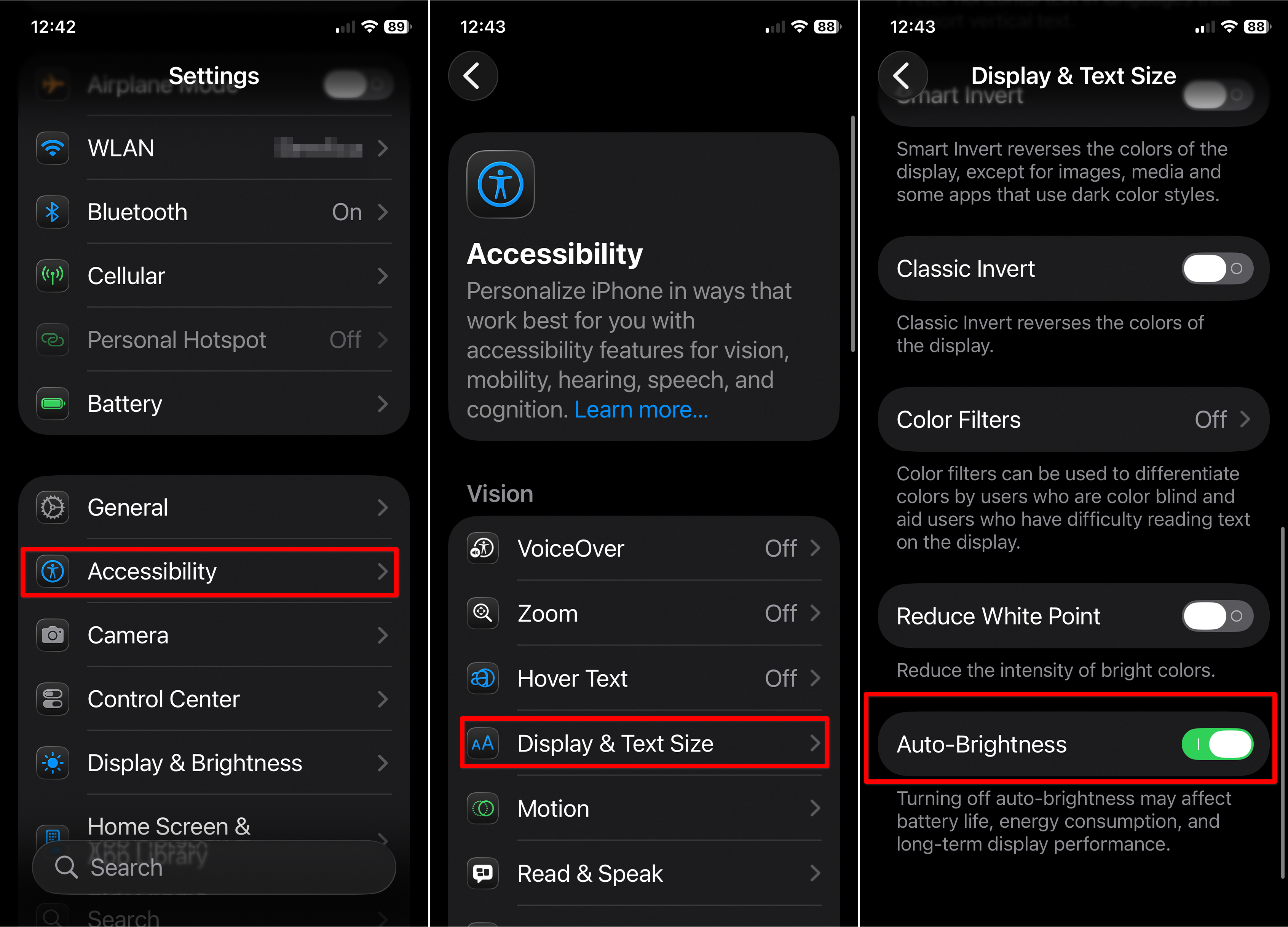
- Reduce refresh rate: Go to Settings > Accessibility > Motion, and limit the frame rate to 60Hz.
- Use Dark Mode: OLED screens use less power showing dark colors.
These tweaks won’t ruin your experience — but they’ll add noticeable hours to your battery life.
4. Control Widgets and Live Activities
Those live notifications and interactive widgets may look sleek, but they’re power-hungry.
Long press on your lock or home screen, tap the widget, and choose Remove Widget for anything nonessential.
Keep only what you truly use — like Calendar or Weather — and your battery will thank you.
5. Adjust Network Settings
5G drains battery faster than LTE, especially in areas with weak coverage.
- Go to Settings > Cellular > Voice & Data and switch to LTE if needed.
- Always use Wi-Fi when possible — it’s far more efficient.
- If you’re in a low-signal area for a while, turn on Airplane Mode to stop your phone from constantly searching for service.
6. Use Adaptive Power
Apple added Adaptive Power in iOS 26, and it’s a smart feature worth turning on.
It predicts when you’ll need more battery and automatically adjusts performance, even enabling Low Power Mode at 20%.
Find it in Settings > Battery > Adaptive Power.
It’s like a built-in battery manager that learns your habits and subtly extends life without slowing you down noticeably.
7. Disable Push Email
If your inbox constantly updates in real time, that constant syncing can add up.
Go to Settings > Mail > Accounts > Fetch New Data and switch from Push to Fetch every 30 minutes or Manual.
This way, your phone isn’t checking for new messages every few seconds.
8. Watch Out for Location Services
Apps love to track your location — even when you’re not using them.
Go to Settings > Privacy & Security > Location Services and set apps to While Using or Never.
Turning off location access for nonessential apps often cuts idle drain dramatically.
When It’s Just iOS Doing Its Thing
If your iPhone 17 battery drain started right after an update, don’t panic. After every major iOS install, the system reindexes files, photos, and apps in the background. This can last a couple of days, temporarily spiking battery use.
The solution? Wait it out. Keep your phone charged and connected to Wi-Fi overnight for a few days — the system will finish its tasks, and your battery life should stabilize.
How to Keep Battery Health Strong
Even when everything’s working normally, long-term battery life depends on how you treat your device. A few habits can make a big difference:
- Avoid heat: Heat is your battery’s worst enemy. Don’t leave your phone charging in direct sunlight or a hot car.
- Don’t drain it fully: Lithium-ion batteries don’t like going to zero. Partial charges are healthier.
- Use optimized charging: Enable Optimized Battery Charging in Settings > Battery > Battery Health.
- Update regularly: Apple’s updates often include energy optimizations and bug fixes.
When It’s Not You, It’s the Battery
If your iPhone 17’s battery still drops unusually fast after trying everything, it might be hardware-related.
Go to Settings > Battery > Battery Health and check your Maximum Capacity.
If it’s below 80% or says Service, the battery might be due for replacement. Apple can test and replace it under warranty if needed.
The Takeaway
If your iPhone 17 battery drains quickly with normal use, it’s usually not a mystery — just a few settings, habits, or temporary software quirks.
Start by checking your Battery Insights and trimming background activity. Adjust display and connectivity settings, use Adaptive Power, and give your device a few days after updates to recalibrate.
Once you’ve fine-tuned those things, your iPhone 17 should last through the day easily — no more mid-afternoon scrambles for a charger.