

There’s nothing more frustrating than sitting down with your iPad, ready to stream a show or get some work done, only to realize it won’t connect to Wi-Fi. You’ve got full bars on your router, your phone’s online, but your iPad just won’t play nice with the internet.
The good news is, in most cases, the issue isn’t serious. It’s usually something small — a setting, a password typo, or a router that just needs a restart. Let’s walk through how to fix Wi-Fi connection issues on iPadOS 26 step by step, without overcomplicating things.
Table of contents
- 1. Start with the Basics: Check Range and Power
- 2. Make Sure Wi-Fi Is Actually On
- 3. Recheck Your Wi-Fi Password
- 4. Look for Wi-Fi Alerts or Recommendations
- 5. Restart Everything
- 6. Reset Network Settings
- 7. Test Another Network
- 8. Update Your Router Firmware
- 9. Check for iPadOS Updates
- 10. When All Else Fails, Contact Apple or Your ISP
- The Bottom Line
1. Start with the Basics: Check Range and Power
First, make sure your Wi-Fi router is actually on. It sounds obvious, but you’d be surprised how often that’s the problem. If you’re too far from the router — say, a few rooms away with walls in between — your iPad might see the network but not connect properly. Move closer to the router and see if the signal stabilizes.
Don’t miss the best of The Mac Observer
Set us as a preferred source and our Apple reporting ranks higher in your Google Search results and Discover feed — one tap, no account changes.
If you’re using an external modem and router setup, double-check that all cables are plugged in securely and that the lights on both devices are on. A loose Ethernet cable can break your entire connection chain.
2. Make Sure Wi-Fi Is Actually On
- Go to Settings > Wi-Fi on your iPad.
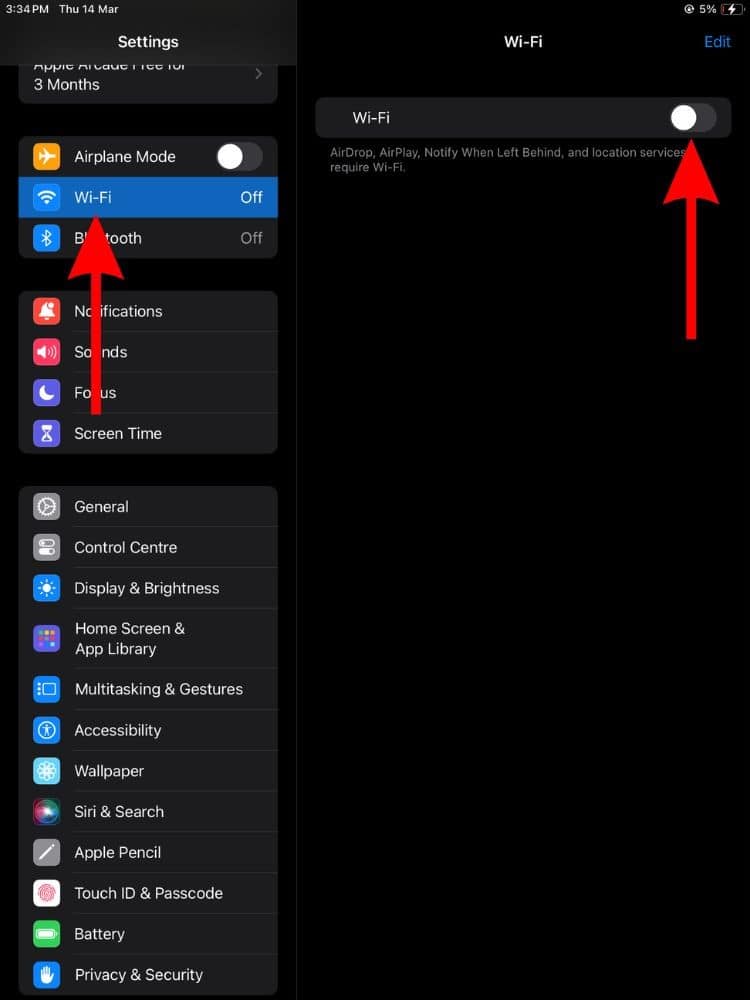
- Make sure Wi-Fi is turned on, and check if your network’s name appears in the list.
- Tap your network to connect — you’ll know it’s working when you see a blue checkmark next to the name.

If you notice Auto-Join Disabled under your network’s name, tap the More Info (i) button, then toggle Auto-Join back on. This ensures your iPad connects automatically next time you’re within range.
3. Recheck Your Wi-Fi Password
If your iPad asks for a password, take your time typing it in. It’s easy to mix up characters — especially if your password uses symbols or capital letters. If you’re confident you entered it correctly but still see “Unable to Join the Network” or “Incorrect Password,” restart both your iPad and your router. Then try again.
Here’s the thing: sometimes routers hold onto an old connection that just needs a quick reset. Turning it off and back on usually clears that up.
4. Look for Wi-Fi Alerts or Recommendations
When iPadOS 26 detects a network issue, it doesn’t leave you guessing. Under your Wi-Fi network name, you might see alerts like No Internet Connection or Weak Security. Tap the network name to get more details.
If it says No Internet Connection, that means your iPad is connected to the router, but the router isn’t connected to the internet. That’s usually on your ISP’s end — or it could be a modem issue. Try connecting another device (like your phone or laptop) to the same Wi-Fi network. If that device also can’t get online, it’s probably a network outage.
5. Restart Everything
When in doubt, restart. It’s the simplest fix and often the most effective.
Here’s how to do it properly:
- Restart your iPad by holding down the top button and sliding to power off.
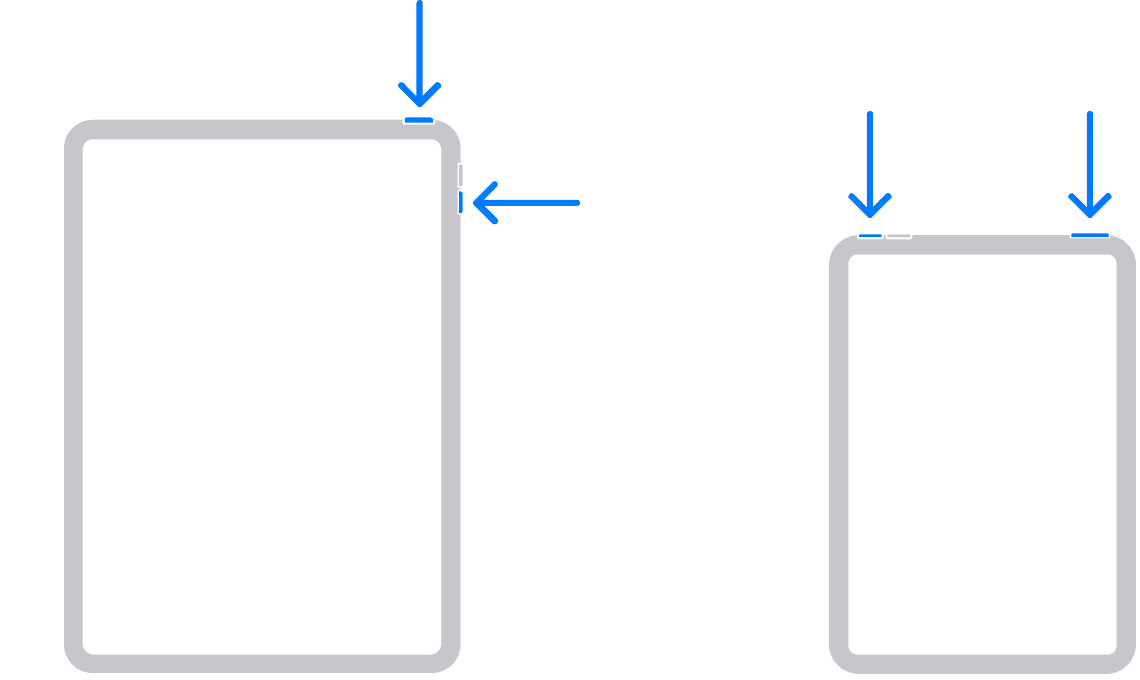
- Unplug your router and modem from power for about 30 seconds.
- Plug them back in, wait until all the indicator lights return to normal, then turn your iPad back on.

Once everything’s running again, reconnect to your Wi-Fi network and test your connection.
6. Reset Network Settings
If restarting doesn’t help, your network settings might need a reset. Don’t worry — this isn’t as scary as it sounds. It just clears out old Wi-Fi passwords, VPN profiles, and other saved network configurations that could be causing conflicts.
- Go to Settings > General > Transfer or Reset iPad > Reset > Reset Network Settings.
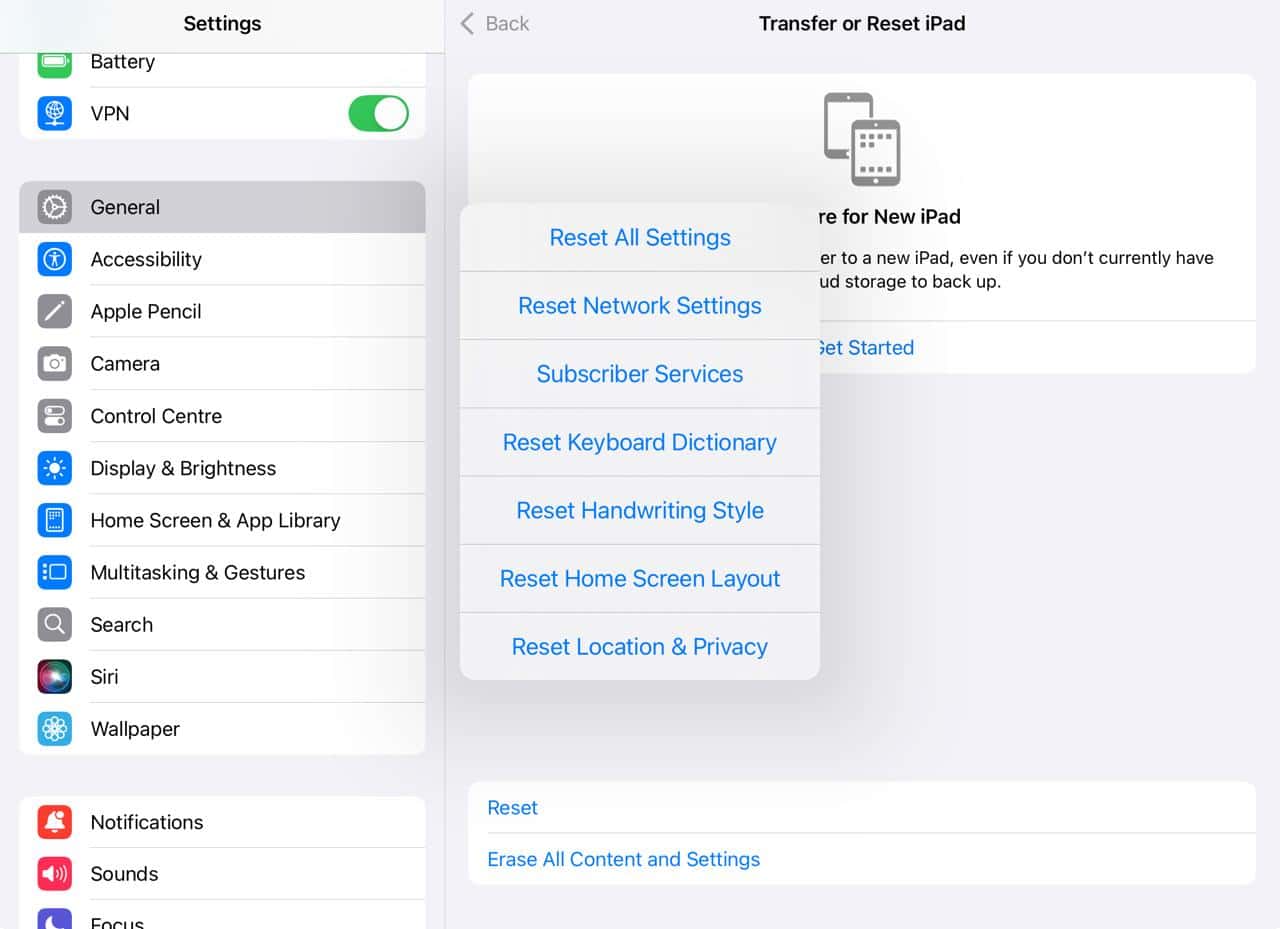
- If you’re prompted, enter your passcode and confirm.

After your iPad restarts, go back to Settings > Wi-Fi and reconnect to your network by entering your password again.
This step often fixes those stubborn cases where the iPad connects to Wi-Fi but refuses to load anything.
7. Test Another Network
If your iPad still won’t connect, it’s time to isolate the problem. Try connecting to a different Wi-Fi network — maybe your phone’s hotspot, a friend’s network, or public Wi-Fi.
If it connects somewhere else, your iPad is fine; the issue lies with your original Wi-Fi network or router. If it doesn’t connect to any network, then it might be something in your iPad’s software or hardware.
At that point, updating your iPadOS or reaching out to Apple Support is your best move.
8. Update Your Router Firmware
Routers, like any tech, need updates too. Outdated firmware can cause compatibility issues, especially when Apple rolls out new iPadOS versions like 26. Check your router manufacturer’s website for update instructions.
It’s also worth verifying that your router supports the latest Apple network standards. Some older routers may not fully play nice with modern devices.
9. Check for iPadOS Updates
It’s possible your Wi-Fi issue is part of a known bug that Apple has already fixed.
- Go to Settings > General > Software Update and check if there’s a newer version of iPadOS available.
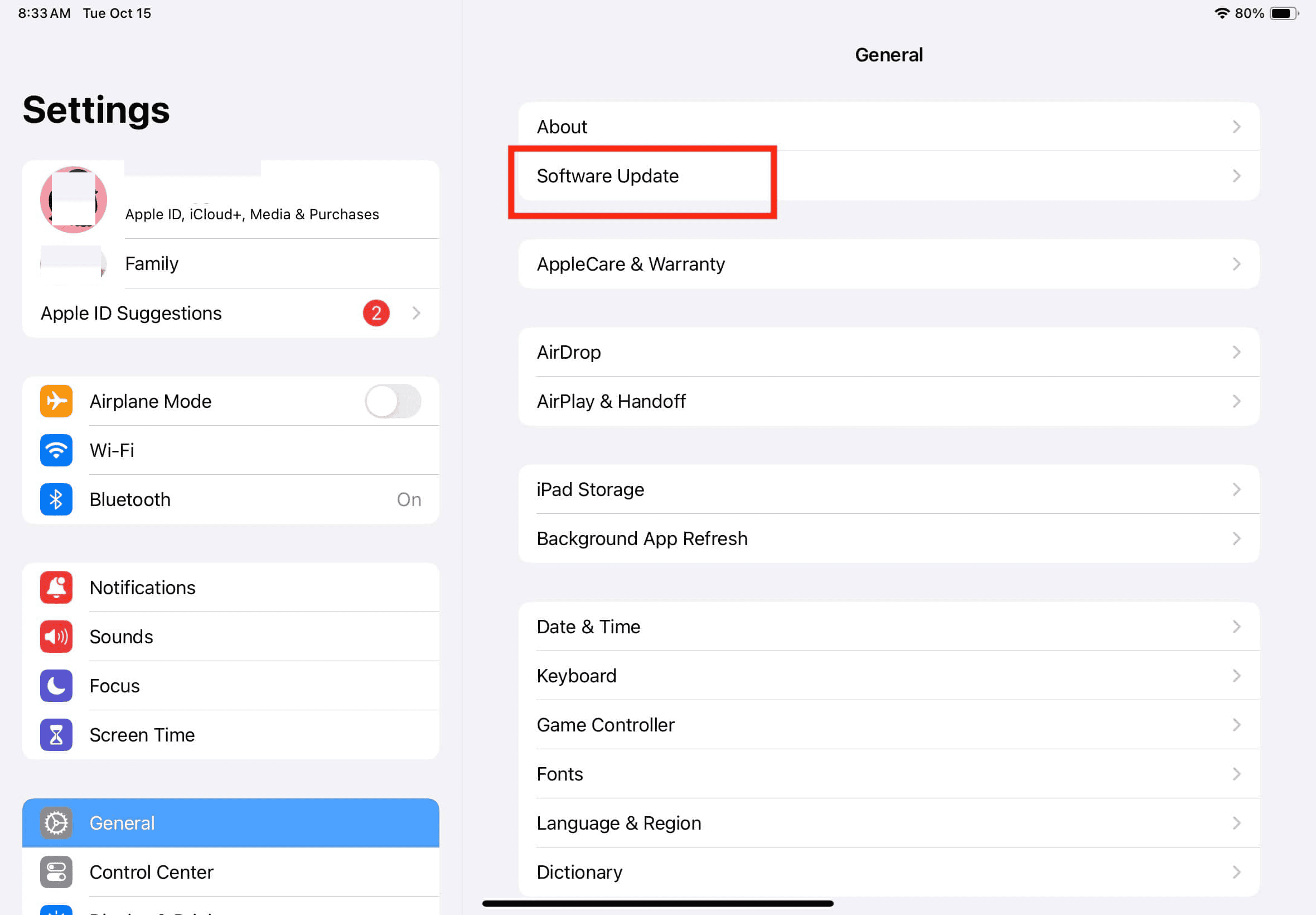
- If so, install it.

These updates often include small fixes that can quietly solve big headaches like connection drops or slow speeds.
10. When All Else Fails, Contact Apple or Your ISP
If your iPad still refuses to connect after all this, it’s time to call in help. Start with your internet provider — there could be an outage or a router issue they can see from their end.
If your connection works fine on other devices but not your iPad, contact Apple Support. They can run remote diagnostics or guide you through deeper troubleshooting.
The Bottom Line
Wi-Fi problems on iPadOS 26 usually boil down to simple causes: range, router resets, or old settings. Most can be fixed in minutes if you know where to look.
So next time your iPad won’t connect, don’t panic — just go step by step. Check the basics, restart your gear, reset network settings if needed, and test another network.
In almost every case, you’ll have your internet connection back before you finish your coffee.


Discussion