

Apple Wallet’s Digital ID is very convenient. Users carry their identification easily. However, technical glitches cause frustration. This happens especially when identification is crucial. Issues include failing to add the ID. Sometimes, verification at checkpoints fails. Do not panic immediately. You can try several troubleshooting steps. These steps fix identification problems quickly.
Table of contents
Essential Troubleshooting Steps for Apple Wallet ID Issues
Initially, your Digital ID might fail to load. Authentication problems also occur. The root cause is often device incompatibility. Furthermore, software conflicts or regional limits cause issues. Systematically try the following fixes. These steps resolve most common hurdles. Consequently, they restore Wallet app functionality completely.
1. Verify Your Device and Operating System Compatibility
The Digital ID feature requires specific hardware. It also needs particular software requirements. Users must meet these to function correctly. Conversely, an older device causes failure. An outdated iOS version also stops the feature. This happens regardless of other settings. First, confirm your device meets minimum standards. Review the supported iPhone models and iOS versions easily.
Don’t miss the best of The Mac Observer
Set us as a preferred source and our Apple reporting ranks higher in your Google Search results and Discover feed — one tap, no account changes.
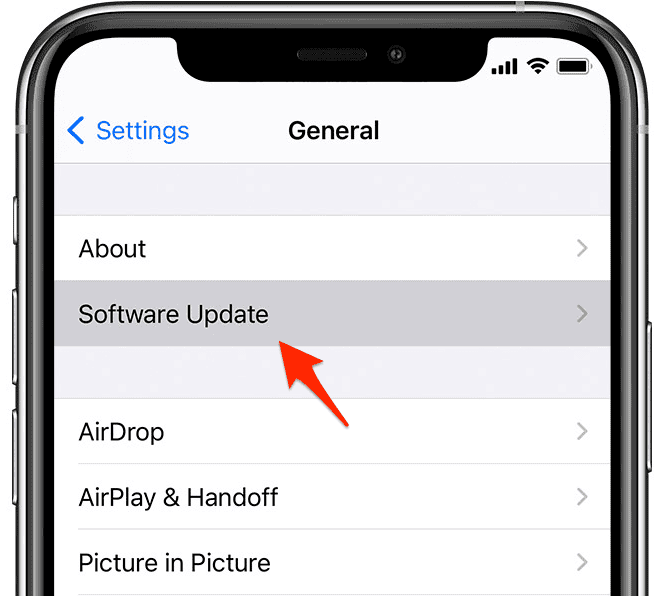
- Navigate to Settings > General > About to check your Model Name and Software Version.
- If an update is available, go to Settings > General > Software Update and install the latest version of iOS.

2. Check Regional and State Availability
Apple rolled out the Digital ID feature slowly. They used a state-by-state basis in the US. Therefore, the service supports only select states. It is also available in some territories. Trying to add an ID fails completely. This happens if your location is unsupported. This feature depends on state government partnerships. Consequently, you must confirm availability first. Check if Apple’s Digital ID is available in your state.
- Check the official list of participating states on Apple’s website or a reliable tech source.
- If your state is not yet supported, you will need to wait for the official rollout before you can add your license or ID.
3. Restart Your iPhone
A simple restart is very effective. It resolves temporary software conflicts. Furthermore, it clears memory issues instantly. These issues might stop the Wallet app from operating. This process forces the device to shut down background processes. A fresh boot cycle clears the system’s cache. This allows the Wallet application to initialize properly. Moreover, troubleshooting demands finer details. Read everything Apple didn’t tell you about Digital ID for a complete picture.
- Press and hold the Side button and either Volume button until the power off slider appears.
- Drag the slider to power down the device completely.
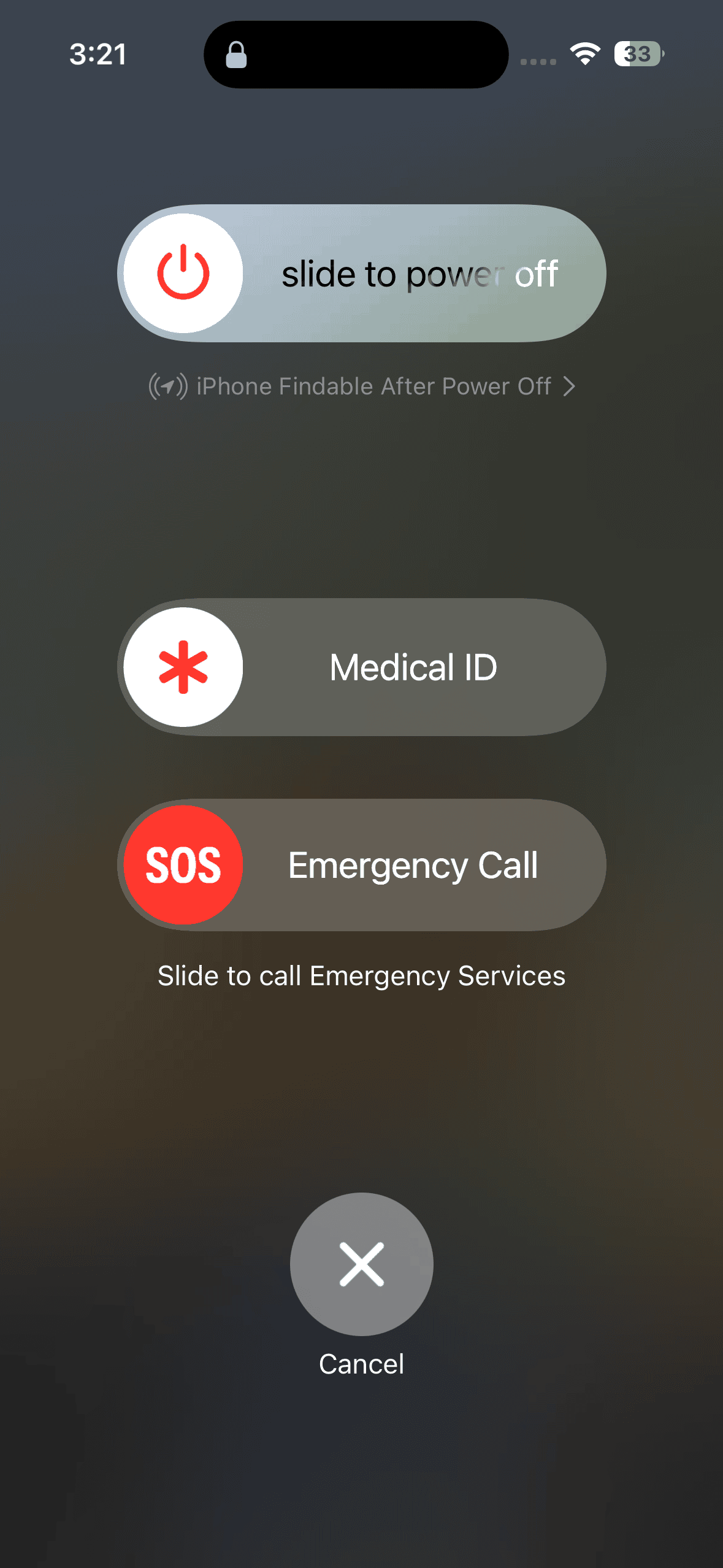
- Wait 30 seconds, then press and hold the Side button again until the Apple logo appears to restart your iPhone.

4. Ensure Face ID or Touch ID is Functional
Digital ID security protocols are strict. They require active Face ID or Touch ID. This biometric security must be fully functional. The Wallet app relies on these systems. Specifically, they enable authentication. They also protect your identification data. Therefore, fix any biometric glitching or disabling. If not fixed, the ID may not be recognized. It becomes inaccessible within the Wallet app.
- Go to Settings > Face ID & Passcode (or Touch ID & Passcode).

- Ensure that Wallet & Apple Pay is toggled on under the section that says Use Face ID/Touch ID For:.
- If necessary, try resetting your Face ID or Touch ID to ensure the feature is fully operational.

5. Remove and Re-add the Digital ID
You successfully added the ID initially. However, it consistently fails now. The data may have become corrupted. Therefore, remove the existing credential. Then, complete the initial setup again. This resolves data integrity issues. This forces a clean installation of the Digital ID. It often fixes file corruption. Consequently, it repairs underlying misconfiguration errors.
- Open the Wallet app.
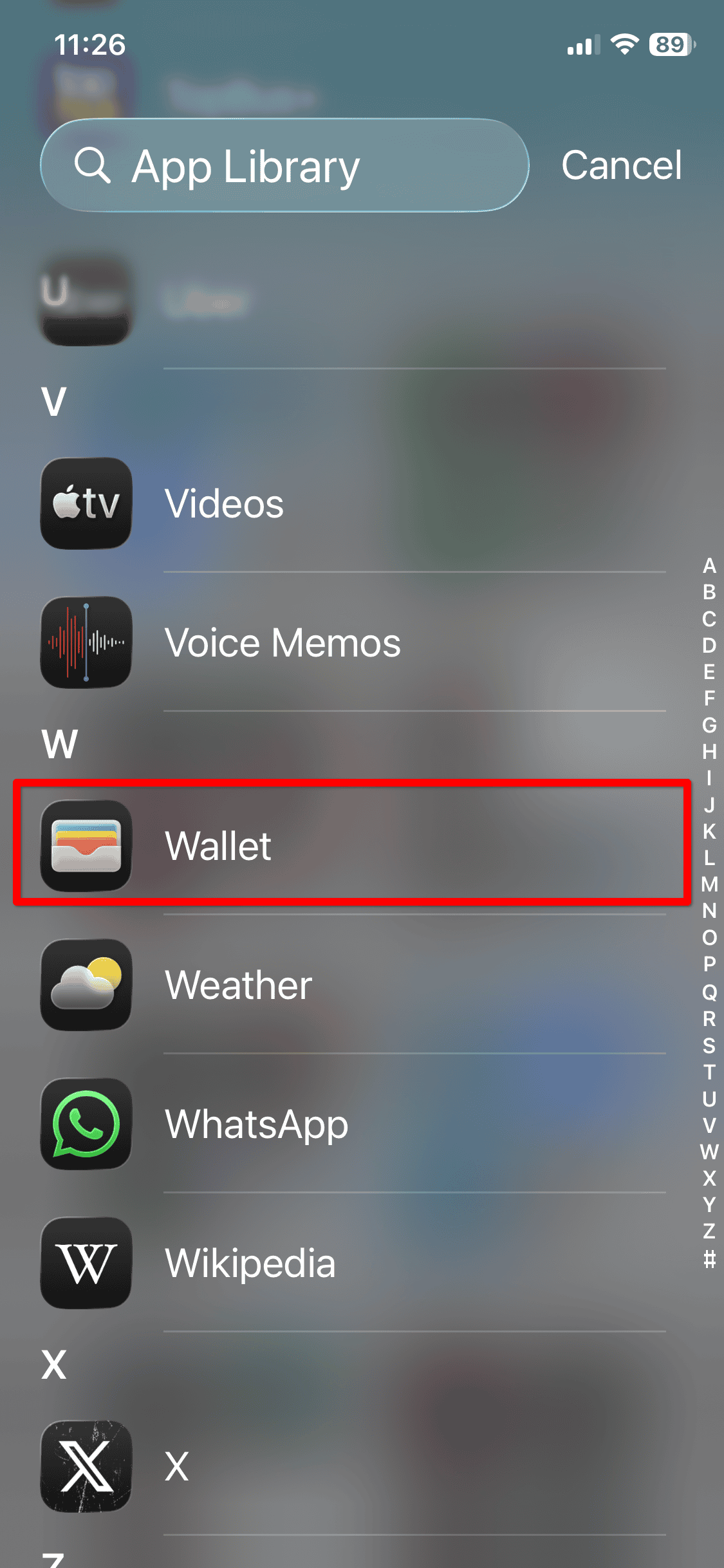
- Tap on your Digital ID, and then tap the three-dot menu icon.
- Scroll down and tap Remove ID, confirming the action.
- Tap the plus (+) button in the Wallet app and follow the on-screen prompts to add your Digital ID again.

FAQ
The process requires scanning the front and back. This verifies authenticity. It also captures necessary information securely.
Apple’s Digital ID primarily supports the iPhone. Use it with authorized readers and checkpoints.
Restoring Seamless Access to Your Digital Identification
Fixing Apple Wallet Digital ID issues is simple. It involves checking compatibility first. Also, ensure regional support is active. Furthermore, execute standard troubleshooting steps. Address potential roadblocks systematically. You quickly restore the intended functionality. Consequently, your digital identity stays secure and available. If problems continue, review the guide on things you should know about Apple’s new Digital ID. Otherwise, contact Apple Support for assistance.


Discussion