
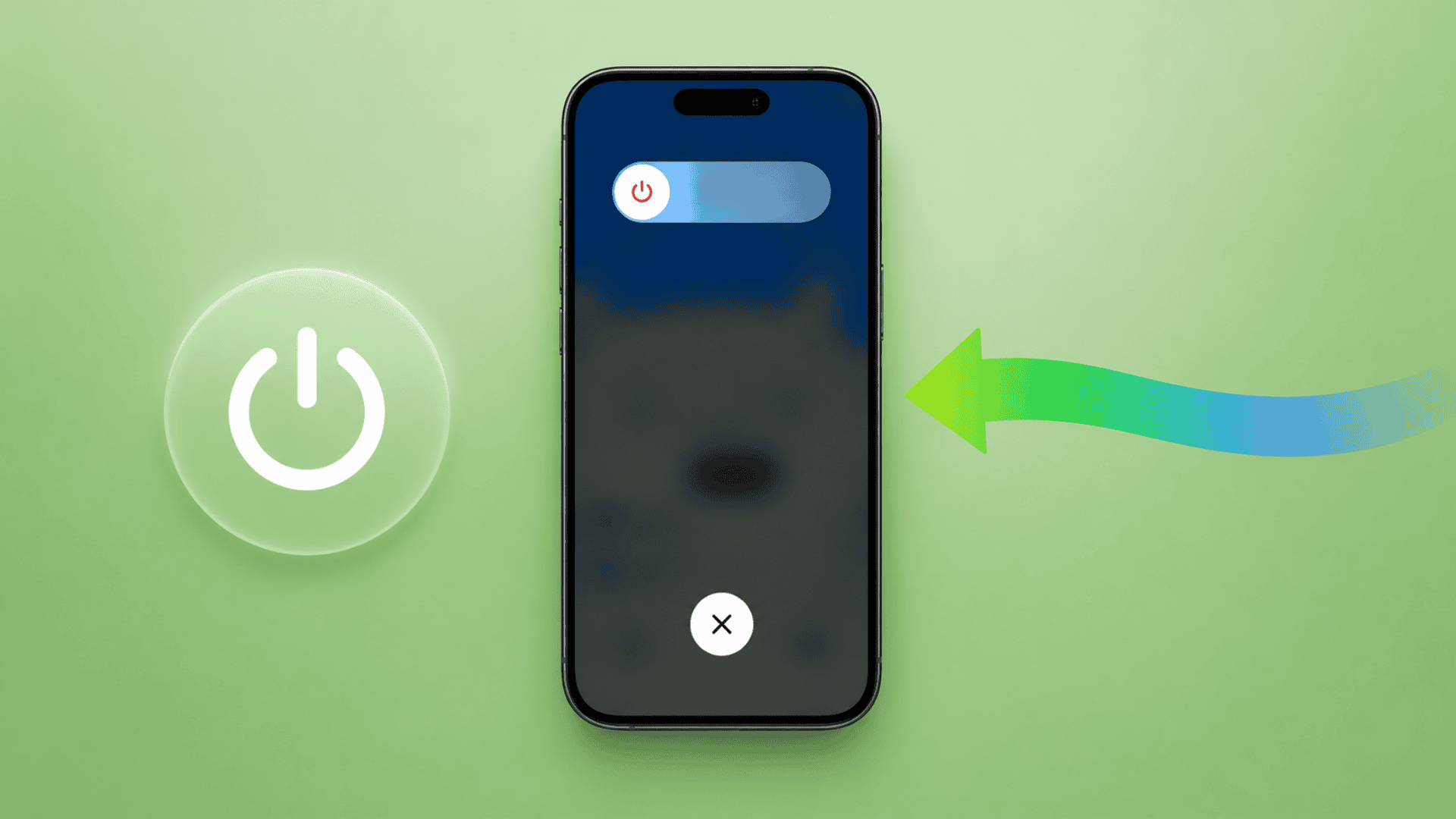
Knowing how to switch off your iPhone sounds simple, but Apple has changed the button combinations several times over the years. If you’ve upgraded from an older iPhone, you may find yourself opening Siri, taking screenshots, or triggering Emergency SOS instead of powering off the device.
Whether you use the latest iPhone with Face ID, an older model with a Home button, or your buttons are not working properly, there are several ways to turn off your iPhone. This guide covers every method available, including the newest options in iOS. Apple’s official documentation also confirms that users can shut down an iPhone through physical buttons, Settings, and other built-in controls.
Table of contents
How to Switch Off an iPhone With Face ID
This is the most common method for modern iPhones, including the iPhone X and newer models.
Don’t miss the best of The Mac Observer
Set us as a preferred source and our Apple reporting ranks higher in your Google Search results and Discover feed — one tap, no account changes.
Compatible devices include:
- iPhone X, XR, XS, XS Max
- iPhone 11 series
- iPhone 12 series
- iPhone 13 series
- iPhone 14 series
- iPhone 15 series
- iPhone 16 series and newer
Steps
- Press and hold the Side button and either Volume button together.
- Keep holding until the Power Off slider appears.
- Drag the Slide to Power Off slider to the right.
- Wait a few seconds for your iPhone to shut down completely.
How to Turn Off an iPhone With a Home Button
Older iPhones use a different shutdown process.
Compatible devices include:
- iPhone 8 and 8 Plus
- iPhone 7 and 7 Plus
- iPhone 6 series
- iPhone SE (1st generation)
- Older iPhone models
Steps
- Press and hold the Side button (or Top button on older models).
- Continue holding until the Power Off slider appears.
- Drag the slider to the right.
- Wait for the screen to turn black.
How to Turn Off Your iPhone From Control Center
Apple introduced a quicker shutdown option through Control Center on supported iOS versions.
This method is useful when you do not want to use button combinations.
- Open Control Center by swiping down from the top-right corner.
- Locate the Power icon near the top-right area.
- Press and hold the icon.
- When the shutdown screen appears, drag the Slide to Power Off slider to the right.
Your iPhone will immediately begin shutting down.
How to Shut Down an iPhone Using Settings
If your physical buttons are damaged or unresponsive, this method works on nearly all modern iPhones.
Apple includes a dedicated Shut Down option inside Settings.
- Open the Settings app.
- Tap General.
- Scroll all the way down.
- Select Shut Down.
- Drag the Slide to Power Off slider to the right.
This is often the easiest solution when your buttons stop working.
How to Turn Off Your iPhone Using Siri
You can also ask Siri to shut down your iPhone.
This method is particularly useful when you cannot easily access the buttons.
- Say “Hey Siri, turn off my iPhone.”
- If Hey Siri is disabled, press and hold the Side button to activate Siri.
- Siri will ask for confirmation.
- Tap Power Off when prompted.
Your iPhone will then shut down.
How to Force Restart an iPhone
If your iPhone is frozen and does not respond to touches, a normal shutdown may not work. In that situation, a force restart can help.
For iPhone 8, iPhone SE (2nd generation and later), and newer models
- Quickly press and release Volume Up.
- Quickly press and release Volume Down.
- Press and hold the Side button.
- Release the button when the Apple logo appears.
For iPhone 7 and iPhone 7 Plus
- Press and hold the Side button and Volume Down button together.
- Keep holding until the Apple logo appears.
For iPhone 6s and Earlier
- Press and hold the Home button and Power button together.
- Release both buttons when the Apple logo appears.
FAQs
Why can’t I turn off my iPhone with the power button?
On modern iPhones, pressing only the Side button usually activates Siri. To shut down the device, press and hold the Side button together with either Volume button.
Can I turn off my iPhone without using buttons?
Yes. Go to Settings > General > Shut Down, then drag the power slider.
Does turning off an iPhone improve performance?
A restart can help clear temporary glitches, refresh system processes, and resolve minor software issues.
How do I turn my iPhone back on?
Press and hold the Side button (or Top button on older models) until the Apple logo appears.
What should I do if my iPhone is frozen?
Use the force restart method for your specific iPhone model. This often resolves temporary software freezes.
Summary
- Face ID iPhones require the Side button + Volume button combination to power off.
- Older iPhones with a Home button can be shut down using the Side or Top button.
- You can turn off an iPhone from Control Center on supported devices.
- The Settings > General > Shut Down option works without physical buttons.
- Siri can also shut down your iPhone with a voice command.
- If the device is frozen, use a force restart instead of a normal shutdown.
- Turning the device off and back on can help fix many minor iPhone issues.
Conclusion
Apple has added multiple ways to switch off an iPhone, but the correct method depends on your model and iOS version. The button combination for newer Face ID devices is different from older Home button models, which often causes confusion for users upgrading their phones.
Fortunately, you are not limited to physical buttons. You can also power down your iPhone through Settings, Control Center, or even Siri. If your device becomes unresponsive, a force restart is usually the quickest way to get it working again. With these methods, you can safely turn off any iPhone model whenever needed.




Discussion