
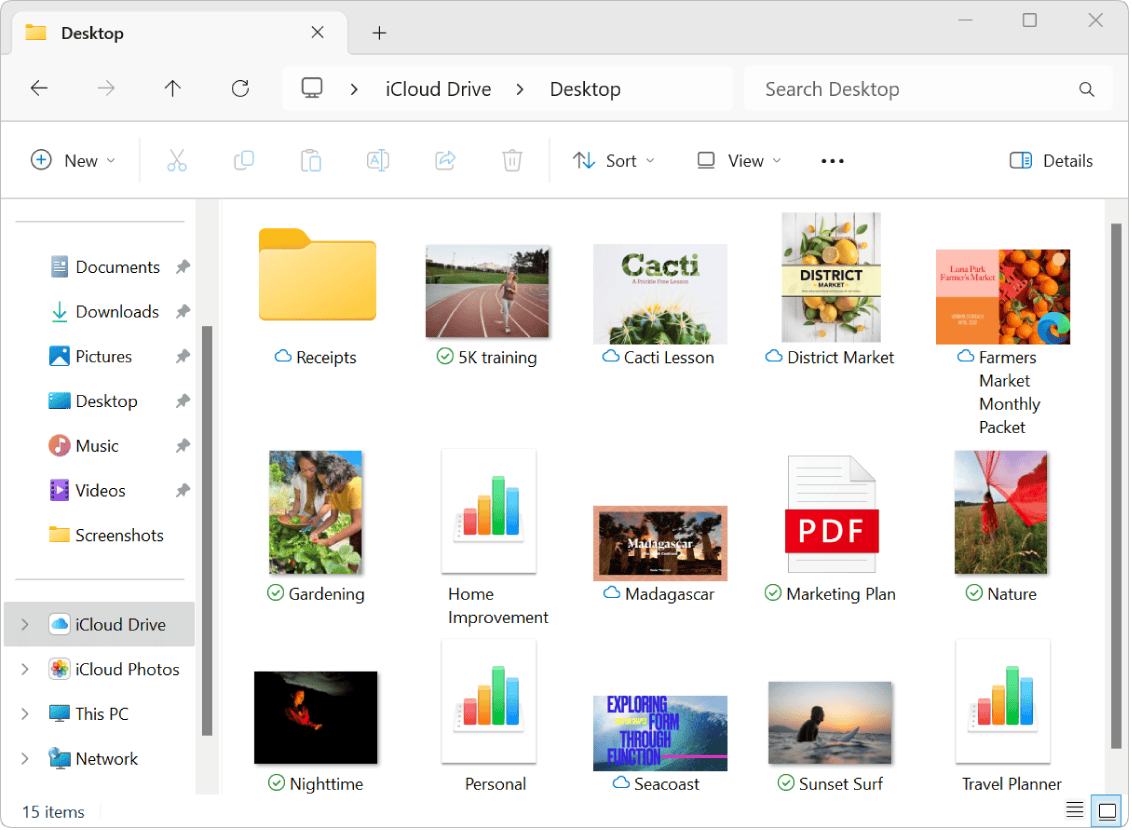
A thumbnail in File Explorer can stand for a picture that still lives in iCloud. If you’ll need the full photo on a flight or in a meeting, pin it while the PC is online. If you’re preparing to delete the photo from your iPhone, take one more step and make a separate copy on the PC.
Pin the pictures you’ll actually need
- Open File Explorer and select iCloud Photos in the navigation pane. If the shortcut is missing, look inside Pictures for the iCloud Photos folder.
- Right-click a photo or video and select Always keep on this device. You can also select the whole iCloud Photos folder. Before pinning a large library, compare the available space on the PC with the size of the collection.
- Leave the PC connected while the files download. For a practical check, disconnect from the network once the transfer finishes, open a pinned photo at full size, and play part of a pinned video. Reconnect afterward.
Pinning is available in modern versions of iCloud for Windows. Apple specifically excludes version 7. If the command is missing, check the installed version and make sure you selected an item inside iCloud Photos.
Make a copy that survives deletion on the iPhone
A pinned item still belongs to your synced library. Deleting it on another device using iCloud Photos also removes it from the PC’s iCloud Photos folder. In File Explorer, copy the downloaded items to a folder outside iCloud Photos, such as a folder on an external disk. Open a few files from that destination before changing the originals.
If your goal later changes to saving PC space, removing the checkmark from Always keep on this device unpins the item. It may still be on disk. Use Free up space for a downloaded iCloud item you want to keep in iCloud. The Delete key performs a different operation.
Apple’s guide to pinning iCloud photos · Apple’s guide to making independent copies
If iCloud Photos is missing from File Explorer altogether, start by setting up iCloud for Windows, then return to the pinning step.
Featured image: iCloud folders in Windows File Explorer. Credit: TMO archive.
Don’t miss the best of The Mac Observer
Set us as a preferred source and our Apple reporting ranks higher in your Google Search results and Discover feed — one tap, no account changes.




Discussion