
If iCloud Drive is competing with Windows for space on C:, its settings include a way to put synced documents on a different disk. You’ll need iCloud for Windows 14 or later and a destination disk formatted as NTFS. Changing this setting applies to iCloud Drive documents. Your iCloud Photos library has its own settings.
Prepare the second drive
In File Explorer, open This PC, right-click the destination drive, and choose Properties. Look for NTFS beside File system. If the drive uses another format, select an existing NTFS disk. Formatting an occupied disk erases its contents and is unnecessary if another suitable drive is available.
Finish editing open documents. For anything you’ve just added, confirm the latest version is visible on iCloud.com or another device. If a file exists only on the PC, copy it outside the sync folder before turning off iCloud Drive.
Change the location in the iCloud app
- Open iCloud for Windows and open the settings beside iCloud Drive.
- Turn off iCloud Drive if it’s on. Select Change.
- Browse to a folder on the other NTFS drive. Choose Select Folder, then OK and Done.
- Return to the iCloud Drive settings and make sure syncing is turned on. Open iCloud Drive from the File Explorer sidebar and let the folder populate.
To check the move, open a familiar document through the sidebar, then inspect its location in File Explorer. For a two-way check, add a small test document and confirm that its name appears on your other device. Leave old copies alone until you know which directory is currently syncing.
If Change is missing, check the iCloud app version and whether the Drive switch is still on. Dragging the folder to D: in File Explorer is a file operation. Use the app’s location control so it knows where to sync.
Apple’s iCloud Drive settings for Windows
If the iCloud app itself is reporting that it hasn’t finished initializing, resolve the iCloud for Windows initialization error before changing the storage location.
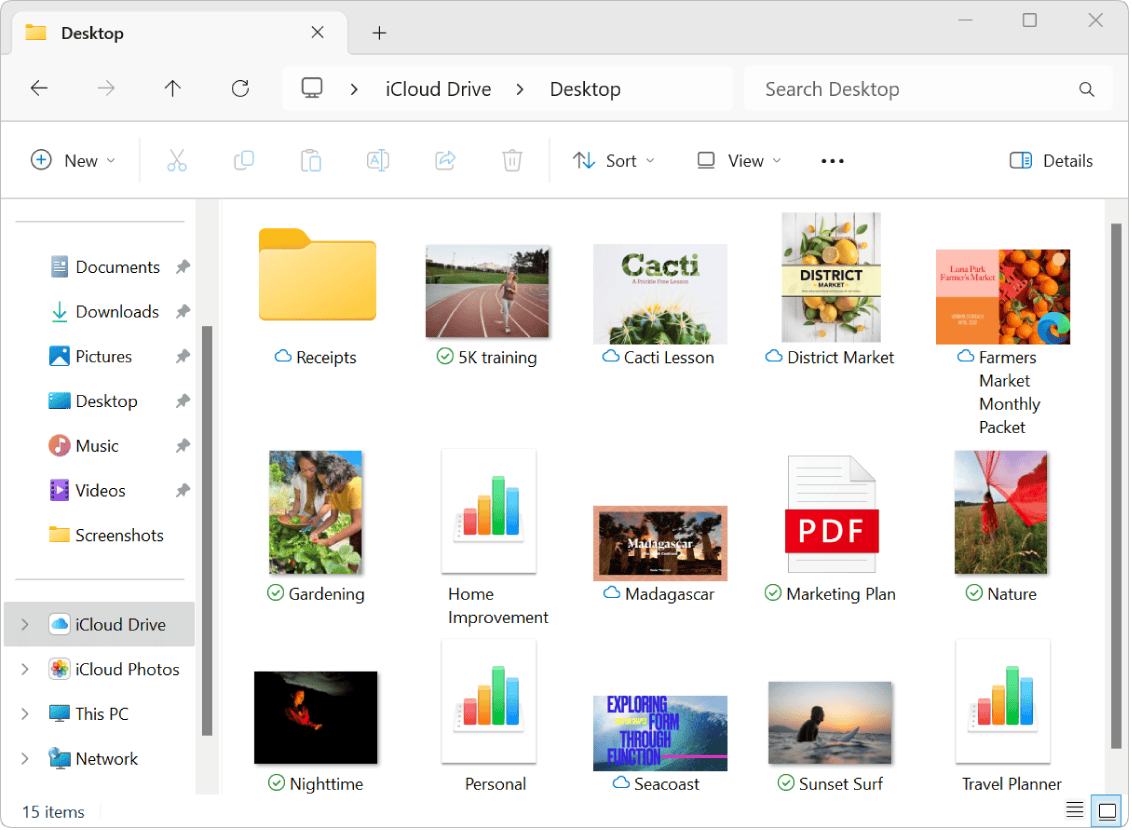
Featured image: iCloud folders in Windows File Explorer. Credit: TMO archive.
Don’t miss the best of The Mac Observer
Set us as a preferred source and our Apple reporting ranks higher in your Google Search results and Discover feed — one tap, no account changes.




Discussion