
A Mac can produce a set of personalized letters from one Pages document and one Numbers table. The critical choice is the table: its column headings become the fields available to Pages. For a thank-you letter, a table with one row per recipient and columns for First Name, Event and Contribution is easier to check than a workbook with names spread across several lists.
Connect the recipient table
- In Numbers, give each input column a distinct heading and check the first and last recipient rows. Save the spreadsheet. In Pages, open the letter you want to reuse. Start with a Pages template that already contains mail merge fields so the controls below are available.
- In Pages, open Document → Document → Mail Merge. Choose Add Merge Field → Add from Spreadsheet, open the Numbers file, and select the recipient table if the file contains more than one. Choose Add as Fields.
- Put the insertion point after the greeting and add your first-name field. Insert the event and contribution fields where their values should appear. Leave shared text, punctuation and spaces in the letter itself. Recipient fields change for each person; a sender field is for information about the person sending the letter.
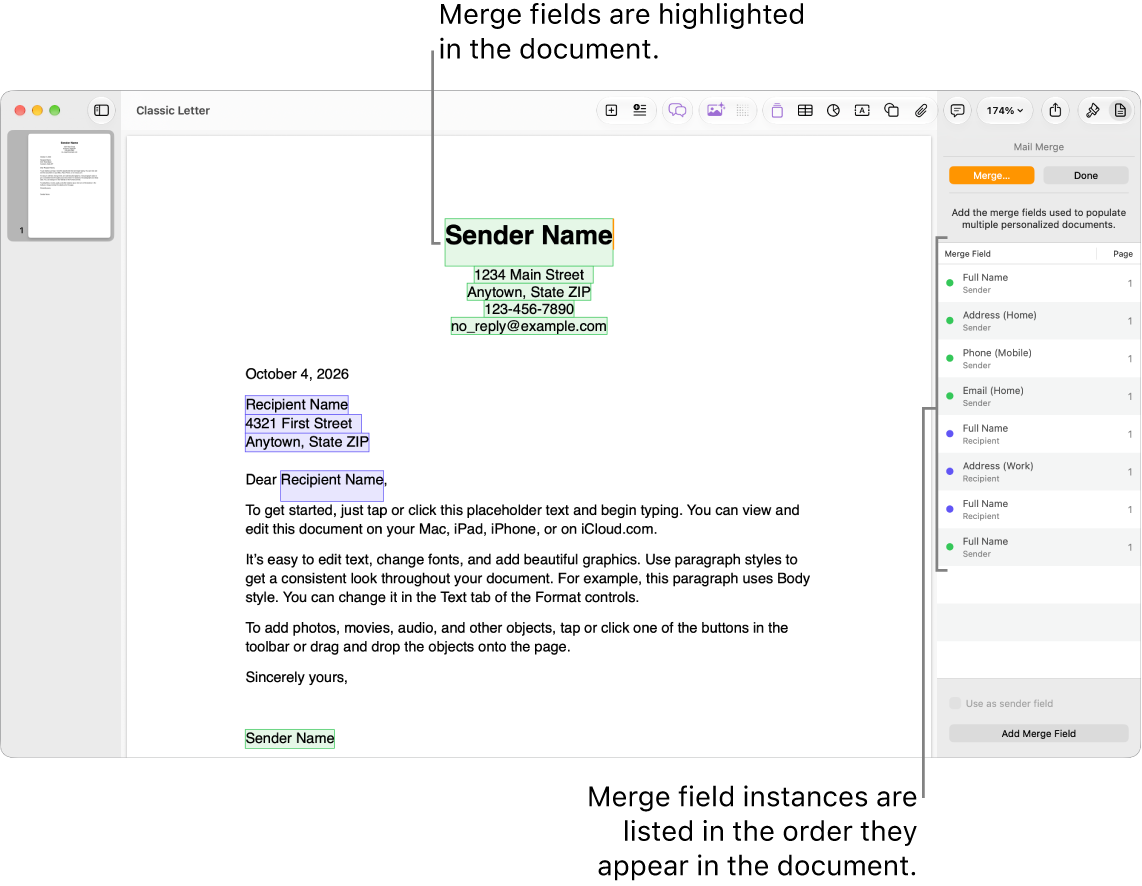
Preview a hard case before creating the batch
From the Mail Merge controls, choose Merge, check what each field uses under Populate With, then open Preview. Move through more than one record. Look for an empty greeting, a duplicated currency symbol or a long event name that pushes the signature onto a second page.
Preview is read-only. Correct the source in Numbers if a name is wrong. Pages says you must select the source again for changed spreadsheet information to appear; use Add Merge Field → [spreadsheet name] → Change and reselect the file or table.
Run the merge once the preview matches. Pages creates a new document containing the personalized versions. Inspect the first and last letters before printing or exporting. Sending that entire merged file to one recipient would include the other letters as well. Keep the original template and recipient table for your next batch.
Connect a Numbers table · Add and change merge fields · Preview and create the merged document
Don’t miss the best of The Mac Observer
Set us as a preferred source and our Apple reporting ranks higher in your Google Search results and Discover feed — one tap, no account changes.




Discussion