
If the audience can see your notes, first look at what the two screens are doing. When the projector shows an exact copy of the Mac, turn off display mirroring. When the screens already show different things but the projector has the notes, press X during the full-screen presentation to swap the slideshow and presenter display.
Give Keynote two separate screens to work with
- Connect the projector or external display to the Mac. Open Apple menu → System Settings → Displays. Choose an extended arrangement rather than mirroring. In the Arrange view described by Apple, thumbnails for independent displays sit beside one another. Option-drag a stacked thumbnail aside if necessary.
- Open the presentation in Keynote and select a test slide without sensitive content. Choose Play → In Fullscreen, then start the slideshow. By default the audience slide goes to an external display and the presenter display stays on the Mac.
- Look at the physical projector output. If you see the clock, next slide or notes there, press X until the screens have the roles you intended. An audience member should see just the slide, including its visible text and builds.
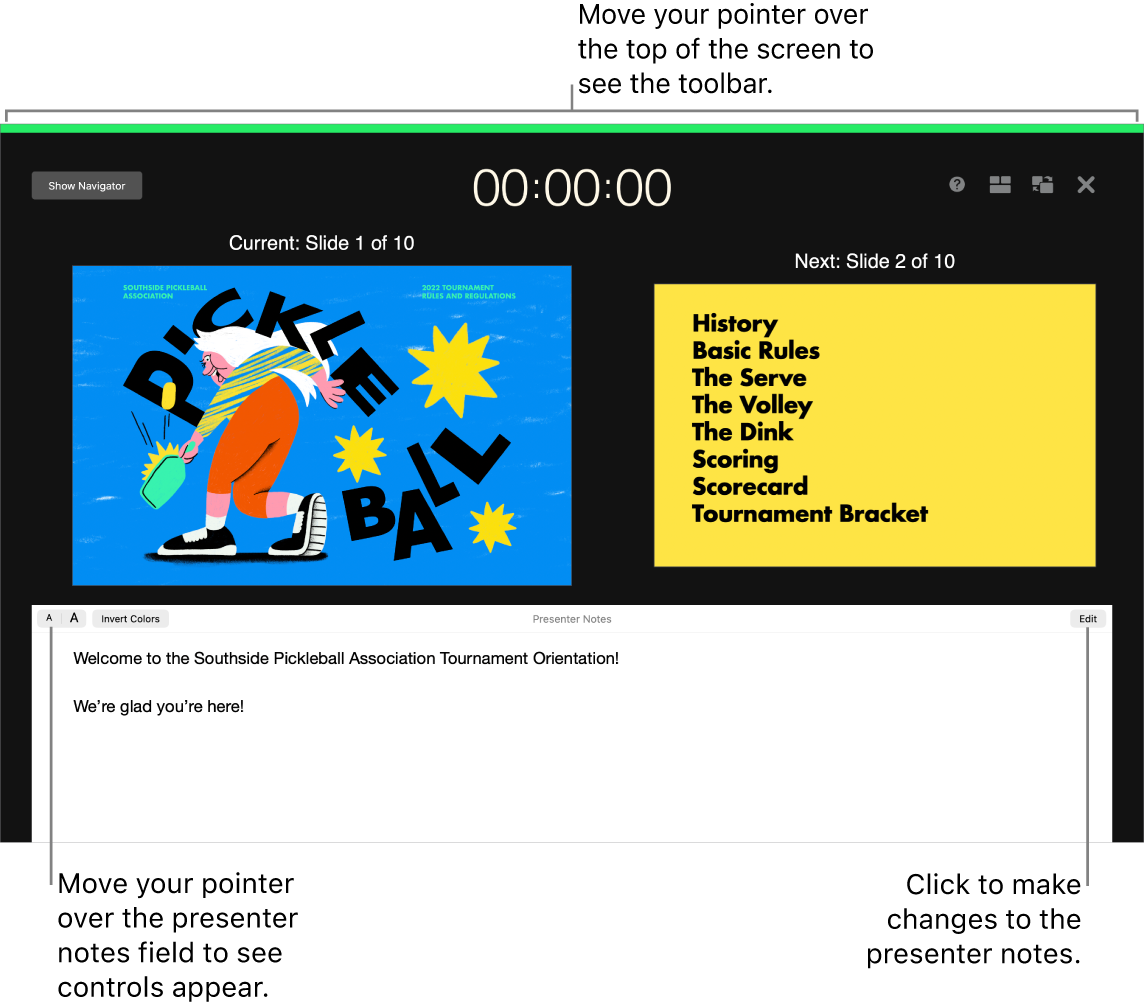
Put the right information on the laptop
Move the pointer over the presenter display to reveal its controls. Use the display options to show the current slide, next slide, notes, clock or timer as needed. A presenter who reads a script may prefer large notes and a small slide preview. Someone timing a short talk may prefer a larger timer. This arrangement changes what the presenter sees.
If the next-slide preview briefly stays out of sight, allow the current transition or build to finish. Keynote can wait until the slide is ready to advance. For a venue with several displays, use the display configuration thumbnails to assign Show Slideshow or Show Presenter Display to each screen.
Before the audience arrives, have a colleague stand where guests will sit and describe what they see while you advance one slide. Check again after reconnecting a cable or changing the room display. Speaker notes typed directly on the slide canvas will appear on the projector regardless of how the screens are arranged.
Use a separate display in Keynote · Add and view presenter notes
Don’t miss the best of The Mac Observer
Set us as a preferred source and our Apple reporting ranks higher in your Google Search results and Discover feed — one tap, no account changes.




Discussion