
Open the PDF in Preview, choose View > Thumbnails and drag a page thumbnail from the sidebar onto the desktop. Preview creates a new PDF from the selected page. This is especially handy when someone needs one page of a long packet and you want to keep the packet intact.
Drag the thumbnail, then inspect the result
- In Finder, locate the source document and open it with Preview. Resize the window so part of the desktop is visible.
- Choose View > Thumbnails. Scroll the sidebar until you can see the page you need. The thumbnail’s position in the file may differ from a printed page number if the document starts with a cover or index.
- Click the thumbnail itself. For consecutive pages, click the first and Shift-click the last. For individual pages, hold Command while you select their thumbnails.
- Drag the selected thumbnails together onto a clear part of the desktop. Rename the resulting PDF in Finder so the recipient can distinguish it from the complete document.
If you drag over the displayed page and get selected words or a small rectangle, return to the sidebar. Dragging thumbnails within the sidebar rearranges the open document. Dragging them onto the desktop creates the extract.
Check more than the filename
Open the extracted PDF in a separate window. Count its thumbnails and check the first and last lines on each page. For example, an invoice labeled “page 2” may include customer details from a previous sheet in its header. Extracting a page preserves what is visible on that page; use a properly redacted copy if part of it must stay private.
If the recipient needs paper, you can instead select the pages and print them from Preview. For a file attachment, opening the newly created PDF before you send it makes it much harder to attach the entire packet by mistake. Apple documents how to create a PDF from page thumbnails.
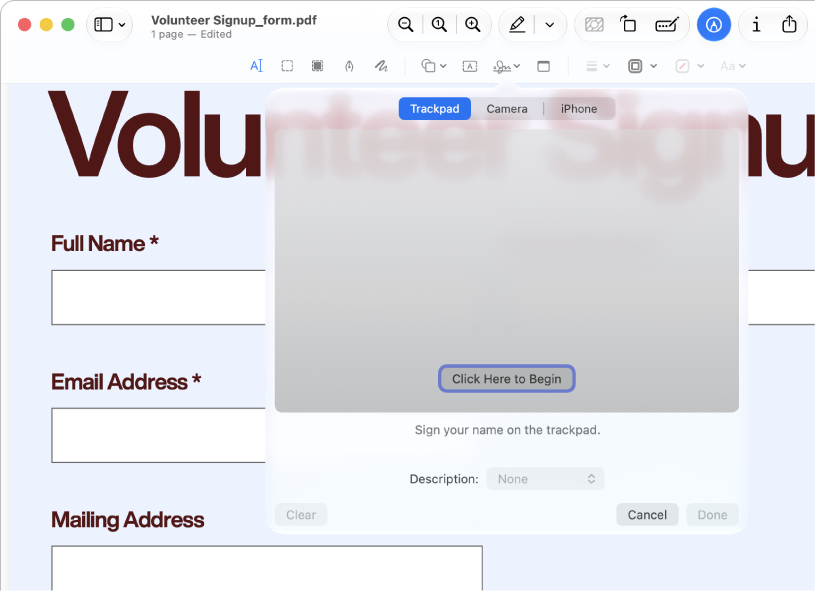
Featured image: Preview displaying PDF markup and signature controls. Credit: Apple.
Don’t miss the best of The Mac Observer
Set us as a preferred source and our Apple reporting ranks higher in your Google Search results and Discover feed — one tap, no account changes.




Discussion