
Place the photos apart on a flatbed scanner, open its controls on your Mac, and choose Detect Separate Images when the scanner offers it. macOS can save each detected photo in its own file and straighten a picture that lies slightly crooked. The empty space between prints gives it a boundary to detect.
Start with two prints before loading the whole bed
- If this is the scanner’s first use on the Mac, add the scanner first. Place two prints face down according to your scanner’s markings. Leave a visible gap between them and keep their edges inside the scanning area.
- Open System Settings > Printers & Scanners, select the scanner or multifunction printer, then choose Open Scanner. If it also has a feeder, use flatbed mode or clear Use Document Feeder.
- Choose a recognizable destination under Scan To. Select Detect Separate Images in the size or detection controls, where supported. Choose a suitable image format rather than a combined PDF if you need a folder of separate photos.
- Use Overview if available to see how the scanner identified the prints. Click Scan, then open the destination folder and check that you received one complete file per photo.
Two prints became one file, or one became several
If both pictures appear in one image, the scanner may have used Detect Enclosing Box. That option frames everything on the glass together. Select separate-image detection and leave more space between the prints. If the scanner does not expose that setting, scan the photos individually or use the manufacturer’s supported controls.
An image with a broad white interior can cause the opposite problem. The scanner can interpret the white area as a gap between items. For that print, scan it alone and choose an enclosing box or a manual selection that includes its full border. Confirm that thin white borders and pale subjects survived before moving on to the next batch. Apple’s scanner guide explains both detection modes and scanner-specific controls.
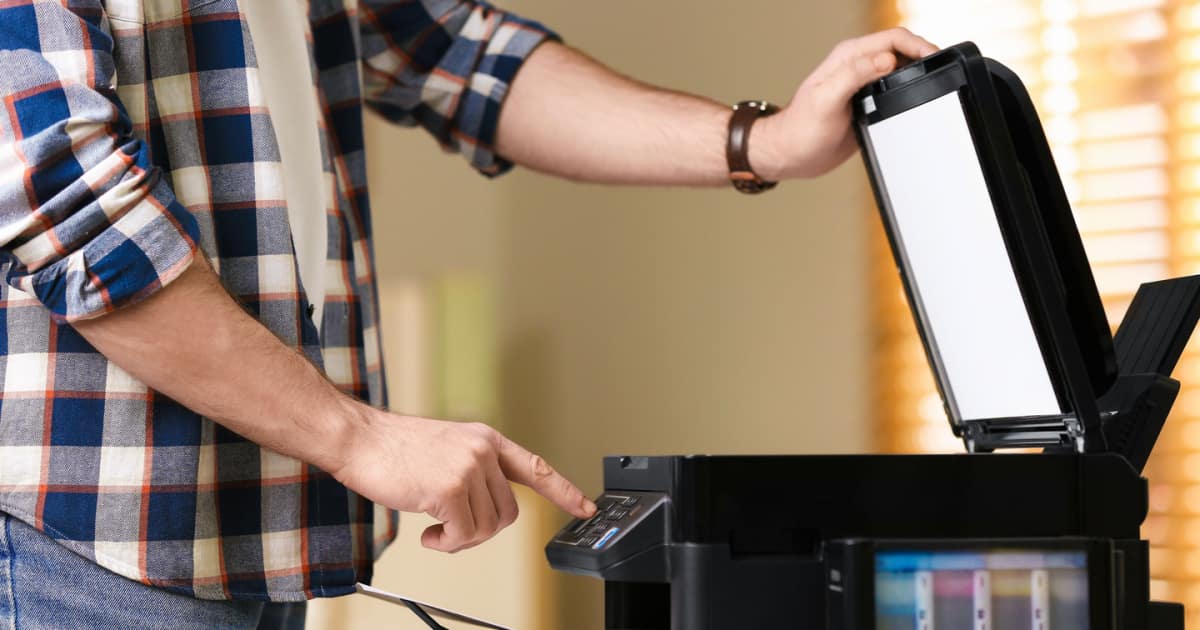
Featured image: A flatbed scanner. Credit: TMO archive.
Don’t miss the best of The Mac Observer
Set us as a preferred source and our Apple reporting ranks higher in your Google Search results and Discover feed — one tap, no account changes.




Discussion