
Open a copy of the image in Preview and choose Tools > Adjust Size. Clear Resample image, keep Scale proportionally enabled, and enter the intended width or height in inches or centimeters. Preview changes the relationship between the pixels and the printed size while preserving the image’s pixel dimensions.
Why the resolution changes when the width changes
A 3,000-pixel-wide photo printed 10 inches wide has 300 pixels per inch. Print that same file 5 inches wide and it has 600 pixels per inch. No new detail appeared in the second print. The same pixels occupy a smaller space. This is why changing a physical dimension with resampling off can make the resolution field change on its own.
- Duplicate the image in Finder if you want to preserve its original print settings. Open the duplicate in Preview.
- In Tools > Adjust Size, note its current width and height in pixels. Switch the measurement units to inches or centimeters.
- Clear Resample image. Select Scale proportionally and set one dimension. Check the calculated value for the other dimension before confirming.
- Reopen Adjust Size and show the values in pixels again. They should match the original pixel dimensions. For the actual print, also inspect the print dialog’s scaling and paper size. A fit-to-page setting can resize the output a second time.
When resampling is the right choice
If a website requires a picture no wider than 1,200 pixels, a different print width won’t satisfy it. Turn on Resample image in a separate copy, choose pixels, and set the required width. Check the resulting dimensions in that copy before uploading. Likewise, enlarging a 3:2 photo to fill a differently shaped frame involves a crop or borders; changing resolution alone leaves its proportions intact. Apple documents the resize, proportion and resampling controls.
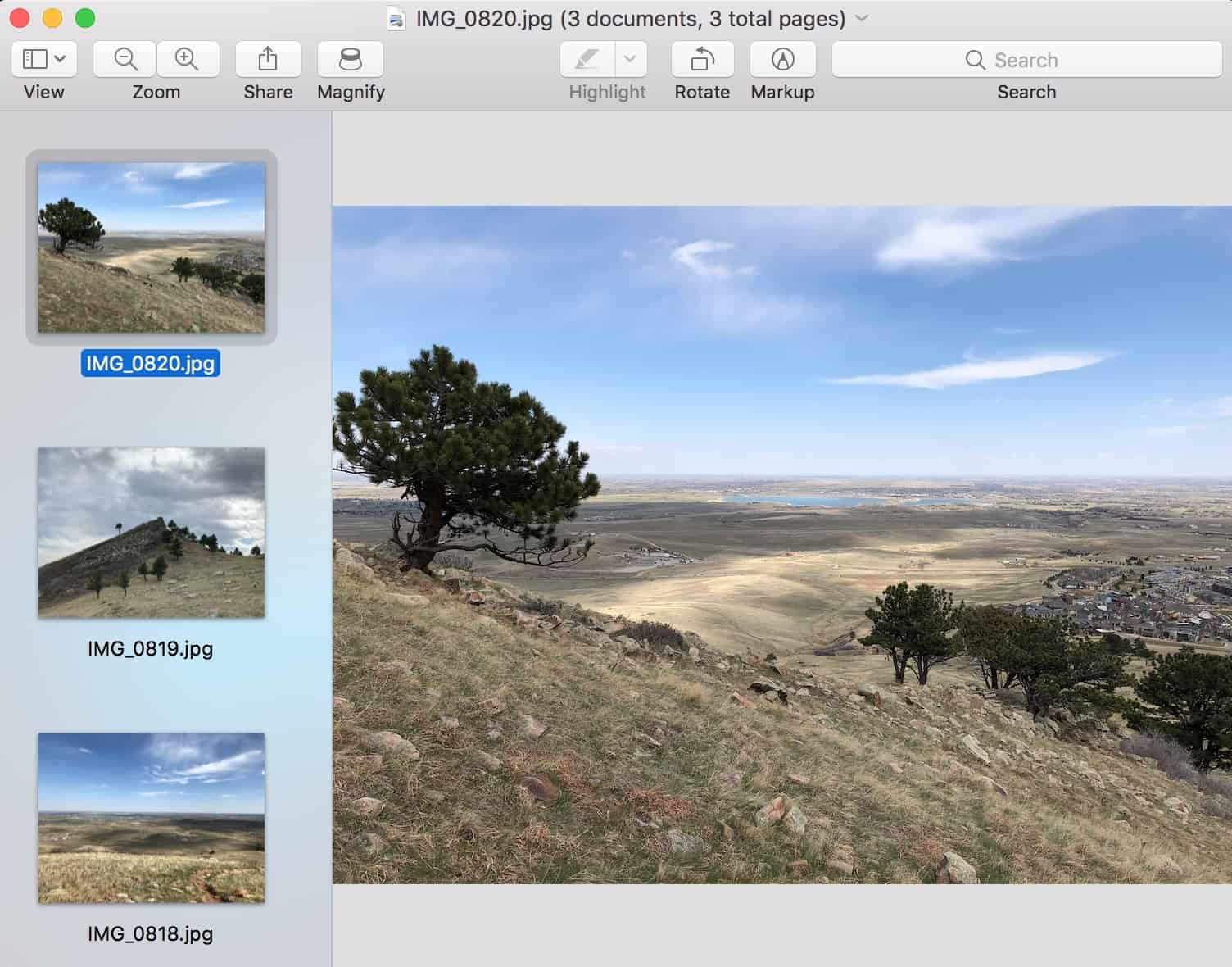
Featured image: An archived Preview screenshot with several photos open. Credit: TMO archive.
Don’t miss the best of The Mac Observer
Set us as a preferred source and our Apple reporting ranks higher in your Google Search results and Discover feed — one tap, no account changes.




Discussion