
On macOS Tahoe 26 or later, open Spotlight with Command-Space and press Command-3 to show actions. Find an action you repeat and assign it a quick key. The next time you open Spotlight, typing those few letters recalls the action and the information it needs.
Set up a harmless practice action
Try Random Number first. It lets you see how Spotlight takes inputs and runs an action without sending a message, calling anyone or modifying a document.
- Open Spotlight, narrow the results to actions and search for Random Number. Highlight the result and look beside its name for Add quick keys or an existing short key.
- Click that field and type a short sequence you’ll remember, such as rn, if it’s available. If Spotlight already supplied one after a previous run, you can click the existing key, edit it and press Return.
- Close and reopen Spotlight. Type the assigned letters. Check the selected action’s full name before you run it, particularly if your letters could also start an app or contact name.
- Enter the requested minimum and maximum, such as 1 and 6, in the action’s fields. Press Return when the inputs are ready. A number in that range confirms you found and executed the action.
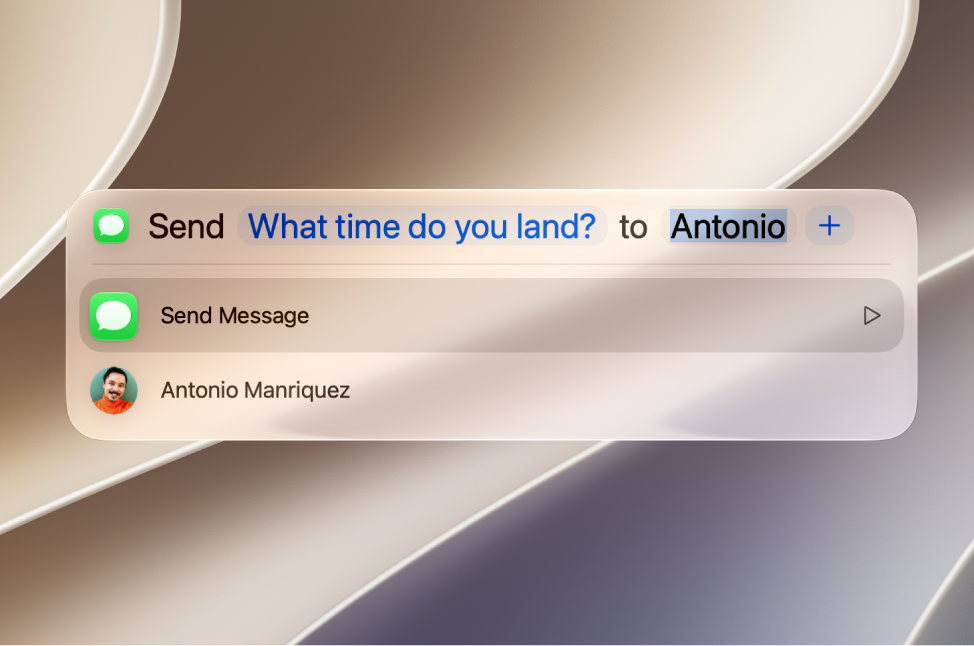
What changes when you use it for real work
The quick key recalls the action. The other Spotlight views also let you search files and apps, which is why selecting the actions view helps here. It does not fill in every input for you. A call still needs a contact, for example, and an email action needs its own details. Return can execute the selected action immediately. Check the recipient or destination first when the action affects someone else.
If you can find the action by its full name but your letters produce the wrong result, return to the actions view and check its assigned key. This is a sequence you type inside Spotlight, distinct from a system-wide key combination you hold down. Apple’s Spotlight action guide describes assignment and editing.
Don’t miss the best of The Mac Observer
Set us as a preferred source and our Apple reporting ranks higher in your Google Search results and Discover feed — one tap, no account changes.




Discussion