
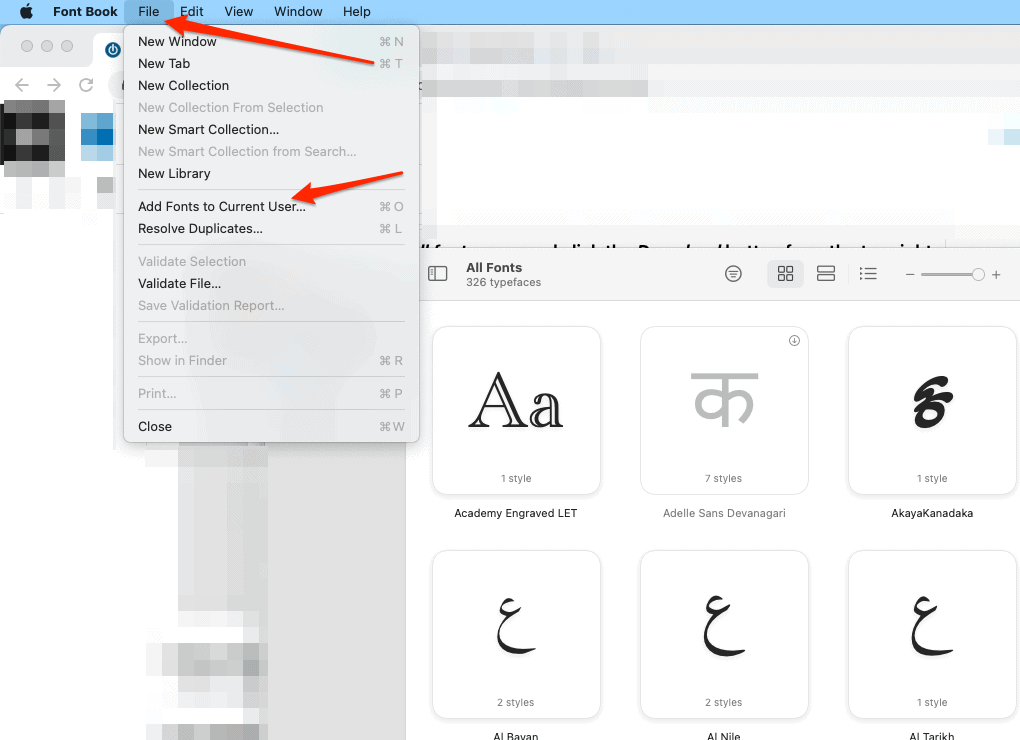
A designer asks for the bold faces from two approved font families. You could drag the fonts into a collection today, then remember to update it every time you install another face. A Smart Collection in Font Book can keep that list current. Start with one family and a style so you can see exactly what the rules match.
Build a shortlist for one family
- Open Font Book. In your font list, pick a family you already use and confirm it includes a bold face. Note its displayed family name. For this example, use Helvetica if you have it.
- Choose File > New Smart Collection. Name it something descriptive, such as Helvetica bold faces.
- Under the collection name, choose All. Set the first rule to Family name, choose is, and enter the family name.
- Click the add button and set the second rule to Design style, is, Bold. Click OK. Select the new collection in the sidebar. Its gear icon distinguishes it from a manually assembled collection.
Check the rules before you add a second family
A regular face from the same family should fall outside these rules, as should a bold face from a different family. If your list is empty, Control-click the collection and choose Edit followed by its name. Try the family rule by itself first. Once it returns the family you expect, put the style rule back.
For a second approved family, make a second Smart Collection with that family’s name and the same Bold rule. Simply changing the first collection to Any would admit every matching family member and bold faces from other families. With All, adding a second exact family name would require each face to belong to both families.
Font Book calculates membership from the rules. If your shortlist needs one handpicked exception, use File > New Collection for an ordinary collection that accepts dragged fonts.
Apple’s guide to creating and editing Font Book collections
Featured image: Font Book on Mac, shown in an archived screenshot. Credit: TMO archive.
Don’t miss the best of The Mac Observer
Set us as a preferred source and our Apple reporting ranks higher in your Google Search results and Discover feed — one tap, no account changes.




Discussion