
If your comments disappear on paper, open them in the PDF first. In Preview, choose View > Highlights and Notes, click a note to display its text, then choose File > Print. Expand the Preview section of the print dialog and select Show Notes. Apple describes this option as printing notes that are visible in the document window.
Decide whether the note belongs on the page
Preview has two ways of adding a written comment. If you’re still marking up the draft, our guide to annotations in Preview shows the tools in context. A note can collapse to a colored icon while you read the page. A speech bubble displays text inside a shape on the page. For a review copy with just two or three short callouts, speech bubbles can be easier to place without covering the passage someone needs to read.
Check what the printout will include
- Open the PDF in Preview. In the Highlights and Notes sidebar, locate the page and comment you want. Click a collapsed note on the page to open it. If the note covers the relevant paragraph, drag it to a clearer spot.
- For a short callout that should stay on the page, choose Tools > Annotate > Speech Bubble. Type the comment and use its handles to make it fit. Keep an editable copy if the document will go through another review.
- Choose File > Print and enable Show Notes under Preview. Inspect the affected pages in the print preview. Start with one marked page if you’re printing a long manuscript.
You can also choose Save as PDF from the print dialog to inspect the print output before using paper. Give it a new filename and open it separately. Verify that the words of the comment are legible and the surrounding page text is visible. Printing to PDF flattens annotations, so send the original annotated file when a colleague needs to edit your notes. Apple’s print options and its note controls explain both stages.
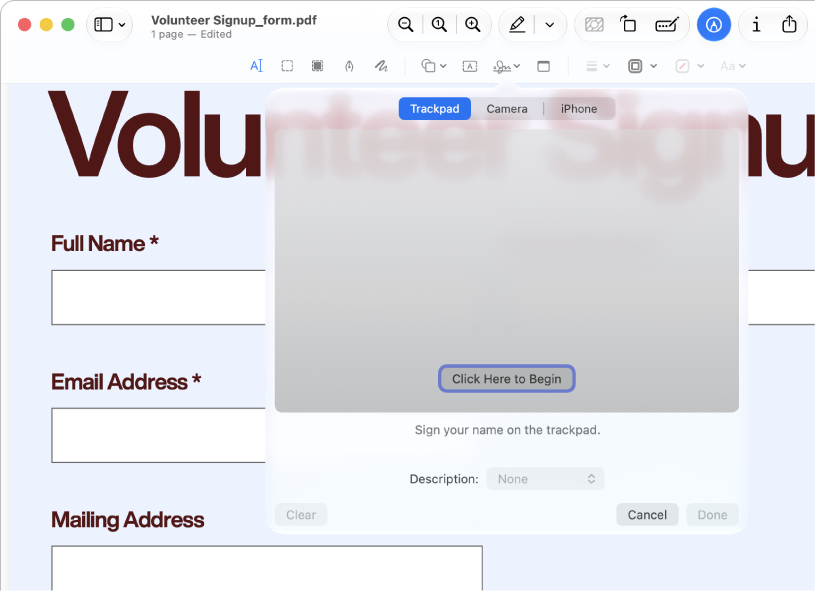
Featured image: Preview displaying PDF markup and signature controls. Credit: Apple.
Don’t miss the best of The Mac Observer
Set us as a preferred source and our Apple reporting ranks higher in your Google Search results and Discover feed — one tap, no account changes.




Discussion