
In the app you’re printing from, choose File > Print, open Paper Size and select Manage Custom Sizes. Add the actual width and height of the paper. Before printing, select that size for the document and check which margins the printer can physically handle.
Measure the stock before setting the dimensions
Suppose a card measures 148 by 210 millimeters. That’s A5. Check the existing sizes first, since a standard entry usually saves you a setup step. If your stock is close to A5 but was cut narrower, enter its actual measurements. A template built for wider paper can look perfectly centered onscreen and still lose text on paper.
- Select the intended printer in the print dialog. If it’s absent, add the printer to the Mac first. Paper options can change when you switch printers or apps.
- Open Paper Size > Manage Custom Sizes. Click the add button and give the size a recognizable name. Enter the width and height, checking the units shown in the dialog.
- Confirm the margins offered for that printer. Save the size and select it from Paper Size. In apps with a separate page layout or document-size setting, choose the same size there too.
- Check portrait or landscape orientation and the scale in the print preview. Print one inexpensive test sheet cut to the same dimensions before loading a stack of cards.
If the test print cuts off the same edge
If the preview itself clips a line, revisit the document size, orientation or scaling. If the preview looks right and the physical output clips, check the printer’s supported paper sizes and printable area. A custom entry describes the sheet to macOS. It cannot make a printer feed unsupported stock or print to a border it cannot reach.
Some printers or apps omit the custom-size control. Check the device’s own printing instructions if Manage Custom Sizes is absent. Apple explains how the print dialog handles unusual paper sizes.
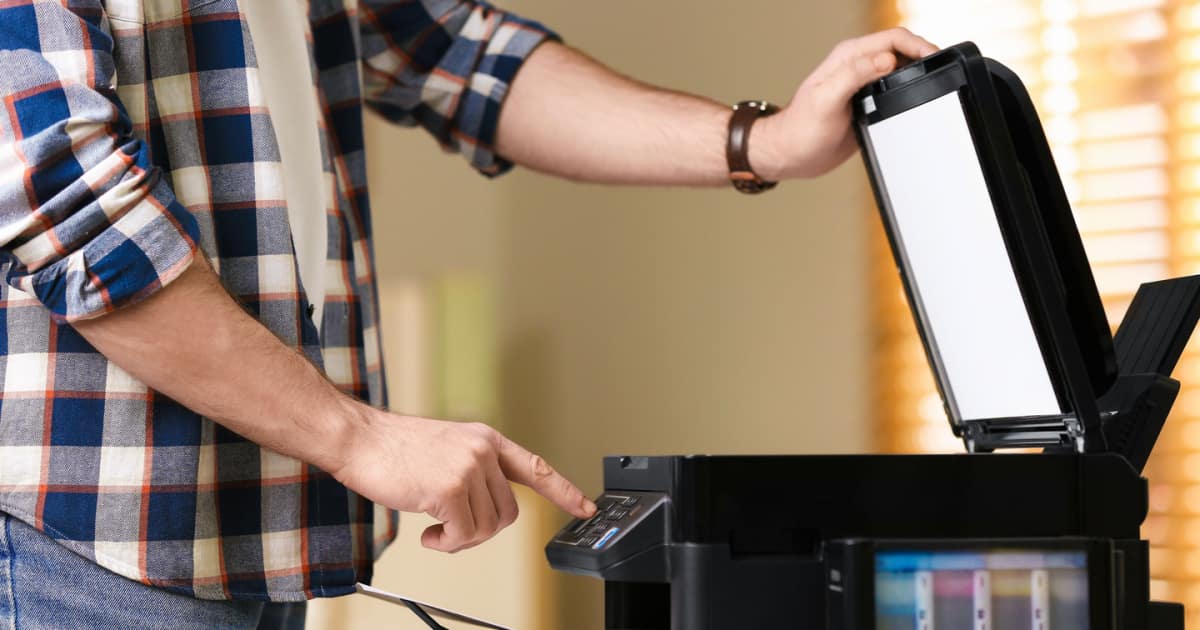
Featured image: A flatbed scanner. Credit: TMO archive.
Don’t miss the best of The Mac Observer
Set us as a preferred source and our Apple reporting ranks higher in your Google Search results and Discover feed — one tap, no account changes.




Discussion