
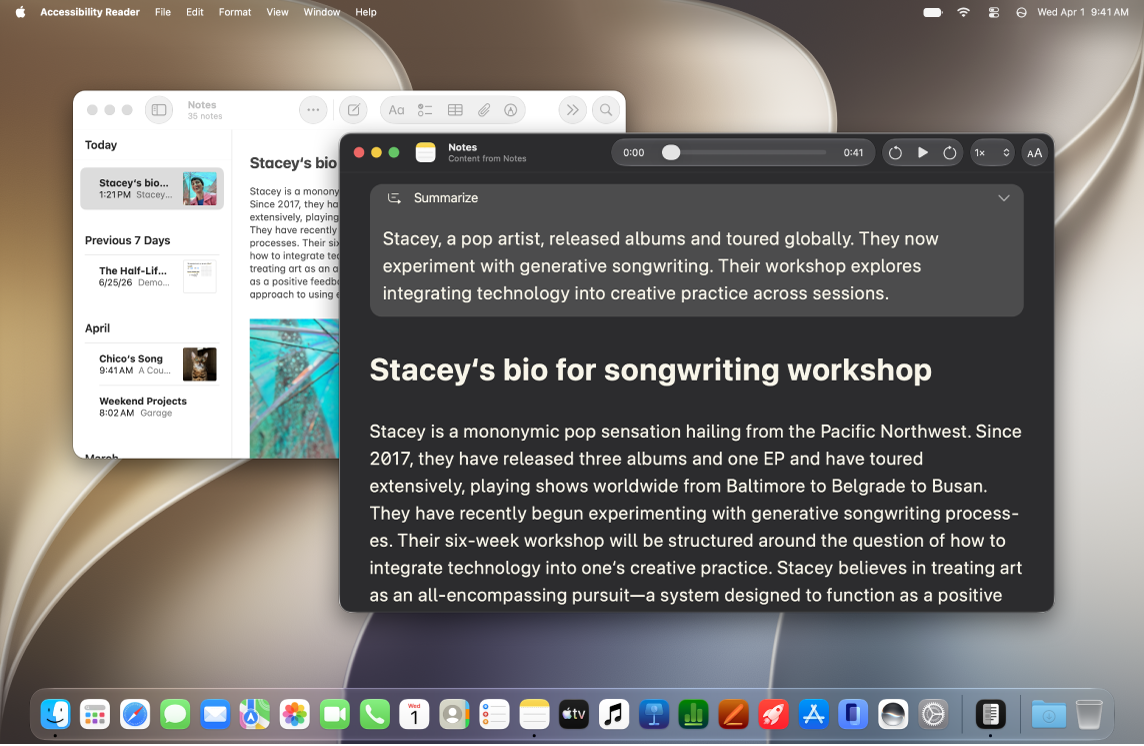
On macOS Tahoe 26 or later, enable Accessibility Reader under System Settings > Accessibility > Read & Speak. Bring the text you want to read into view in its app and press Command-Escape. Reader opens a separate reading view with its own type size, spacing, colors and playback controls.
Make one difficult paragraph comfortable first
Try this with a long email or an article. If your eyes lose their place on the return from one line to the next, simply increasing the type size may still leave too many words per line. Open Reader’s customization controls and change Readable Content Width as well as font size. Broader line spacing can make the transition between lines easier to follow.
- Open an app with readable text and scroll to the part you want. Invoke Reader with Command-Escape, or with your chosen shortcut if you changed it in settings.
- Open the customization menu. Adjust the font size and line spacing one step at a time. Try a different foreground and background color if the app’s original contrast was uncomfortable.
- Read the same two paragraphs after each change. If similar characters remain hard to distinguish, select the system font and try High Legibility Characters where available.
- For spoken playback, click Play. You can pause, move backward or forward, and change the speaking rate. Use playback highlighting if you want to follow the words visually.
When pressing the shortcut does nothing useful
Check that Reader is on, then inspect its information button in Read & Speak to see the assigned shortcut. Bring the app containing the text to the front. Try an ordinary paragraph before testing a scanned image or a custom app interface; the reader needs text it can present.
You can leave autoplay off if you want a larger layout in a quiet room and start speech only when needed. These choices affect the reading view; you can return to the original app and document layout afterward. Apple’s Accessibility Reader guide lists the reading and playback settings.
Don’t miss the best of The Mac Observer
Set us as a preferred source and our Apple reporting ranks higher in your Google Search results and Discover feed — one tap, no account changes.




Discussion