
For a two-person interview, connect both USB microphones and combine their inputs in Audio MIDI Setup. GarageBand can then record each speaker on a separate audio track in one take. That gives you a way to lower the louder speaker’s level later without lowering both voices.
Find each microphone’s input number
- Connect both microphones to the Mac. In Finder choose Go > Utilities and open Audio MIDI Setup. Confirm that both microphones appear as separate devices.
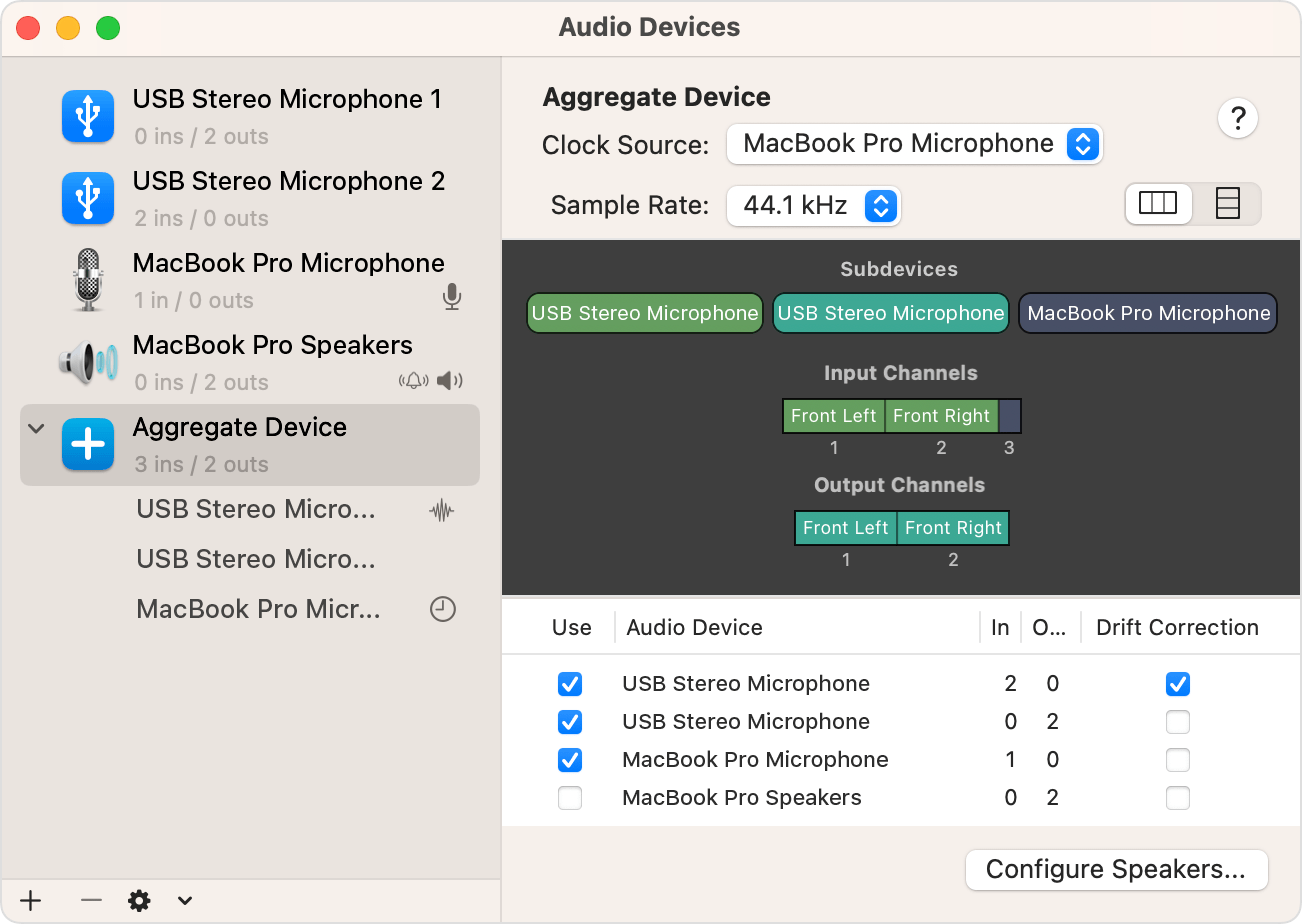
- In the Audio Devices window, click + at the bottom of the sidebar and choose Create Aggregate Device. Double-click its name to give it a recognizable one, such as Interview mics.
- With the aggregate selected, check Use for both microphones. Choose a Clock Source and enable Drift Correction for the other microphone. Apple recommends using the device with the most reliable clock.
- Read the numbered inputs beneath the color-coded subdevices. Write down one input from each mic. A microphone that supplies two channels can push the next mic to input 3. Keep this window open for reference.
Assign and arm both GarageBand tracks
- In GarageBand > Settings > Audio/MIDI, select the aggregate as the Input Device. For Output Device, choose the device your headphones use.
- Create two audio tracks for microphones. Select the first track, open Smart Controls > Track > Recording Settings, and choose the first mic’s input. Use mono for a single-channel voice mic. Assign the other microphone’s input to the second track. Name the tracks for the speakers.
- Option-click a track header, choose Configure Track Header, and select Record Enable. Turn on the record-enable button on both tracks. Press R to start a short test.
Have each speaker say their name in turn. Stop and play back one track at a time. Each voice should be strongest on its own track. A little spill between nearby microphones is normal. If both sound identical, check whether both tracks use the same input number. If one track is empty, check its record-enable button before doing the interview.
Apple’s instructions for Aggregate Devices and multitrack recording in GarageBand
Don’t miss the best of The Mac Observer
Set us as a preferred source and our Apple reporting ranks higher in your Google Search results and Discover feed — one tap, no account changes.




Discussion