
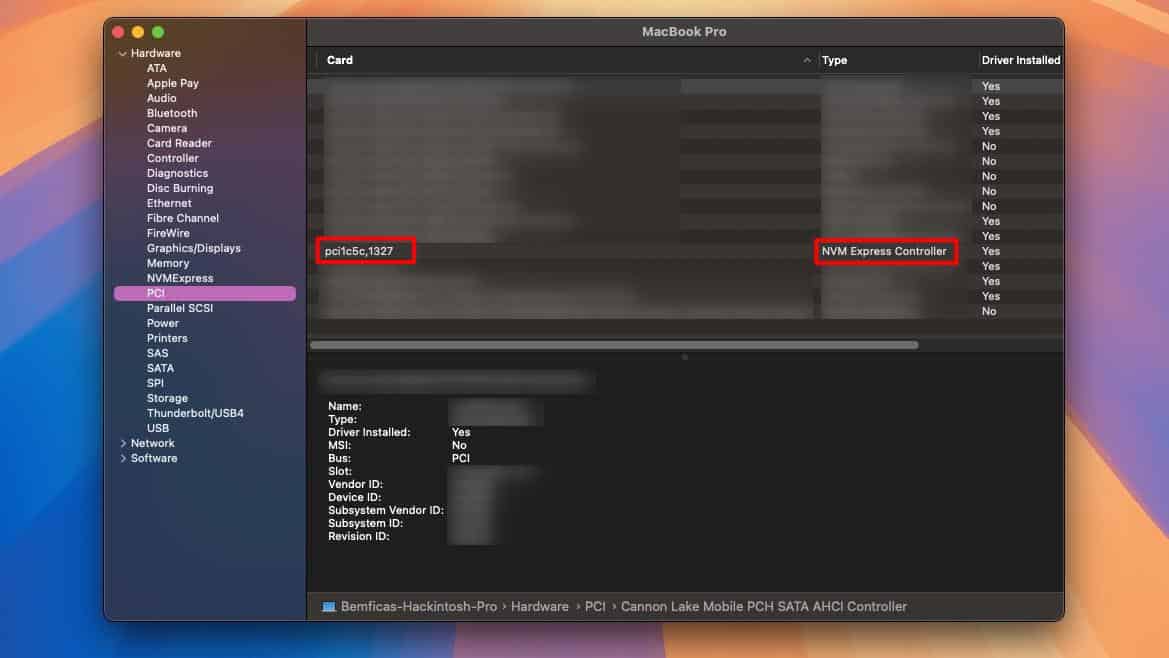
If support asks for an SPX file, open System Information and use its File > Save command. The file captures the hardware, network, and software details your Mac can see at that moment. If a dock or audio interface disappears intermittently, save a report while the problem is happening. A second report from when it works gives the technician something to compare.
Capture the setup you’re calling about
- Connect the equipment involved in the problem as you normally use it. If you’re reporting a monitor that works directly but fails through a dock, start with the monitor connected through the dock.
- Hold Option and open the Apple menu. Choose System Information. You can also go to System Settings > General > About > System Report.
- Choose the relevant category in the sidebar, such as USB for a USB audio interface. Let the details populate. Note whether the device appears. Its absence can be useful information too.
- If support needs to investigate installed software, choose File > Show More Information if offered. Show Less Information omits most software details but retains most hardware and network details.
- Choose File > Save, select a folder you can find again, and name the report for the state it captures, such as Mac-dock-monitor-missing. Keep the .spx extension.
Check what you’re handing over
Open the saved file from Finder and check the category you examined earlier. If support asked for a comparison, change just the connection in question, open a fresh system report, and save it under a different name. Include a short note identifying the connection used for each file.
A report can contain the Mac’s serial number, IP addresses, and details of installed software. Attach it to the technician’s private support ticket if requested. A printed copy is available under File > Print if you want one at the counter. When the technician asks specifically for SPX, give them the saved file so they can browse its sections.
Apple’s guide to choosing, saving, and printing a system report
Featured image: System Information on Mac. Credit: TMO archive.
Don’t miss the best of The Mac Observer
Set us as a preferred source and our Apple reporting ranks higher in your Google Search results and Discover feed — one tap, no account changes.




Discussion