
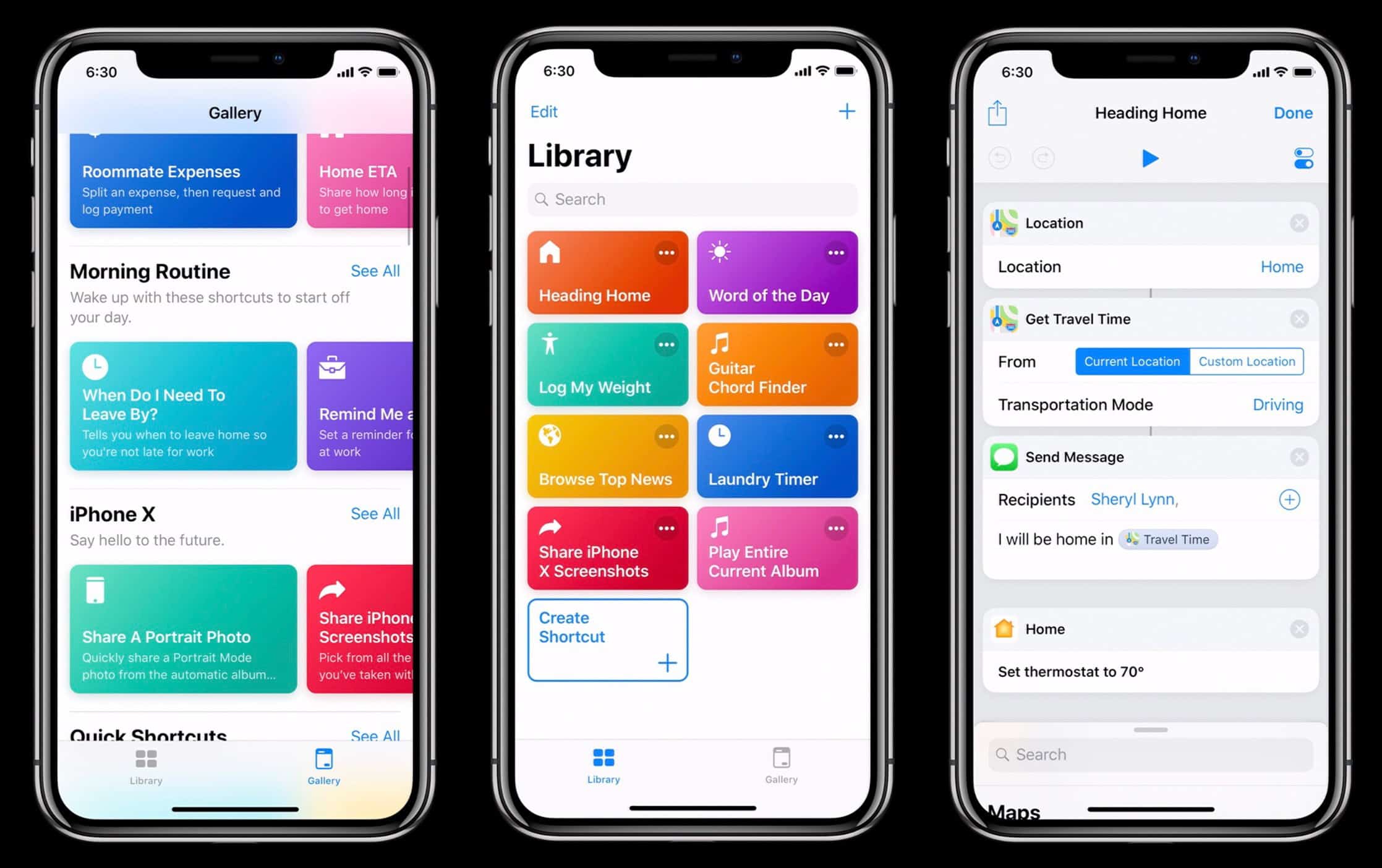
A shortcut can be available in one app and invisible in another even when it runs perfectly from Shortcuts. Two settings control this. Show in Share Sheet makes the shortcut available to other apps, and its accepted input types determine which shared items can invoke it.
Turn on the share sheet, then inspect the input
- Open Shortcuts, find the shortcut and tap its three-dot control to edit it. Tapping the middle of its tile runs the workflow instead.
- Open Details, turn on Show in Share Sheet and confirm with Done. Look at the input line at the top of the workflow. It identifies what the shortcut will accept when another app calls it.
- Tap the input types in that line. Choose types the actions actually know how to process. For a photo-resizing shortcut, include Images. For a shortcut that saves addresses of interesting websites, choose URLs.
- Go back to the app you want to use and select a suitable item before tapping Share. For the photo shortcut, share a photo from Photos. For the link shortcut, share a webpage from Safari. Scroll down through the actions in the sheet and look for the shortcut’s name.
A link to a photo on a website and the photo itself are different inputs. If the shortcut expects an image but you share the browser page containing it, the missing entry can be a useful clue. Try sharing the image itself or change the workflow to handle a URL before handing it to an image action.
When the source app’s output is unclear
Apple suggests building a separate diagnostic shortcut that accepts Anything and contains only the View Content Graph action. Enable it in the share sheet and run it from the exact screen where the other shortcut goes missing. Look at the types Shortcuts recognizes for that item.
Use the result to change your original workflow deliberately. Accepting every type may make the shortcut visible more often, but it does not teach an action written for text to resize a photo. Test a suitable item from each app you intend to support and check the output, not just the presence of a menu entry.
Apple’s guide to running a shortcut from other apps · Apple’s guide to accepted input types
Featured image: An earlier version of Shortcuts on iPhone. Credit: TMO archive.
Don’t miss the best of The Mac Observer
Set us as a preferred source and our Apple reporting ranks higher in your Google Search results and Discover feed — one tap, no account changes.




Discussion