
A pivot table in Numbers can total expenses by department without inserting subtotals between the original transactions. The source table stays available for editing. One important detail for a monthly report: changing the source data does not update the pivot until you refresh it.
Make a summary you can check by hand
Start with three column headers: Department, Description and Amount. As a small check, Sales could have entries of 40 and 60, with one Support entry of 25. Keep each transaction on its own row. Apple requires at least one populated cell outside the headers and does not allow source cells merged across adjacent rows.
- Select the source table. From the top menu choose Organize → Create Pivot Table → On New Sheet. Use the option for selected cells only if you deliberately want a limited source range.
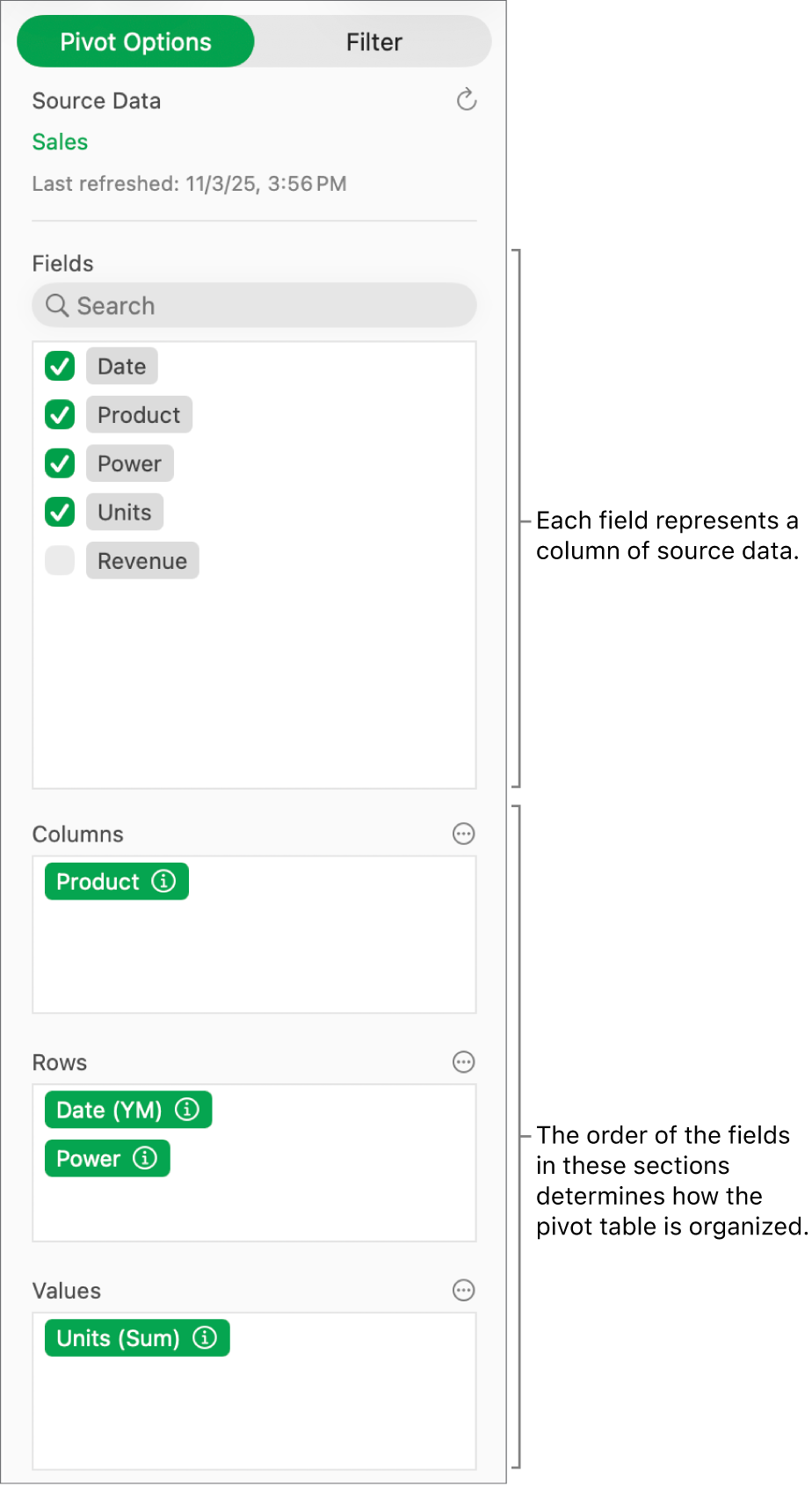
- Select the new pivot table and open Organize → Pivot Options in the sidebar. The empty table needs fields. Put Department in Rows and Amount in Values. Leave Description out if you want one total per department.
- Check the summary for 100 under Sales and 25 under Support. If you see counts instead, inspect the value calculation and make sure your source amounts are numbers. If each description has its own row, remove that field from Rows.
Refresh before issuing the report
Change the Sales amount of 60 to 65 in the source table. Select the pivot table, go back to Organize → Pivot Options and use the refresh control. Sales should now read 105, while Support stays at 25. The sidebar also shows when the table was last refreshed.
If you created the summary from a selected cell range, check that new transactions are inside that range. Refreshing the same range cannot include a row outside it. For a handoff, compare the report total with a known source total after refreshing and before exporting the workbook or sending a PDF.
Create a Numbers pivot table · Arrange the pivot fields · Refresh the summary
Don’t miss the best of The Mac Observer
Set us as a preferred source and our Apple reporting ranks higher in your Google Search results and Discover feed — one tap, no account changes.




Discussion