
For a reception desk or exhibition screen, Keynote needs two instructions: advance the slides automatically and return to the first slide at the end. Choose Self-Playing for the first job and enable Loop slideshow for the second. A third option can start the show as soon as someone opens the file.
Set up the playback copy
- Open the presentation on the Mac that will run it. If you also use the deck for a live talk, duplicate it and name the copy for the display. This keeps your manually advanced speaking version available.
- Open the Document sidebar, select its Document tab and change Presentation Type to Self-Playing. Use the delay controls for slide transitions and builds. If the second bullet appears too late, check the build delay before lengthening every slide.
- Under Slideshow Settings, select Loop slideshow. Select Automatically play upon open as well if the person opening the file should not have to press Play. The separate idle-restart setting returns a show to the beginning after a period of inactivity; looping controls what happens when it reaches the end.
- Select the opening slide and click Play. Watch both a simple slide and one with several builds. Give the longest text enough time to read on the actual screen.
Rehearse the handoff to the person opening the venue
Let the last slide finish naturally. The next thing on screen should be the opening slide without anybody touching a key. Then stop the show, close the file and reopen it to check the launch behavior separately. A show that loops during rehearsal can still open in the editor tomorrow if the automatic-start option is off.
These settings describe a presentation running in Keynote. If the venue instead requires a movie file played from a TV, agree on the video export and the TV player’s repeat setting with the venue. The checkbox in the editable deck doesn’t configure the TV’s playback controls.
Keynote’s self-playing and loop settings · Choose a presentation type
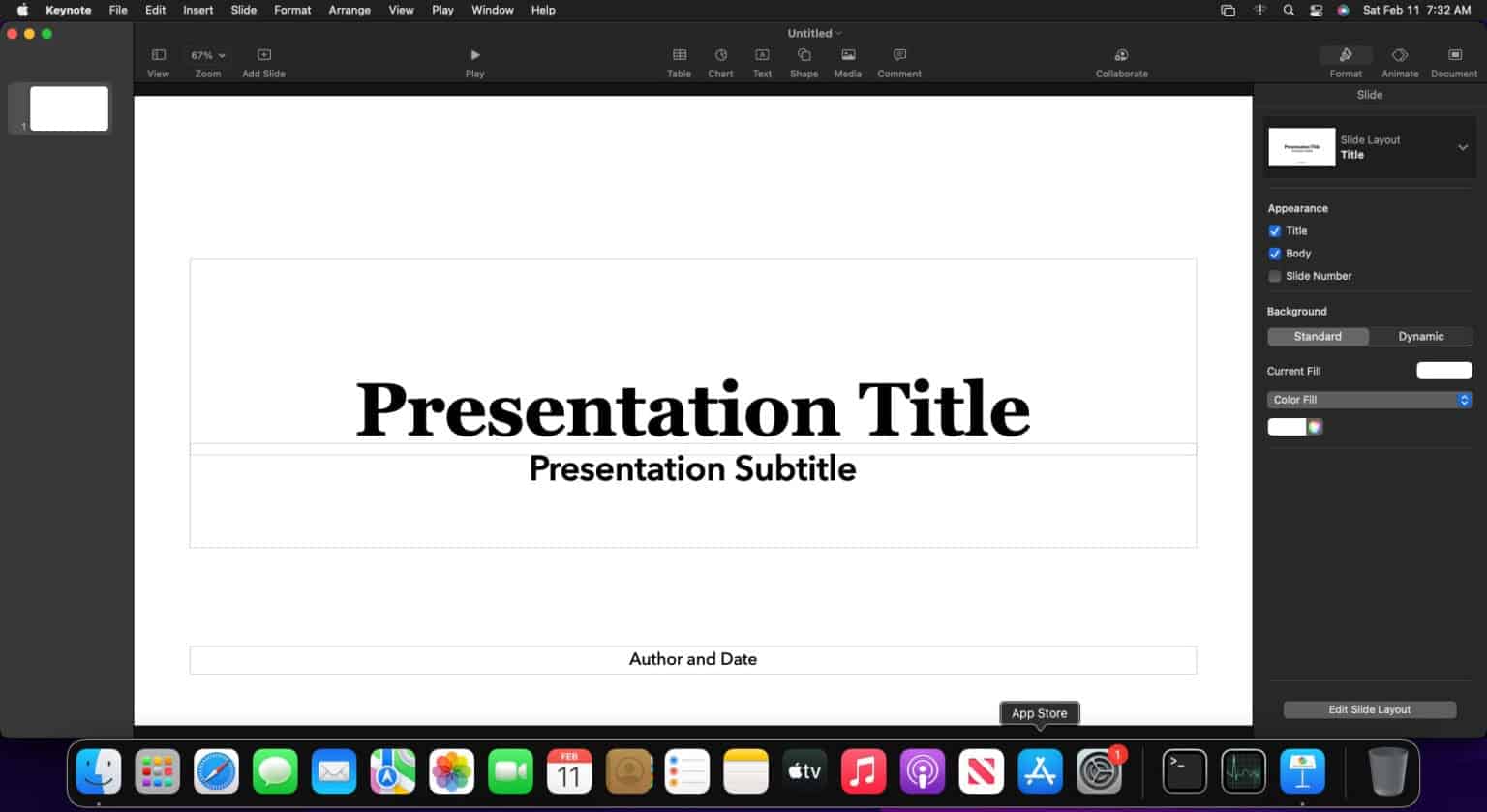
Featured image: The Keynote editing window. Credit: TMO archive.
Don’t miss the best of The Mac Observer
Set us as a preferred source and our Apple reporting ranks higher in your Google Search results and Discover feed — one tap, no account changes.




Discussion