

Now that people aren’t hammering Apple’s servers all at once, it’s a good time to download the macOS Catalina public beta.
Download
- First, whenever you try beta operating systems, back up your device first. Whether you use Time Machine or a third party service like Backblaze, back that Mac up.
- Next, visit Apple’s beta page to sign up. Log in with your Apple ID. Under the macOS tab, click on the button to download the beta profile in step 2.
- After you download it, double click the disk image and install it like you would any other software.
- Next, go to System Preferences > Software Update. You should see an option to download macOS Catalina public beta.
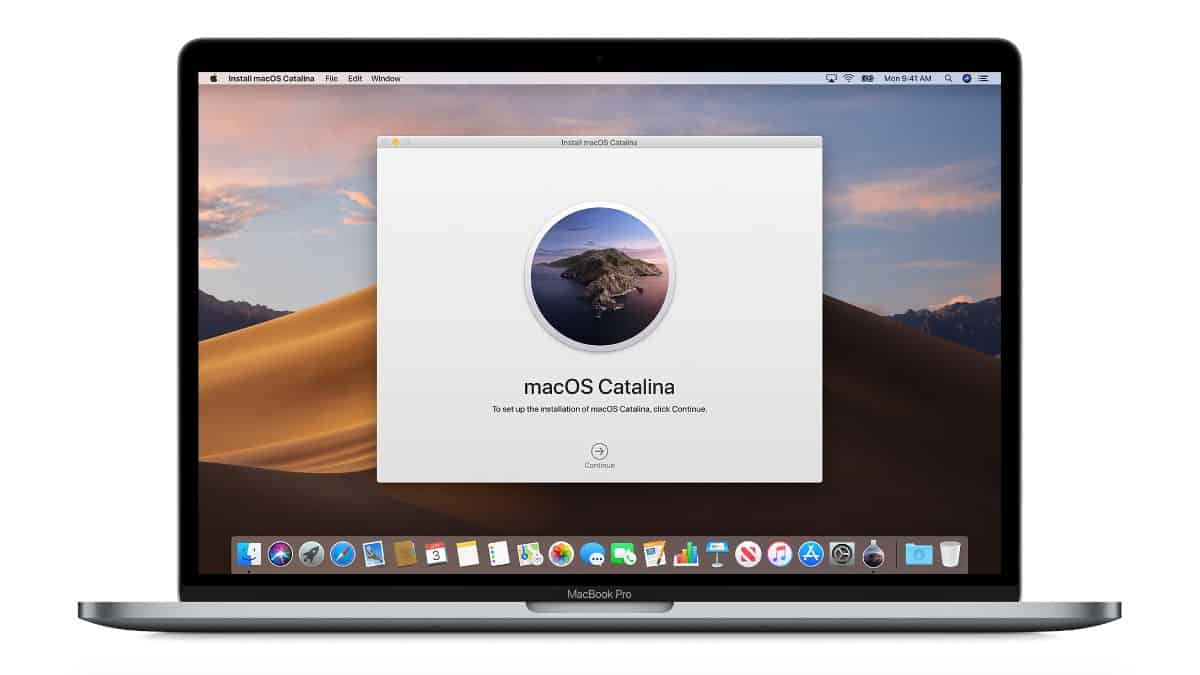
- Once it’s finished, you’ll see an installer window appear. Or, look for it in Applications in Finder. Follow the onscreen instructions, then your Mac will restart and begin installation. You can choose which hard drive you want to install it on.

Further Reading:
[The Mac Observer’s macOS Catalina Archives]
[macOS Catalina Protects the OS in its Own Read-only Volume]
Don’t miss the best of The Mac Observer
Set us as a preferred source and our Apple reporting ranks higher in your Google Search results and Discover feed — one tap, no account changes.


Discussion