

If you’ve had your Time Machine disk for a while, it may have started to delete old backups to make room for new ones. In most cases, this is completely fine; after all, it’s better to keep copies of everything currently on your Mac than worry about what was on there a year ago, for example! That said, the notifications that the software gives you about the fact that it’s cleaning stuff off can get kind of annoying, so here’s how you’ll turn them off.
Options. You’ve Got Options.
First, open System Preferences. If that program isn’t in your Dock, it’s available under the Apple Menu at the upper-left corner of your screen. Then click on the Time Machine icon to launch the settings for it.
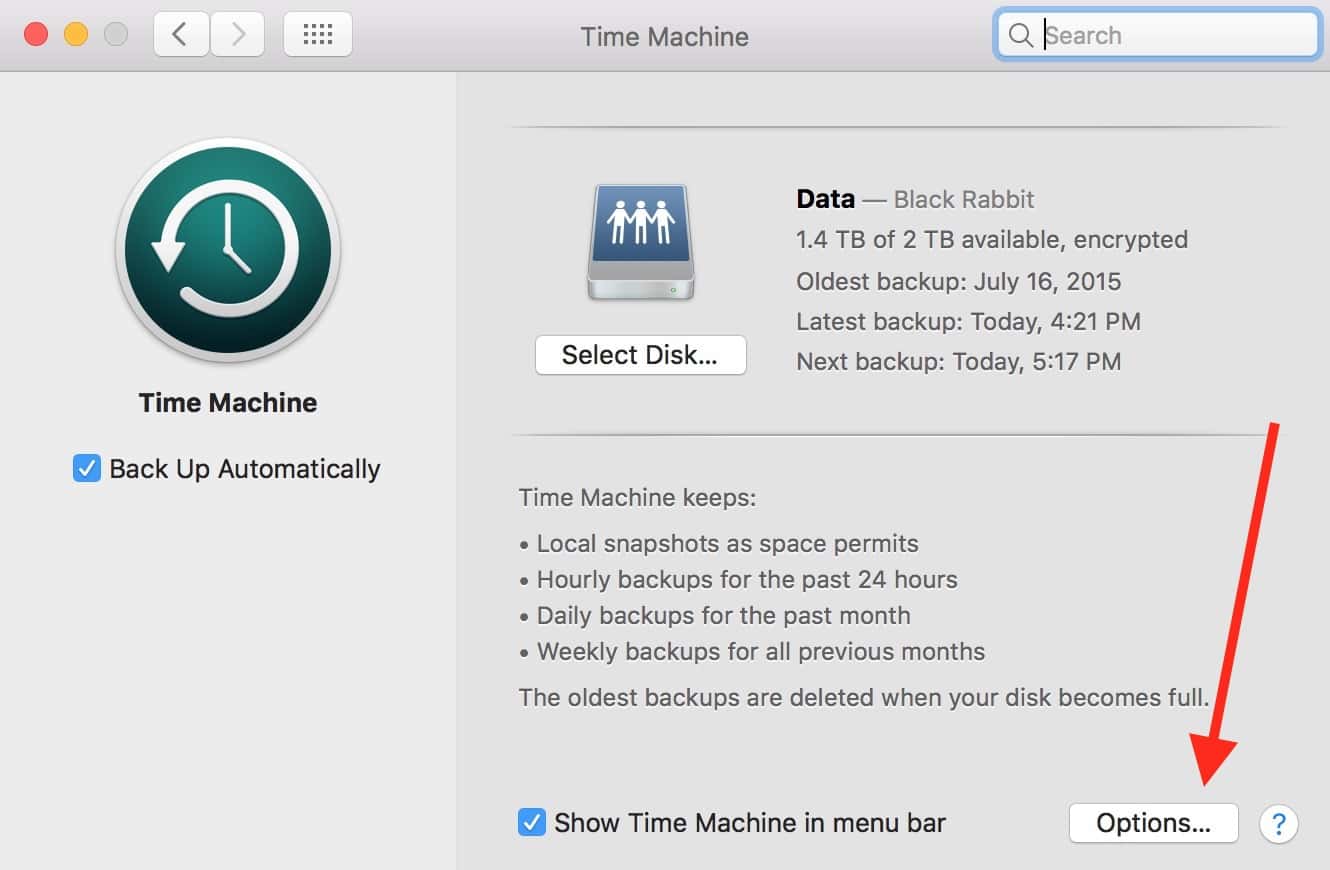
See that “Options” button I’ve called out? Yep, that’s where we’re headed. Click that, and you’ll see a new drop-down appear.
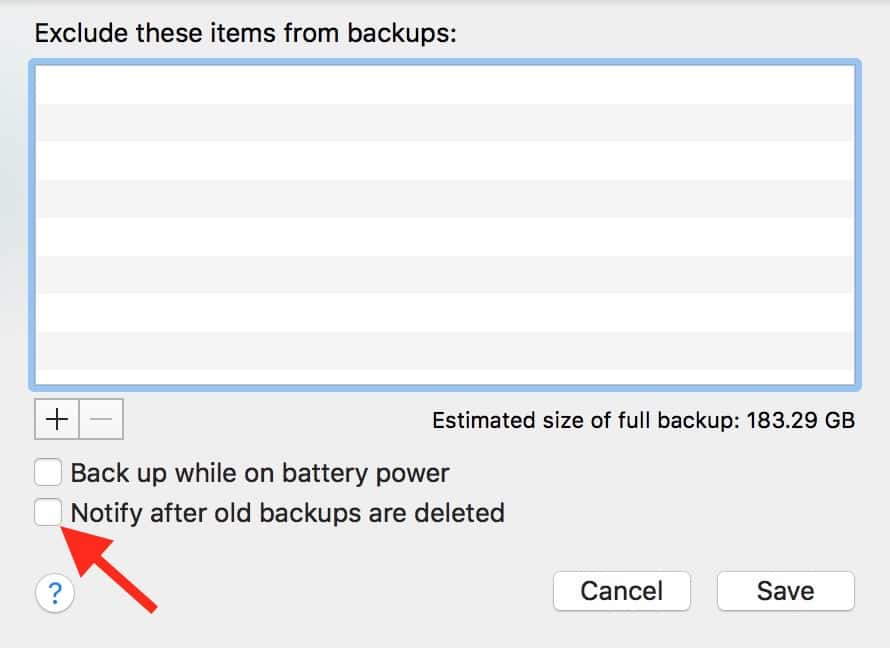
Within that drop-down are some very handy tools. You can, for example, exclude some items from being backed up by Time Machine at the top. I’ve found this especially useful for virtual machines, as those often have to be backed up in their entirety when you make changes to anything within them. And it’s annoying if, for example, going in to edit your QuickBooks file under Windows means that Time Machine will need to back up 50 GB or more in its next go-round! So here’s where you’d stop that, but if you do so, be sure you’ve got an alternative occasional backup in place.
Anyway, the other two options there are important, too. You can choose to have your Mac laptop back up while it’s on battery power, say, but at the bottom is the setting we’re discussing in this tip, labeled “Notify after old backups are deleted.” Toggle that off as I’ve done, click “Save,” and your Time Machine software will do its thing without having to tell you every time. Ahhhh, the blissful silence of another pop-up going away.
Don’t miss the best of The Mac Observer
Set us as a preferred source and our Apple reporting ranks higher in your Google Search results and Discover feed — one tap, no account changes.



Discussion