
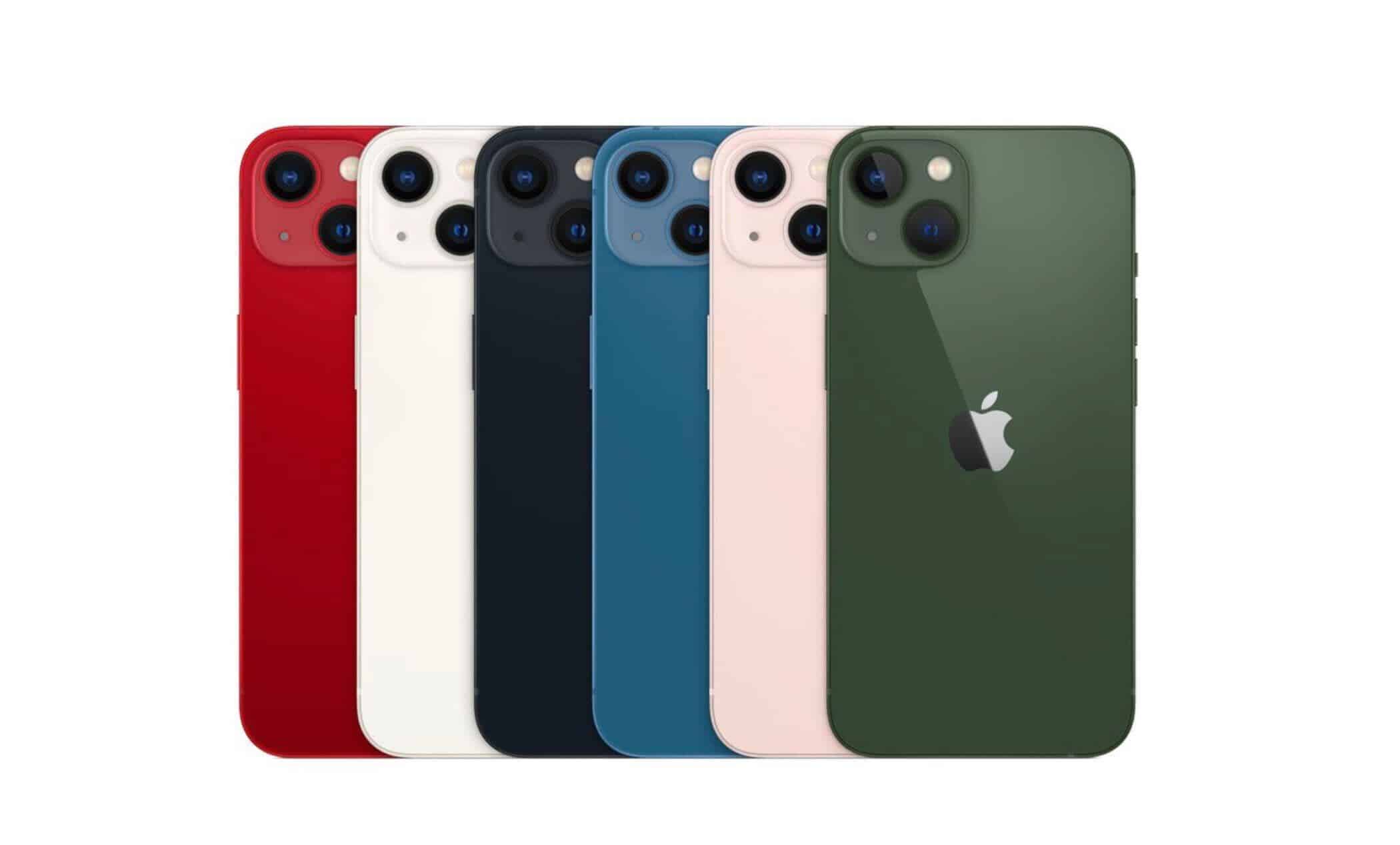
Whether you’re planning a trade-in, troubleshooting battery issues, or simply curious, knowing your iPhone’s age can be surprisingly useful. Over time, older iPhones receive fewer software updates, which affects performance and resale value. In this guide, we’ll show you several simple ways to find your iPhone’s exact age, why it matters, and what to consider if you’re thinking about upgrading to something newer.
Table of contents
When should you upgrade an older iPhone?
The best time to upgrade depends on your phone’s performance, battery health, and compatibility with the latest iOS. Many users hold on to their devices for years, but older iPhones can start to feel sluggish with new updates. If you’ve noticed decrease in battery performance after installing newer iOS versions or are constantly running out of storage space, it might be time for a change. New iPhone models offer improved performance and additional storage space for your apps, photos, and files.
How to find out how old your iPhone is
1. Check your iPhone’s model name and number
- Open Settings and tap General.
- Select About.
- Look for the model name and model number. You may have to tap on the model number to find the entry that begins with the letter A.
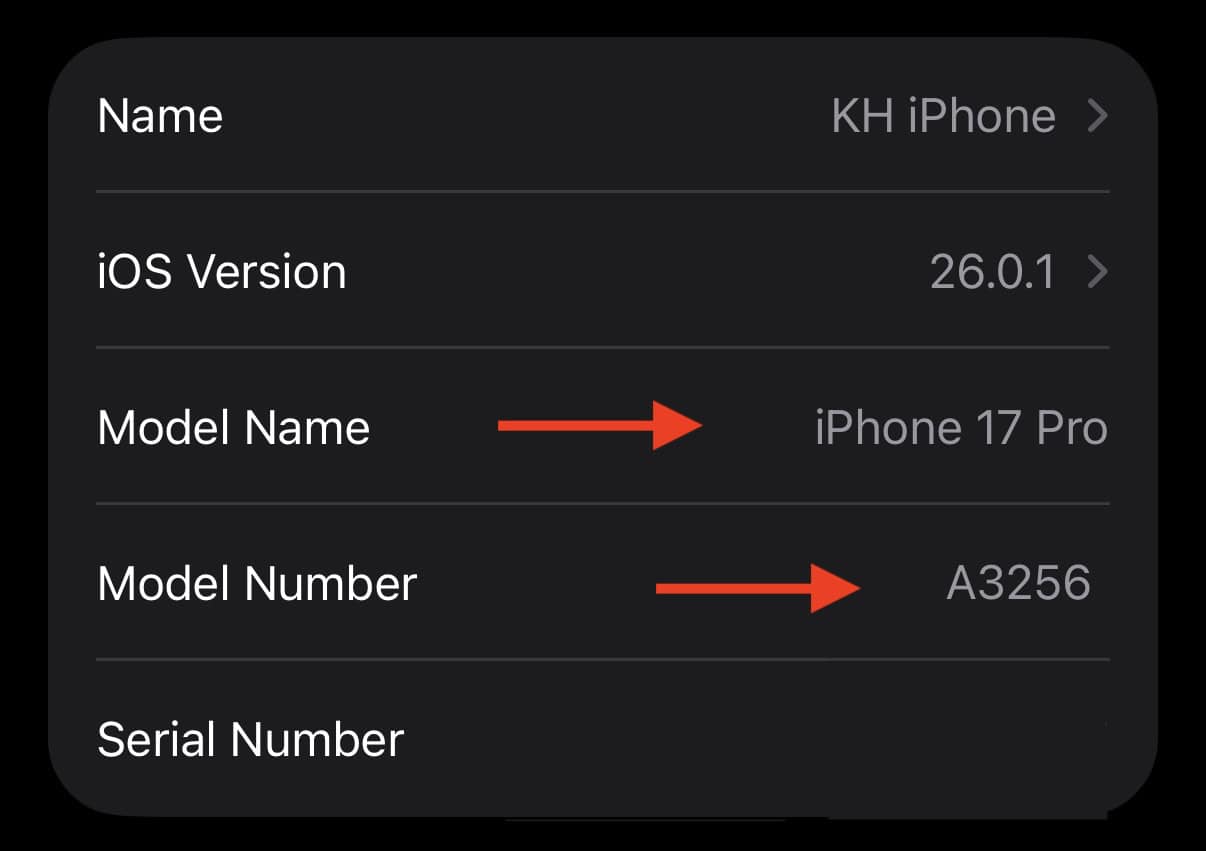
- Visit Apple’s support website and search for your model name or number.
- The result will show your iPhone’s release date and a link to the phone’s specifications.
2. Use your battery settings to find the manufacture date
Apple monitors the health of battery, which can help you find out when your phone was manufactured and first used.
Don’t miss the best of The Mac Observer
Set us as a preferred source and our Apple reporting ranks higher in your Google Search results and Discover feed — one tap, no account changes.
- Open Settings > Battery.
- Select Battery Health.
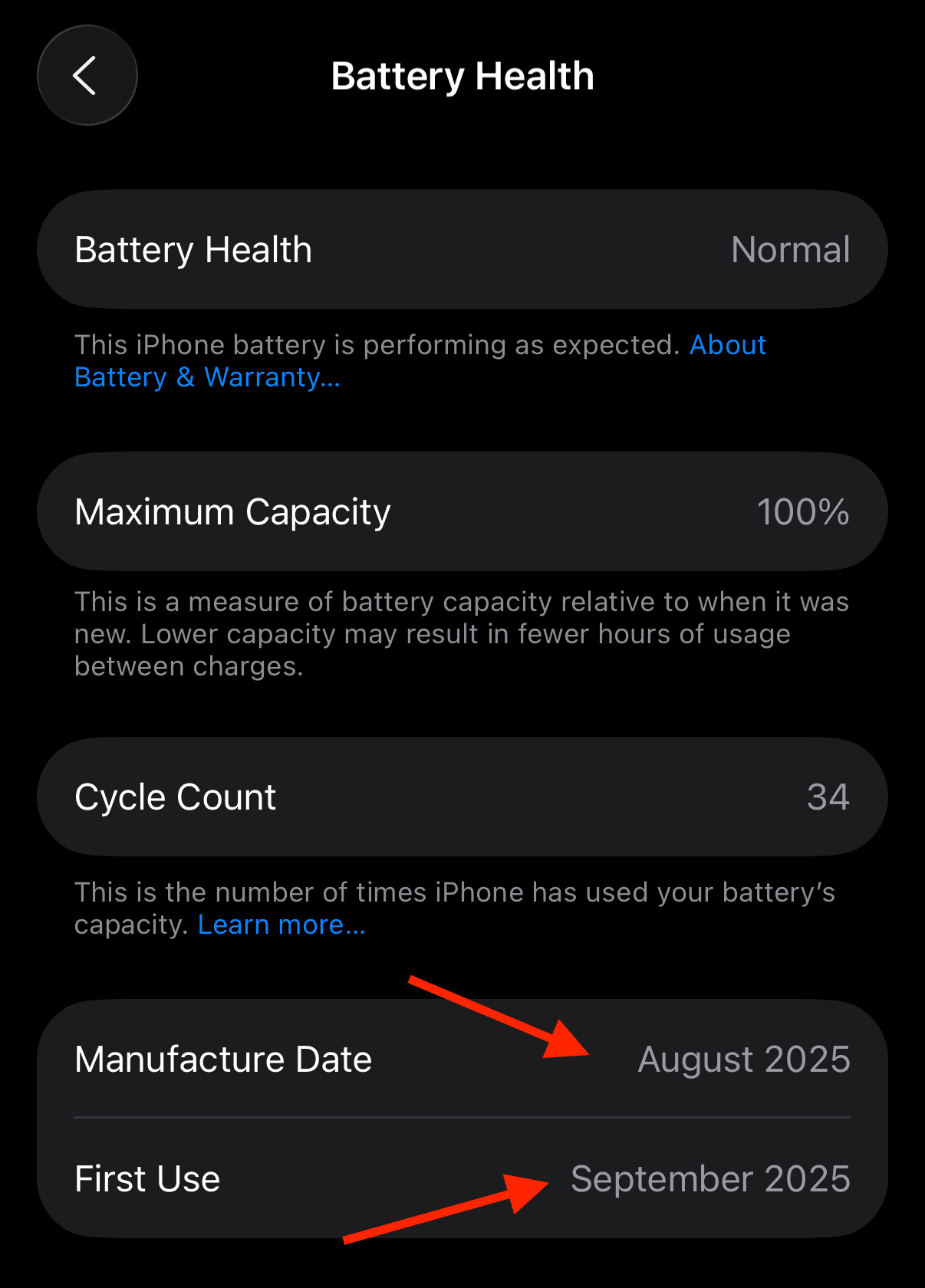
- Scroll down to view the Manufacture Date and First Use date.
This information is particularly handy if you purchased your iPhone secondhand or inherited it from a friend or family member.
3. Check Apple’s warranty or support coverage
- Visit checkcoverage.apple.com.
- Enter your iPhone’s serial number (Settings > General > About).
- The page will display details like the purchase date, your warranty status, and the coverage end date.
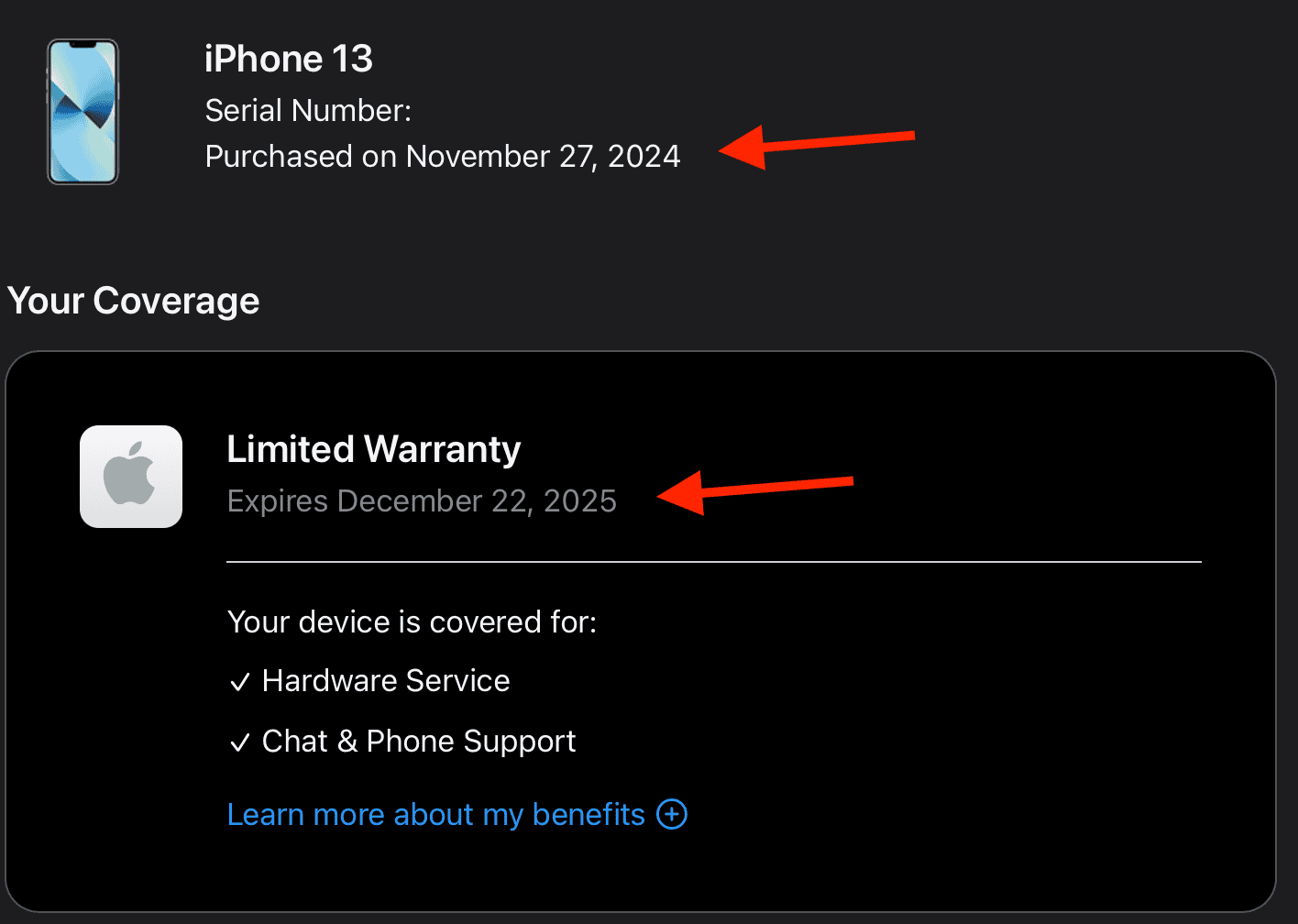
- Hint: Subtract one year from the warranty expiration date (for standard coverage) to estimate your purchase date if it is not displayed.
Tips
- Keep track of your iPhone’s purchase receipt—it’s useful for warranty claims or resale.
- Avoid installing major iOS updates on older phones without checking performance reviews first.
- Use Apple’s Battery Health feature to monitor wear over time.
- If your device feels slow, a clean restore or turning off background refresh can help.
- Before selling or trading in, always back up and wipe your data securely.
Frequently asked questions
Yes. If you still have the original box, you can find the serial number and other identifying information that’ll help you track down the manufacturing date.
Not the specifically day or week, but you typically can find the production month and year.
It helps you judge performance, battery health, and eligibility for updates or trade-ins.
Sometimes waiting can cost more in performance and resale value. A recent study also indicated that iPhone owners who wait to upgrade end up spending more on their phones when they finally upgrade.
Summary
- Check your iPhone’s model name and number in Settings.
- Review your manufacture and first use date in the battery settings.
- Look up your device on Apple’s warranty page.
Finding out how old your iPhone is takes only a few minutes, and it can help you make smarter decisions about upgrades, repairs, and resale. If your iPhone is performing poorly, don’t waste time trying to optimize the settings. Its age and not its settings may be the contributing factor. Take a few moments to check your device today; you might be surprised by how long it’s been with you.




Discussion