

The Find My iPhone feature is one of Apple’s most valuable tools for protecting and locating devices. By adding your iPhone, iPad, Mac, or even AirPods to Find My, you can track their location, play sounds to locate them, or remotely erase data if they’re lost. Setting it up takes only a few minutes and adds an important layer of security across all Apple devices.
Table of contents
Why Adding a Device to Find My iPhone Matters
Find My iPhone helps users locate, lock, or erase a missing device. When a device is added, Apple links it to your Apple ID and activates Activation Lock, preventing anyone else from using it without permission.
The system works across all Apple devices signed in with the same account. If a phone or laptop goes missing, you can log in to iCloud’s Find My service or use another Apple device to locate it. Learn more about how to use Find My on iCloud.
Don’t miss the best of The Mac Observer
Set us as a preferred source and our Apple reporting ranks higher in your Google Search results and Discover feed — one tap, no account changes.
Essential Steps to Add a Device to Find My iPhone
1. Add an iPhone or iPad to Find My
Activating Find My on an iPhone or iPad ensures it can be tracked if lost or stolen.
- Open Settings on the device.
- Tap your Apple ID name at the top.
- Select Find My > Find My iPhone.
- Toggle on Find My iPhone and Find My Network.
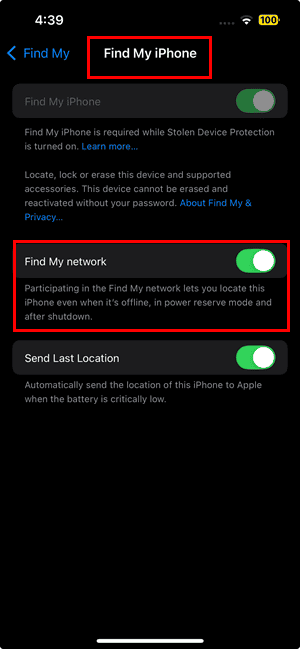
- Enable Send Last Location for automatic updates when the battery is low.

If your device is misplaced nearby, the Find My app can help you locate it using sound alerts. You can read more about how to find your iPhone at home here.
2. Add a Mac to Find My
Adding a Mac is slightly different but equally useful.
- Go to System Settings > [Your Name] > iCloud.
- Turn on Find My Mac.
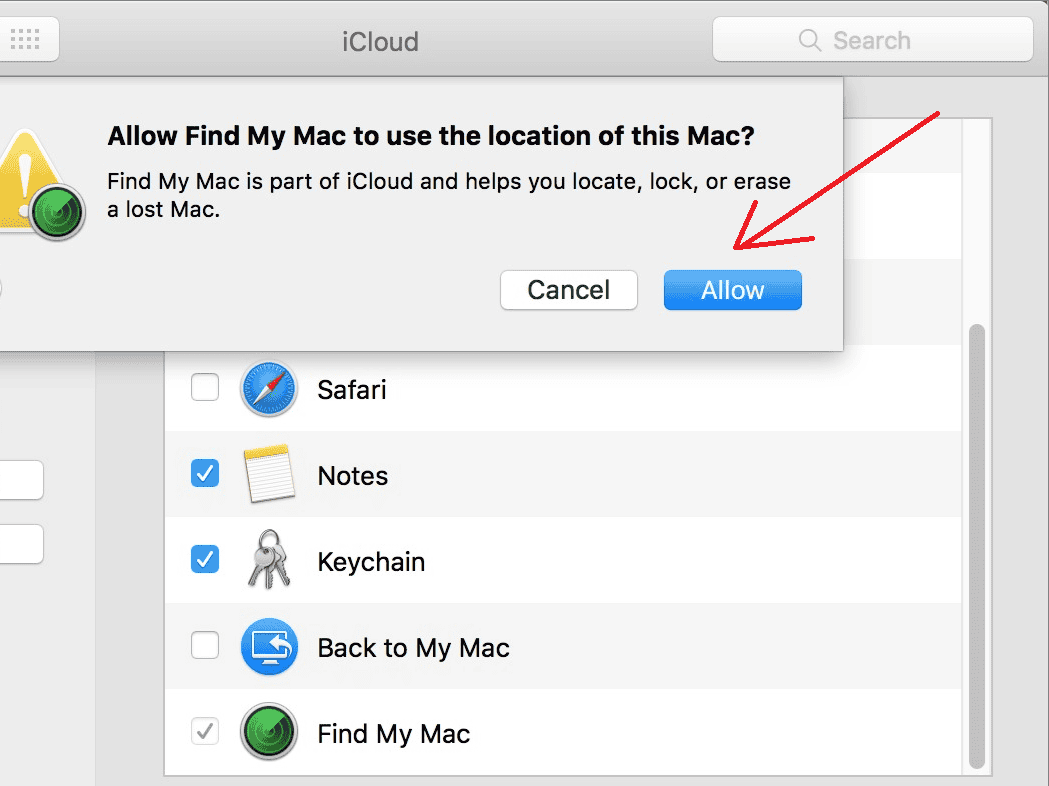
- When prompted, allow location access.

Once added, you can view your Mac’s location in the Find My app or on iCloud.com.
3. Add AirPods and Apple Watch
Apple automatically connects AirPods and Apple Watch to Find My when they’re paired with your iPhone.
- Ensure Bluetooth is enabled.
- Pair the AirPods or Apple Watch with your iPhone.
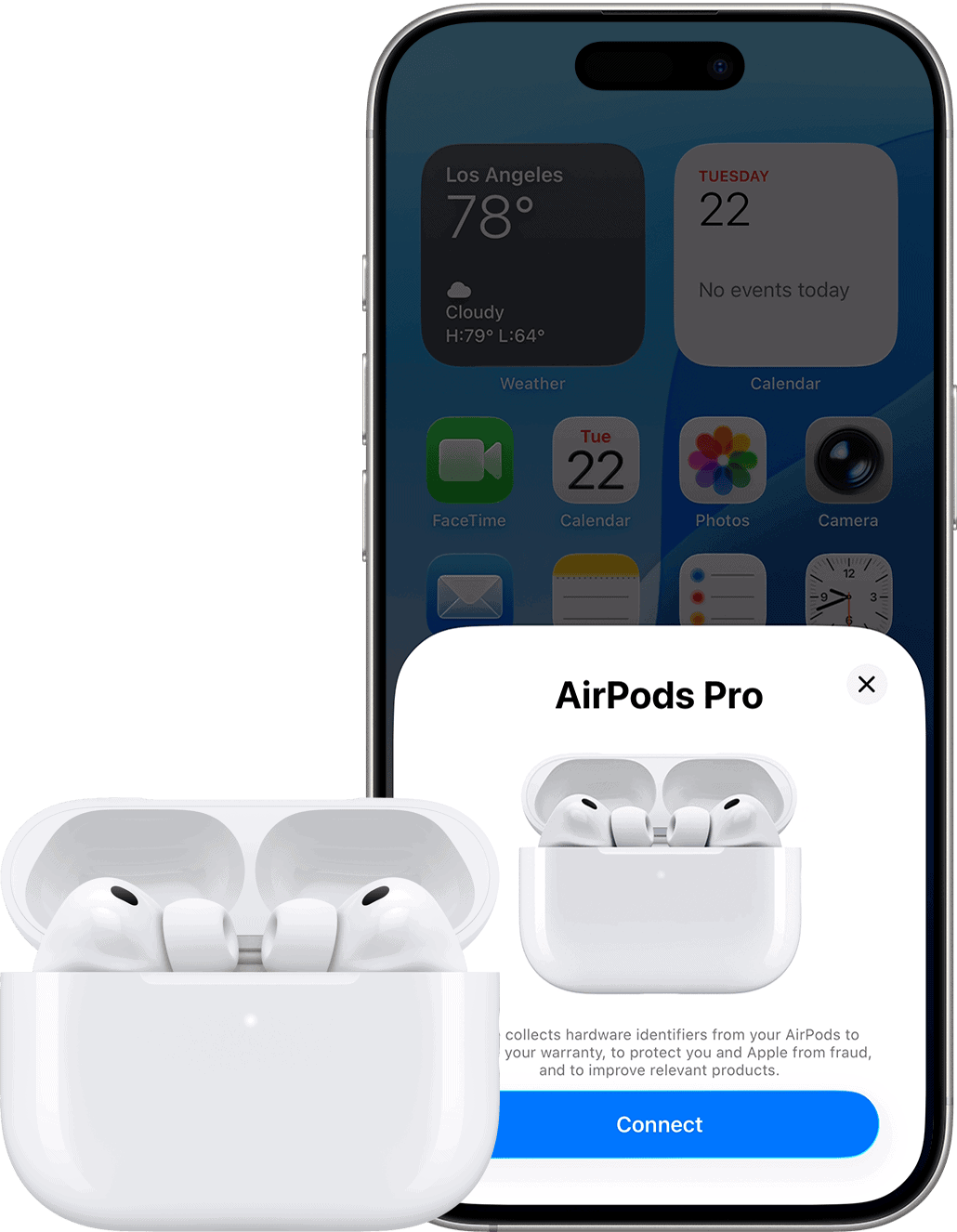
- Open the Find My app and check under the Devices tab to confirm it appears.

If a device disconnects frequently or fails to show up, it could be due to location setting issues. Here’s a guide on fixing Find My location turning off automatically.
4. Add an AirTag or Other Accessories
AirTags are small Bluetooth trackers designed specifically for the Find My network. Adding one (or other third-party accessories) takes less than a minute.
- Hold the AirTag near your iPhone.
- When the pairing prompt appears on-screen, tap Connect.
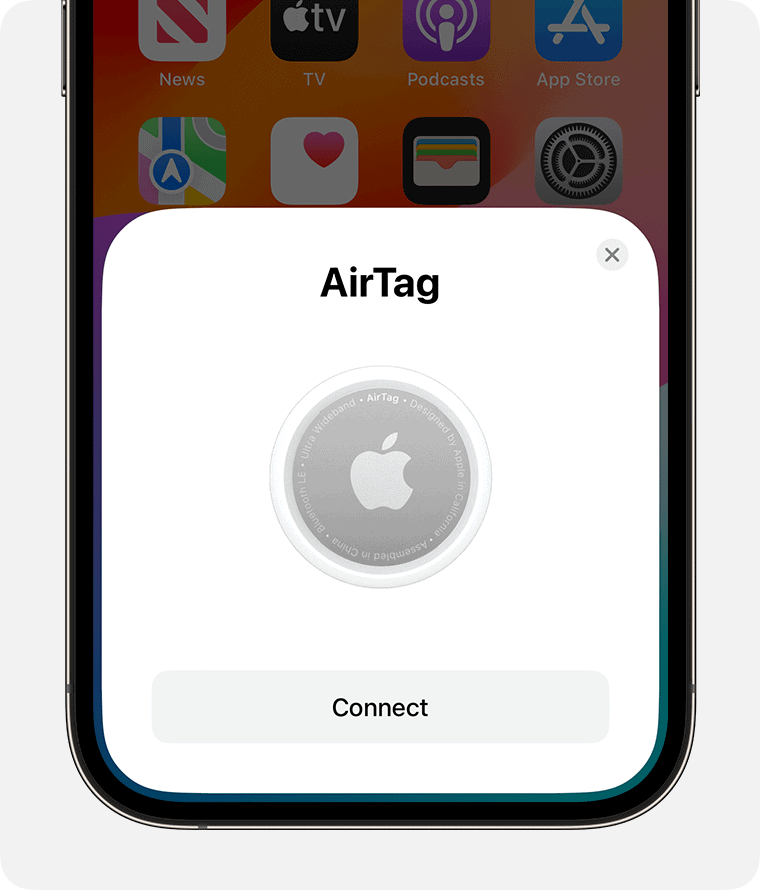
- Choose a default name (like “Keys” or “Backpack”) or create a custom label.
- Tap Continue, then confirm your Apple ID to link the AirTag.
- Once added, open the Find My app and check the Items tab to view its real-time location.

From there, you can use Precision Finding, Play Sound, or Lost Mode to locate or secure your AirTag if it goes missing.
This feature works even when the AirTag is out of Bluetooth range, using Apple’s global network of devices to relay its position anonymously and securely.
Manage Devices in Find My on iCloud
You can monitor all your registered devices directly from iCloud.com.
- Visit iCloud.com and log in with your Apple ID.
- Open Find My iPhone.
- Select All Devices to view everything linked to your account.
- From here, you can locate, lock, or erase a missing device.
If a device is turned off or its battery is dead, Apple still helps track its last known location. Learn how to find your iPhone even if it’s off.
Tips for Using Find My Effectively
- Always keep Location Services enabled.
- Turn on Send Last Location to update iCloud before your device powers off.
- Pair all new Apple accessories with your main device to activate Find My automatically.
- Regularly check your Apple ID device list for accuracy.
- Enable Find My Network for offline tracking.
Make the Best Use of Find My
Adding a device to Find My iPhone is essential for safeguarding Apple products. Whether it’s a phone, tablet, or Mac, this feature ensures every device stays traceable and secure. With a few simple steps, you can set it up once and rely on it whenever needed, especially in case of loss or theft.
FAQs
No. Find My is limited to Apple products and certified accessories.
You can add multiple devices linked to the same Apple ID with no set limit.
Ensure it’s signed in with your Apple ID and has Find My enabled in settings.
Yes, if Find My Network is enabled, you can still locate it.
It will no longer appear in your iCloud device list and can’t be tracked.


Discussion