

Apple enforces strict content filtering because of App Store policies. Consequently, users often cannot view mature content on their iPhones. You must navigate specific privacy settings to access an age-restricted Discord server on iOS. These settings typically remain hidden from the mobile application interface.
Table of contents
Troubleshooting Discord Content Restrictions on iPhone
Discord’s safety guidelines categorize specific communities as “18+.” This status triggers an automatic block on the iOS application. You cannot fix this within the iPhone app itself. Instead, you must use the desktop version to update your account permissions for all devices.
1. Enable Sensitive Content via Desktop
First, you must toggle the authorization on a computer or a mobile web browser. This primary switch serves as the only way to override the mobile restriction.
Don’t miss the best of The Mac Observer
Set us as a preferred source and our Apple reporting ranks higher in your Google Search results and Discover feed — one tap, no account changes.
- Log into Discord via a desktop application or a web browser.
- Click the gear icon near your username to open User Settings.
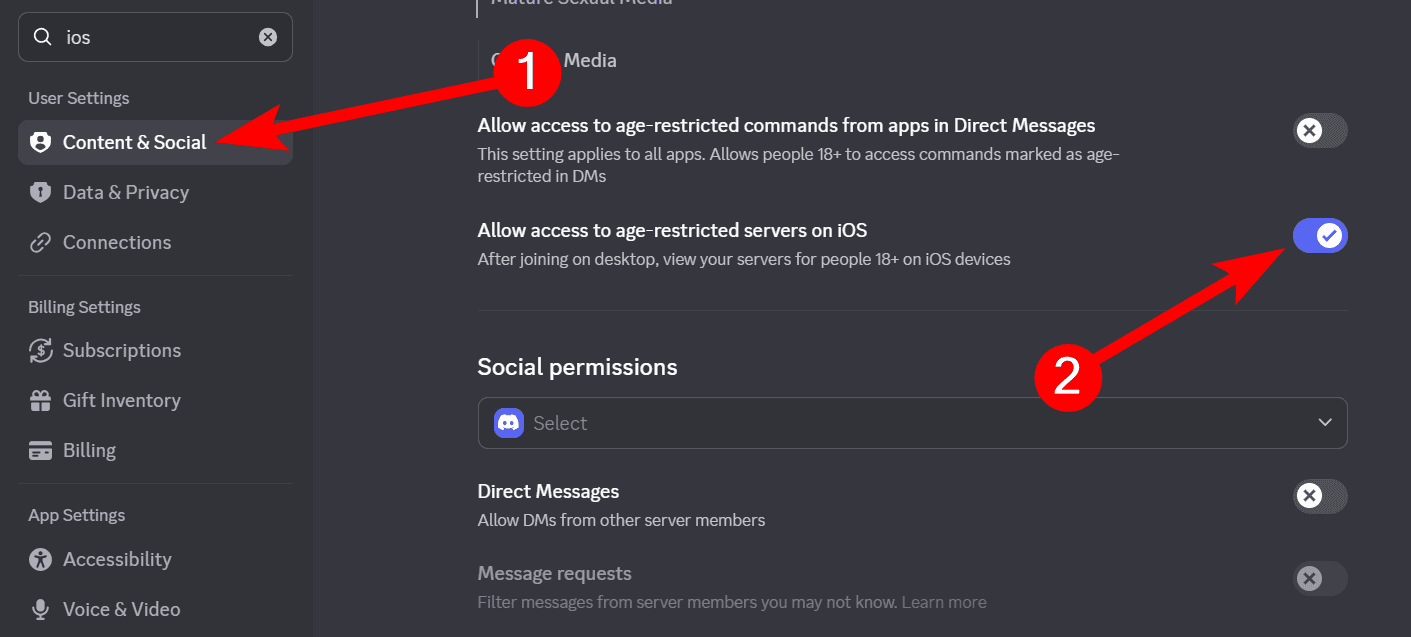
- Select the Content & Social tab from the left-hand menu.
- Locate the option for “Allow access to age-restricted servers on iOS” and toggle it on.

2. Update Your Date of Birth
Discord uses your registered age to determine eligibility for sensitive communities. The platform bars accounts under 18 from mature content regardless of your device.
- Open Discord on your desktop or browser.
- Navigate to User Settings and select My Account.
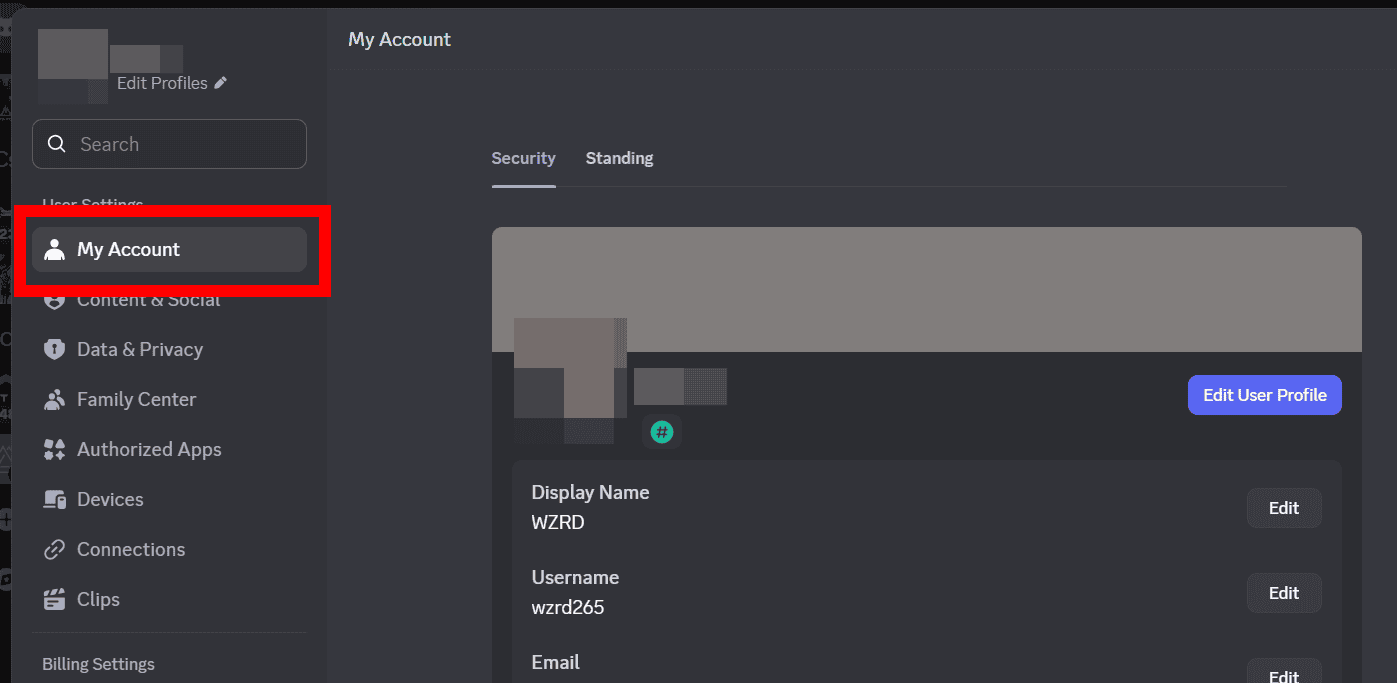
- Verify your birth date immediately.
- Submit a support ticket with photo identification if the date is incorrect.

3. Join Servers via Direct Web Links
The Discord app sometimes fails to show age-restricted servers in the search tab. Use a direct invite link in Safari to force the app to recognize your membership.
- Copy the invite link for your chosen server.
- Paste this link into your mobile browser.
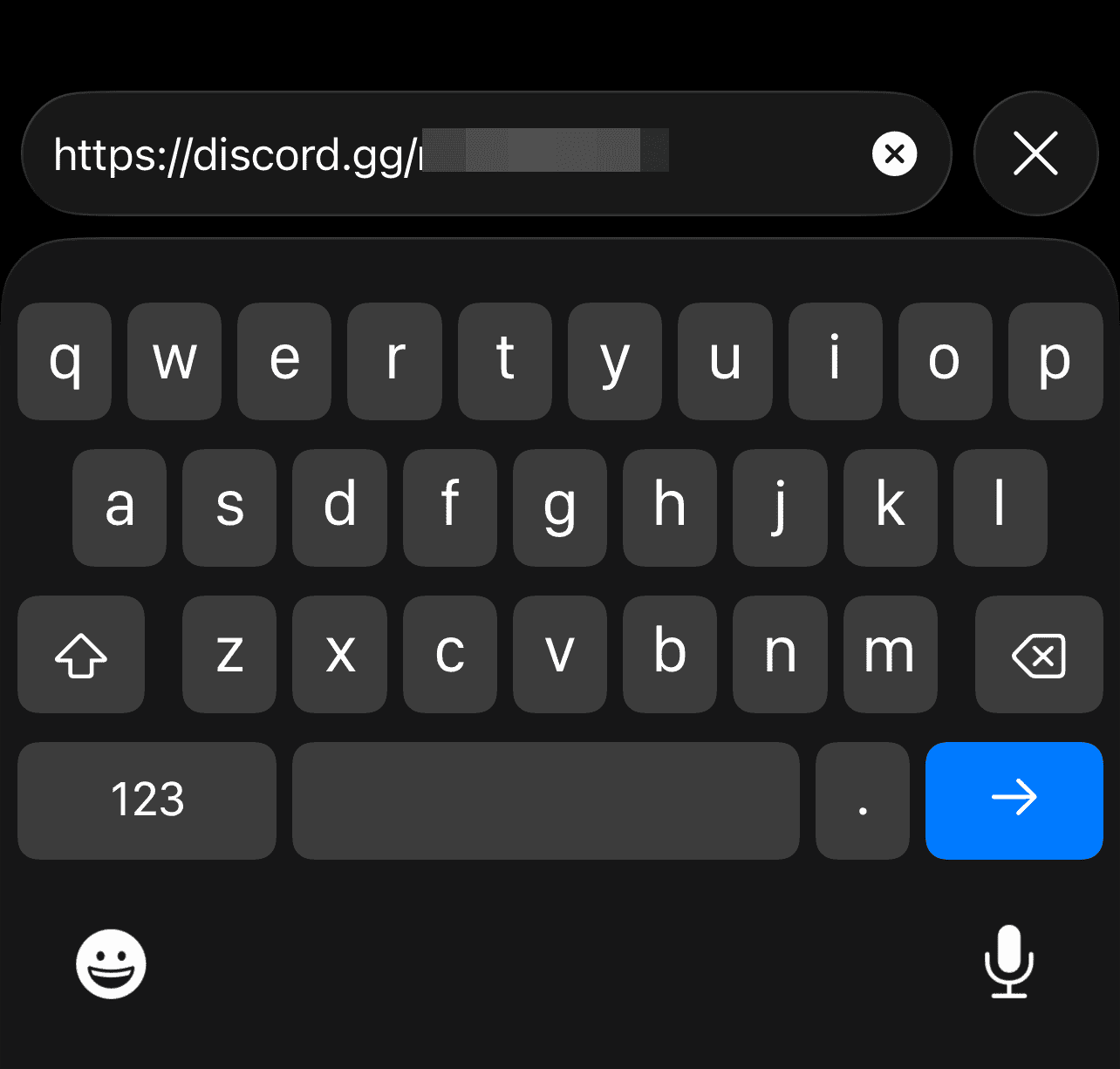
- Follow the prompt to view Discord servers NSFW blocked on iOS via the browser redirect.

4. Clear Discord App Cache
Your local data might stay outdated even after you change settings on a desktop. Clearing the cache refreshes your account status on your iPhone.
- Open the Settings app on your iPhone.
- Tap General and then select iPhone Storage.
- Find Discord and select the Offload App option.
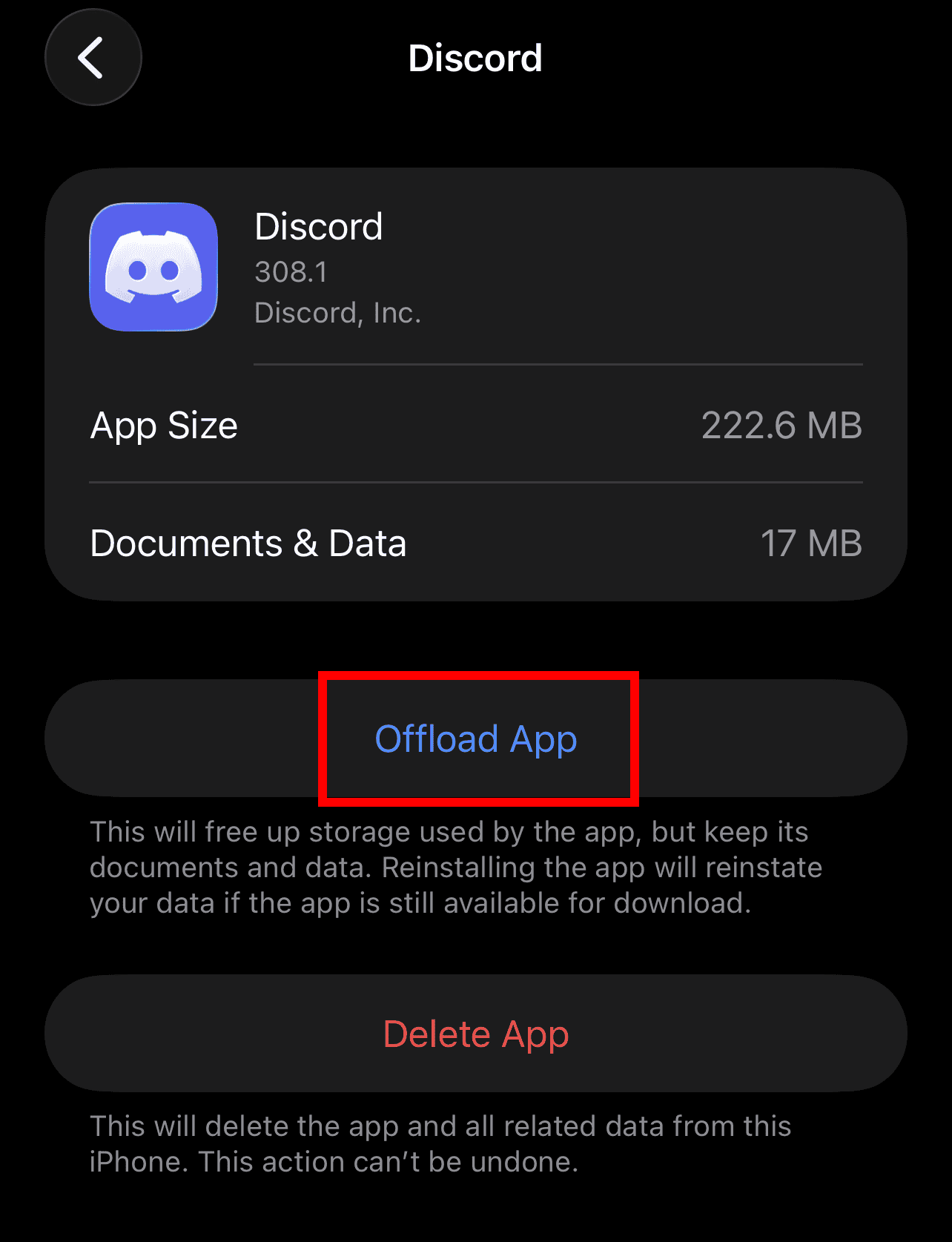
- Reinstall the app to sync your new privacy settings correctly.

5. Verify Server-Specific Rules

Many servers use internal bots to gatekeep their content. You might need to interact with a bot to gain full access. If your app becomes unresponsive, check if Discord is stuck on starting on Mac to ensure a proper sync.
- Go to the #welcome or #rules channel in the server.
- Look for a reaction emoji or a “Verify” button.
- Complete the prompt to unlock the hidden channels.
FAQ
Apple requires Discord to block sensitive content to maintain a specific age rating. You can read more about why Discord servers NSFW are blocked on iOS to understand these compliance measures.
No, the mobile app lacks the toggle for iOS NSFW access. You must use a browser instead.
Yes, if you are over 18 and follow the terms of service.
Resolving Discord Content Blocks on Mobile
Adjusting your account via a browser ensures a seamless social experience. Your iPhone will sync these changes and grant access to your communities. If technical glitches occur, such as the Discord app stuck downloading an update, restart your device. This step usually resolves all remaining sync issues.
Would you like me to help you draft a support ticket for an age verification request?


Discussion