

Backing up your iPhone to a computer is one of the safest ways to protect your data. Unlike iCloud, which depends on storage space and internet, a computer backup keeps everything local, photos, messages, app data, and settings. Whether you’re using a Mac or Windows PC, the process is straightforward once you know which app to use.
Table of contents
Before You Start
- Use the right cable: USB-C ↔ USB-C (new iPhones and Macs) or Lightning/USB-C ↔ USB-A (older models).
- Unlock your iPhone and tap Trust This Computer when prompted.
- Update your software: macOS, Windows, and iTunes/Apple Devices should be current.
- Decide on encryption: Encrypted backups save Health and Keychain data but require a password.
How to Back Up Your iPhone to Mac
On macOS Catalina (10.15) and later, backups are handled in Finder.
- Connect your iPhone to your Mac with a cable.
- Open Finder and select your iPhone from the sidebar under Locations.
- In the General tab, choose Back up all of the data on your iPhone to this Mac.
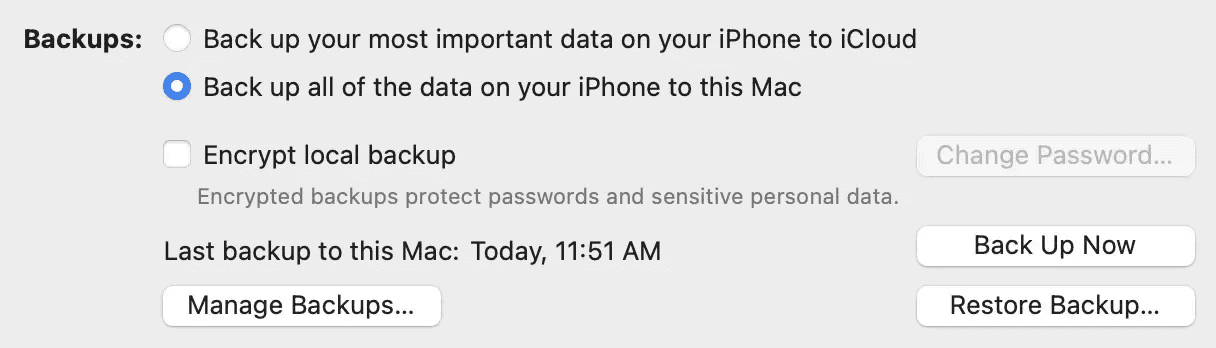
- Check Encrypt local backup if you want to save passwords, Wi-Fi settings, and Health data.
- Click Back Up Now.
- When finished, confirm the backup under Manage Backups.

On older Macs (macOS Mojave and earlier), open iTunes and follow the same steps inside the Summary page.
Don’t miss the best of The Mac Observer
Set us as a preferred source and our Apple reporting ranks higher in your Google Search results and Discover feed — one tap, no account changes.
How to Back Up iPhone to Windows PC
On Windows, you’ll use either Apple Devices (new app for Windows 10/11) or iTunes.
- Download and install Apple Devices from the Microsoft Store (or iTunes if you already have it).
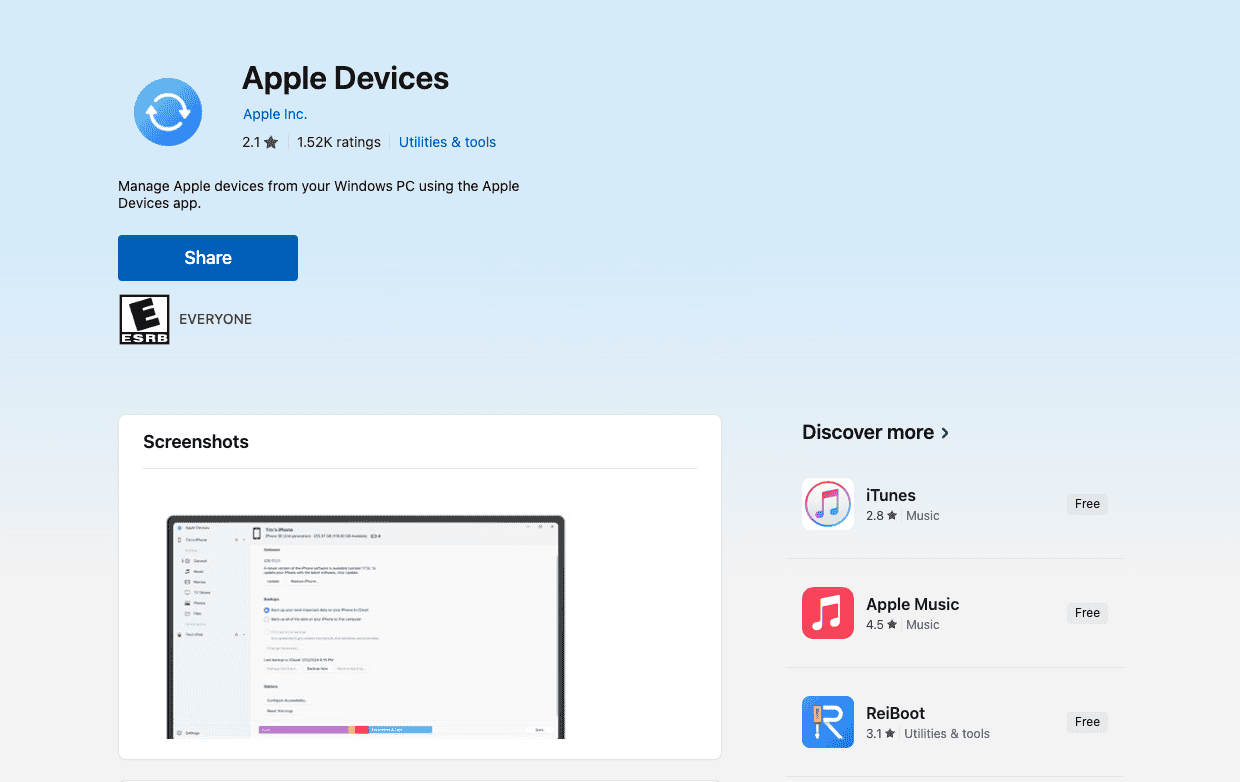
- Connect your iPhone and open the app.
- Select your iPhone from the device list.
- Choose Back up all data on your iPhone to this computer.
- Check Encrypt local backup if desired, then click Back Up Now.
- Once complete, you can find your backups in Edit › Preferences › Devices.

Read more about how to manage and protect your iCloud data across all Apple Devices.
Tips for Safer Backups
- Encrypt your backups if you care about Health and Keychain data.
- Label your backup files (via Manage Backups) to track which device they belong to.
- Store a copy on an external drive for extra safety.
- Back up regularly—especially before installing iOS updates or trading in your iPhone.
- If your computer is short on space, consider moving the backup folder to an external drive.
FAQs
Not necessarily. A computer backup is complete, but iCloud adds convenience with automatic daily backups. Many people use both.
– On Mac: ~/Library/Application Support/MobileSync/Backup/
– On Windows: \Users\(username)\AppData\Roaming\Apple Computer\MobileSync\Backup\
No. Backups are full device snapshots. Restoring replaces all data on your iPhone.
Yes. They’re protected by the password you set. Without it, you can’t access or restore the data.
Large photo libraries and videos can slow it down. Try transferring media separately or using iCloud Photos to lighten the backup size.
Summary (Ordered Steps)
- Connect your iPhone to your Mac or PC.
- Open Finder, Apple Devices, or iTunes depending on your system.
- Select your iPhone and choose Back up all data to this computer.
- Decide whether to encrypt the backup.
- Click Back Up Now and wait for it to finish.
- Confirm the backup in your settings before disconnecting.
Conclusion
Backing up your iPhone to a computer gives you full control over your data. With Finder on Mac or Apple Devices/iTunes on Windows, the process is simple: connect, choose backup options, and click one button. Unlike iCloud, a computer backup isn’t limited by cloud storage and doesn’t rely on Wi-Fi. Whether you keep it local or copy it to an external drive, this method ensures you always have a complete snapshot of your iPhone ready to restore.


Discussion