

Apple Watch has limited built-in storage for apps, music, and photos. Knowing how much space is available helps users manage it better. The watch lets you check storage directly or through the paired iPhone. Each method gives a clear breakdown of how much space is used by apps, media, and system files. That said, this is how you can check the remaining available storage on any Apple Watch model.
Table of contents
Ways to Check Available Storage on Apple Watch
There are two main ways to check storage. You can view it directly from the watch or use the Watch app on your iPhone. Both options show total capacity, available space, and app-wise usage.
1. Check Storage Directly from the Watch
- Press the Digital Crown to open the Home Screen.
- Tap Settings.
- Scroll down and select General.
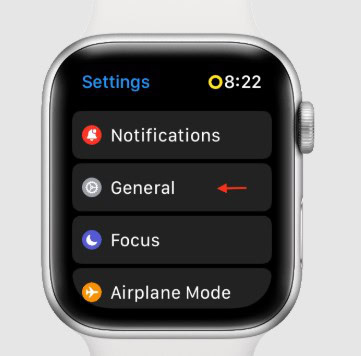
- Tap Storage or Usage.
- The display will show total capacity, used space, and remaining storage.
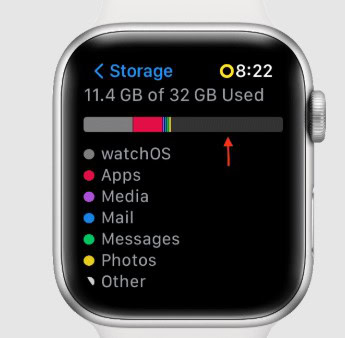
- Scroll further to see how much space each app takes.


If you’re unsure where to find the Settings app, here’s how to go to Settings on Apple Watch.
Don’t miss the best of The Mac Observer
Set us as a preferred source and our Apple reporting ranks higher in your Google Search results and Discover feed — one tap, no account changes.
2. Check Storage Using the Watch App on iPhone
- Open the Watch app on your iPhone.
- Tap the My Watch tab.
- Go to General and select Storage.
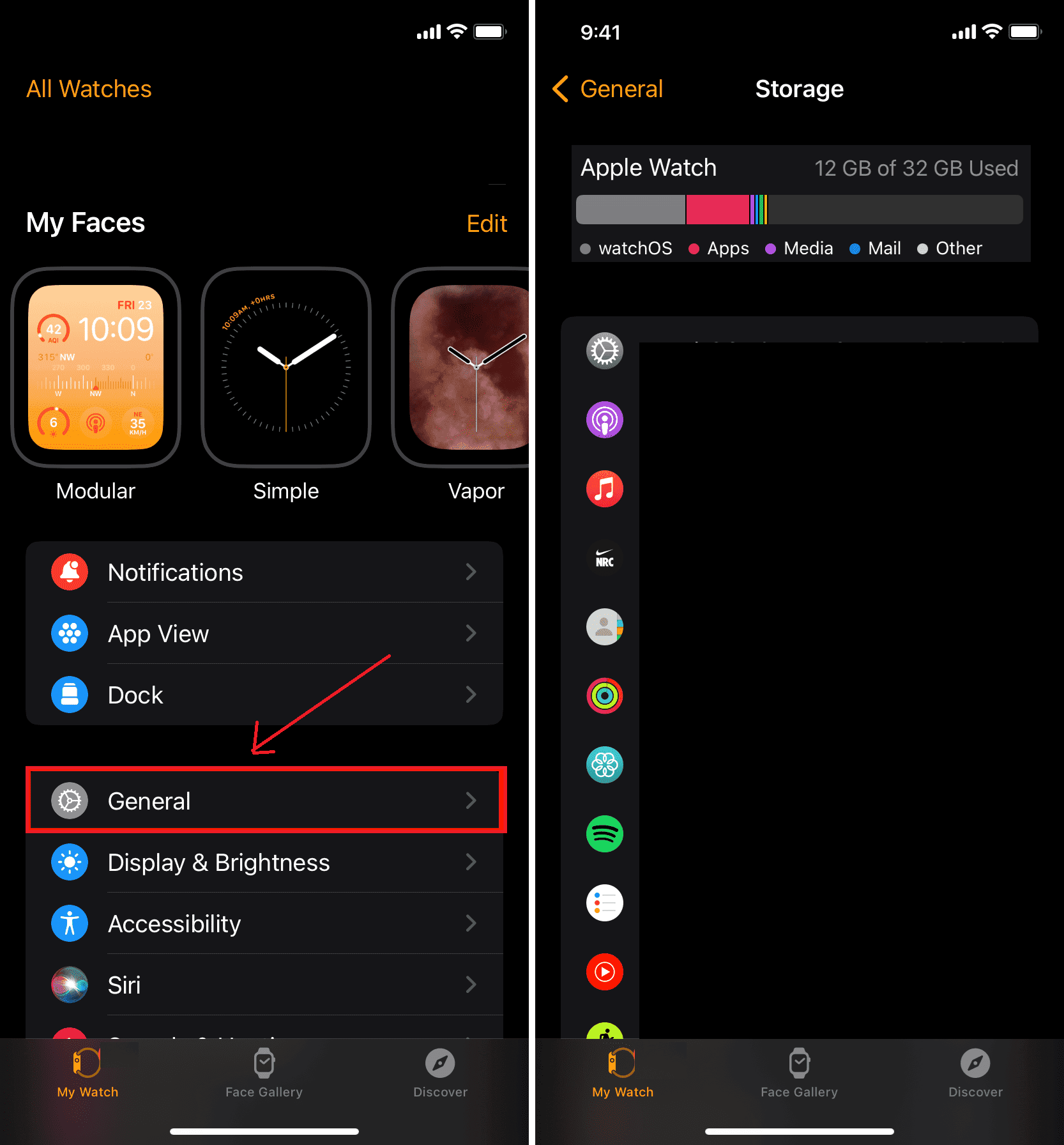
- Wait a few seconds for the data to load.
- You’ll see a list showing used and available space.

This method is easier when managing multiple apps or music files from your iPhone. It’s also helpful after setting up a new Apple Watch. For setup help, see how to update your new Apple Watch with your iPhone.
3. View Storage Details and Usage Breakdown
The storage screen also shows how much space the system software, apps, and media occupy. You can delete apps or remove downloaded songs directly from the same menu. If your watch supports newer versions of watchOS, you’ll get a clearer view of each category. Learn more about the full list of Apple Watch models that include larger storage capacities.
Additional Tips
- Remove unused apps from the Watch to free up space.
- Delete downloaded music or podcasts directly from the Music or Podcasts apps.
- Keep your watch updated to optimize storage management.
- Restart the watch after large app removals to refresh storage readings.
- Explore how to use the Apple Watch efficiently for daily tracking and storage management.
Final Thoughts
Checking available storage on Apple Watch takes only a few steps and helps maintain smooth performance. Whether done through the watch itself or the iPhone’s Watch app, both options give a clear look at how space is used. Regularly reviewing storage ensures there’s always room for new updates, apps, and data.
FAQs
Yes. Every Apple Watch model supports storage information under General settings.
No. It only reads system data and has no impact on performance.
Yes. Tap an app and select “Delete App” to free up space.
Restart the watch or reconnect it to your iPhone to refresh the values.



Discussion