

Removing a Gmail account from the Mail app sounds simple, yet many people second-guess the steps or worry about what disappears when they do it. Here’s the thing. Taking a Gmail account off your iPhone doesn’t erase the account itself. You’re only disconnecting it from the Mail app and any other iOS features tied to that profile. The account stays alive on Google’s servers and can be added back anytime.
Let’s break it down so you know exactly what to expect and how to do it without stress.
Table of contents
What Actually Happens When You Remove a Gmail Account
Before you jump into the steps, it helps to understand the impact.
Don’t miss the best of The Mac Observer
Set us as a preferred source and our Apple reporting ranks higher in your Google Search results and Discover feed — one tap, no account changes.
When you remove a Gmail account from your iPhone:
- All Gmail messages and folders disappear from the Mail app.
- Calendars, notes, contacts, and reminders tied to that Gmail account vanish from your iPhone too.
- The Gmail account itself stays intact. Your email, files, and history remain on Google’s servers.
If you ever sign back in through Mail or the Gmail app, everything returns.
How to Remove a Gmail Account in iPhone Settings
You won’t delete the account from the Gmail app here. You’ll remove it from the iPhone’s Mail system, which controls how Mail, Calendar, Notes, and Contacts sync.
Do this:
- Open Settings.
- Tap Apps, then tap Mail.
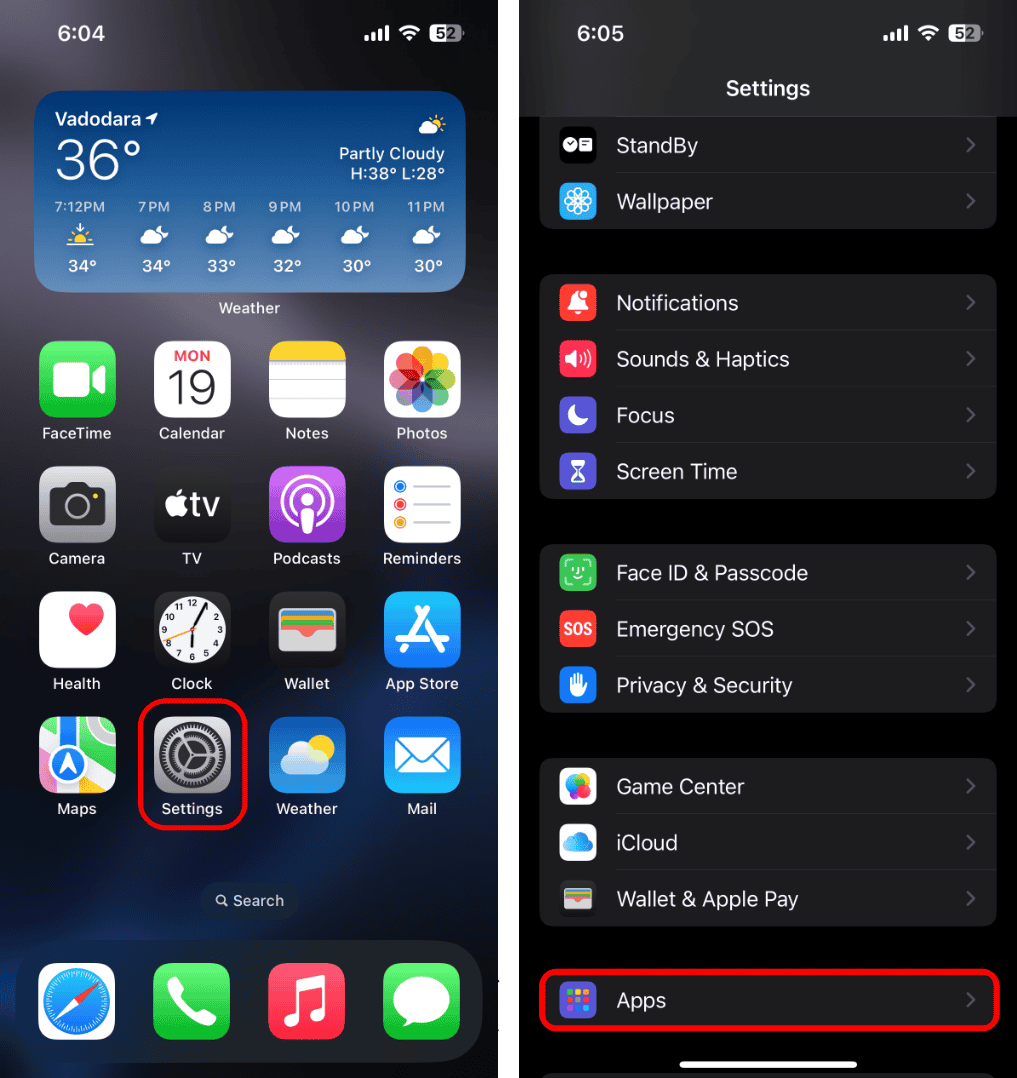
- Tap Mail Accounts.
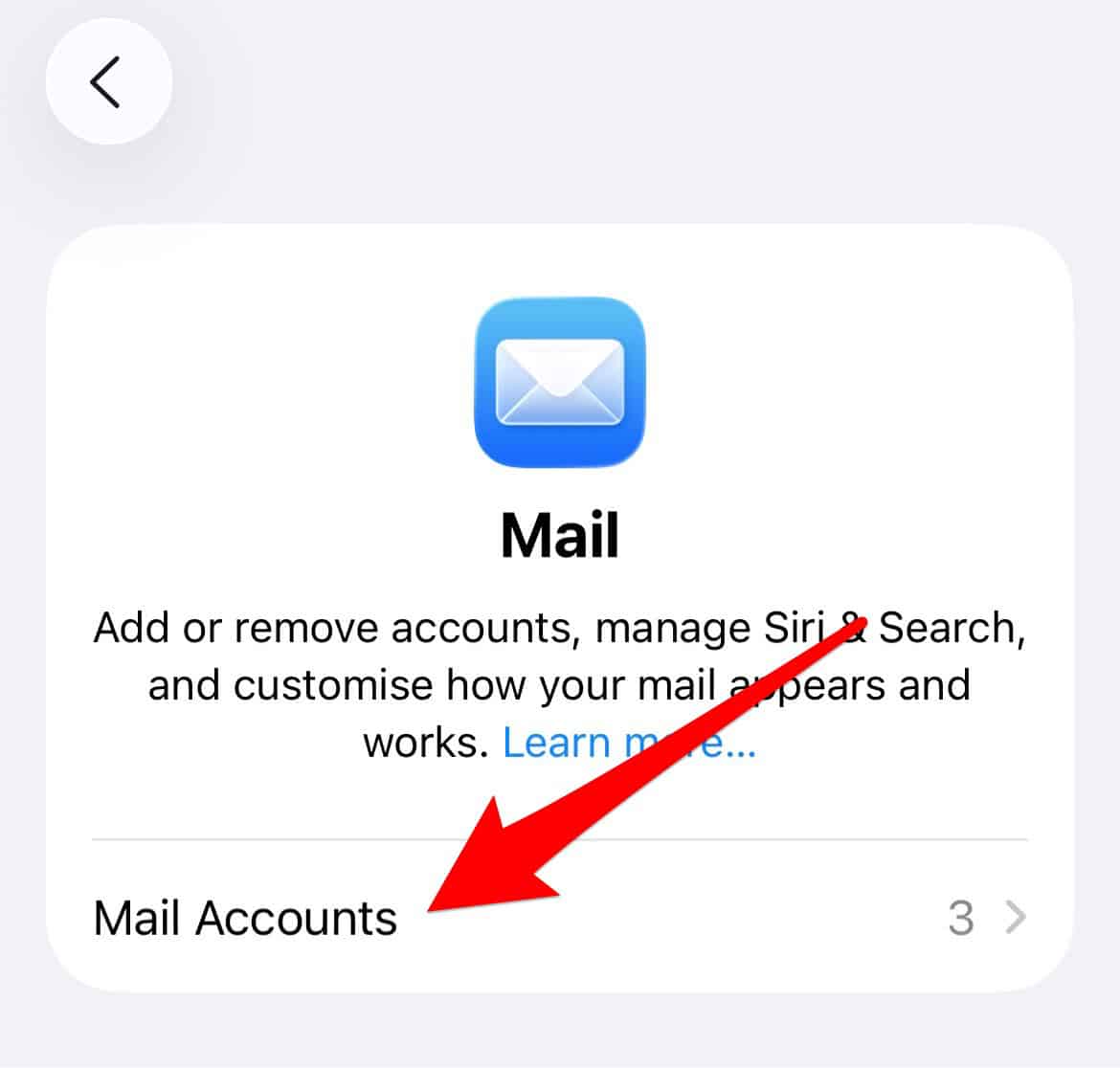
- Choose your Gmail account from the list.
- Tap Delete Account or Sign Out.
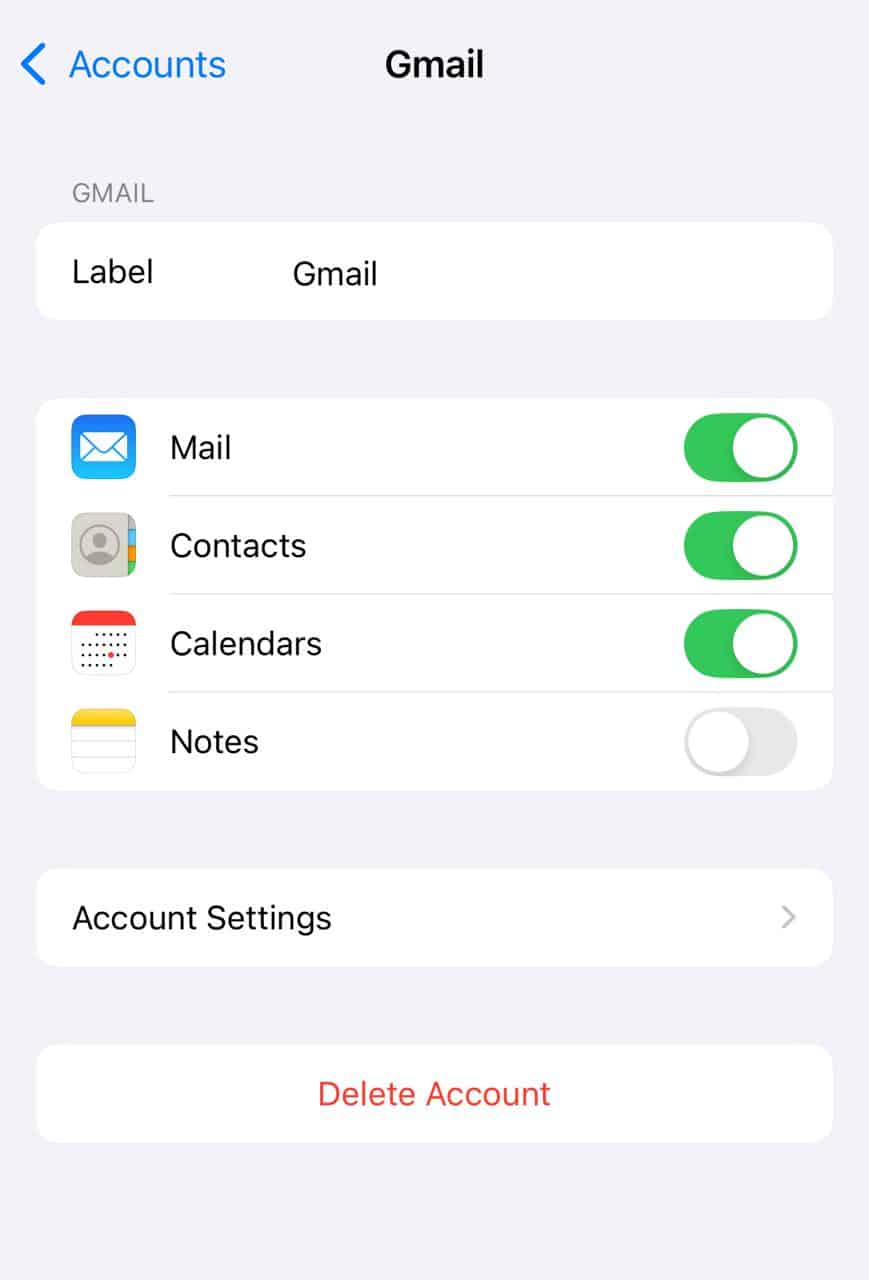
- Confirm.


That’s it. The Gmail inbox disappears from Mail, and anything that was syncing through that account is removed from your device.
Want to Pause the Account Instead of Removing It?
Maybe you don’t want to delete the Gmail account from Mail. Maybe you just need a break from the notifications or want to stop syncing email for a while.
You can turn the account off without removing it entirely.
- Go to Settings.
- Tap Apps, then Mail.
- Tap Mail Accounts.
- Pick your Gmail account.
- Turn off Mail.
The account stays on your device, but Mail stops syncing. Calendars and contacts stay active if you leave those toggles on.
Control How Often Mail Checks Gmail
If your Gmail account doesn’t support Push, your iPhone uses a Fetch schedule to grab new messages. You can adjust that:
- Open Settings.
- Tap Apps, then Mail.
- Tap Mail Accounts.
- Tap Fetch New Data.
- Choose a schedule or switch the account to Manual.
Choosing Manual means your iPhone checks Gmail only when you open the Mail app.
If You Only Want Fewer Distractions
Maybe your Gmail inbox is still useful, but the alert stream is not. Instead of removing the account or turning it off, silence it.
- Open Settings.
- Tap Notifications.
- Tap Mail.
- Pick your Gmail account.
- Turn off Allow Notifications.
Email still arrives. You just won’t hear about it until you open the app.
Hiding a Gmail Mailbox Inside the Mail App
If the inbox is cluttering your Mailboxes screen, you can hide it.
- Open Mail.
- Swipe left until you see Mailboxes.
- Tap Edit.
- Clear the check mark next to Inbox under your Gmail account.
- Tap Done.
The account stays active, but the inbox won’t sit in your way.
What to Remember
Deleting a Gmail account from the iPhone Mail app only disconnects the device. Your email stays online. Your Google account stays active. And if you decide you want the inbox back later, you can add it again in a minute.


Discussion