

Deleting your search history on an iPhone helps keep your private info safe, frees up space, and gives you a fresh start when browsing.
Whether you use Safari, Chrome, the Google app, or even talk to Siri, this guide walks you through how to clear that history easily.
Table of contents
How to delete search history on iPhone?
1. Safari (Apple’s default browser)
1.1 Via Settings
- Go to Settings > Apps.
- Scroll to Safari.
- Tap Clear History and Website Data.
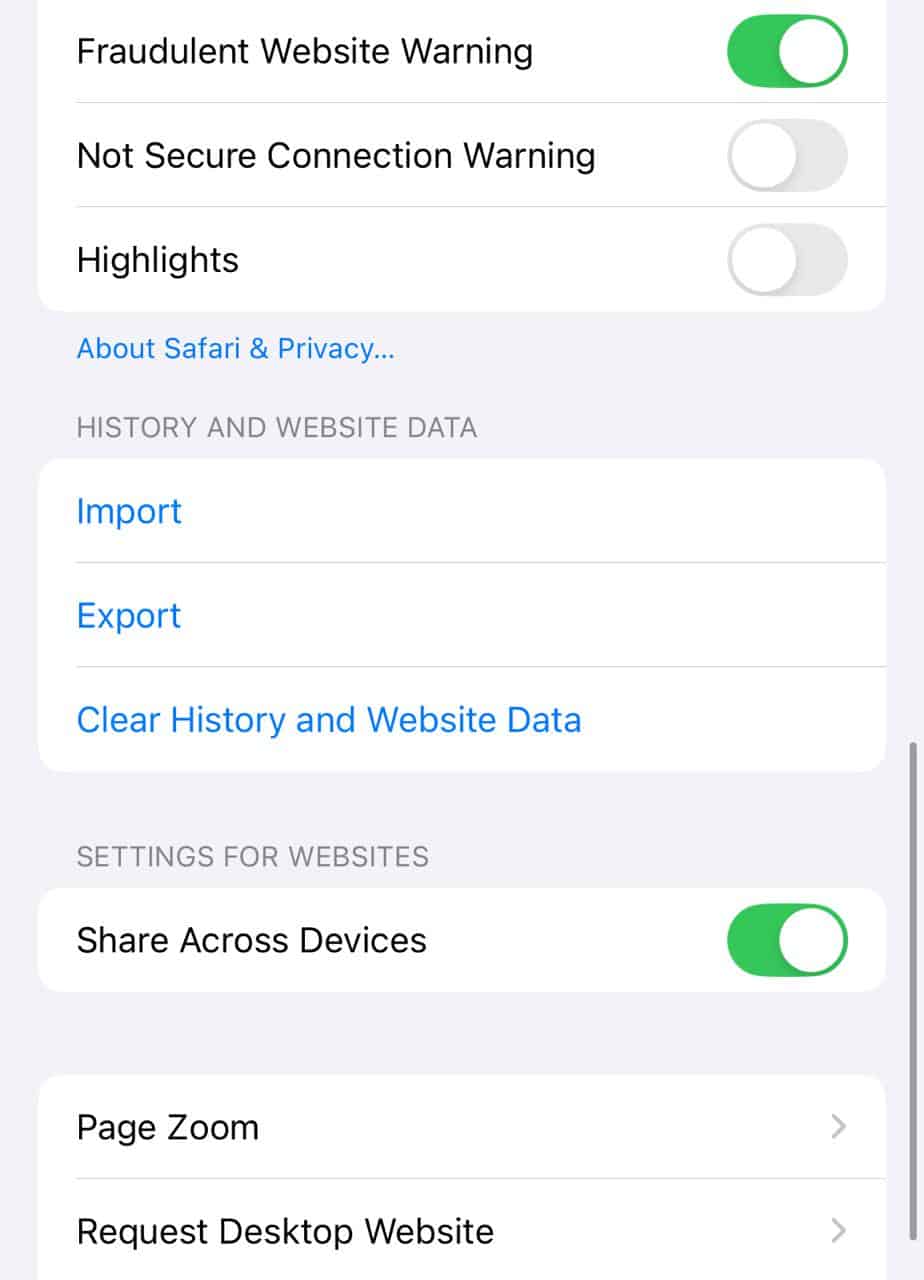

This removes history, cookies, and cache. Your AutoFill details stay intact.
Don’t miss the best of The Mac Observer
Set us as a preferred source and our Apple reporting ranks higher in your Google Search results and Discover feed — one tap, no account changes.
1.2 Via Safari app
- Open Safari.
- Tap the Bookmarks icon, then go to the History tab.
- Tap Clear, choose a timeframe such as last hour, today, today and yesterday, or all time, and then tap on Clear History.
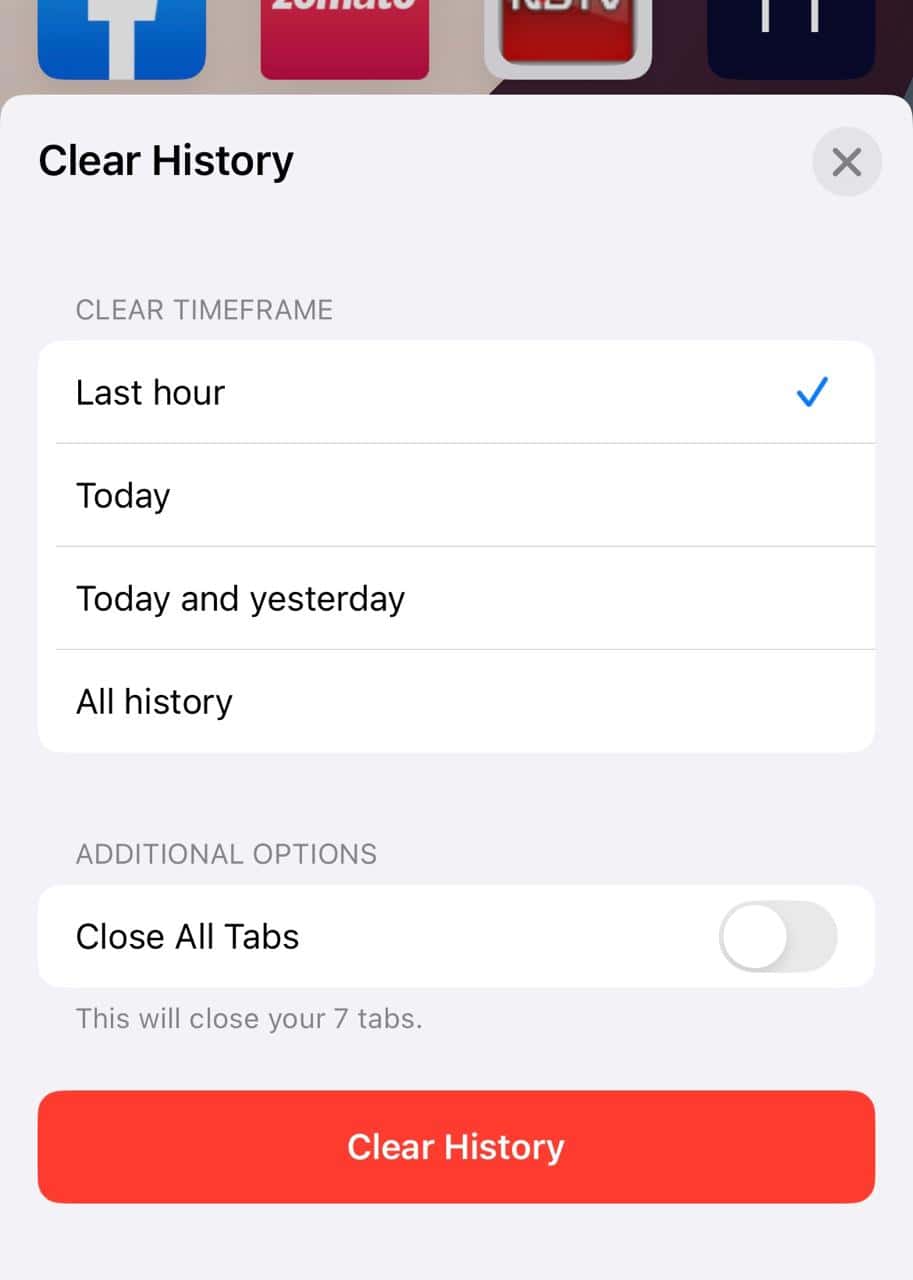
- To delete a specific day, swipe left on that date.
- To remove individual pages, tap Edit, select the items, and tap Delete.

1.3 Disable recent searches from showing in Safari (iOS 18.4 and above)
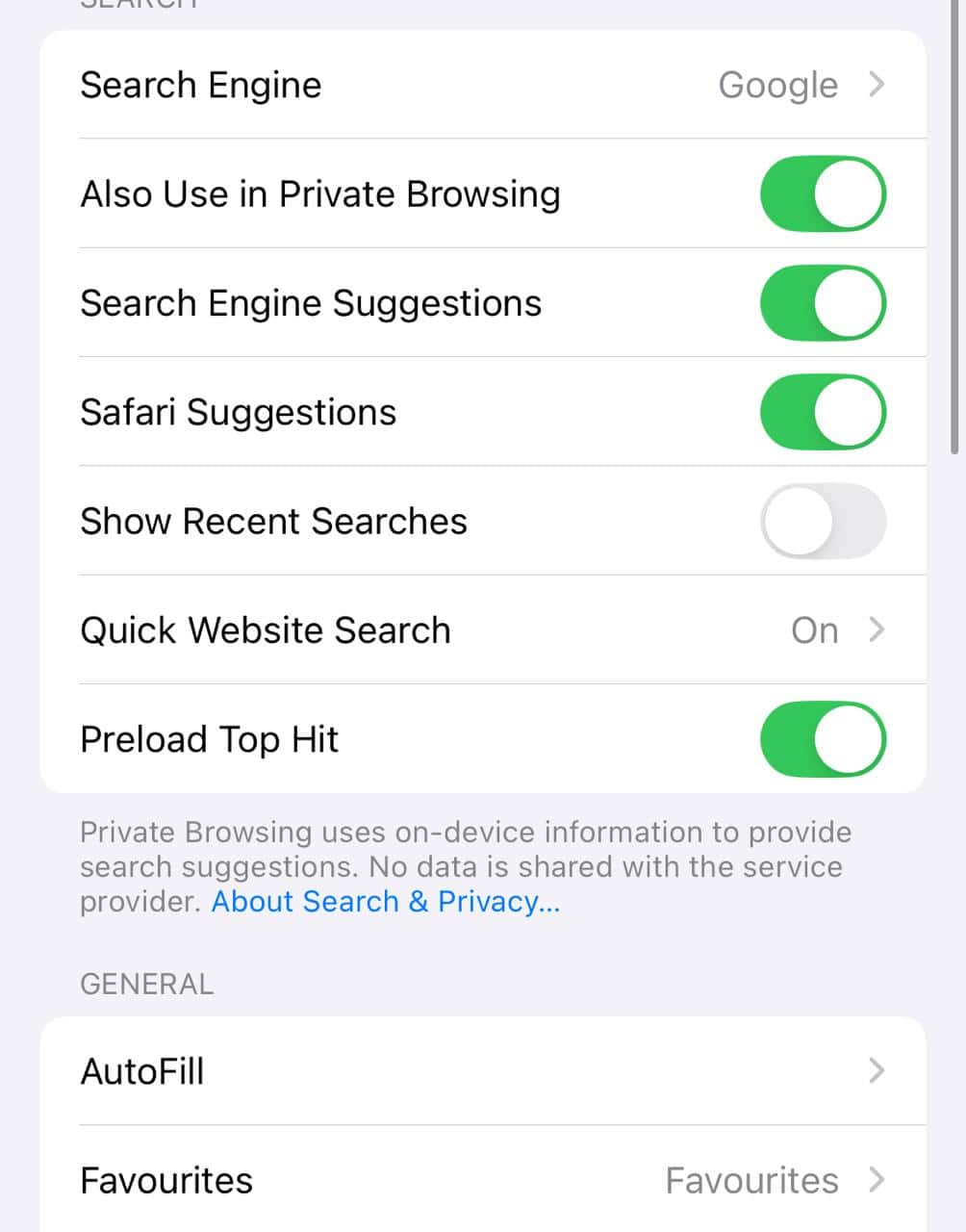
- Go to Settings > Apps > Safari.
- Turn off Show Recent Searches to stop recent entries from appearing automatically.

Did you know, you can also clear keyboard history for iPhones via Settings!
2. Google App (on iPhone)
- Open the Google app.
- Tap your profile icon, and then Search history.
- To delete all history, tap Delete and choose All time.
- To delete by day or range, select Custom range or tap the delete icon next to a day or item.

Other ways to delete search history in the Google app:
- To set auto-delete, go to Controls and choose to auto-delete after 3, 18, or 36 months.
- To remove on-device history when signed out, go to Settings > Privacy & Safety > Clear app history and tap Clear all.
- To delete recent searches in the search bar, tap into the bar, swipe left on items, then hit Delete, or tap Clear all to wipe them.
3. Chrome browser (on iPhone)
- Open Chrome.
- Tap More (three dots) then History > Delete browsing data.
- Choose a Time Range such as last 15 minutes, all time, or custom.
- Select data types such as history, cookies, cache, passwords, and more to remove.

- To delete individual items, go to History, tap Edit, choose items, then Delete.

You can similarly clear the cache in iPhone, for Chrome, other apps, and the system!
4. Siri and dictation history
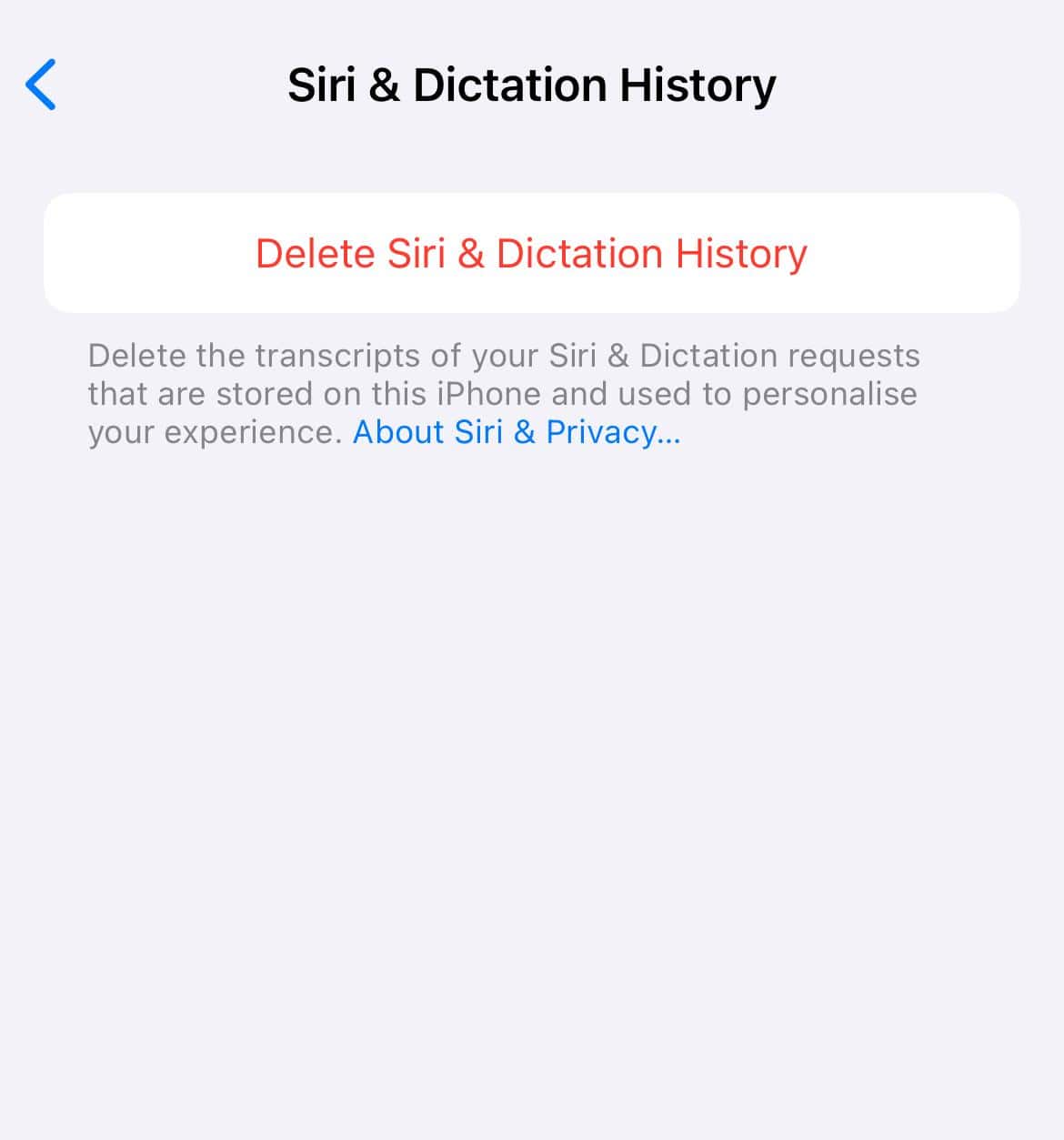
- Go to Settings > Siri.
- Tap Siri & Dictation History at the bottom.
- Confirm by tapping Delete Siri & Dictation History.

Tips
- If Clear History is greyed out in Safari, check Screen Time > Content & Privacy Restrictions. You may need to turn off restrictions or ask someone who set them up.
- If Safari syncs via iCloud, deleted history may return. To fix, go to Settings > Your Name > iCloud, find Safari, turn it off, and choose Keep on My iPhone, then delete again.
- Clear your Safari Reading List if it still shows pages. Open Safari, tap Bookmarks > Reading List (glasses), tap Edit, select items, then tap Delete.
- Clearing cache and site data helps free storage and erase traces.
- For stronger privacy, switch Safari’s search engine to DuckDuckGo, block cross-site tracking, block cookies, turn off suggestions, and disable auto-fill and frequently visited site features.
- Use Private (Safari) or Incognito (Chrome) mode so history will not be saved.
Frequently Asked Questions
No, Safari’s Clear History and Website Data does not delete AutoFill info or passwords.
Yes, Safari and Chrome offer time options like last hour, today, and yesterday. Custom ranges beyond that are not available.
No. Once deleted from the Google app, Safari, Chrome, or Siri, search history cannot be retrieved.
Yes, Chrome syncs across devices. If you delete browsing data in Chrome while signed in, it removes synced history on all devices.
Summary
- Use Settings > Safari > Clear History and Website Data or clear inside the Safari app.
- Manage Google search history via the Google app.
- Remove Chrome history via Chrome app > History > Delete Browsing Data.
- Clear Siri & Dictation History from Settings.
- Fix issues by disabling iCloud sync for Safari, checking restrictions, and clearing the Reading List.
- Boost privacy by blocking trackers, cookies, auto-fill, and using private or Incognito mode.
Conclusion
Deleting your search and browsing history on iPhone is simple and gives you more control over your privacy and storage. Whether you use Safari, Chrome, the Google app, or Siri, there is a quick way to clear your tracks.
Use the bonus tips to avoid history resurfacing and make browsing safer!


Discussion