

This guide will show you how to factory reset your iPhone. Performing a factory reset is essentially erasing your device. Erasing an iPhone can be useful, especially if you are looking to trade, sell, or give away the device. You may also want to factory reset your device is things get a bit too complicated to fix.
Using this guide, I will show you several different ways you are able to erase your device to prepare it for whatever plans you may have next.
Before You Begin
Before you erase your device, there is some things you need to de before starting.
- Should you need to, be sure to make a backup of your device. This can be a big help when switching to a new device. You can find our guide on how to make a backup here.
- Remember your iPhone passcode.
You will need to use your passcode to complete certain steps of the process. - You will also need your Apple ID password.
- The iPhone you are erasing will need to be associated with your Apple ID.
If the device is registered to someone else, that person will need to complete these steps for you.
Users have two options to erase their iPhone, with one being a bit easier than the other. To erase the device, users can either use the Settings option, or they can use a Mac or Window PC. Using the Settings method is the easiest, as it will require less time and work.
How to Erase an iPhone Through Settings
How to erase an iPhone through Settings.
- Go to Settings > General > Transfer or Reset iPhone
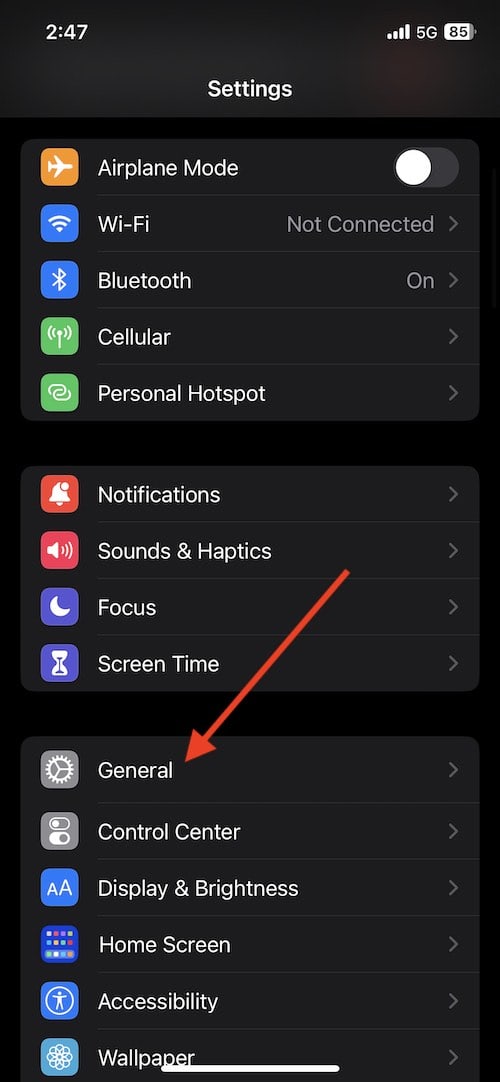
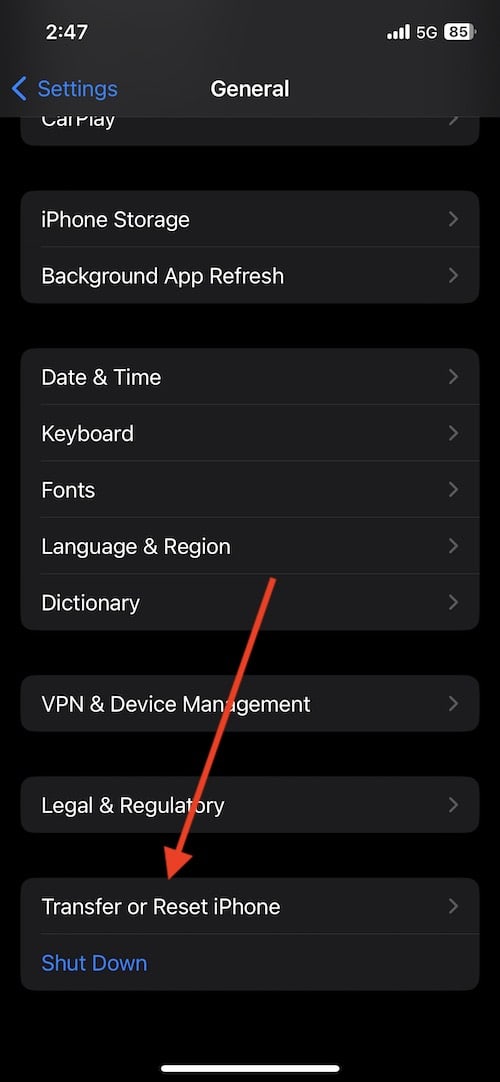
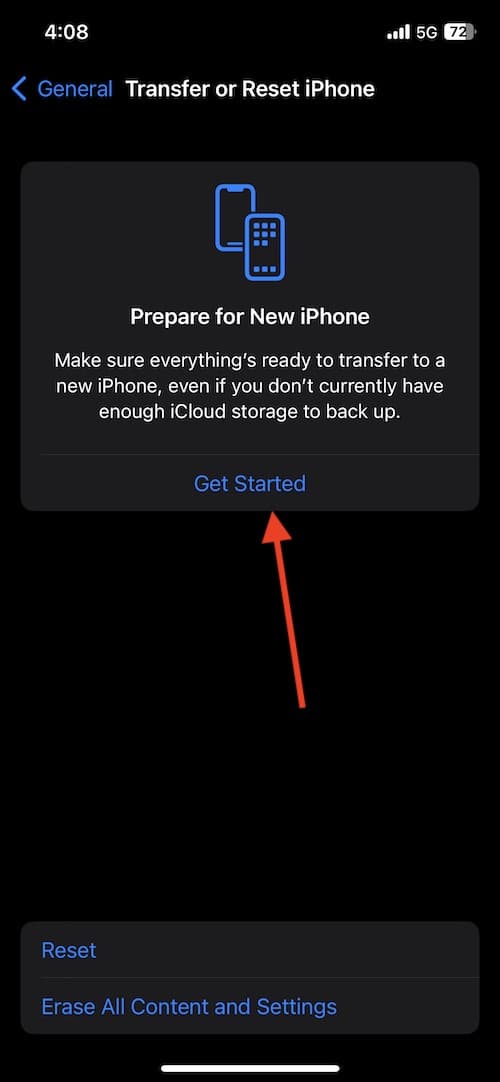
- If you are moving to a new iPhone, select the Get Started option.
This will take you through a process that prepares your content and settings for transfer. Once you are finished, follow the next step.
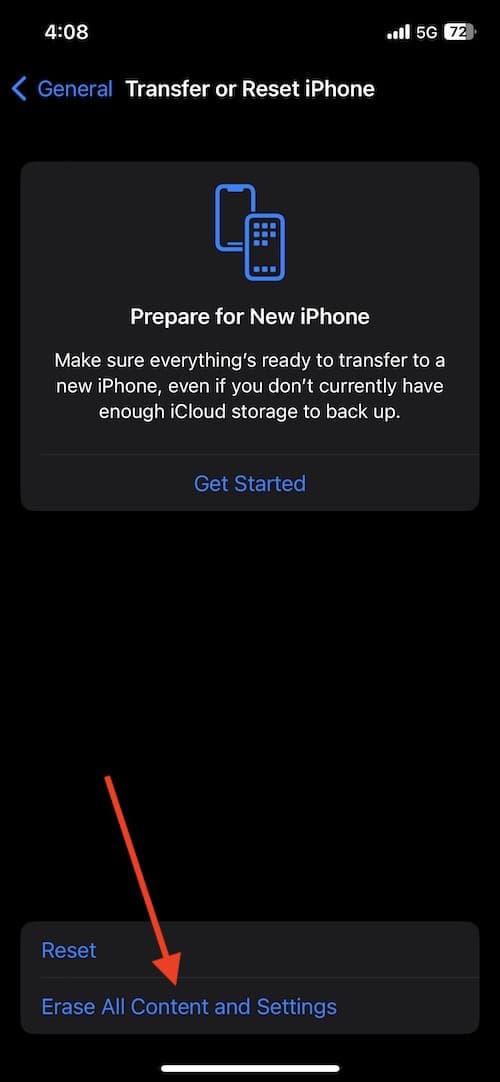
- If you simply need to erase your device, select Erase All Content and Settings. This will take you through the process to reset your phone.
If you did not do the prior step, your content may not be saved.


Factory Reset an iPhone Using a Mac or PC
If you are unable to access your Settings for whatever reason, you will need to use a computer to erase your iPhone.
For this process, you will need either a Mac or a PC. If you are using a PC, the system will need the latest version of iTunes. If you are using a Mac, it will need to be running macOS 10.15 or later to use the Finder, or the device will need the latest version of iTunes if you are running macOS 10.14 or earlier.
To find out what version of macOS, you are using, go to the Apple icon in the top right corner, and select About this Mac.
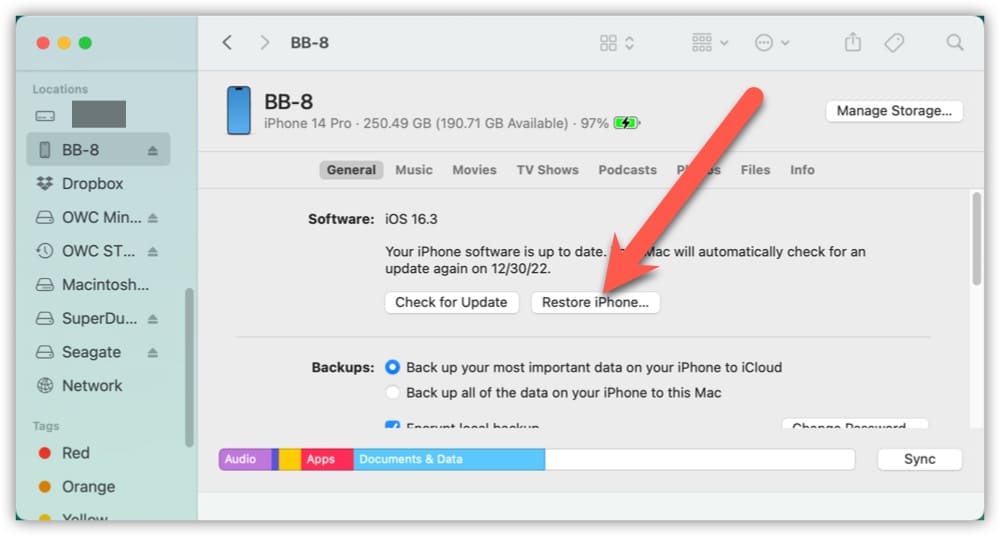
How to Factory Reset an iPhone Using macOS 10.15 or Later
- Connect your iPhone to the computer.
- Ensure that the iPhone is turned on.
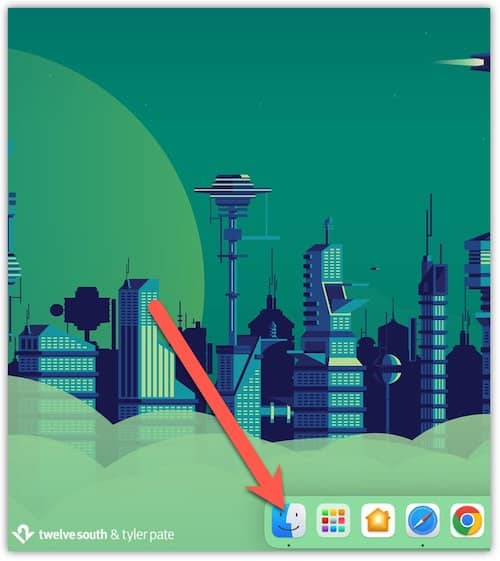
- Click the Finder icon in your dock to open a Finder window.
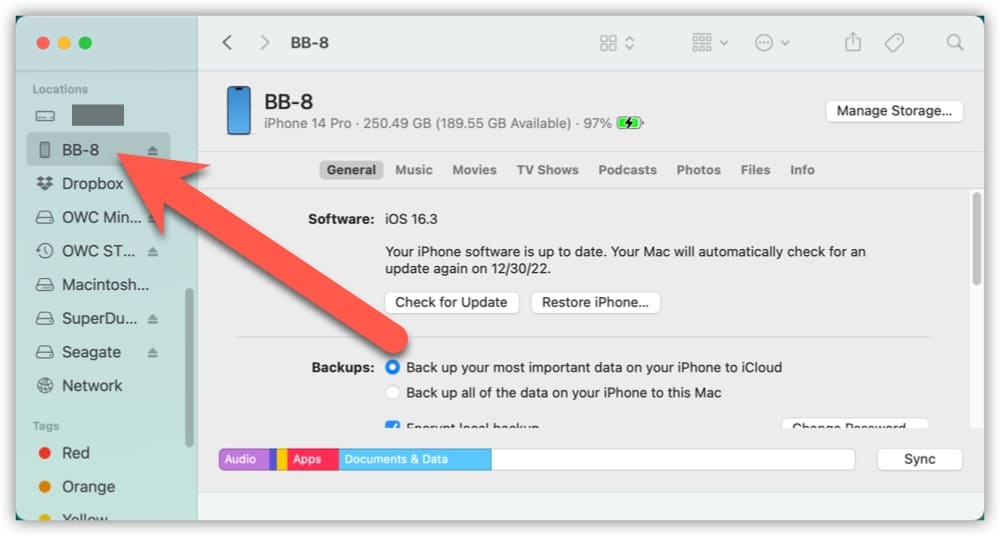
- Then, click the iPhone button within the Finder sidebar (it is below Locations).
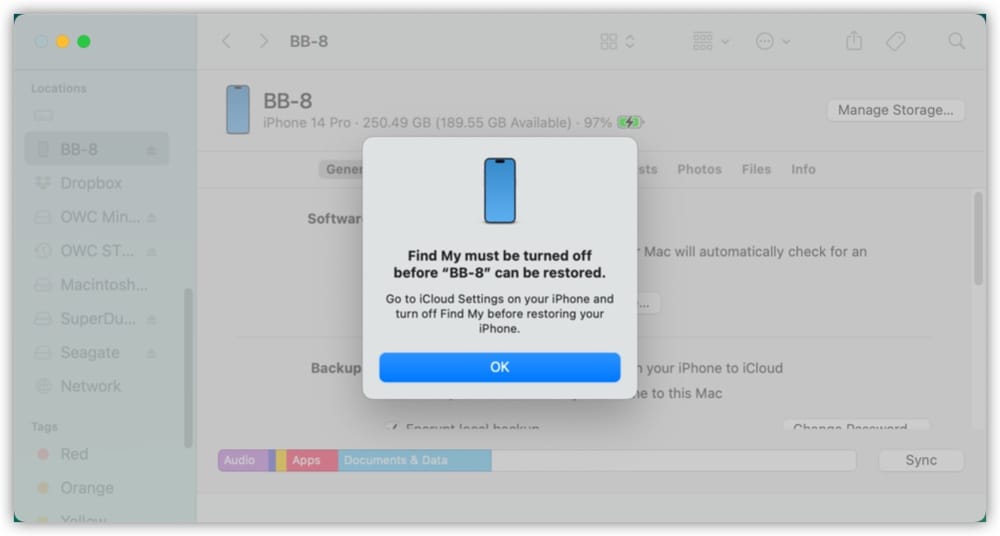
- Make sure that Find My is turned off before continuing.
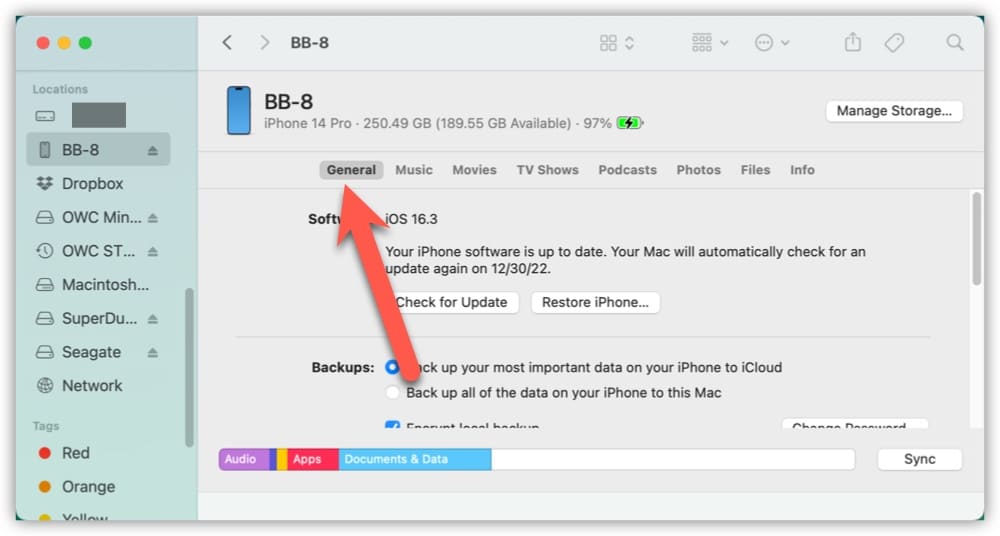
- From the top window, click General, and then click Restore iPhone.


How to Erase an iPhone Using a PC or macOS 10.14 or Earlier
- Ensure that you have current version of iTunes.
- From iTunes, click the iPhone button near the top left corner of the iTunes window.
- Click Summary.
- Then, click Restore iPhone.
Following these steps, you will be able to erase all of the data from your device. Be sure to follow each step carefully. Following the appropriate steps will erase all of the data on your iPhone. This allows you to start over with a fresh device, or give the phone to the next person using it.
Whether you plan on the device having a new owner, or you’re just looking to start from scratch, following this guide will ensure that you have a clean device.


Great article and required reading during these times of massive cyber attacks. I am experience such an event right now in real time. this is May 9, 2026 and within the past two days I have recovered access to three of my mobile devices. My desktop Mac mini was recovered and then lost also in these last three days. what seemed to happen on my Mac mini desktop was this; when I tried to log into my administrator account I was unable to. Instead I was asked for the password to a guest account. This guest account was not authorized to administrator my computer. So of course I didn’t have the password available to me and I could not login and I did have a recovery code for this account. luckily I’ve had Apple support for all of my devices and my desktop. So I called Apple for assistance and talk to a real person, in Texas. They were able to help me get back into my desk Tech top Mac mini M4. Latest operating system 24.6.4. I’d say.
well I gotta go I just discovered that my iPhone 17, primary telephone number is not Not there.