
When an Apple TV fails to recognize a valid subscription, the issue typically stems from cached authentication tokens, software version discrepancies, or iCloud synchronization errors. Here’s what to do about it!
Table of contents
1. Synchronize Software Versions
Authentication on tvOS often relies on a verification signal from a trusted iOS device on the same network. If significant version discrepancies exist between your Apple TV and your iPhone, this verification fails.

Verify that both your Apple TV (tvOS) and iPhone (iOS) are running the latest public releases. Apple frequently updates security protocols; mismatched versions prevent the devices from exchanging necessary secure tokens.
Don’t miss the best of The Mac Observer
Set us as a preferred source and our Apple reporting ranks higher in your Google Search results and Discover feed — one tap, no account changes.
2. Force Re-Authentication (Sign Out/In)
If you recently upgraded to an Apple One bundle or changed payment methods, the Apple TV may retain an expired individual license in its cache. “Restoring Purchase” often fails to overwrite this data.
- Navigate to Settings > Users and Accounts > [Your Name].
- Select Remove User from Apple TV or Sign Out.
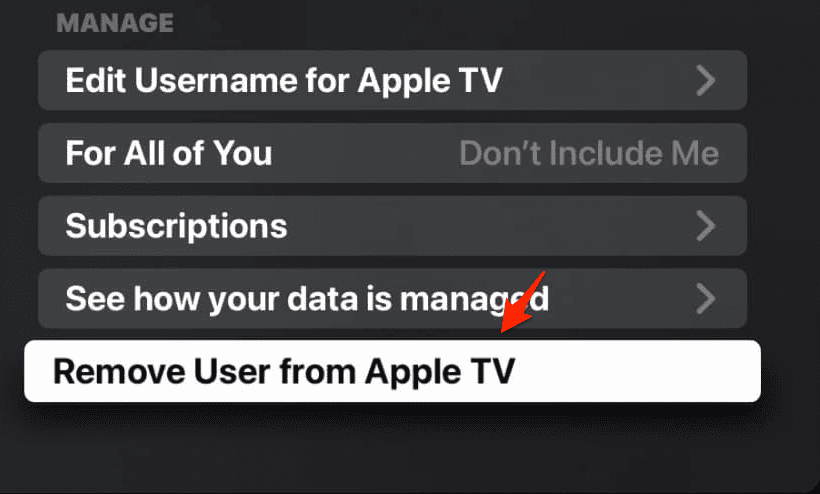
- Restart the device (see below), then sign back in. This forces the system to fetch a fresh provisioning profile from Apple’s servers.
3. Perform a System Restart
Putting the Apple TV to “Sleep” preserves the current system state, including any corrupted app data. You must perform a full system reboot to clear the cache.
- Method A (Software): Go to Settings > System > Restart.
restart apple tv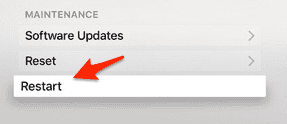
- Method B (Hardware): Unplug the power cord for 15 seconds. This ensures a complete discharge and cold boot, clearing volatile memory.
Apple TV stuck on loading? Check out our separate guide for more solutions.
4. Verify Family Sharing Permissions
For subscriptions shared via Family Sharing, the error often comes from the “Organizer’s” iCloud settings rather than the Apple TV itself.
- On the Family Organizer’s iPhone, navigate to Settings > Family > Purchase Sharing.
- Turn “Share Purchases” OFF, wait ten seconds, and turn it back ON. This resets the shared entitlement permissions for all family members.
5. Check Region and Network Consistency
Apple’s content delivery network (CDN) enforces strict geo-location rules. If your Apple ID region does not match your current IP address location (common when using VPNs or incorrect DNS settings), access will be blocked.
- Disable any active VPNs on your router.
- Attempt to AirPlay the content from your iPhone to the Apple TV.
- If AirPlay works but the native app does not, the issue is isolated to the Apple TV’s network configuration or IP status.
FAQ
The local authentication token on the Apple TV has expired or become corrupted. The device sees the app, but not the entitlement to play the content. Re-signing in resolves this.
This indicates a Two-Factor Authentication (2FA) timeout. Request a verification code manually on your iPhone (Settings > Password & Security > Get Verification Code) and append the six-digit code directly to the end of your password when typing it on the TV.
No. That setting only affects display output (resolution/refresh rate). It has no impact on account provisioning or billing.
Summary of Solutions
- Update OS: Ensure tvOS and iOS are on identical, current versions.
- Cold Boot: Restart the Apple TV via System settings or power cable; do not use Sleep mode.
- Re-authenticate: Sign out of the Apple ID on the TV completely and sign back in to refresh entitlements.
- Reset Sharing: Toggle “Purchase Sharing” off/on from the Family Organizer’s device.
- Check Status: Verify Apple’s “System Status” page to rule out a server-side outage.
Subscription errors on Apple TV are rarely due to actual billing failures and are almost exclusively result of caching or synchronization issues. By forcing the device to re-authenticate with Apple’s servers, via updates, restarts, and re-logging, you will resolve the vast majority of access problems.




Discussion