

Sometimes you just can’t get to your phone. Maybe your hands are full. Maybe you’re driving. Maybe you’re deep into work and don’t want to break focus. Your iPhone actually has tools that can help pick up calls for you or send a quick reply without you touching the screen. These features aren’t always obvious, so let’s walk through them in a way that actually makes sense.
Table of contents
How auto answering works on iPhone
Auto Answer is tucked inside the Accessibility settings, but don’t let that fool you. It’s useful for anyone who wants incoming calls handled automatically. Once it’s on, your iPhone picks up after a delay you choose. You can route the audio to your speaker, a Bluetooth headset, or a supported hearing device.
Here’s how to set it up:
Don’t miss the best of The Mac Observer
Set us as a preferred source and our Apple reporting ranks higher in your Google Search results and Discover feed — one tap, no account changes.
- Open Settings
- Go to Accessibility
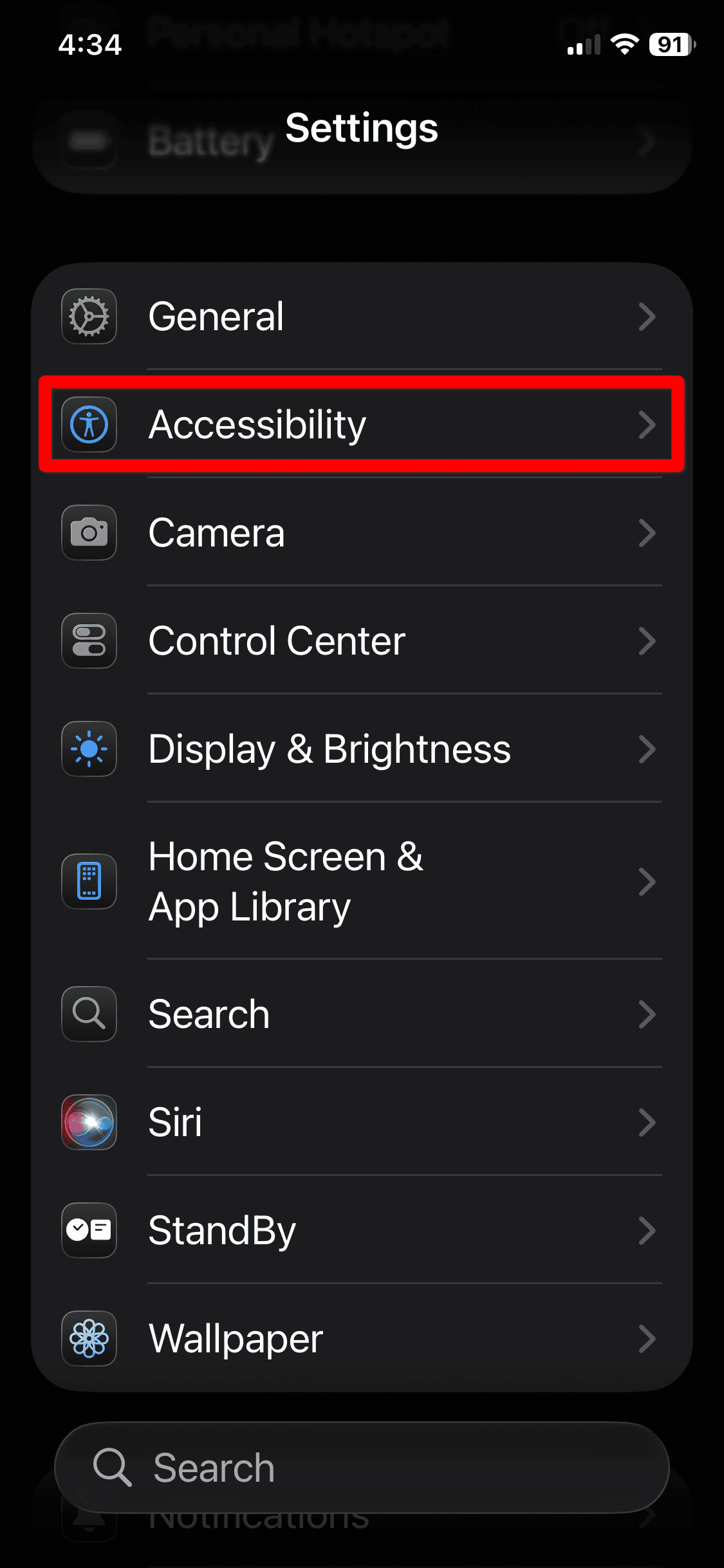
- Tap Touch
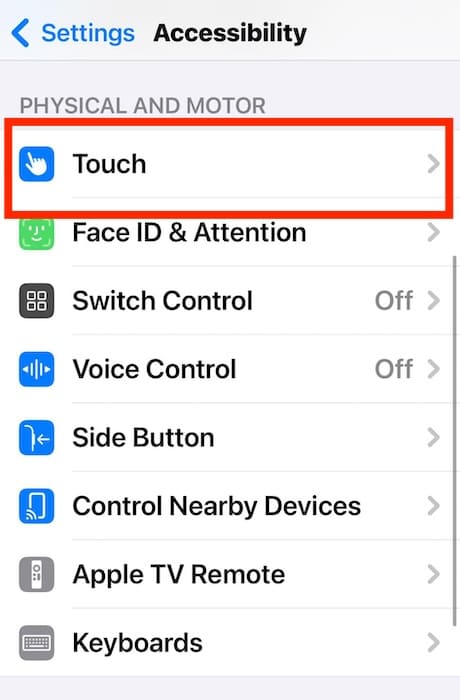
- Open Call Audio Routing
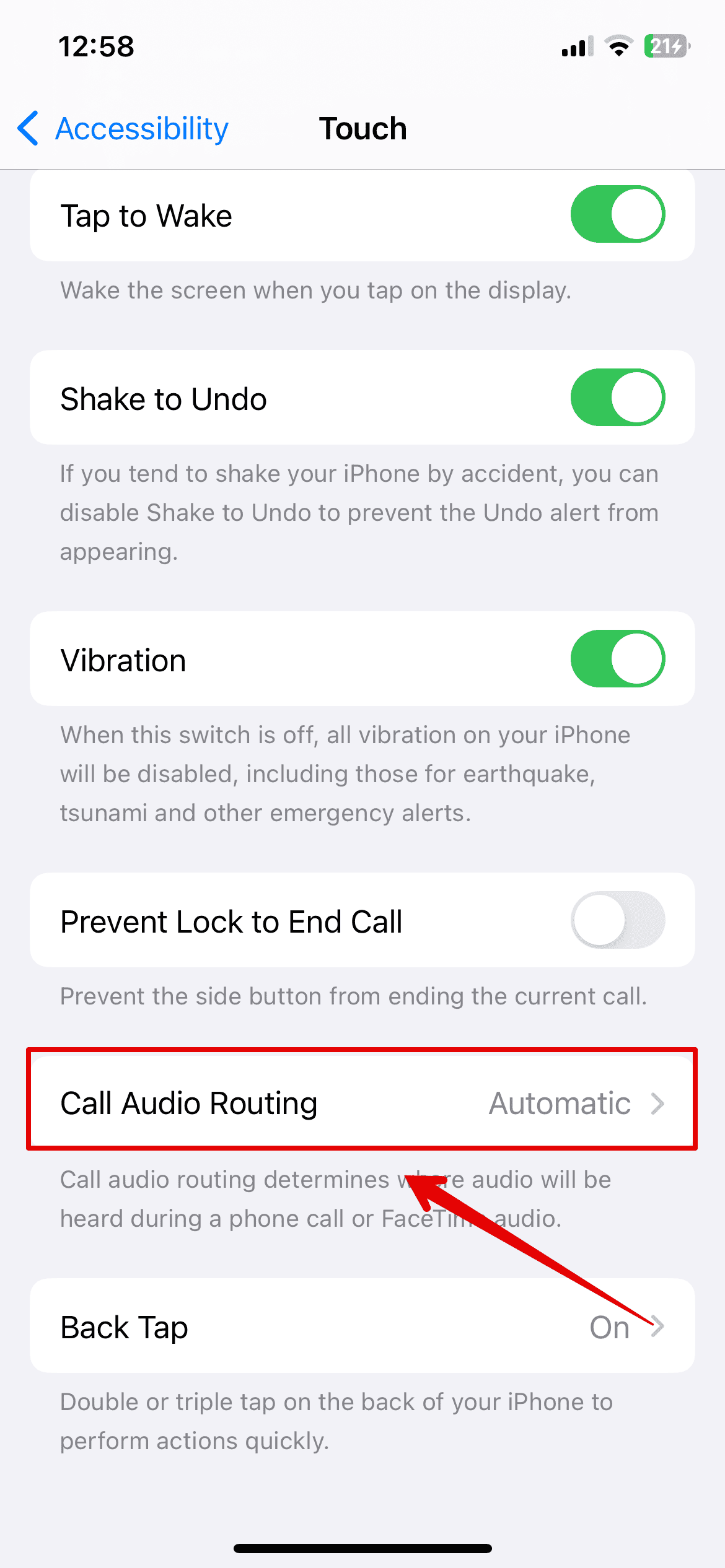
- Choose where you want the call audio to go
- Tap Auto Answer Calls
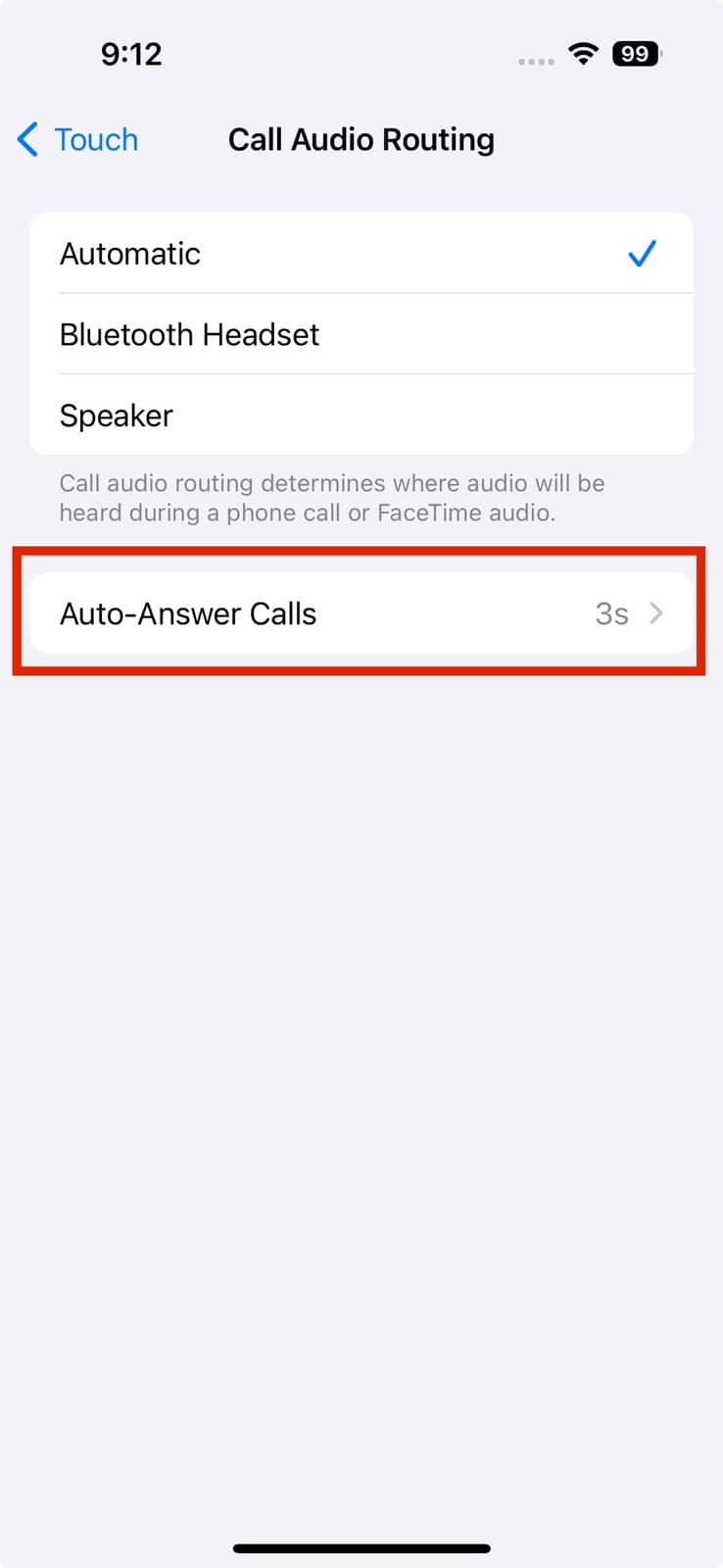
- Turn it on and set how many seconds before the call is answered


That’s it. Your phone will handle the pickup exactly the way you tell it to. If you’re using a hearing device and want to throw the audio back to your speaker during a call, just remove the device from your ear. The iPhone will switch automatically.
How auto replying works on iPhone
This is where things get interesting. Apple gives you multiple ways to send automatic responses, but each one solves a different problem. Let’s break it down.
Quick reply texts from the incoming call screen
This one is simple and built into every iPhone. You can store three custom messages and fire one off with a single tap when someone calls.
To set it up:
- Open Settings
- Scroll down and tap Phone
- Tap Respond with Text
- Edit the three messages to whatever actually fits your life
Now, when someone calls, tap the message icon on the screen and choose one of your replies. The text goes out instantly.
Using Driving Focus for auto replies
This is Apple’s closest thing to a true auto responder. It can reply to texts automatically while your phone is in Driving Focus mode.
You set it up under Settings then Focus then Driving. Choose who gets auto replies, write the message, and activate the mode when you need it. Just remember you have to turn it on and off manually, and your phone won’t show normal notifications while it’s active. Think of it as a temporary fix, not a daily workflow.
Using Shortcuts for more control
Shortcuts lets you build your own automations, including auto reply texts. It works, but it takes effort and only applies to contacts you manually select. Great for one or two people, not great for anything bigger.
So what should you use?
Auto Answer is reliable when you want calls picked up hands free. Respond with Text is perfect for quick messages when you’re busy. Driving Focus and Shortcuts are fine for occasional auto replies, but neither scales well if you run a business or get a lot of customer calls.
For that kind of communication, you’ll want a proper VoIP app that can schedule replies, handle teams, and respond to missed calls automatically.
The takeaway
Your iPhone already has more call handling features than most people realize. Set them up once and you’ll save yourself from rushed swipes, missed calls, and follow up texts you meant to send but forgot. Clean, quick, and actually practical.




This is great for visually impaired. But it doesn’t announce the caller. Can that be done? Also a Parkinson’s patient shakes the phone inadvertently. Can movements in the phone be turned off?