

The new M-series powered MacBooks are incredibly powerful, capable of handling just about any program or task with ease. However, over time, even the fastest Macs can experience slowdowns, often due to cluttered settings and unnecessary background applications that cause system bottlenecks. Here are five settings you can turn off to speed up your Mac without needing any special tools or software.
1. Limit Startup Apps
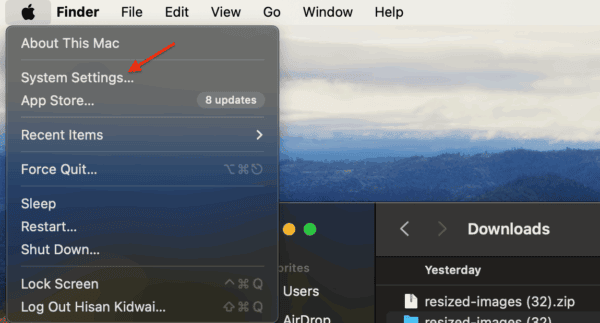
For those unfamiliar, startup apps are those programs that automatically launch when you log in or start up your computer. While some of these apps are essential services, such as messaging, third-party apps can sometimes utilize the permission to auto-update and cause slowdowns. Therefore, it’s a good idea to limit the number of startup apps. Here’s how you can do it:
- Click the Apple Logo in the top left corner and open System Settings.
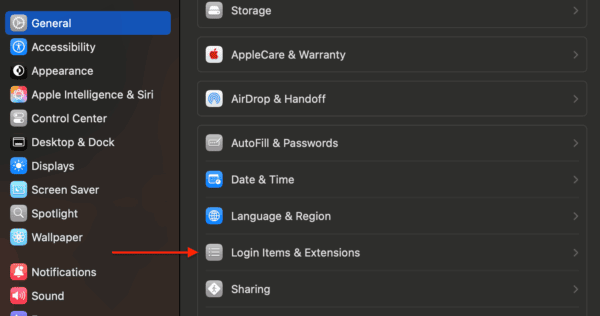
- Go to General and then click Login Items.
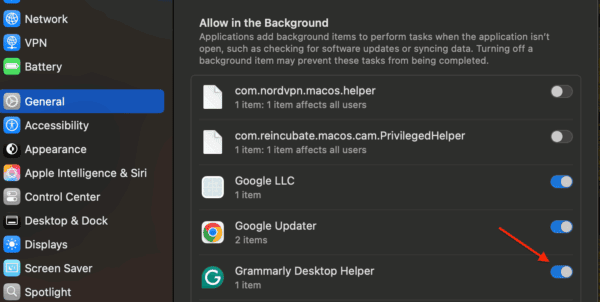
- Turn off the toggles for the apps you don’t want to launch at startup.


2. Turn off iCloud Sync
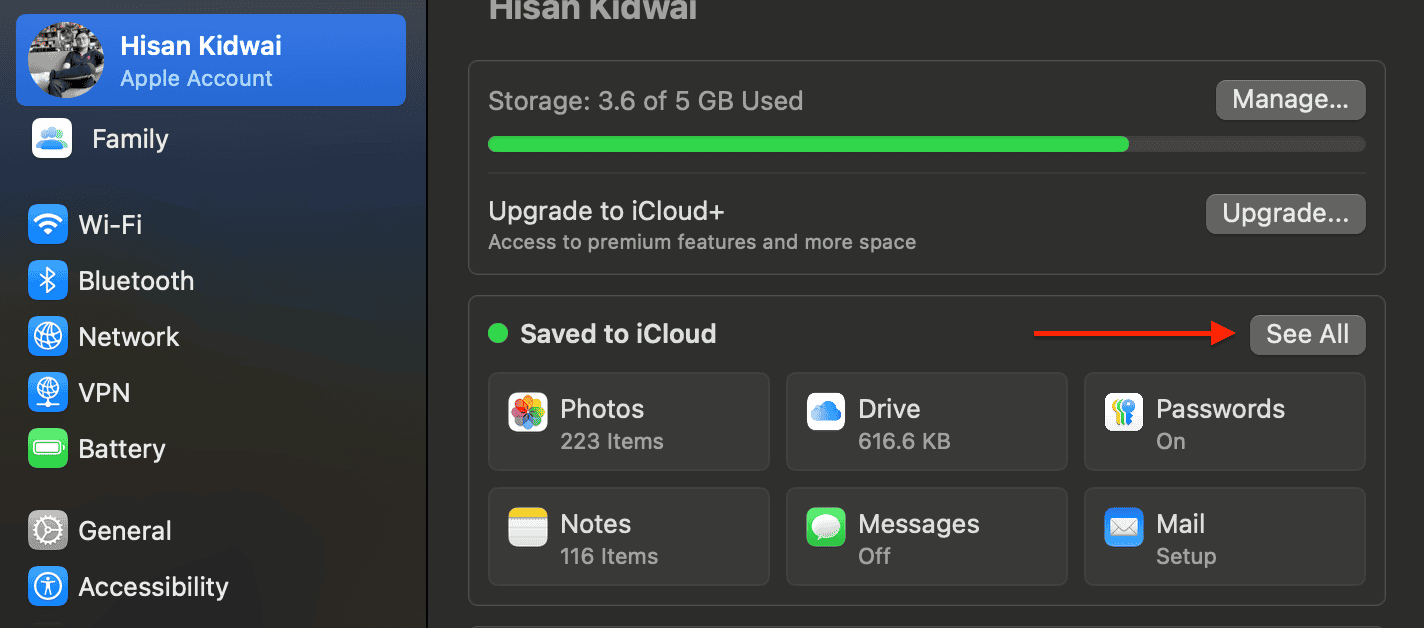
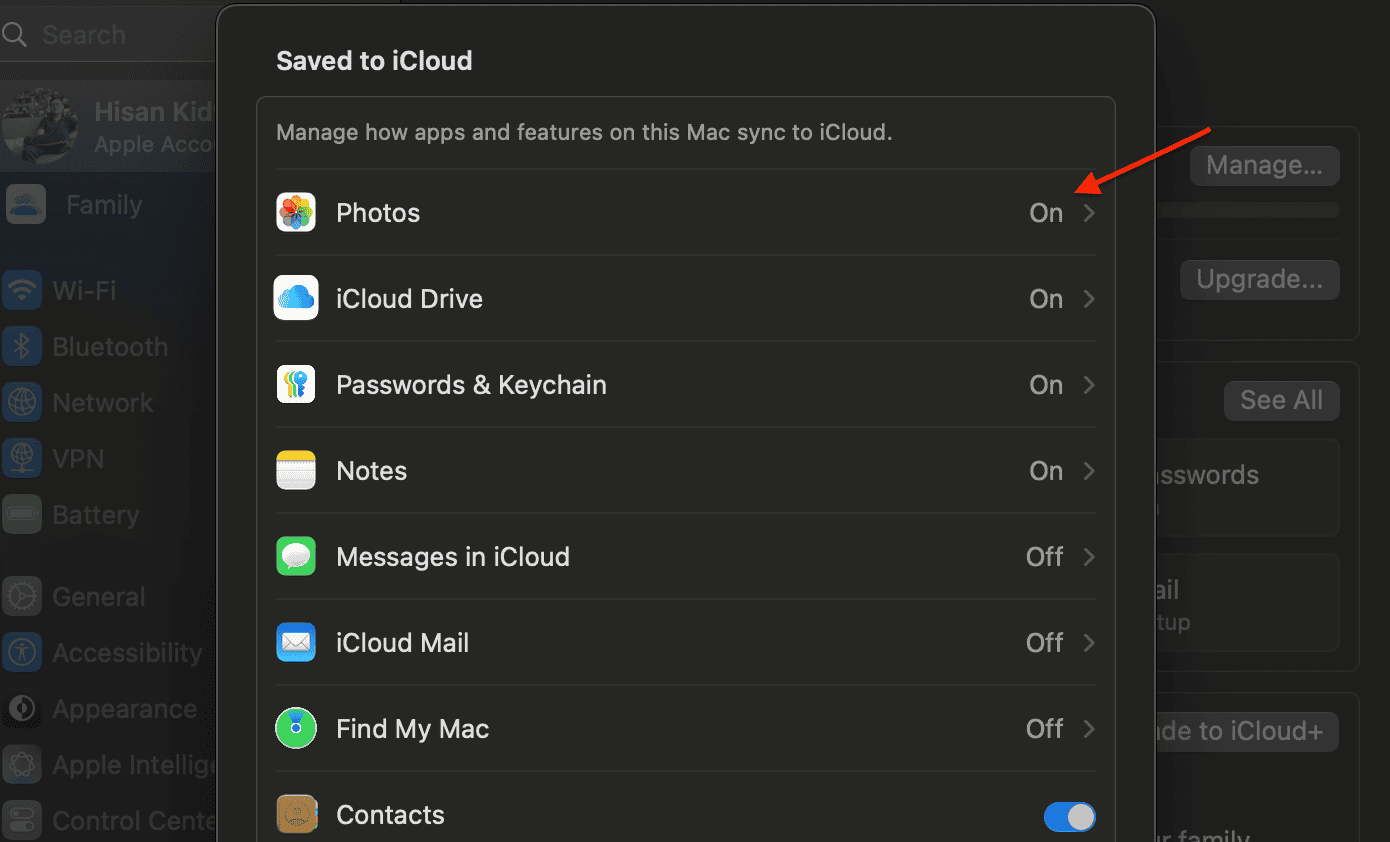
iCloud Sync is a handy tool that automatically keeps your files, photos, documents, app data, and other information up to date across all your Apple devices. However, this background syncing can sometimes cause problems if your Mac is already under a heavy workload. Here’s how you can disable it:
- Open System Settings and then navigate to your Apple ID > iCloud.
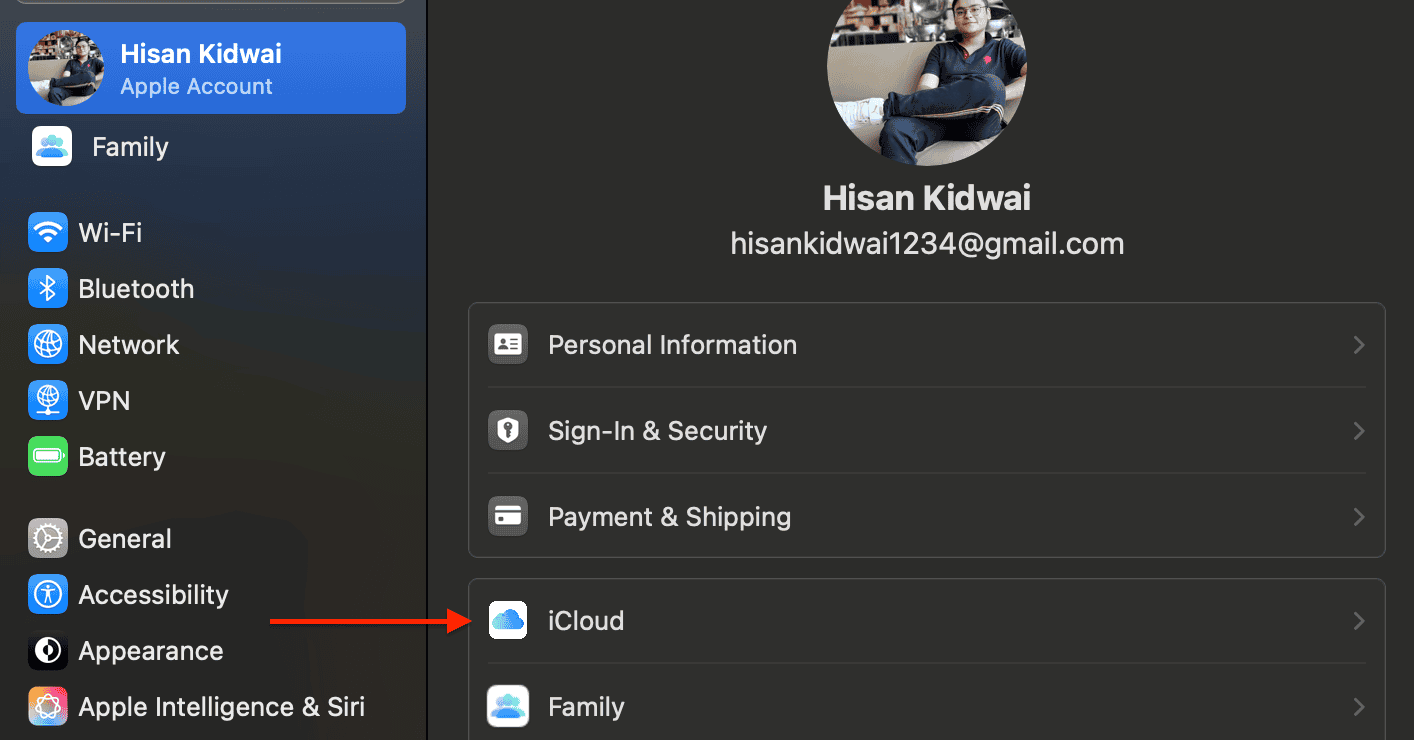
- Next to the Saved to iCloud section, click See All.
- Toggle off any services you don’t use regularly, like iCloud Drive, Photos, or iCloud Mail.


3. Disable Visual Effects
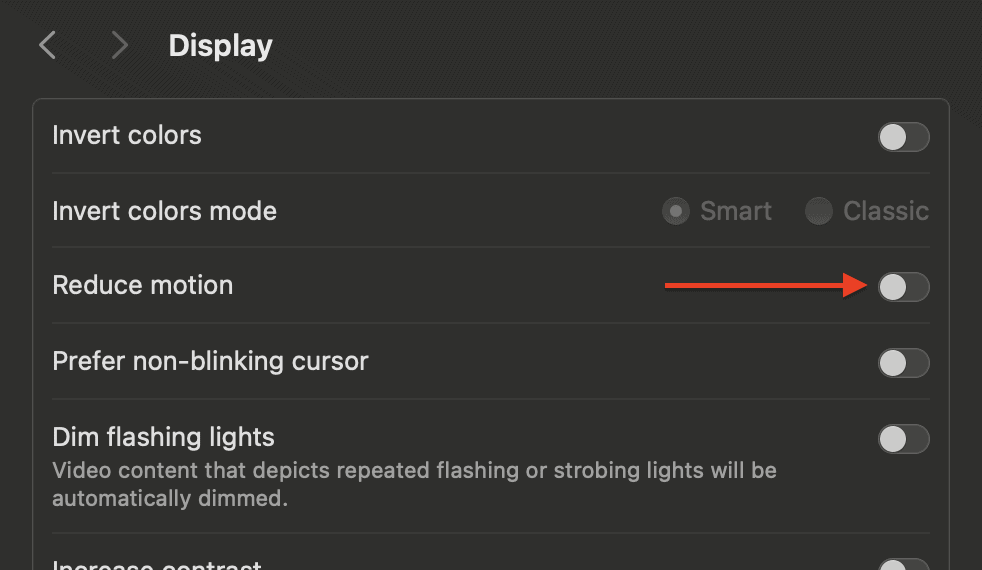
It’s no secret that Apple’s macOS features some of the most beautiful animations compared to Windows. However, these effects can put a significant burden on your Mac’s GPU, especially if you’re using an older model. Here’s how you can turn off visual effects and speed up your Mac:
Don’t miss the best of The Mac Observer
Set us as a preferred source and our Apple reporting ranks higher in your Google Search results and Discover feed — one tap, no account changes.
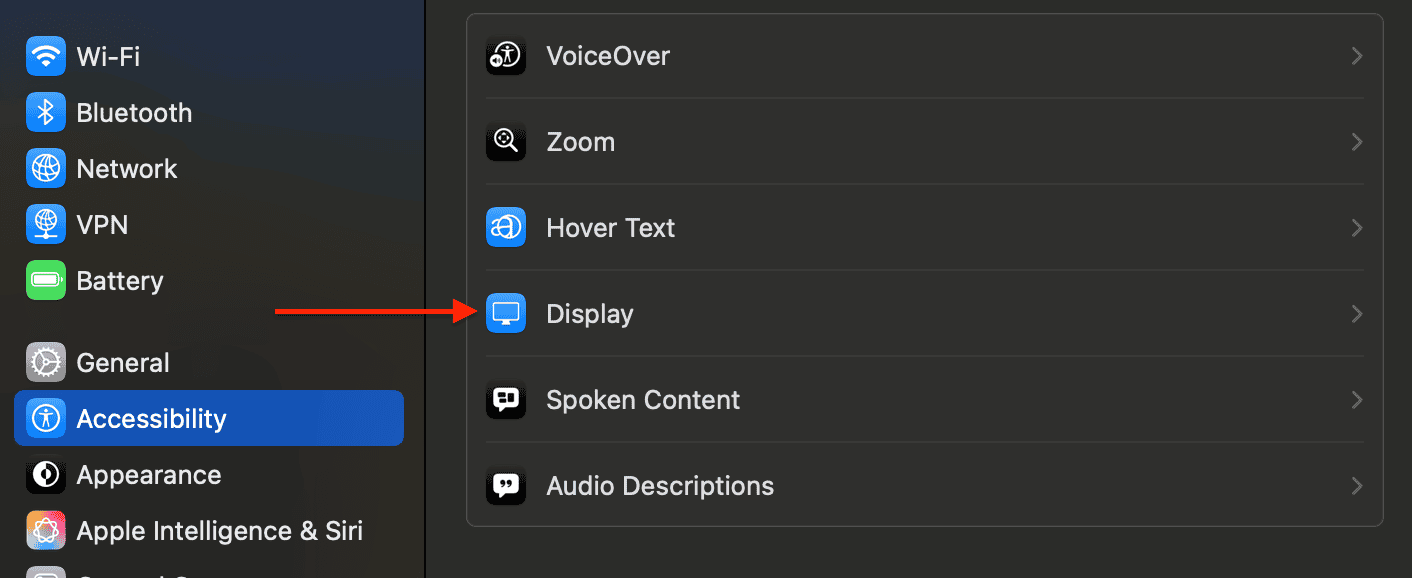
- Open System Settings > Accessibility.
- Scroll to Display.
- Enable Reduce Motion and Reduce Transparency.


4. Turn Off Unused Widgets
Widgets display real-time information, such as weather, stocks, or calendar events, in your Notification Center. While they may be helpful, they also use RAM and CPU power in the background. To turn them off:
- Click the date/time in the top-right corner of the menu bar to open Notification Center.
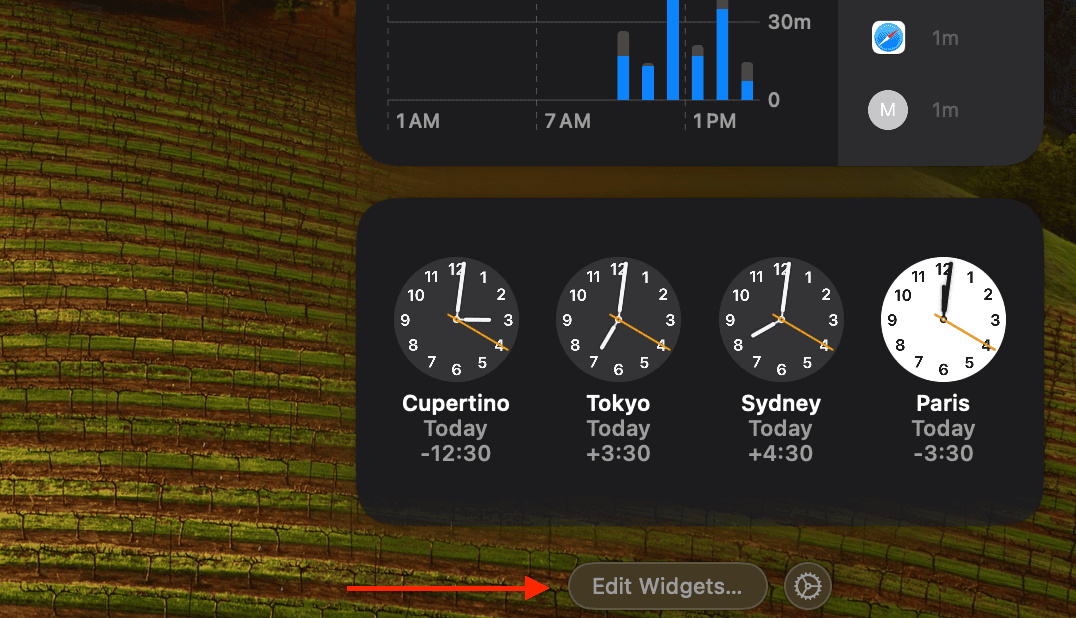
- Scroll down and click Edit Widgets.
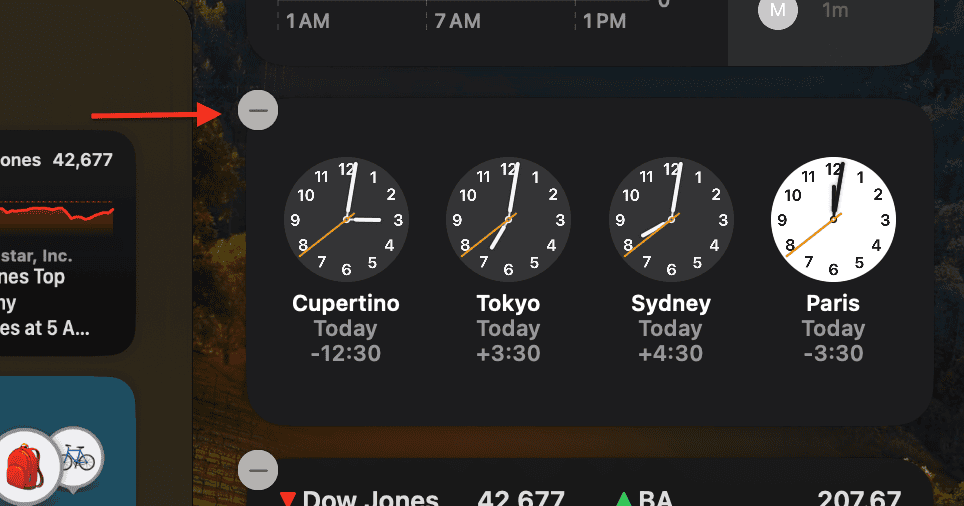
- Click the minus “−” button next to widgets you no longer need.
- Click Done to save your changes.


5. Close Power-Hungry Programs
Some applications on your Mac require more processing power and memory than others. This can result in sluggish performance, particularly when multiple apps are open simultaneously. Activity Monitor is a built-in utility that allows you to view and quit programs that are draining your Mac’s resources.
- Press Command + Space to open Spotlight, then search for Activity Monitor.
- Now, click on the CPU or Memory tab to see which processes are consuming the most resources.
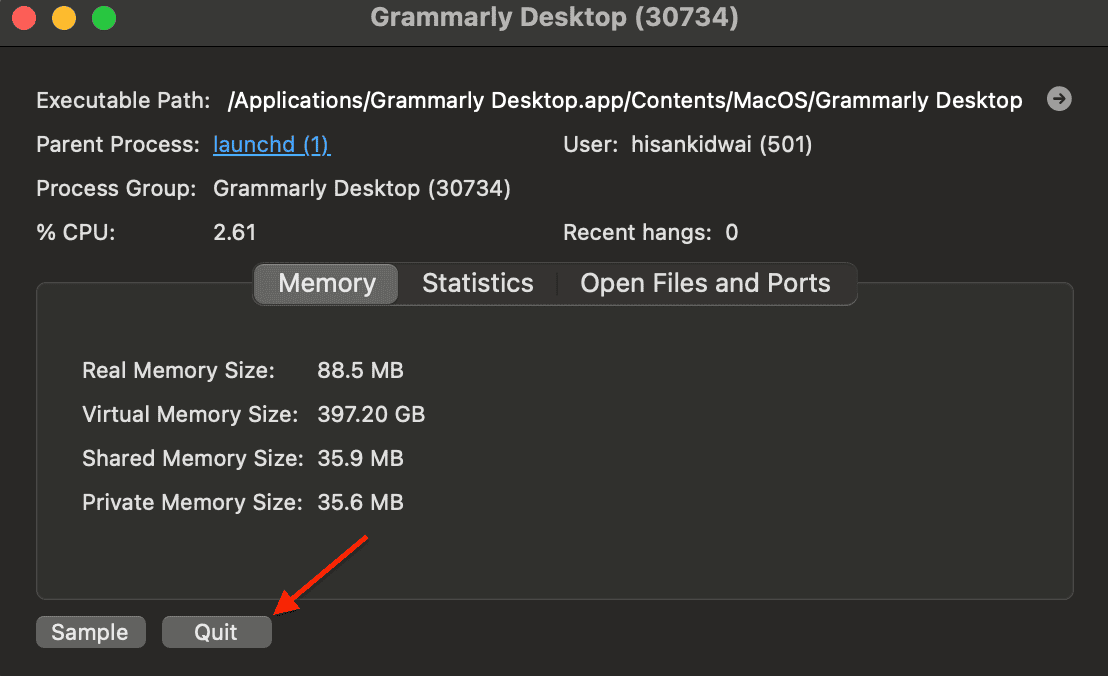
- Double-click the app you want to close, then click Quit to confirm.

That’s it. By turning off these five settings, you can significantly improve your MacBook’s performance, free up valuable memory, and finish your work faster.


Discussion