

You can use Apple AirPods with a Windows PC without any extra apps, even though Apple builds them for its own ecosystem. Windows treats AirPods like any other Bluetooth headphones, so once you understand the pairing process, the setup takes only a few minutes. The key step is putting the AirPods into pairing mode using the case, then connecting them through Windows Bluetooth settings.
This guide covers everything in detail, including pairing, reconnecting, and fixing common issues on both Windows 10 and Windows 11.
Method 1: Pair AirPods with Windows PC (First-Time Setup)
This method works for AirPods, AirPods Pro, and AirPods Max. The process is the same across Windows 10 and Windows 11, with only minor differences in settings layout.
Don’t miss the best of The Mac Observer
Set us as a preferred source and our Apple reporting ranks higher in your Google Search results and Discover feed — one tap, no account changes.
Step 1: Turn on Bluetooth on your PC
Before pairing, make sure Bluetooth is enabled.
Steps:
- Click the Start menu
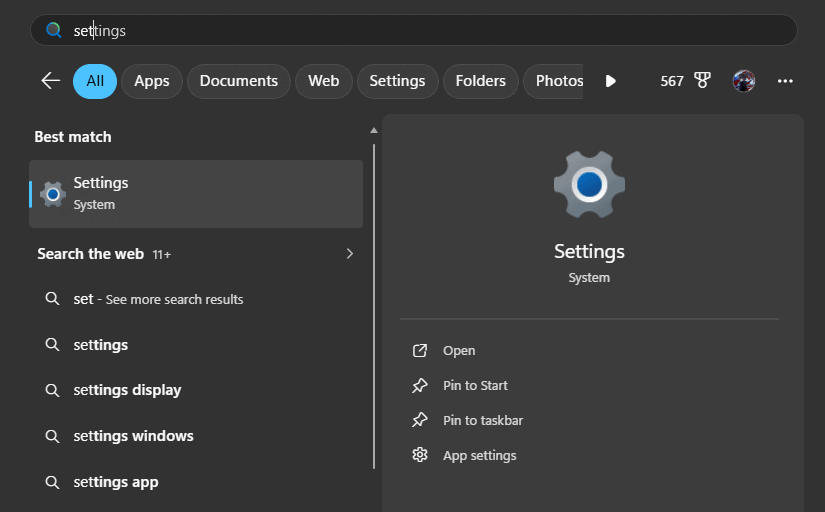
- Open Settings
- Go to Bluetooth & devices
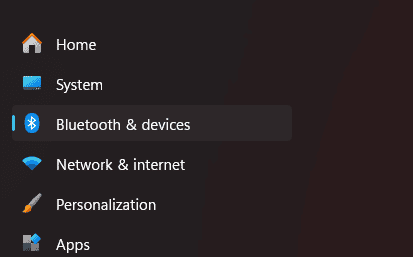
- Turn Bluetooth ON
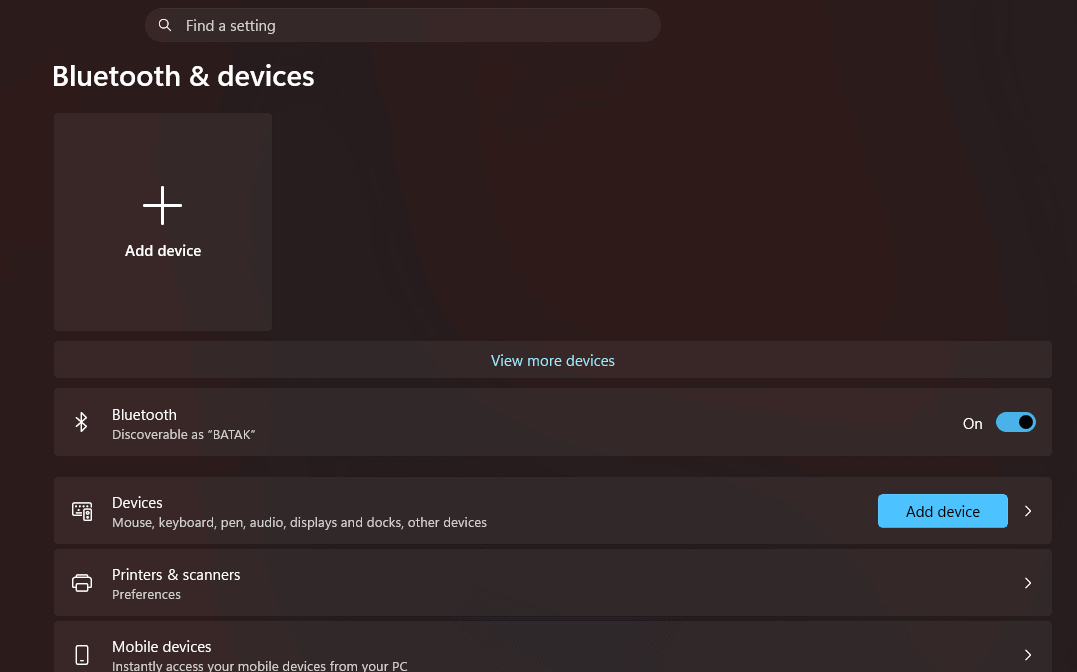


Windows needs Bluetooth active to detect nearby devices.
Step 2: Put AirPods in pairing mode
You must manually trigger pairing mode using the case.
Steps:
- Place both AirPods inside the charging case
- Open the lid (keep AirPods inside)
- Press and hold the button on the back of the case
- Wait until the LED light starts flashing white
Flashing white light means your AirPods are discoverable.
Step 3: Add AirPods to Windows
Now connect them from your PC.
Steps:
- Open Settings > Bluetooth & devices
- Click Add device
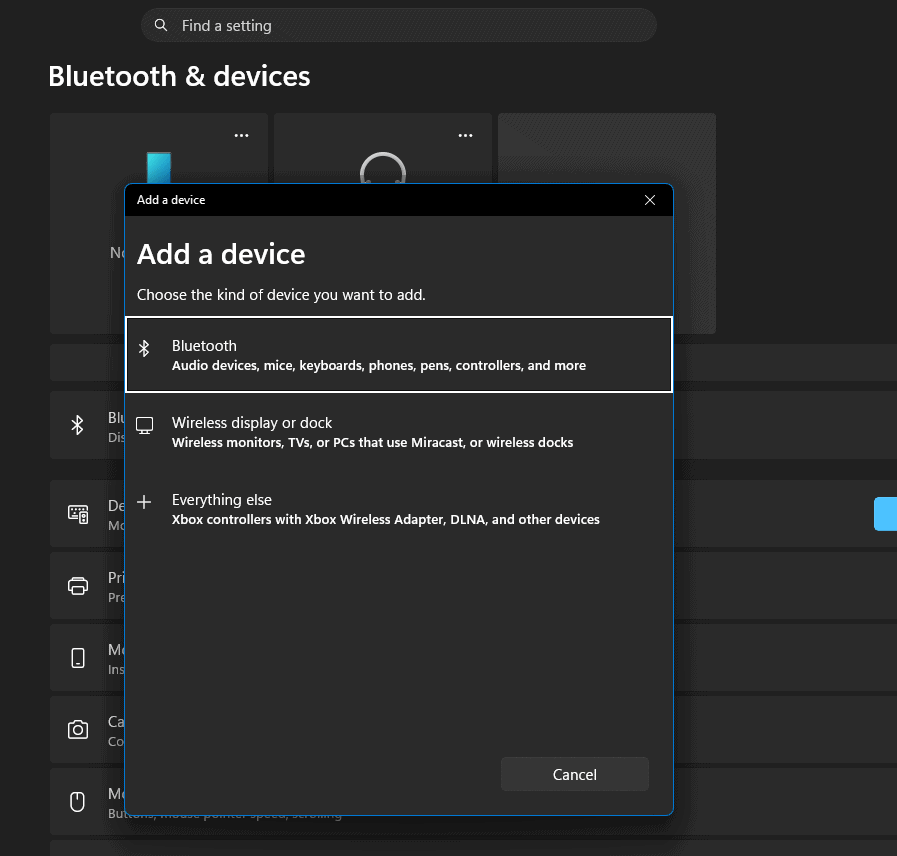
- Select Bluetooth
- Wait for your AirPods to appear in the list
- Click AirPods
- Select Done when pairing completes

Windows scans for nearby Bluetooth devices and connects once you select AirPods.
Step 4: Start using AirPods
Once connected:
Steps:
- Remove AirPods from the case
- Put them in your ears
- Play audio on your PC
Your AirPods now work like regular wireless headphones.
Method 2: Reconnect AirPods to Windows PC
After the first setup, Windows remembers your AirPods. You usually do not need to pair them again.
Step 1: Open Bluetooth settings
- Click the Bluetooth icon in the taskbar
- Or go to Settings > Bluetooth & devices
Step 2: Connect AirPods manually
- Find your AirPods under Audio devices
- Click on them
- Select Connect
You will hear a connection sound once they connect.
Step 3: Set as audio output (if needed)
Sometimes Windows does not switch audio automatically.
Steps:
- Click the speaker icon on the taskbar
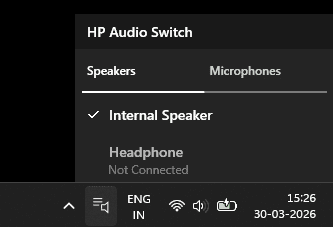
- Select your AirPods as output
- Play audio to confirm

Method 3: Fix AirPods Not Connecting
If your AirPods do not connect, try these fixes.
1: Restart the pairing process
- Put AirPods back in the case
- Close the lid
- Reopen and repeat pairing steps
2: Remove and re-add the device
- Go to Bluetooth settings
- Click your AirPods
- Select Remove device
- Pair again from scratch
3: Check battery and range
- Charge your AirPods
- Keep them close to the PC
- Avoid interference from other Bluetooth devices
Tips
- Keep the AirPods case open during pairing so Windows detects them faster
- Disconnect AirPods from your iPhone if they auto-connect there
- Use Windows + A shortcut to quickly access Bluetooth
- If audio sounds low quality, switch output to Stereo mode
- AirPods features like Spatial Audio or automatic switching do not fully work on Windows
- For better control, third-party apps can show battery and improve connection stability
FAQs
Do AirPods work with Windows PCs?
Yes. AirPods work with any Bluetooth-enabled device, including Windows PCs.
Can I use the AirPods microphone on Windows?
Yes, but audio quality may drop during calls because Windows switches to headset mode.
Why won’t my AirPods show up on Windows?
They are not in pairing mode. Make sure the LED is flashing white.
Do AirPods auto-connect to Windows?
Yes, after the first pairing, they reconnect automatically when in range.
Can I use AirPods Max with Windows?
Yes. Press and hold the noise control button until the light flashes white, then connect via Bluetooth.
Summary
- Turn on Bluetooth on your PC
- Put AirPods in the case and open the lid
- Hold the back button until the light flashes white
- Go to Windows Bluetooth settings
- Add AirPods and connect
- Select AirPods as audio output
- Reconnect later from Bluetooth settings if needed
Conclusion
Pairing AirPods with a Windows PC takes a few steps, but once you complete the first setup, the connection becomes quick and automatic. You lose some Apple-specific features, but basic audio, calls, and media playback work reliably. Follow the pairing method carefully, and your AirPods will work just like any other wireless headset on Windows.


Discussion