

Even though Apple decided to discontinue the AirPort Base Station line a few years back, the AirPort Express remains a beloved piece of tech. Whether you are using it to create an AirPlay speaker out of an old stereo or setting up an AirPort relay with an AirPort Express to extend your Wi-Fi network, this little white block is incredibly useful.
But sometimes, technology hiccups. Maybe you forgot your password, or the device is just acting stubborn and won’t connect. That is where a reset comes in handy. Resetting your AirPort Express can solve a multitude of connectivity sins and get your network running smoothly again.
We have broken down exactly how to perform the three different types of resets so you can get back to streaming and surfing in no time.
Don’t miss the best of The Mac Observer
Set us as a preferred source and our Apple reporting ranks higher in your Google Search results and Discover feed — one tap, no account changes.
Table of contents
What You’ll Need to Get Started
Before you start pushing buttons, you need to gather a few simple tools. You likely have all of these lying around your house already.
- The AirPort Express: Plugged into a power outlet (for soft and hard resets) or ready to be plugged in (for factory reset).
- A Reset Tool: A straightened paperclip, a pin, or a pen with a fine point.
- AirPort Utility: Installed on your Mac or iOS device (it comes pre-installed on macOS).
Here’s How to Reset Your AirPort Express
There are actually three ways to reset this device, and the right one depends on your specific problem.
1. The Soft Reset (If You Forgot Your Password)
Use this method if your AirPort Express is working fine, but you have simply forgotten the password and cannot log in to make changes. This resets the password and disables security for five minutes so you can jump in and update your settings.
- Make sure the AirPort Express is plugged into power.
- Insert your paperclip into the Reset button on the back of the device.
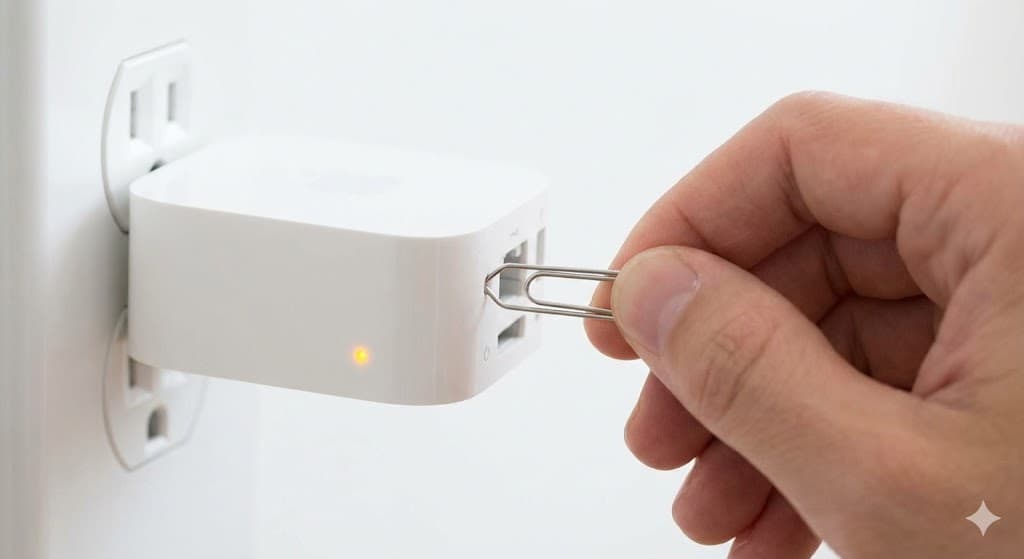
- Press and hold for one full second and then release.
- The status light will flash amber.
- Open AirPort Utility on your Mac or iPhone.
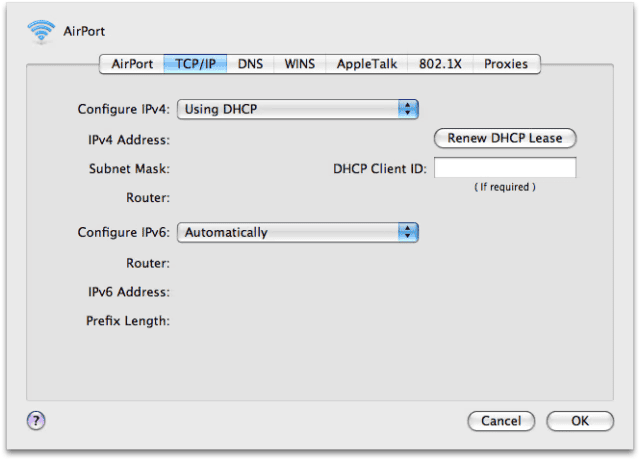
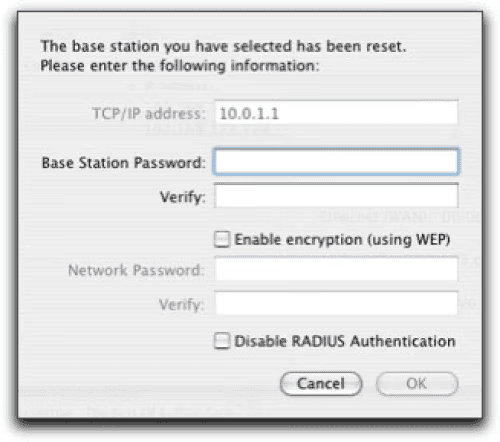
- Select your base station and click Edit.
- Change your password or update your settings. If you just forgot your login, you might want to show passwords for your AirPort Base Station before wiping it entirely next time.


2. The Hard Reset (If the Device is Unresponsive)
Use this if the device is not responding, or if you are moving it to a new network and need to clear the old network settings while keeping your saved profiles.
- Ensure the AirPort Express is powered on.
- Press and hold the Reset button with your paperclip.

- Hold it for about five seconds until the status light flashes amber rapidly.
- Release the button.
- Wait about a minute for the device to restart. It will reappear in AirPort Utility, where you can reconfigure it.

3. The Factory Default Reset (For a Clean Slate)
This is the nuclear option. Use this if you are selling the device, giving it away, or if the Hard Reset did not solve your technical issues. This wipes everything and returns the device to the state it was in when you first took it out of the box.
- Unplug the AirPort Express from the power outlet.
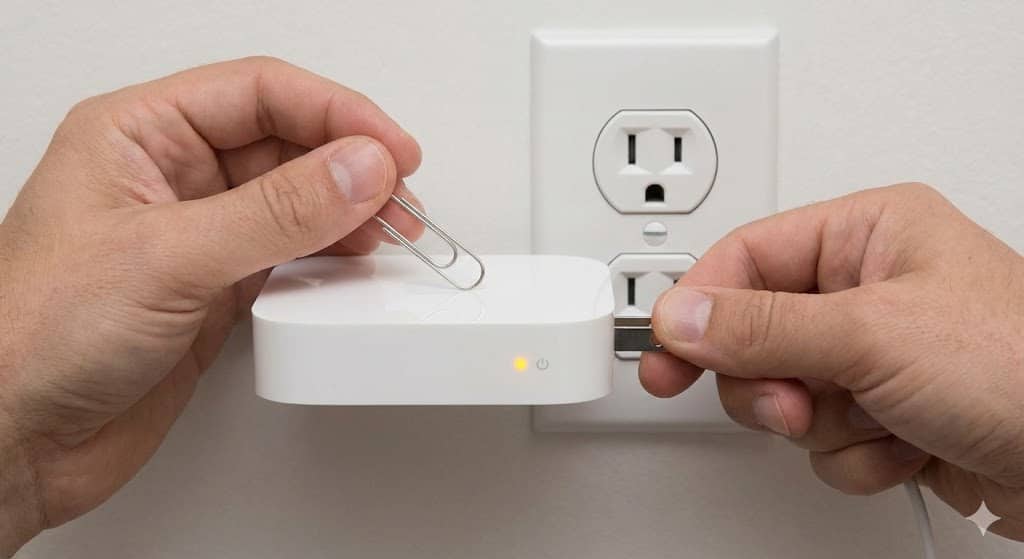
- Insert your paperclip into the Reset button and hold it down.
- While keeping the button pressed, plug the AirPort Express back into the power outlet.
- Keep holding the button for another 6 to 10 seconds.
- Watch for the status light to flash amber rapidly (or green on some older models).
- Release the button and let the device restart. This may take a minute or two.

Additional Tips
Sometimes a reset is not enough, or you might run into other quirks during the process. Here are a few extra pointers to help you out.
- Firmware Issues: If you reset your device because it was acting glitchy after an update, a simple reset might not be the permanent fix. You might need to roll back your AirPort Base Station firmware to a more stable version.
- Wait for the Light: After any reset, the AirPort Express takes time to reboot. Do not unplug it immediately. Wait until the status light stabilizes (usually solid amber if it is not set up, or green if it reconnected to a known profile).
- Check Cables: If you are setting up the device as a wired access point, ensure your Ethernet cable is plugged into the WAN port (the circle of dots icon) and not the LAN port.
Final Thoughts
The AirPort Express is a resilient piece of hardware. While it might show its age occasionally, a quick reset is usually all it takes to revive it. Whether you needed a quick password fix or a full factory wipe, hopefully, your little white box is back to blinking green and streaming music perfectly.
FAQs
The 1st Generation looks like a large MacBook power brick that plugs directly into the wall. The 2nd Generation looks like a white Apple TV puck with a power cord.
No, a hard reset clears current network settings but retains saved profiles. Only a Factory Default reset wipes everything completely.
A blinking amber light usually means the device requires attention. It often indicates that the device has been reset and is waiting to be configured in the AirPort Utility app.


Discussion