

If you’re unable to sign in to your Apple TV because of a forgotten password, you’ll need to reset your Apple ID password rather than changing something directly on the device itself. I’ll walk you through the different methods depending on what type of password you need to reset and which Apple TV model you own.
Table of contents
Understanding Apple TV Passwords
Before resetting anything, it’s important to clarify what password you need to reset. Apple TV uses your Apple ID password for purchasing content, downloading apps, and accessing services like Apple TV+. The device itself doesn’t have its own separate password system.
If you’re being asked for a four-digit passcode, that’s likely your Restrictions (Parental Controls) passcode, which is different from your Apple ID password.
Don’t miss the best of The Mac Observer
Set us as a preferred source and our Apple reporting ranks higher in your Google Search results and Discover feed — one tap, no account changes.
How to Reset Your Apple ID Password
You cannot change your Apple ID password directly on Apple TV. Instead, you need to reset it on another Apple device or through the web, then use the new password to sign in on your Apple TV.
Reset on iPhone or iPad
- Open Settings on your iPhone or iPad.
- Tap your name at the top of the screen.
- Select Sign-In & Security.
- Tap Change Password.
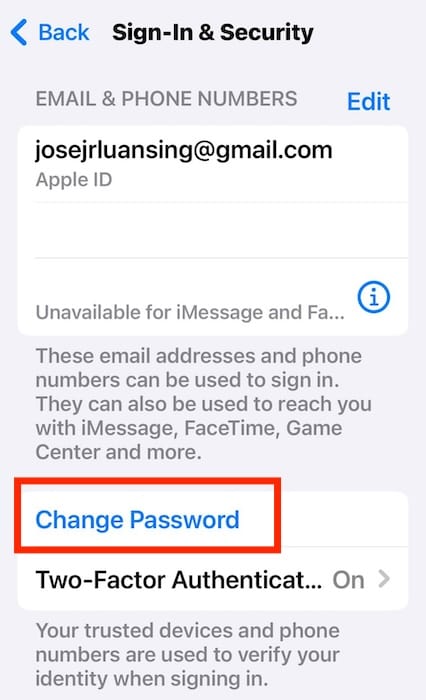
- Enter your device passcode when prompted.
- Enter your new password and confirm it.
- Tap Change to save the new password.

Reset on Mac
- Click the Apple menu and select System Settings.
- Click your name at the top.
- Select Sign-In & Security.
- Click Change Password.
- Enter the password you use to unlock your Mac.
- Enter your new password and confirm it.
- Click Change.
Reset Using iforgot.apple.com
If you don’t have access to a trusted Apple device, you can reset your password through the web:
- Visit iforgot.apple.com in any web browser.
- Enter the email address or phone number associated with your Apple ID.

- Click Continue.
- Enter the characters shown in the image verification.
- Choose your password reset method (trusted phone number or email).
- Follow the on-screen instructions to verify your identity.
- Create your new password and confirm it.

After resetting your password, return to your Apple TV and sign in with your new credentials.
Signing In on Older Apple TV Models (2nd or 3rd Generation)
If you have an Apple TV 2nd or 3rd generation with two-factor authentication enabled, the sign-in process is different. These older models don’t have a separate field for entering the verification code. Based on solutions from Apple Support Communities, here’s the working method:
- On your Apple TV, enter your Apple ID email address.
- In the password field, type your password but do not submit yet.
- On your iPhone, iPad, or Mac, go to Settings > [Your Name] > Password & Security.
- Tap Get Verification Code to manually request a new code.
- Immediately return to your Apple TV.
- Append the six-digit verification code directly to your password with no spaces.
- Example: If your password is “MyPass123” and your code is “456789”, enter “MyPass123456789”
- Submit the combined password and code.
This method helps you avoid the timeout issue that occurs when entering codes slowly with the Apple TV remote. If you’re still having trouble, consider using the Apple TV Remote app on your iPhone for faster typing.
How to Reset Restrictions Passcode
If you’ve forgotten your four-digit Restrictions (Parental Controls) passcode, there’s no way to recover it. You’ll need to factory reset your Apple TV.
For Apple TV 4K and Apple TV HD:
- Go to Settings on your Apple TV.
- Select System (or General on older models).
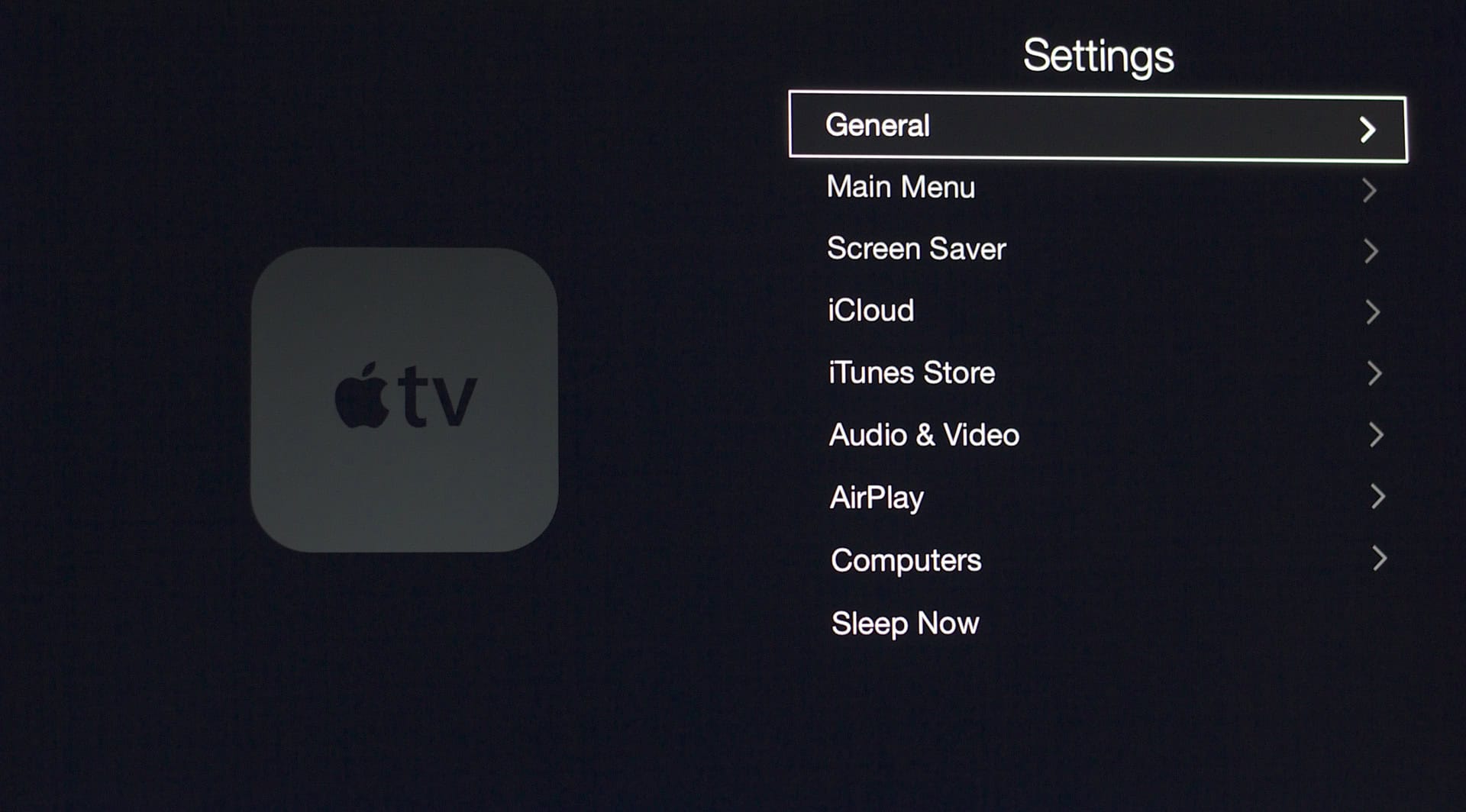
- Choose Reset.
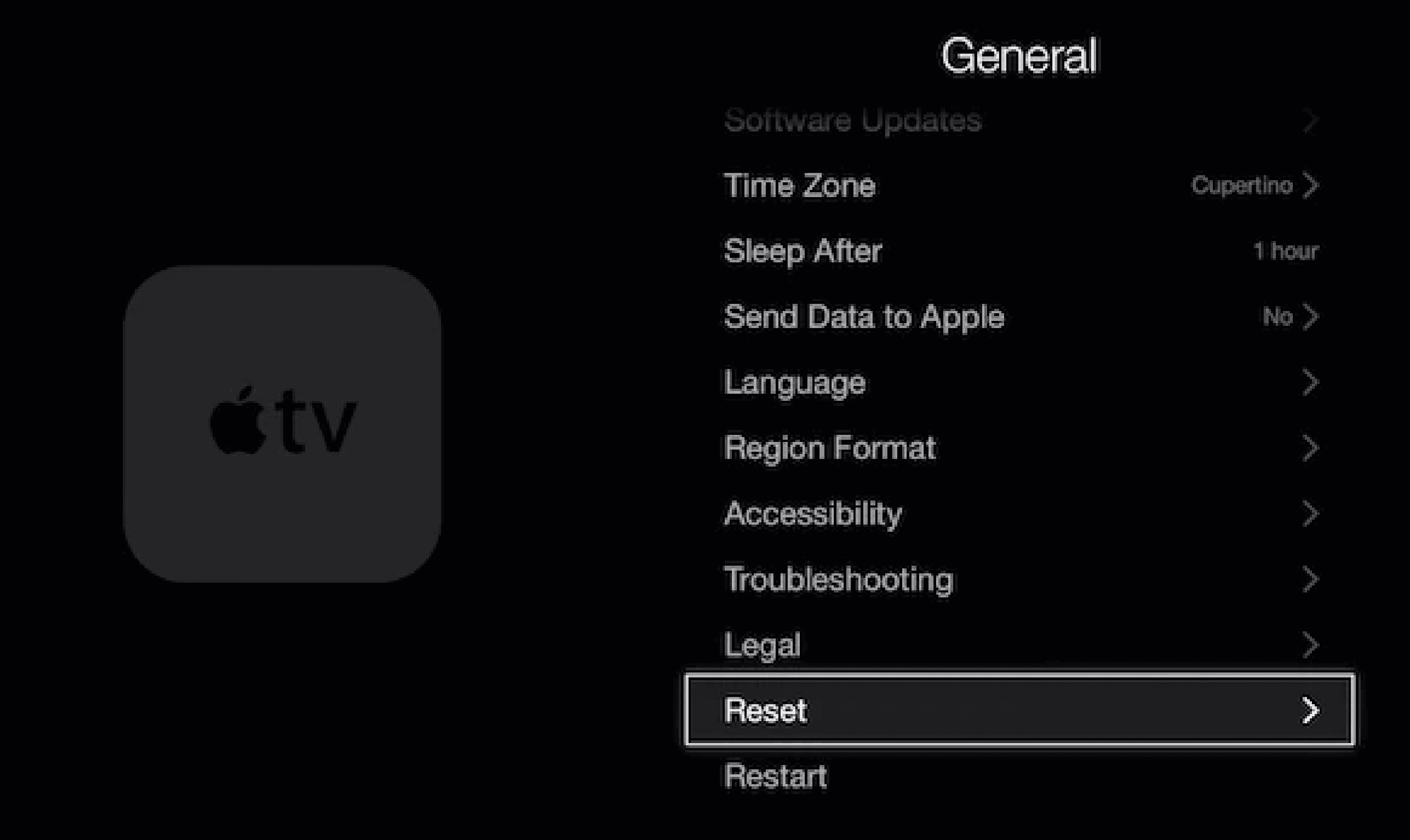
- Select Reset All Settings to erase settings while keeping software, or Reset to return to factory settings completely.
- Confirm your choice.


If you can’t access Settings:
For Apple TV HD:
- Disconnect the HDMI cable but keep the power connected.
- Connect your Apple TV to your Mac using a USB-C cable.
- Open Finder on your Mac.
- Select Apple TV in the sidebar.
- Click Restore.
For Apple TV 4K without a USB port, you’ll need to contact Apple Support for assistance.
Tips for Managing Your Apple TV Passwords
Based on our tests, here are some helpful practices:
- Use a password manager to store your Apple ID password securely and avoid forgetting it.
- Keep two-factor authentication enabled for security, but be aware of the extra steps needed for older Apple TV models.
- Download the Apple TV Remote app on your iPhone or iPad for easier text entry when signing in.
- Write down your Restrictions passcode and store it securely, as there’s no way to recover it without resetting the device.
- Update to a newer Apple TV model if possible, as newer models (4K, HD) have better support for two-factor authentication.
Conclusion
Resetting your Apple TV password is straightforward once you understand that you’re actually resetting your Apple ID password, not something specific to the device. Whether you’re dealing with a forgotten Apple ID password or a Restrictions passcode, these solutions from Apple Support Communities should help you regain access to your Apple TV and get back to streaming your favorite content.
FAQs
No, you cannot change your Apple ID password on Apple TV itself. You must reset it on an iPhone, iPad, Mac, or through iforgot.apple.com, then use the new password to sign in on Apple TV.
If you have two-factor authentication enabled and an older Apple TV (2nd or 3rd generation), you need to append the six-digit verification code directly to your password in the same field, with no spaces.
A factory reset erases all settings, accounts, configurations, and downloaded apps from your Apple TV. You’ll need to set it up again from scratch, including signing in with your Apple ID.
No, there’s no way to recover a forgotten Restrictions passcode. The only solution is to factory reset your Apple TV, which will erase all settings and data.
If you need to use Apple’s account recovery process because you don’t have access to trusted devices, it can take several days or longer for security reasons.


Discussion