

You can sign out of Apple Mail by disabling Mail access for an account or removing the account from your device. Apple Mail does not include a direct “Sign Out” button, so you need to manage accounts from Settings on iPhone and iPad, or System Settings on Mac. Both methods stop new emails from syncing. Disabling Mail keeps the account on the device. Removing the account deletes it from Apple Mail and other apps that use that account.
Table of Contents
Solutions
Sign Out on iPhone/iPad (Disable Mail or Remove Account)
To sign out of Apple Mail on iPhone or iPad, manage accounts from the device settings.
Time needed: 10 minutes
- Open Settings.
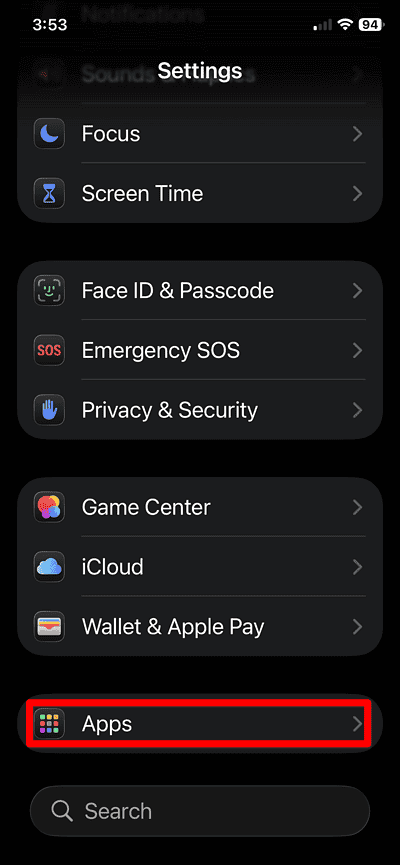
- Go to Apps > Mail.
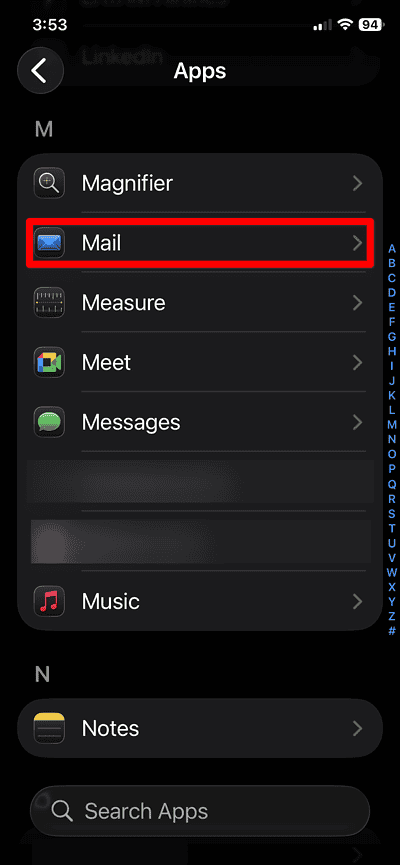
- Tap Mail Accounts.

- Select the email account.
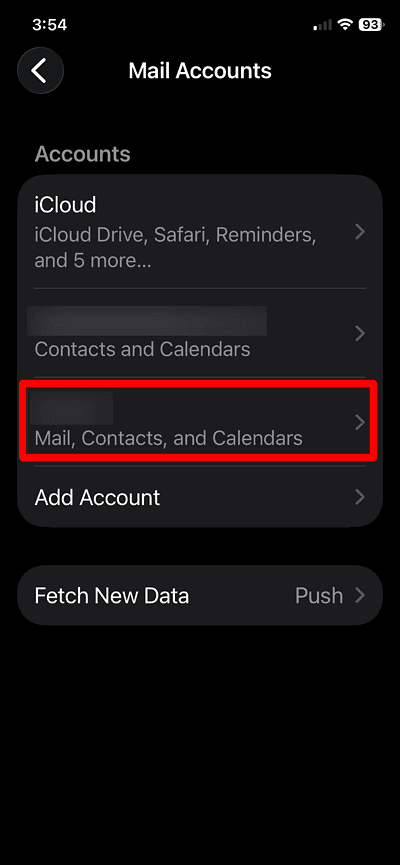
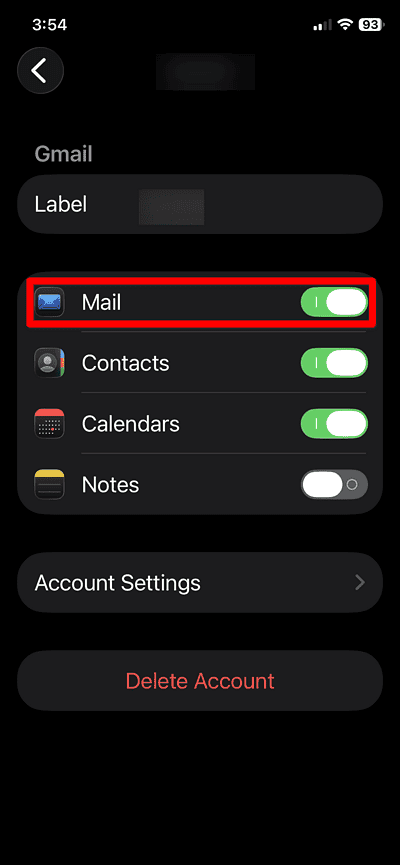
- Turn off the switch next to Mail. This disables Mail without removing the account.


 NOTE
NOTE
To remove the account entirely:
Don’t miss the best of The Mac Observer
Set us as a preferred source and our Apple reporting ranks higher in your Google Search results and Discover feed — one tap, no account changes.
- Open Settings.
- Tap Mail.
- Tap Accounts.
- Choose the email account.
- Tap Delete Account, then confirm.
This removes the account from Apple Mail and will also sign out from other apps that use it. If you eventually want to use it, you’ll have to add the account to Apple Mail again.
Sign Out on Mac (Disable Mail or Remove Account)
You can stop receiving emails in Apple Mail by turning off Mail access for an account or removing it.
To disable Mail only:
- Open System Settings from the Apple menu.
- Select Internet Accounts.
- Choose the account on the left.
- Turn off Mail to disable syncing.
To remove the account completely:
- Open System Settings.
- Select Internet Accounts.
- Choose the account.
- Click Delete Account, then confirm. This action removes the account from Mail and other apps.
NOTE
Tips To Sign Out of Apple Mail Accounts
- Disable Mail if you plan to use the same account later on the device.
- Remove the account from Apple Mail to sign out for good, if you plan to stop using that email completely.
- If you use iCloud Keychain, the device may suggest reactivating disabled accounts. Decline if you do not want Mail access.
- After removing an account, restart the device to refresh background processes.
FAQ
Yes. Disable Mail in Settings > Mail > Accounts or System Settings > Internet Accounts.
Removing the account removes email messages from the device, but your provider still stores them on the server.
Mail ties account management to system accounts, so the device manages sign-in and sign-out actions.
Summary
- Apple’s Mail lacks a direct sign out button.
- Disable Mail to stop syncing while keeping the account stored.
- Remove the account to disconnect email and other linked apps.
- Use Settings > Mail > Accounts on iPhone or iPad.
- Use System Settings > Internet Accounts on Mac.
You can sign out of Apple Mail by disabling Mail or removing the account. Disabling Mail keeps the account on the device. Removing the account disconnects email and other linked apps. Both actions give you control over your privacy and your device.


Discussion