

Siri is an essential, convenience-boosting feature, making hands-free interaction with your iPhone seamless. When you say the wake phrase and receive no response, it brings your workflow to an immediate halt. Typically, issues with this virtual assistant stem from simple settings conflicts, network instability, or a need for a quick system refresh. Fortunately, resolving a non-responsive Siri usually requires just a few straightforward troubleshooting steps.
Table of contents
Essential Troubleshooting Steps for Siri Not Working
1. Enable Siri and Confirm Configuration
It may seem obvious, but Siri must be fully enabled across the device for it to listen for the hot word or respond to the side button. If you recently set up your device or are troubleshooting after an update, it’s wise to ensure all activation options are toggled on. If you need a complete walkthrough, you can follow the instructions on how to set up Siri on your iPhone.
- Go to the Settings app.
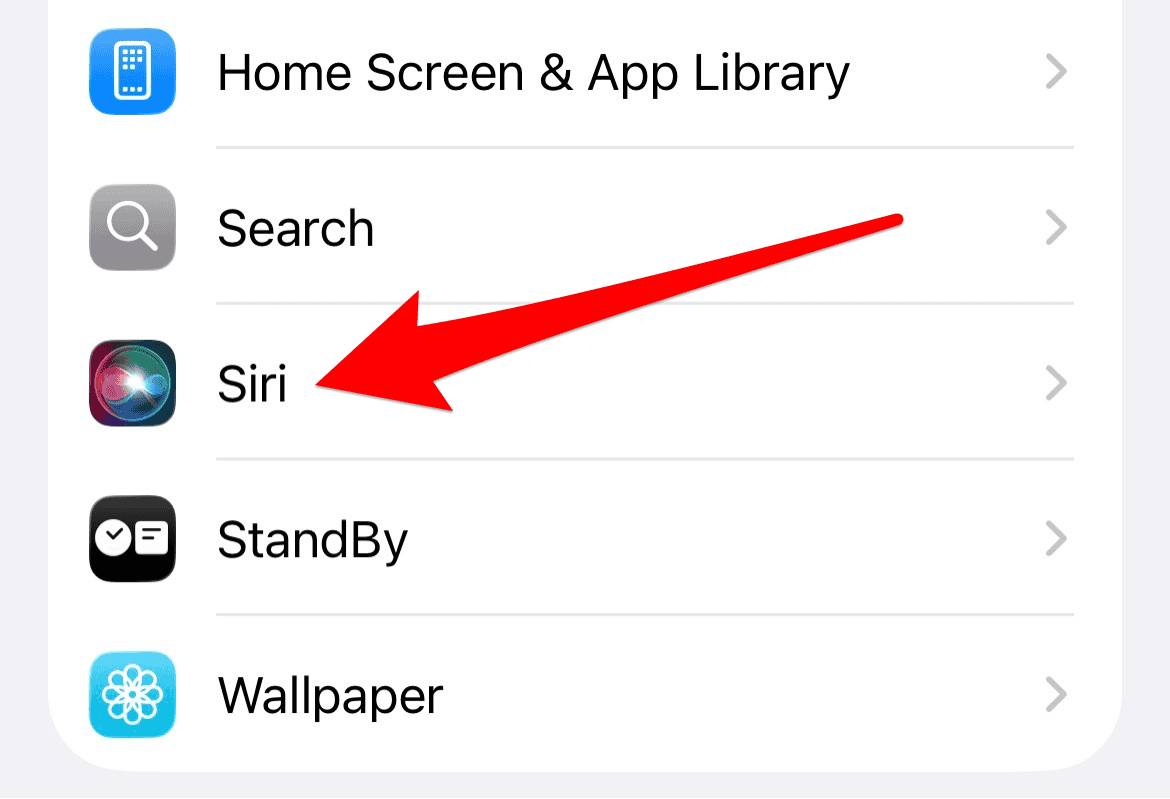
- Tap Siri.
- Tap Talk to Siri.
- Ensure the following options are turned on: “Hey Siri” (or “Siri” or “Hey Siri”).
- Toggle on Press Side Button for Siri.
- Tap the back arrow in the top-left corner.
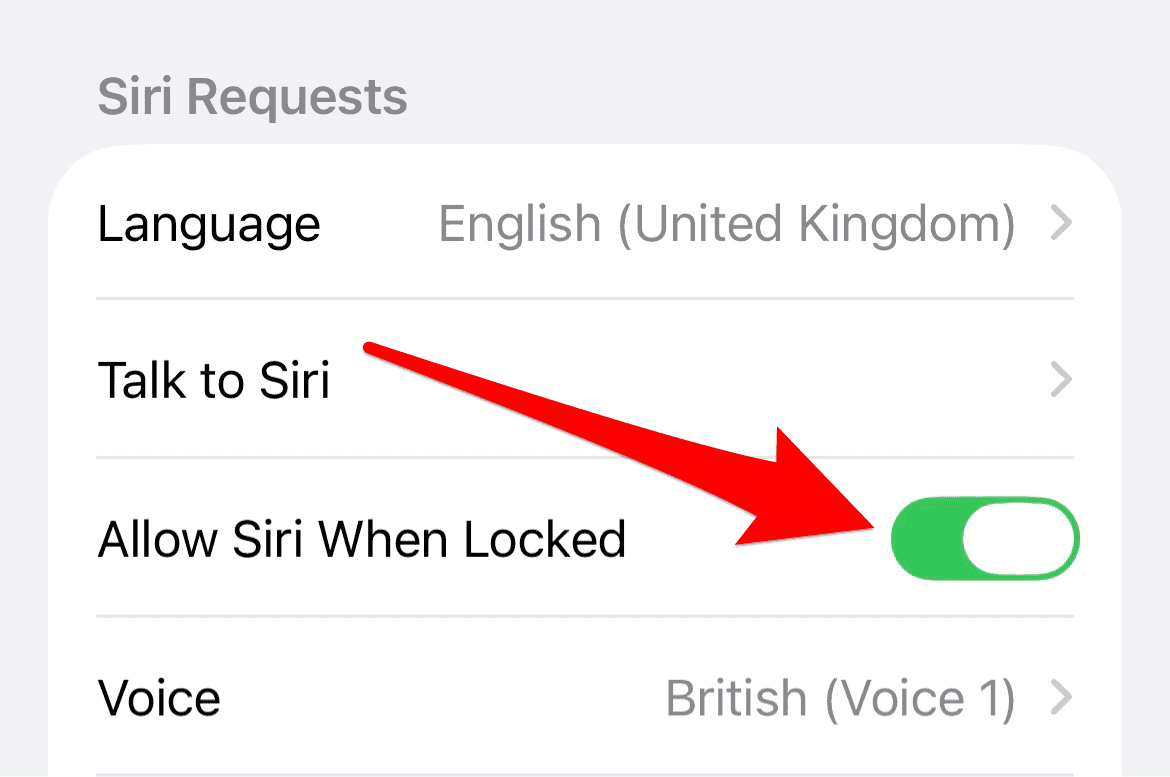
- Toggle on Allow Siri When Locked.


2. Address Internet Connectivity Issues
Siri relies heavily on a stable internet connection to process voice commands and retrieve data from Apple’s servers. A poor Wi-Fi signal, unreliable cellular data, or even a restrictive VPN can prevent Siri from functioning correctly, causing it to fail or appear unresponsive.
Don’t miss the best of The Mac Observer
Set us as a preferred source and our Apple reporting ranks higher in your Google Search results and Discover feed — one tap, no account changes.
- Check that you are connected to a strong Wi-Fi network or have a robust cellular data connection.
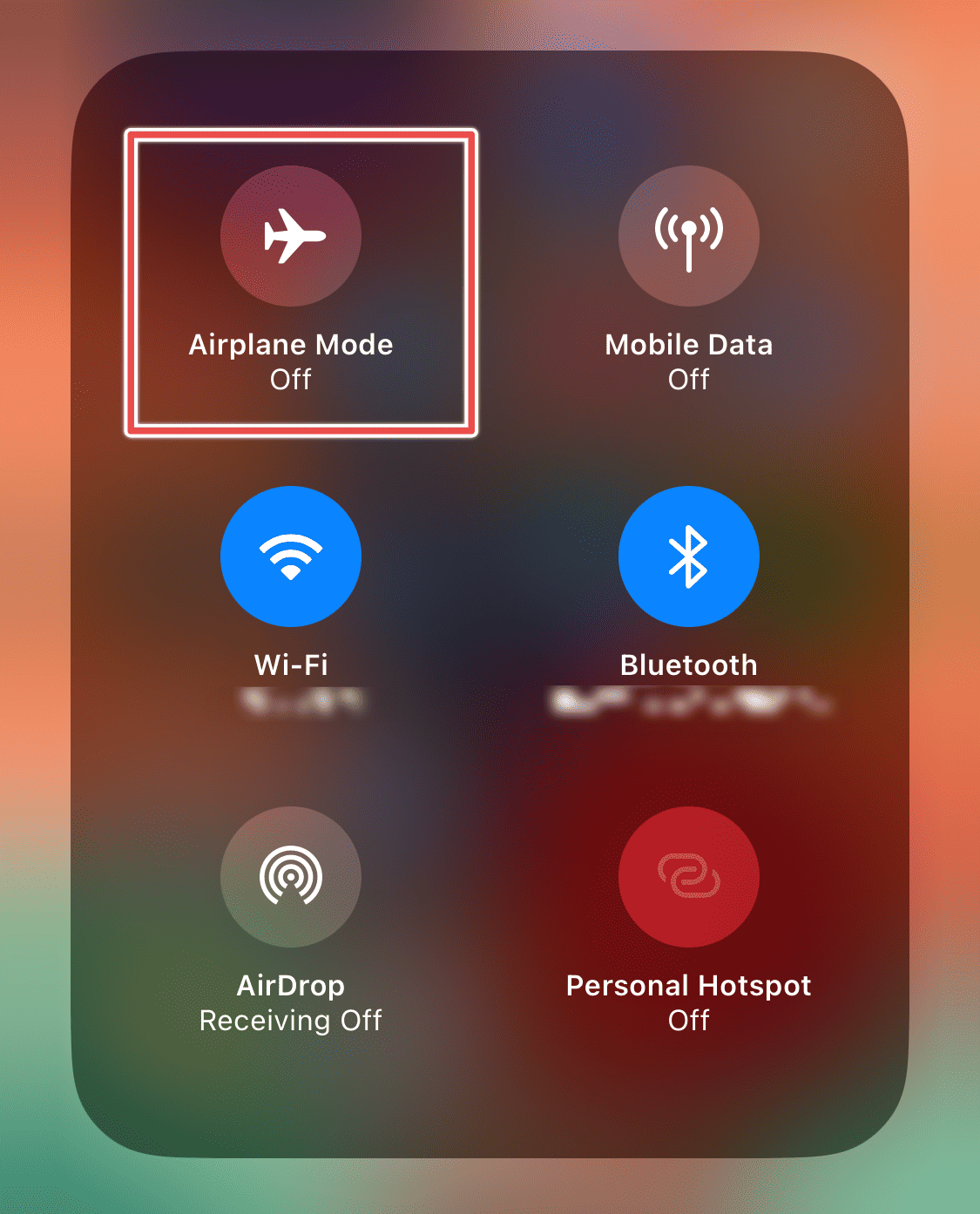
- Toggle Airplane Mode on for about 15 seconds, then turn it off to force a refresh of your network connections.
- If you use a Virtual Private Network (VPN), temporarily disable the VPN to ensure it is not blocking Siri’s connection.

3. Restart the Siri Feature
A simple software glitch is often the culprit behind Siri malfunctions. By momentarily disabling and then re-enabling the feature, you can clear any temporary bugs and prompt the device to update its acoustic model. This step is crucial for re-establishing reliable voice recognition.
- Navigate to Settings > Siri > Talk to Siri.
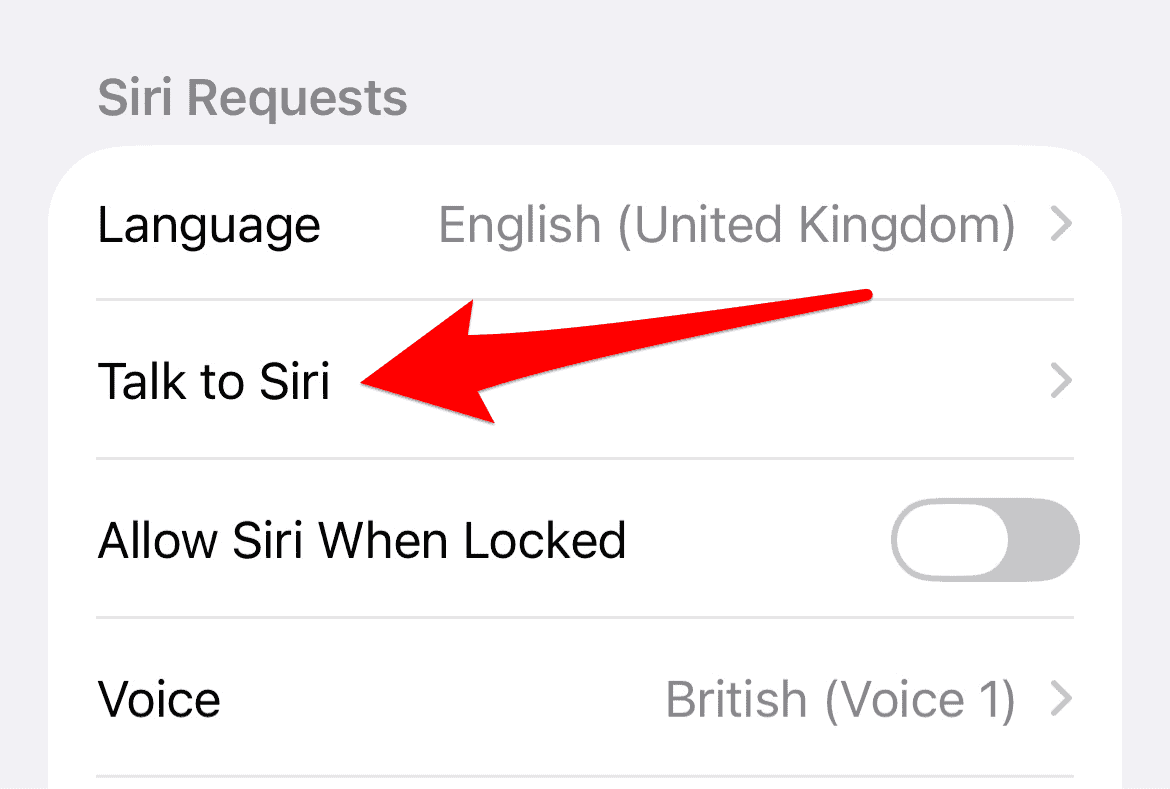
- Tap Off and wait 5 to 10 seconds.
- Enable “Hey Siri” (or “Siri” or “Hey Siri”).

4. Verify Microphone Functionality and Audio Output
If Siri hears you but provides no audio response, or if it simply cannot detect your voice command, the issue may be related to your microphone or speaker settings. Physical debris blocking the mic or low volume can easily be mistaken for a non-working assistant.
Try recording a Voice Memo to confirm your iPhone’s microphone is picking up sound clearly. If Siri is silent, you may need to adjust Siri’s volume on your iPhone or iPad directly using the volume buttons while Siri is active.
- Use the Voice Memos app to test if your microphone is working and clear.
- If the mic is clear, but Siri is silent, press the Volume Up button while Siri is attempting to speak to raise its audio level.
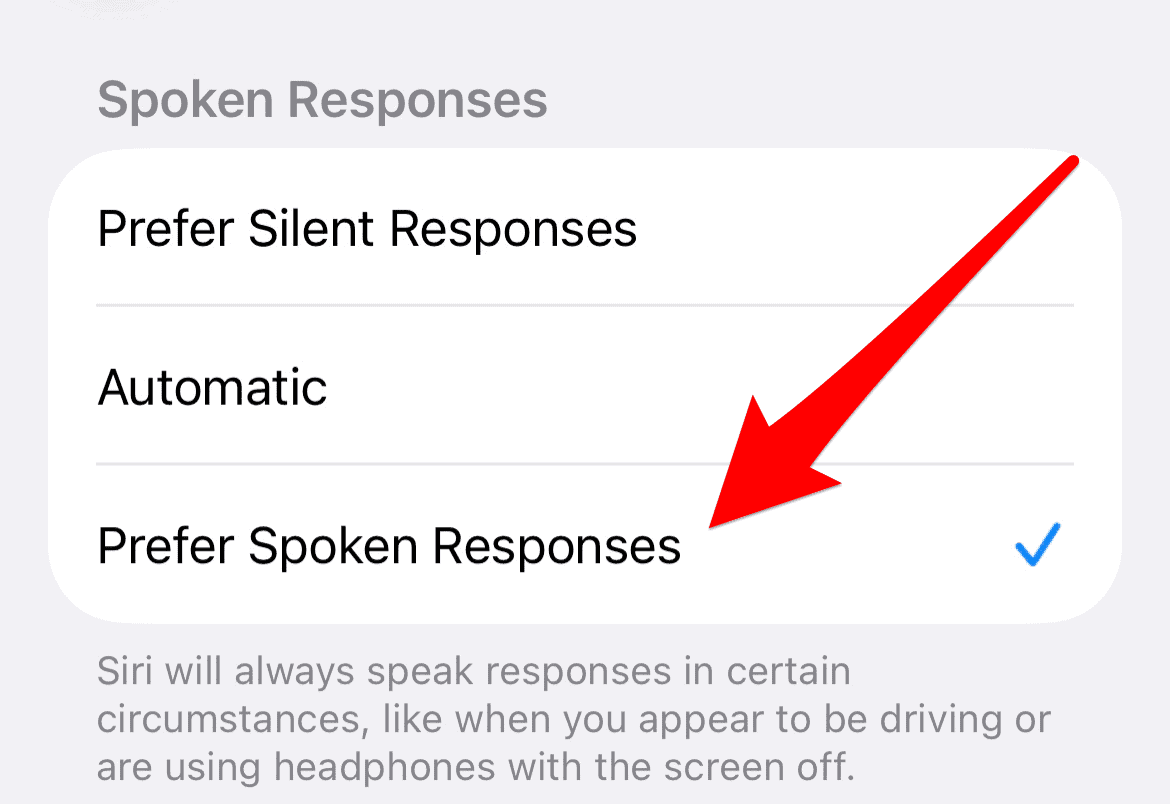
- Go to Settings > Siri > Siri Responses.
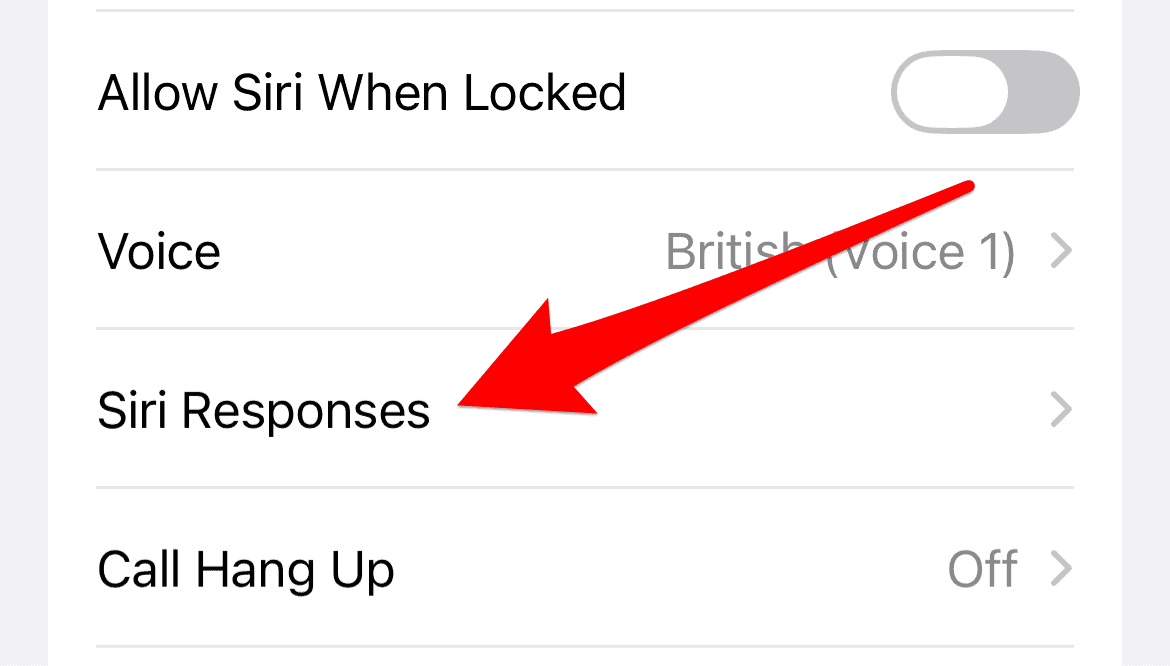
- Ensure Prefer Spoken Responses is selected.


5. Perform a Full Device Restart
In some cases, the problem isn’t isolated to Siri but is a symptom of a deeper, system-wide software conflict. A power cycle is a universally effective method to clear caches and stop non-essential background processes that might be interfering with Siri’s ability to activate. Sometimes you may find that Siri works, but you just cannot see the visual confirmation, so it may be beneficial to troubleshoot if Siri is not lighting up when you ask Hey Siri.
- Press and hold the Side button and either Volume button until the power slider appears (for iPhones with Face ID).
- Drag the slider to power off the device.
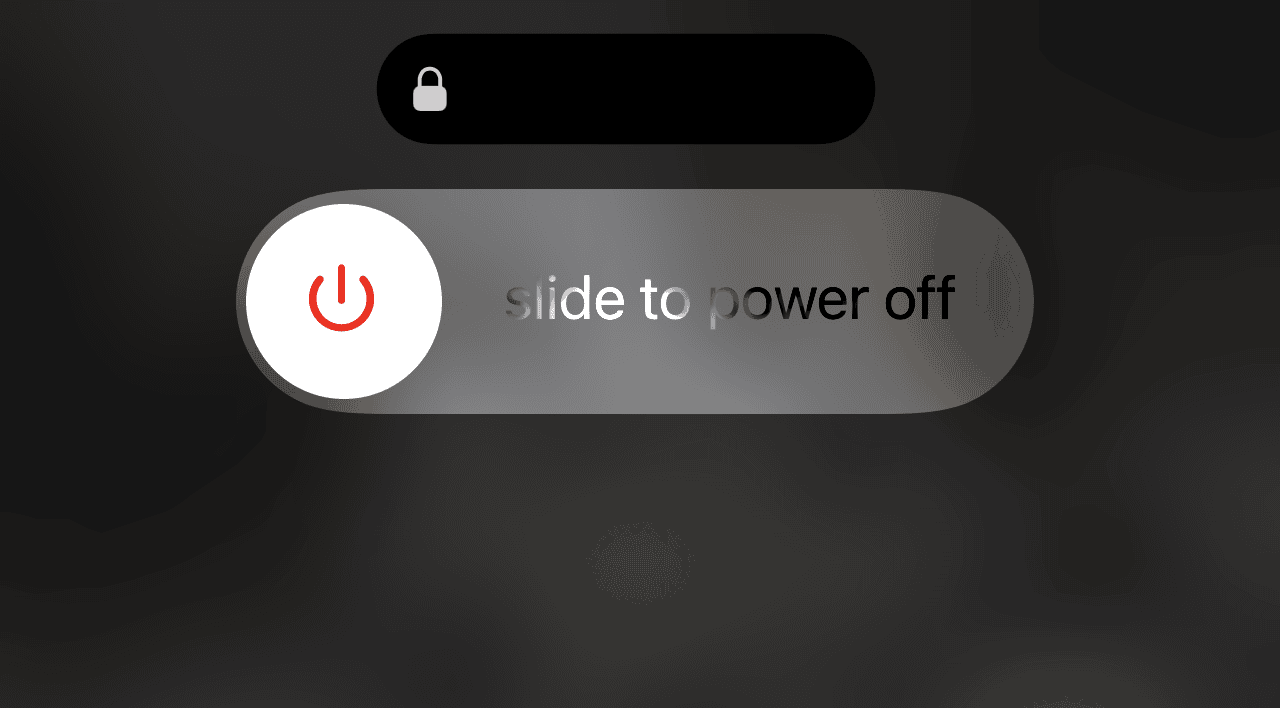
- After about 30 seconds, press and hold the Side button again until the Apple logo appears to power the iPhone back on.

FAQ
This typically means Siri heard you and recognized the command, but is failing to connect to Apple’s servers to process the request, or a software glitch is preventing the response from being spoken. Check your internet connection and Siri’s audio response settings.
Yes, if a third-party case is not properly aligned, it can obstruct the microphone ports located on the bottom and front of your iPhone, muffling your voice and preventing Siri from accurately hearing you.
By default, Siri may only speak when the phone is not in Silent Mode. You can override this setting by navigating to Settings > Siri & Search > Siri Responses and selecting Always Listen for “Hey Siri” or Prefer Spoken Responses.
Restoring Voice Command Efficiency
When Siri is not working, remember the key fixes: enable the feature, check for a stable internet connection, restart the Siri feature to retrain your voice, verify the microphone and audio settings, and reboot your iPhone. With these five simple solutions, you can quickly get your digital assistant back in action, ready to help you with everything from setting reminders to answering funny questions to ask Siri.


Discussion